MailChimp is a marketing automation and email marketing platform. It allows you to create intricate marketing designs and send campaigns to your customers. OrderPort partners with MailChimp to provide an integrated marketing solution. This tool allows your MailChimp account to sync with OrderPort, ensuring all mailing lists get updated. This tool means you will not have to manually upload a new list in MailChimp when you send an email Marketing Campaign. The integration does require that you have a MailChimp account.
TABLE OF CONTENTS
- Getting Started
- Tags and Lists
- Campaign Reports
- Email Opt-Outs and Unsubscribes
- FAQ's
- What is the OrderPort MailChimp integration?
- Do I need to create a MailChimp Account First?
- Do I still have to pay my monthly fees with MailChimp?
- Do I need to contact OrderPort to enable the integration?
- Is there a monthly fee for the MailChimp Integration?
- Do I need to install a third-party program to use the integration?
- How often will information from OrderPort sync with MailChimp?
- If a customer updates their contact information online, will it also be updated in MailChimp?
- Will the contact information updated in MailChimp be synced in OrderPort?
- How do I see the mailing lists synced from OrderPort in MailChimp?
- How do I send a campaign to an OrderPort list in MailChimp?
- Can a customer still unsubscribe from a mailing list if an email is sent through MailChimp?
- Can I view reports on campaigns sent through MailChimp?
- Can I send wine club release emails from MailChimp?
- Why are only 2000 of my Mailchimp contacts getting uploaded into OrderPort Marketing?
- How do I add the MailChimp Newsletter Subscription pop-up?
Getting Started
You will need to contact helpdesk@orderport.net in order to turn on the integration. If you do not already have the Marketing module enabled, it may be an additional charge to your account, depending on your plan. Once the Mailchimp integration is enabled, follow the setup instructions below.
Getting your API Key from Mailchimp
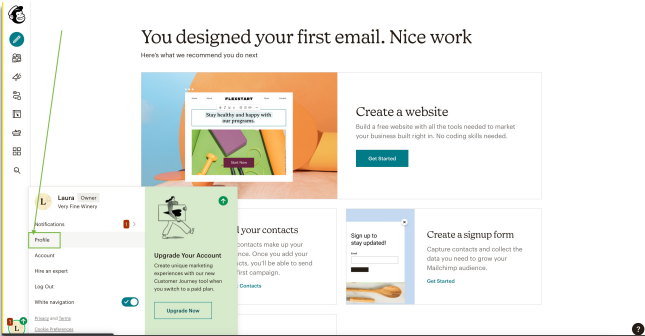
OrderPort will connect with MailChimp via an API. The First step is to obtain your API key in MailChimp. Log in to your MailChimp account. Once you are logged in, navigate to your account profile. Click on your avatar and select Profile.
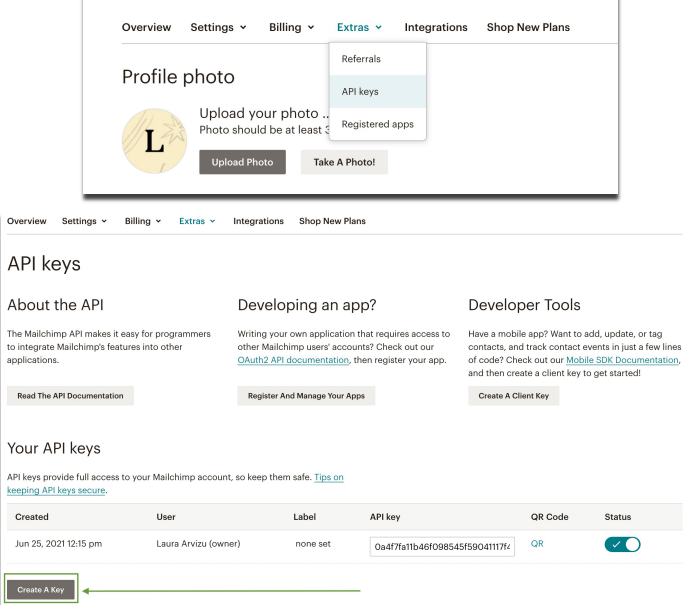
At the Top of the screen, select the Extras drop-down menu and select API Keys. If you have not created an API key for OrderPort, click Create a Key. The page will refresh, and a new key will appear. Copy the key and return it to the OrderPort Marketing Module.
Entering Credentials in OrderPort
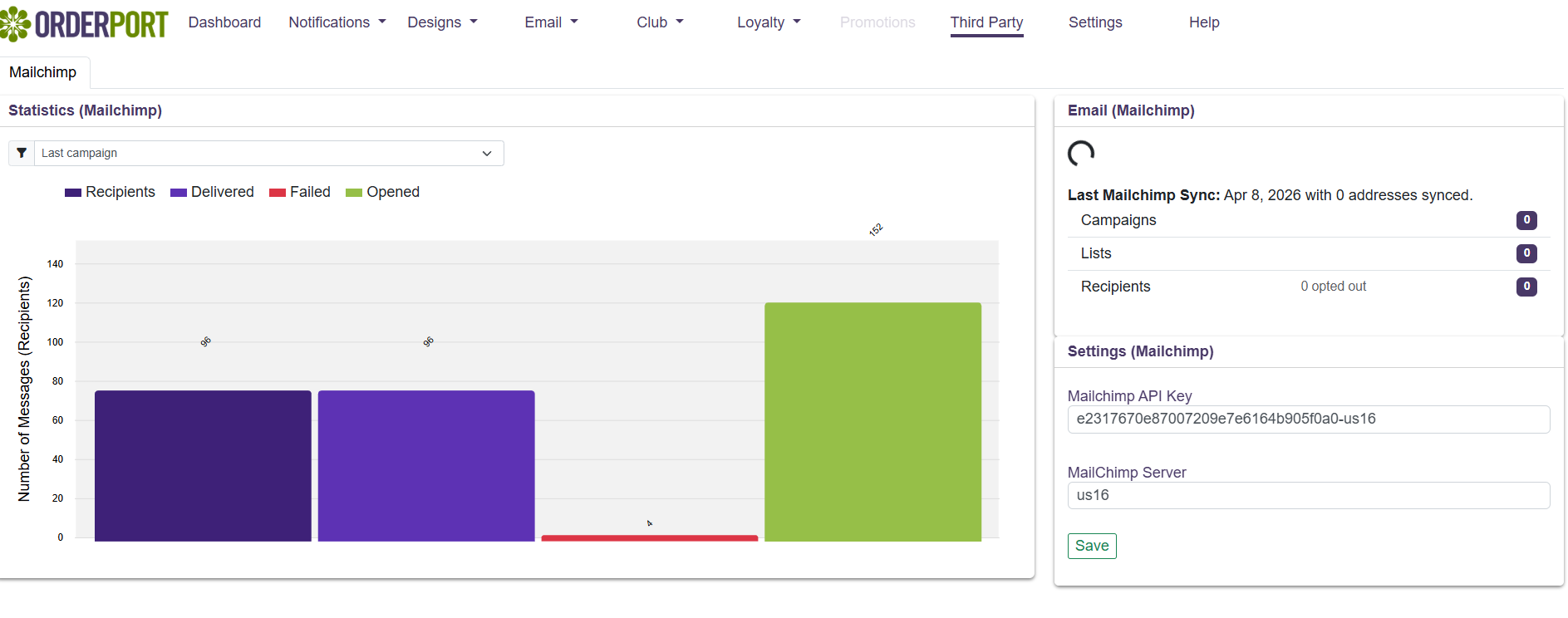
Navigate to OrderPort Administration -> Operations -> Marketing -> Third Party. Paste the API key into the MailChimp API key box. Next, enter the “MailChimp Server” and click Save.
The Server can be located on the API Key. The server is located after the dash of the API key.
EX: 3243aes5df3thisisafakeapikey0934a3ab7-us13
The integration takes 24 hours to become fully functional. Come back the next day and select the Third-Party tab to view a report on last night's sync.
Tags and Lists
When logged into Mailchimp, your mailing lists will be referred to as Tags. Each mailing list synced from OrderPort will be listed as its own tag, and you will choose the tags you want to include when sending an email campaign in mailchimp.
Updating your lists
The OrderPort and Mailchimp integration is one-directional. All changes must be made in OrderPort. Updating a customer’s name or email address in MailChimp will not update it in OrderPort. Updating customer records, such as email addresses, can be done from OrderPort Admin, the point of sale, or by a customer online. When a customer account is updated, this new information will be synced with the OrderPort Marketing module. You will not need to update email addresses in both places.
Syncing your Mailing List
To trigger a sync with MailChimp, you must open the OrderPort Marketing Module. We recommend triggering this sync 24 hours before sending your emails to ensure your lists are all updated for your campaign.
Campaign Reports
Information on campaigns sent through Mailchimp will be made available in the OrderPort Marketing module. This can be accessed through the Third-Party tab. Click the Reports button on the right-hand side of the screen. You will be redirected to a list of campaigns that have been sent through MailChimp using an OrderPort list. You will be provided a summary with information on the number of deliveries, opens, and clicks. If you click the bar graph icon on the far right, you can view detailed information on each campaign. This will include information on which recipients opened their emails, or who didn’t receive a message at all.
OrderPort will log emails that have been sent through Mailchimp. If you need to verify if an email was delivered to a customer, you can refer to the Email Log tab on their Account. Emails sent through MailChimp will be listed on the Campaigns tab in the logs. The status of the email will be listed. You can update their email address if the message was sent to the wrong address.
Email Opt-Outs and Unsubscribes
Opt-outs and unsubscribes are not synced between the two systems.
FAQ's
What is the OrderPort MailChimp integration?
The integration allows you to send marketing campaigns from MailChimp with up-to-date contact information pulled directly from OrderPort. Customer data is automatically synced in MailChimp, meaning you will not have to upload mailing lists from OrderPort each time you send a campaign.
Do I need to create a MailChimp Account First?
Yes. You will need an active MailChimp account to access the credentials needed for the integration.
Do I still have to pay my monthly fees with MailChimp?
Yes. MailChimp and OrderPort are billed separately.
Do I need to contact OrderPort to enable the integration?
Yes. If you would like to enable the Mailchimp integration, you must contact helpdesk@orderport.net. Consult the MailChimp integration help guide for further details.
Is there a monthly fee for the MailChimp Integration?
Yes. The integration is $10 a month.
Do I need to install a third-party program to use the integration?
No. OrderPort and MailChimp will communicate with each other directly.
How often will information from OrderPort sync with MailChimp?
MailChimp sync needs to be manually triggered. To trigger this, simply open the Marketing Module. The sync will happen overnight, and your MailChimp account will be updated by the Next workday.
If a customer updates their contact information online, will it also be updated in MailChimp?
Yes. Anytime an account is updated in OrderPort, the new information will be synced in MailChimp.
Will the contact information updated in MailChimp be synced in OrderPort?
No. Updates to contact information must be made in OrderPort. Mail Chimp doesn’t return information to OrderPort.
How do I see the mailing lists synced from OrderPort in MailChimp?
Mailing lists synced from OrderPort will be referred to as tags in MailChimp. View your tags to see your current mailing lists. All tags that come from OrderPort will start with "OP".
How do I send a campaign to an OrderPort list in MailChimp?
When using Mailchimp to send a marketing email, you need to select the appropriate tag to send to. For example, to send to all members of a wine club, you should select that club's tag in Mailchimp. You can learn how to do this by looking at Mailchimp's documentation on sending to tags.
Can a customer still unsubscribe from a mailing list if an email is sent through MailChimp?
Unsubscribes in OrderPort are not synced to MailChimp and vice versa.
Can I view reports on campaigns sent through MailChimp?
Yes. The OrderPort Marketing module provides reporting on clicks, opens, deliveries, and failures for all campaigns.
Can I send wine club release emails from MailChimp?
No. The MailChimp integration is used to send email marketing campaigns. It does not integrate with the email tool in the OrderPort Wine Club module.
Why are only 2000 of my Mailchimp contacts getting uploaded into OrderPort Marketing?
The default account setup for Mailchimp is for 2000 contacts; the MailChimp account will need to be upgraded to support more than 2000 contacts. The setup would be done directly through Mailchimp.
How do I add the MailChimp Newsletter Subscription pop-up?
First, you would need the HTML code/script for the Newsletter Subscription pop-up.
- Go to the Webstore Designer module in OrderPort Admin.
- Click Edit on the top left and go to the Analytics tab
- Add the script once under Head Scripts.