The Marketing Module is an all-in-one platform for all your marketing needs. Create custom lists based on consumer purchases, drag and drop designs, and automate messaging when your customers make purchases. Use this document to quickly find other resources related to the Marketing Module.
TABLE OF CONTENTS
- Legacy vs Modern Marketing Module
- Domain Verification
- Notifications
- Lists
- Designer
- Campaigns
- Third Party Integrations
- Troubleshooting
- FAQ's
- Can I send individual purchase confirmation emails for specific products?
- What does Unverified status in the marketing module signify?
- Why is my campaign taking so long to send?
- What are email suppressions?
- How do I opt out a customer?
- What does the Opt-In to Email updates button do?
- Can a customer opt out themselves?
Legacy vs Modern Marketing Module
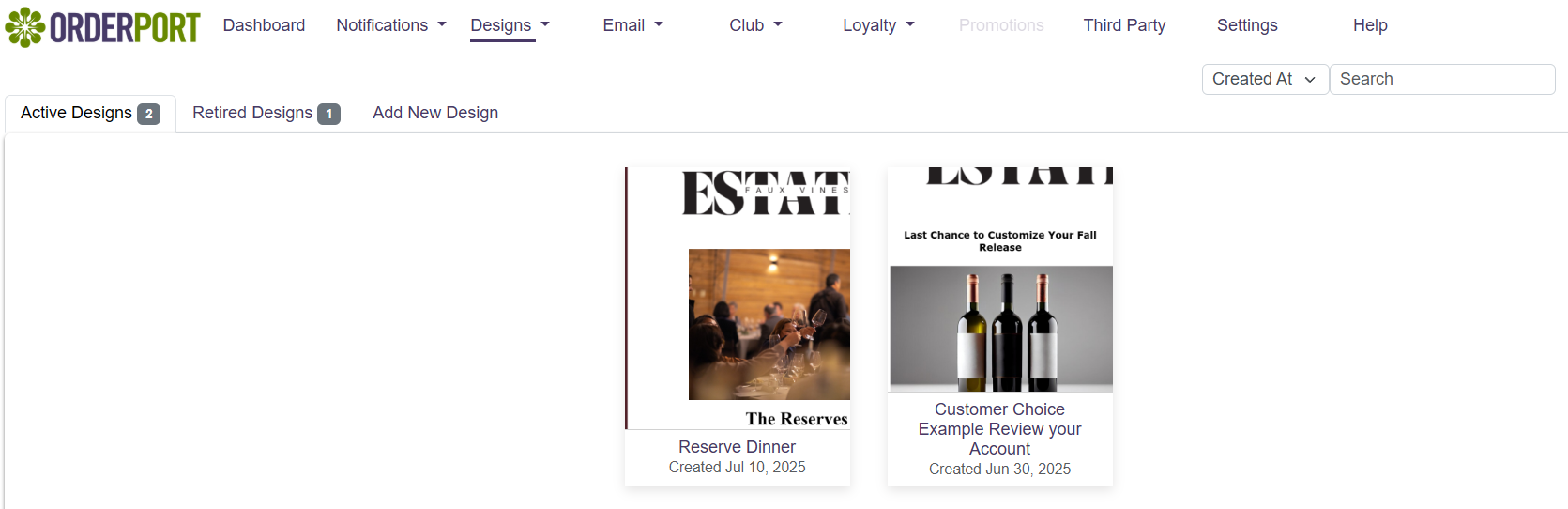
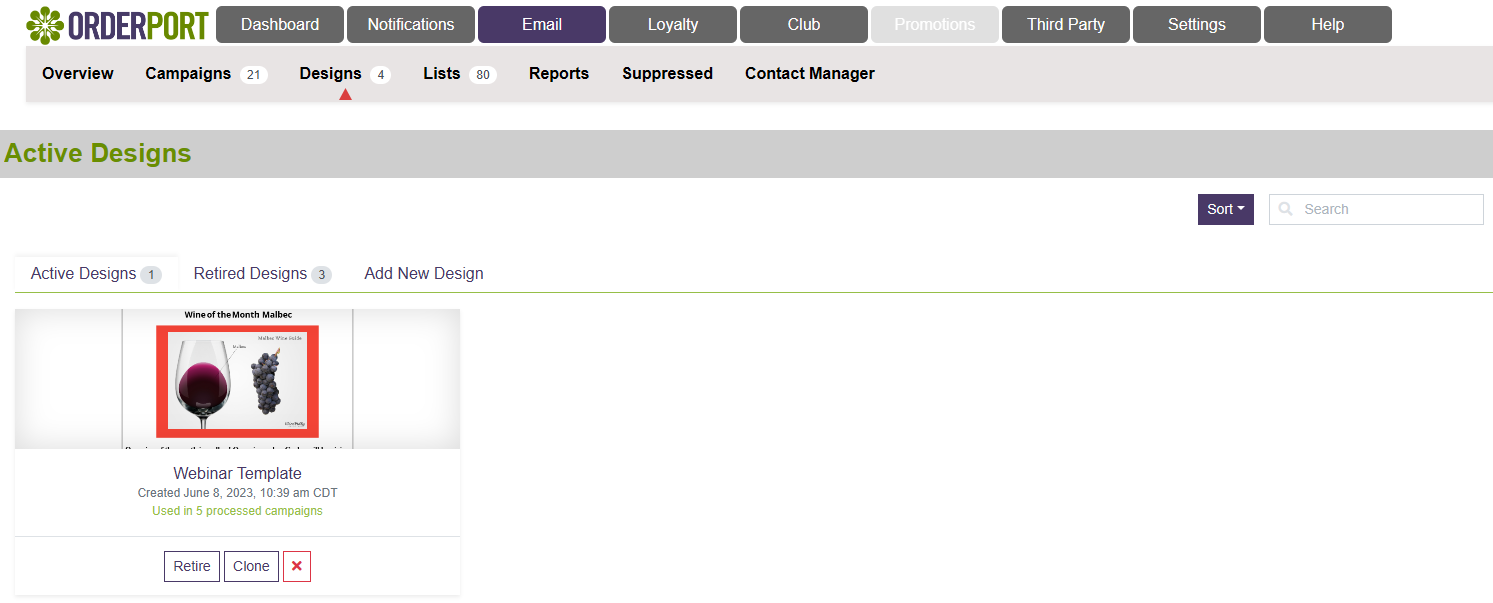
Older users of OrderPort may have the legacy version of the Marketing Module. Most of the changes are related to UI. With the exception of the designer, the documents listed here utilize screenshots from the modern Marketing Module. For the designer, we provide a seperate document for the legacy designer. You can upgrade to the latest version at no extra cost by contacting helpdesk@orderport.net.
Modern Marketing Module:
Legacy Marketing Module:
Domain Verification
Before you can utilize the module, you must set it up by verifying your domain.
See these resources for more information:
- Setting up Email Marketing and Domain Verification (Document)
- Marketing Domain Verification – OrderPort University (Video)
Notifications
Notifications are automated emails that are sent to customers when certain events happen, like a purchase or an update to customer information. They can also be sent to your business’ employees for things like low inventory alerts.
- Notifications Guide (Document)
- Notification Definitions (Document)
- Marketing Notifications – OrderPort University (Video)
Lists
Email Lists are a part of OrderPort's marketing module and are used to organize customer contacts. You can create your own lists using certain filtering rules, such as wine clubs or recent purchases.
- Email Marketing Lists (Document)
- Marketing List Builder – OrderPort University (Video)
Designer
The designer is used to create email designs to send to your customers.
Some OrderPort users are using the legacy version of the Marketing Module. If this is the case for you, the most substantial difference is in the designer. The modern version is drag and drop, while the old version is just rich text editing. For this reason, we have seperate versions of the document for the legacy and modern designer. You can upgrade to the latest version at no extra cost by contacting helpdesk@orderport.net.
Modern Marketing Module:
- Marketing Designer Guide (Document)
- Marketing Designer – OrderPort University (Video)
Legacy Marketing Module:
- Marketing Designer - Legacy (Document)
Campaigns
Campaigns are used to schedule and send the designs you've created to the lists you've created.
- Email Campaigns (Document)
- Sending a Marketing Campaign – OrderPort University (Video)
Third Party Integrations
If you'd like to use your customer data in a third-party marketing platform, OrderPort offers integrations with MailChimp and Klaviyo.
Klaviyo:
- Klaviyo Integration (Document)
- Klaviyo Integration – OrderPort University (Video)
MailChimp:
- MailChimp Integration (Document)
- Mailchimp Integration – OrderPort University (Video)
Troubleshooting
Don't hesitate to reach out to support (helpdesk@orderport.net) if you have questions or need assistence. If you are faced with the Sender Verify Failed error when using BCC's or test emails, see the document below.
FAQ's
Can I send individual purchase confirmation emails for specific products?
No, OrderPort will dispatch the "Thank you for your order" email (found in Marketing > Notifications). This email is automatically sent when a customer purchases items online. You should advise your customers to print this, as it serves the same purpose as a "Confirmation" email.
What does Unverified status in the marketing module signify?
The Unverified status indicates that your marketing domain has not been verified. As a result, all your marketing campaign emails may either fail or be directed to the customer's spam folder. To avoid this, you will need to verify your domain. Please watch the video on OrderPort University, or for assistance with common domain providers, click here.
Why is my campaign taking so long to send?
One reason your campaign may be delayed is that the OrderPort marketing server processes them in a queue. This means campaigns are sent in the order they are received. If you are sending to a list with fewer than 1000 emails and it has taken over 2 hours to send, please contact the help desk.
What are email suppressions?
The suppressed tab in the Marketing module lists customers whose emails have bounced, unsubscribed, or filed a complaint regarding the emails. The suppressed tab can be found under the Notifications and Email tab.
Bounces
Emails listed here have bounced at least three times and have been removed from receiving further emails. Next to each bounce, you will find the date they were added to this list along with the status message from the email server. Here are some example messages.

Unsubscribes
Emails in this section have opted out via the Opt-out button in your notifications and campaigns.
Complaints
Customers who have lodged complaints with their email provider regarding your emails will appear here.
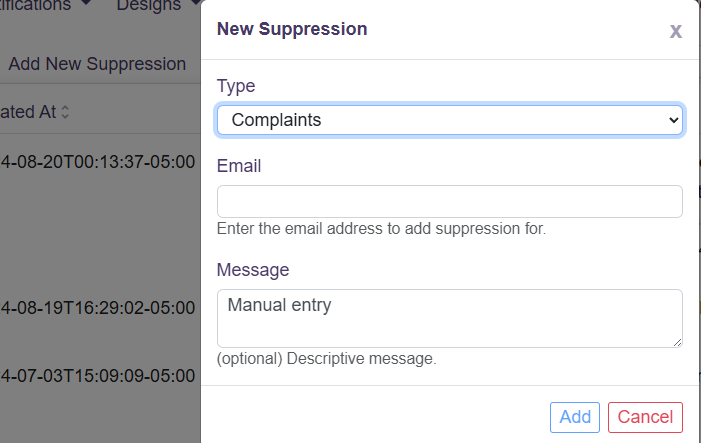
Add a New Manual Suppression
If you need to add a customer to the suppression list manually, you can do so here. You will need to provide the email that you wish to suppress.
How do I opt out a customer?
There are two methods for opting out customers. You can do this via the contact manager or through an individual list. Please note: this does not opt them out of notifications.
Contact Manager
Go to OrderPort Admin > Operations > Marketing > Emails > Contact Manager.
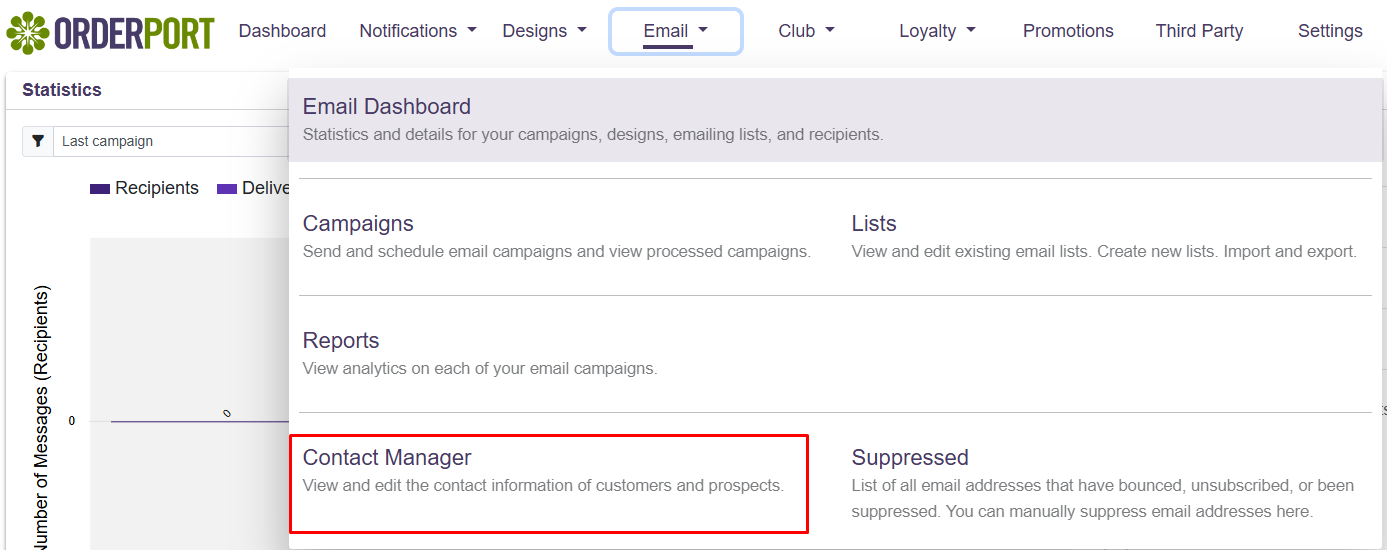
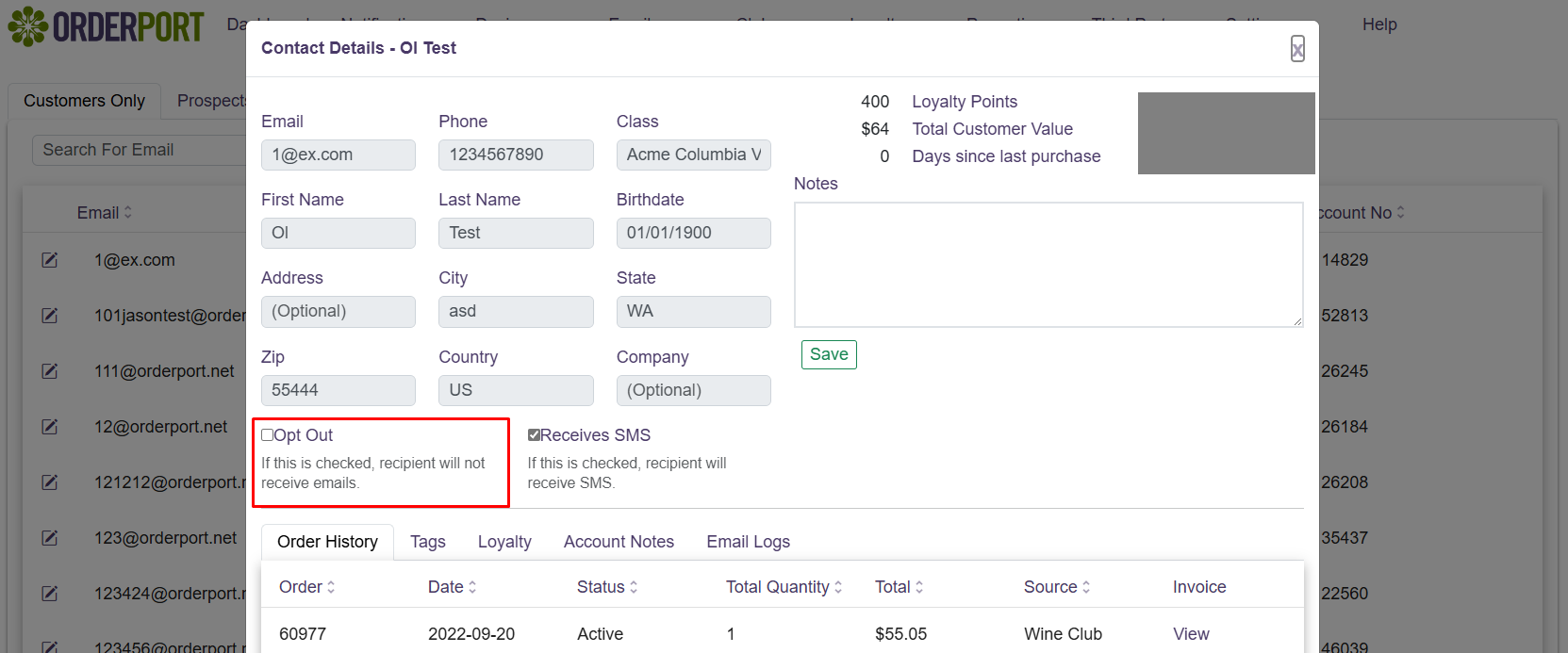
Then search for the desired contact and click the edit button on the left-hand side. This button resembles a box with a pencil. You will then see the Opt-out option. This will remove this contact from all lists.
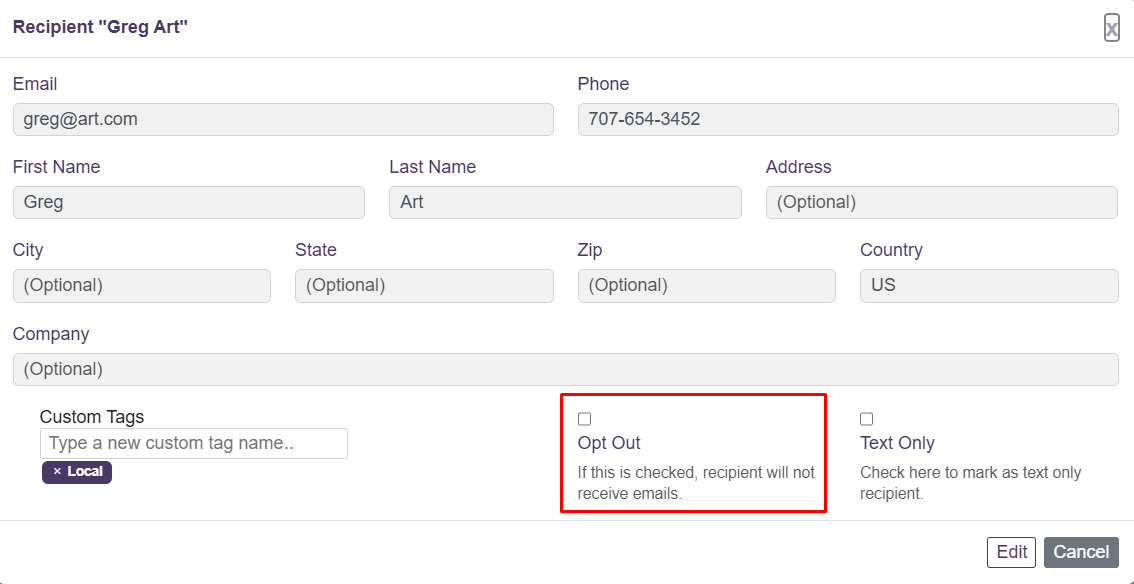
Individual List
Go to OrderPort Admin > Operations > Marketing > Emails > List > Select a List.
Click view and edit on a customer and select opt-out. Please note: This will opt them out of every list, not just individual lists.
What does the Opt-In to Email updates button do?
The Opt into Email updates button found on each customer's account in the customer module adds them to the Subscription list.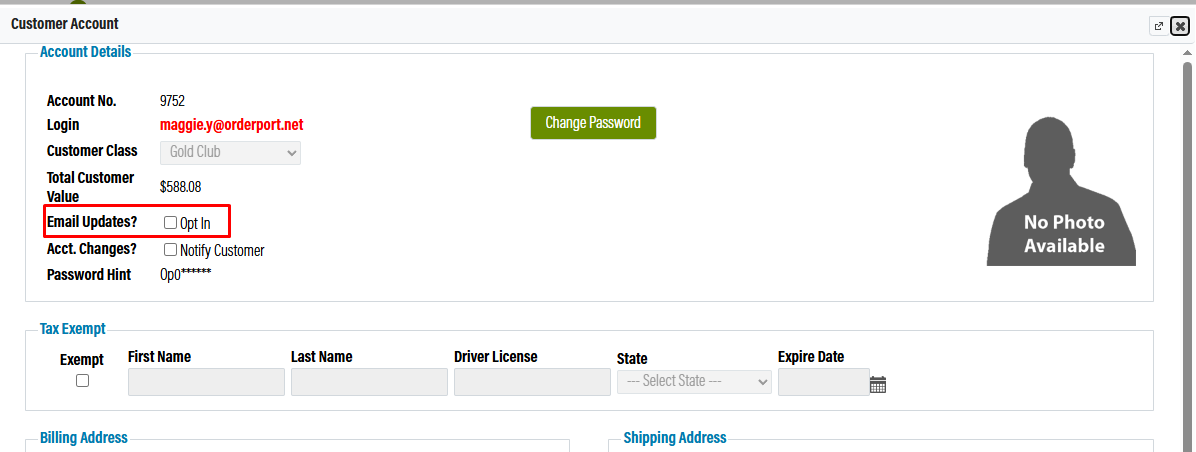
Can a customer opt out themselves?
Customers can opt out of both email campaigns and notifications. When sending an email, you should always include the Opt-Out placeholder. To add this to your design or notification, navigate to the [P] button and select Opt Out.
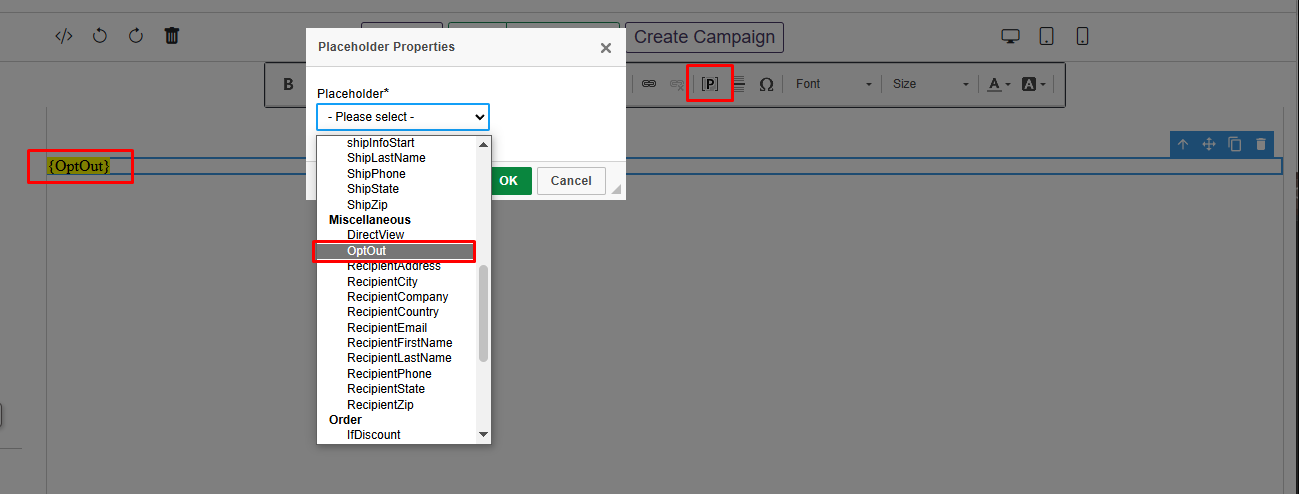
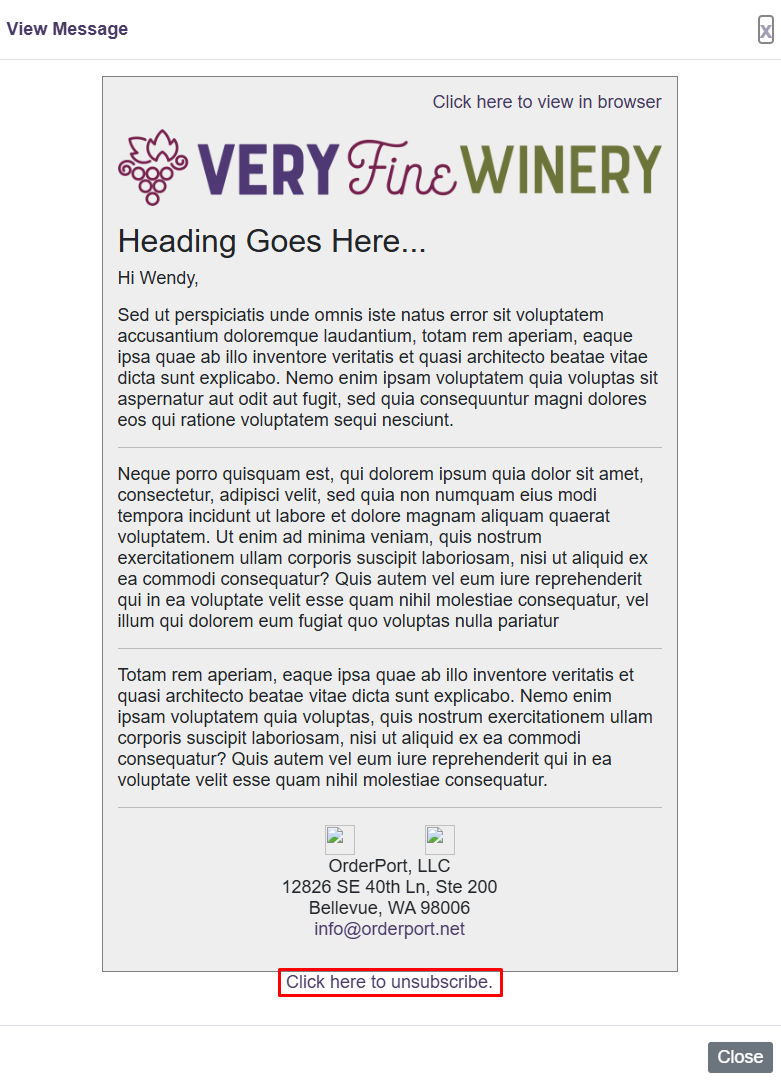
Then, when your customers receive an email campaign or notification, they will be given the option to opt out of these emails.