If you are using an OrderPort-hosted webstore, we are compatible with several different widgets and analytics software. This guide will cover the services we offer and how to integrate them. If you are interested in a service that is not listed here, please reach out to the helpdesk for more information.
TABLE OF CONTENTS
- ADA Sienna Widget
- UserWay ADA Widget
- Google Analytics and Tag Manager
- Google Merchant Center
- Mailchimp Newsletter Subscription pop-up
ADA Sienna Widget
The Sienna Widget is a free widget for ADA compliance. If you are interested in learning more about the widget, please visit their site: https://accessibility-widget.pages.dev/.OrderPort does not provide our own ADA compliance widget, so we strongly encourage this integration.
Setup
Copy the script below
<script src=https://website-widgets.pages.dev/dist/sienna.min.js defer></script>
- Navigate to Orderport Administration > Services > Webstore Designer.
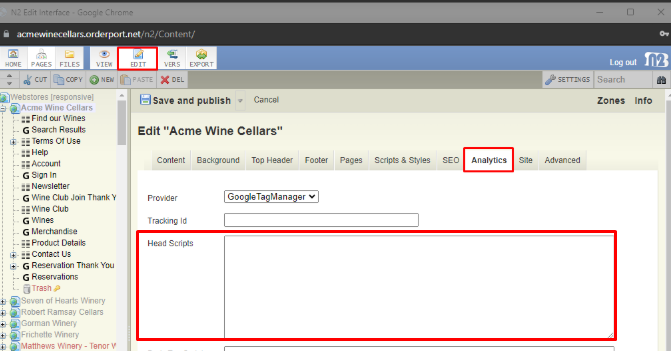
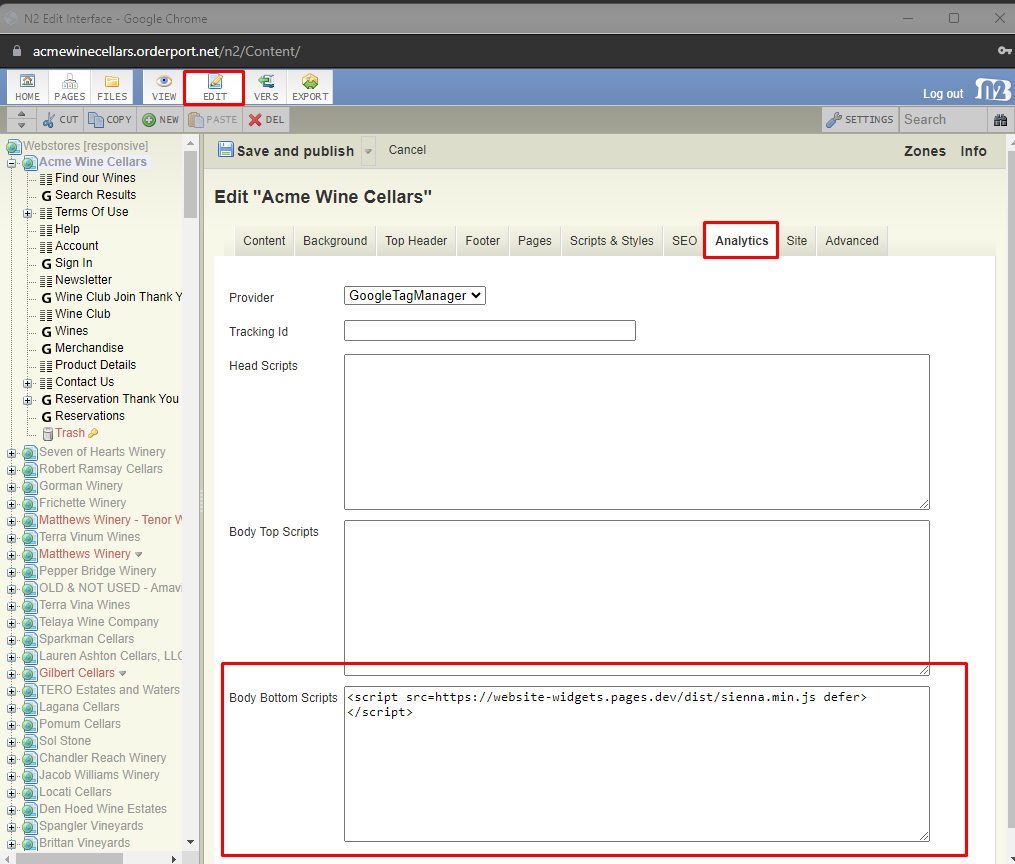
- Once the new window opens, click the 'Edit' button at the top of the screen. After clicking on 'Edit', select the 'Analytics' tab.
- Paste the script into the 'Body Bottom Scripts' section
- Save and Publish
UserWay ADA Widget
To use the ADA Accessibility Widget, you need to generate the widget at https://userway.org/ by providing the URL of your OrderPort hosted web store. For example, if your web store is named Acme Wine Cellars, you would use the URL: https://acmewinecellars.orderport.net/.
If you are already using an ADA widget, you will need to create a new one, as your current widget is likely registered to your previous site and not to the OrderPort site.) If you already utilize an ADA widget a new one must be created as your current one is likely already registered to your site and not OrderPort site.
After you receive the script
- Navigate to Orderport Administration > Services > Webstore Designer.
- Once the new window opens, click the 'Edit' button at the top of the screen. After clicking on 'Edit', select the 'Analytics' tab.
- Paste the script into the 'Body Bottom Scripts' section
- Save and Publish
Google Analytics and Tag Manager
OrderPort supports Google Analytics 4 through Google Tag Manager with a data layer for e-commerce to allow you to measure traffic and engagement across your webstore.
The following of events are currently supported by the OrderPort webstore:
Setup
Before you configure your OrderPort webstore for Google Analytics you need a Google Tag Manager account.
- To learn how to set up a Google Tag Manager account and container, click here.
- To learn how to set up a Google Analytics account, click here.
Download GA4 Configuration File
For this step, you will need to have your GA4 Measurement ID. To learn how, click here.
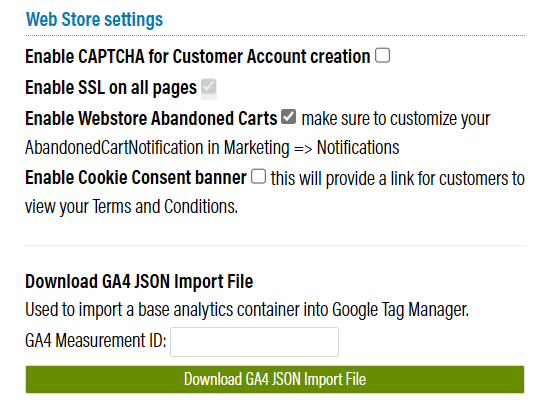
Go to OrderPort Admin -> Settings -> Account.
In the Webstore section, enter your GA4 Measurement ID and download the file.
Upload GA4 JSON File in Google Tag Manager
Next, you must upload the file into Google Tag Manager. Click here to learn how.
For step 5, select Merge with Overwrite conflicting tags, triggers, and variables.
Linking Google Tag Manager to your Webstore
Once you’ve covered the Google account configuration, you must add your Google Tag Manager 'Container ID' to the OrderPort Webstore Designer:
- Go to OrderPort Admin
- Open Webstore Designer
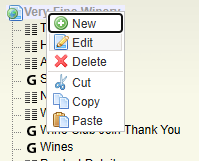
- Right click on the root node on the left and select Edit
- Go to Analytics Tab
- Provider: select Google Tag Manager.
- Tracking Id: This is available in your Google Analytics Account. It starts with GTM.
- Note: You do not need to copy and paste any scripts from Google.
- Click Save and Publish.
Additional documentation from Google Support:
- Setting up GA4 in Google Tag Manager
- Set up cross-domain measurement
- Set up your Google Tag
- Setting up ecommerce events
- Measure ecommerce events with the GA4 Event tag
- Measurement ID, added to each tag
Google Merchant Center
When you connect your webstore to Google Merchant Center, your products will be easily discoverable through Google's shopping recommendations and tabs. This connection can significantly increase your business's visibility to potential customers. Before you get started, ensure you have a Google Merchant Center account.
All setup processes for Google Merchant Center will take place on their website. To add products from your webstore to Google Merchant Center, you'll need to upload a product source file via a link. Please refer to the guide provided by Google for detailed instructions.
https://support.google.com/merchants/answer/14990942?hl=en.
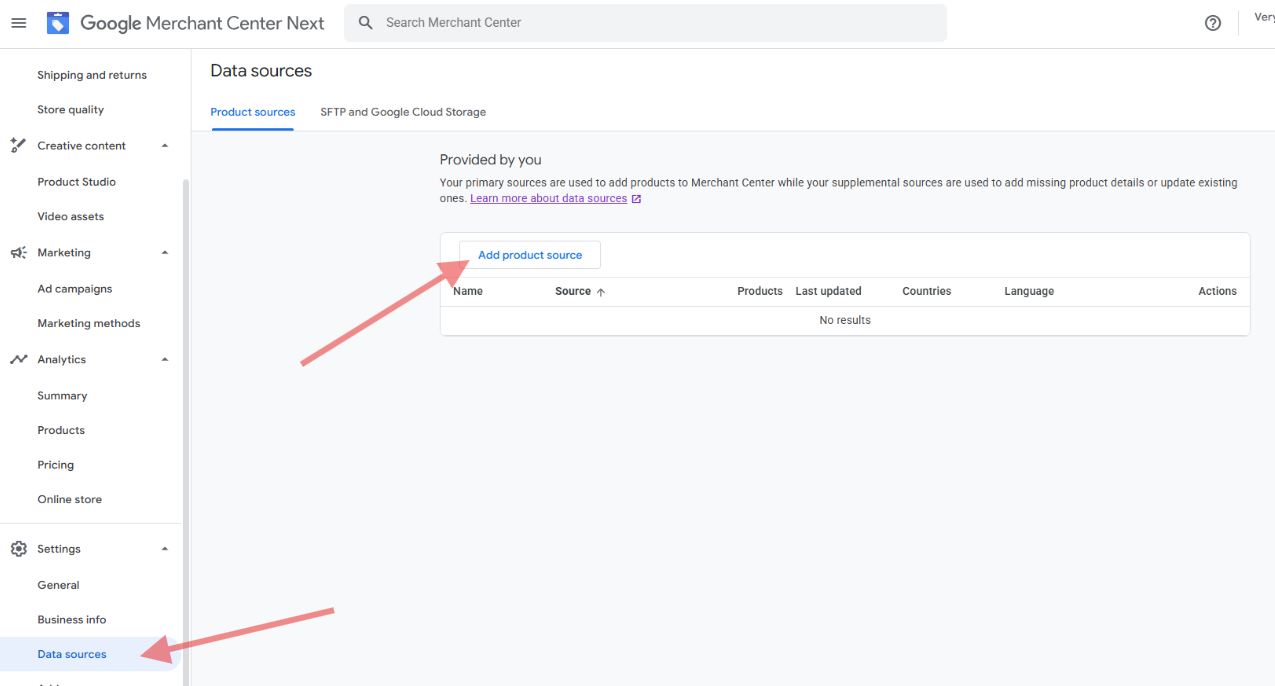 To get the link, add /get-google-merchant-center-file to your webstore link. Here are some examples:
- https://veryfinewinery.orderport.net/ -> https://veryfinewinery.orderport.net/get-google-merchant-center-file
- https://examplewinery.orderport.net/ -> https://examplewinery.orderport.net/get-google-merchant-center-file
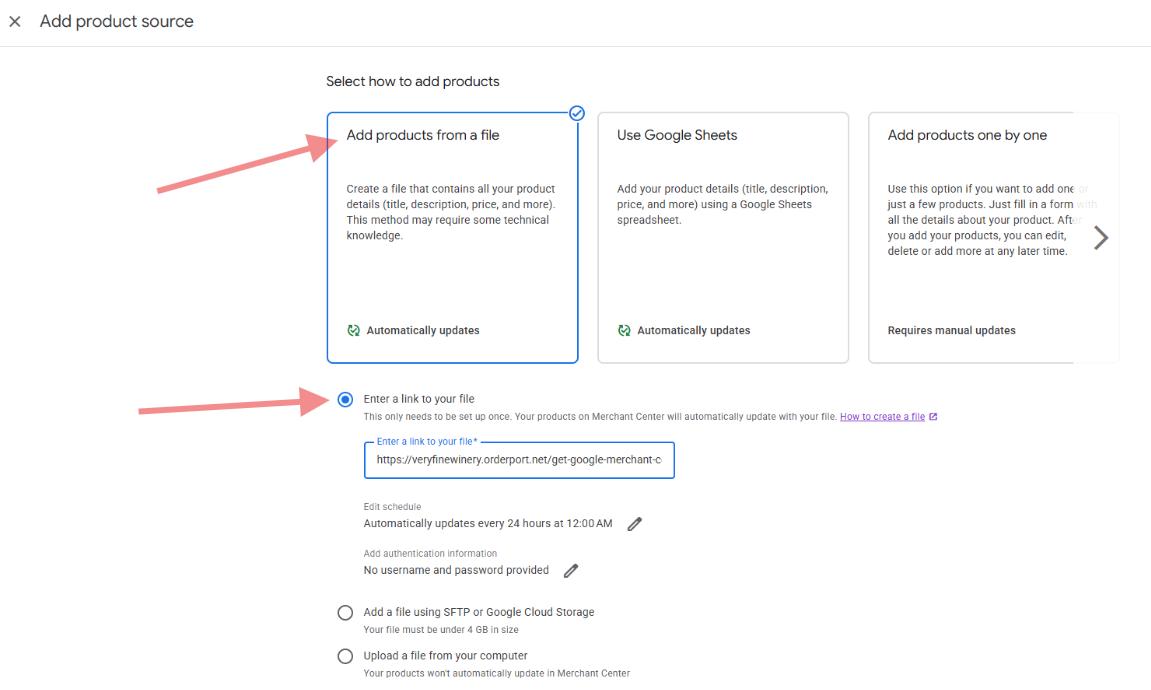
Once you add the link as a data source, it may take a few minutes before the products appear in the Products section of the Google Merchant Center. Additionally, it may take a few days for Google to verify the products and display them to customers.
Changes made to product listings are automatically refreshed every 24 hours.
Mailchimp Newsletter Subscription pop-up
After retrieving the HTML code from Mailchimp, go to the Webstore designer. Click on the edit button at the top of the screen and find the analytics tab. Enter your script for Mailchimp under Head Scripts and click on Save and Publish on the top left.