In this guide, we will discuss the ins and outs of product creation and what each product type has to offer. This is not a guide to the Catalog Manager. Please refer to the Catalog Manager Quick Guide if you need additional information on other aspects of product management.
TABLE OF CONTENTS
- Adding a New Product
- Wine Products
- Physical Products
- Collection Items
- Reservations Products
- Gift Card Products
- Variable Price
- Maximizing the potential of your products
Adding a New Product
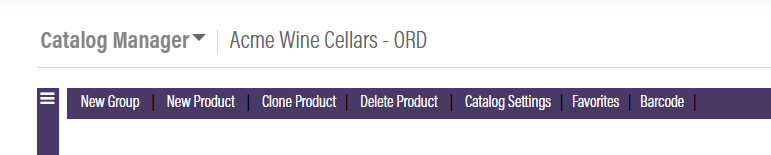
Open the Catalog Manager module, which is located under Products. At the top of the page, you will see a group of green buttons. Select the one that says "New Product". When you do, there will be a pop-up confirming you would like to create a new item.
Product Types
OrderPort offers six differnt product types. It is important to know what each product type is for so you can select the correct option when creating an item.
Wine - Wine Products can be any alcoholic beverage that the winery is selling. These products will be taxed as wine products.
Physical - Physical products can be any product that you are selling that is not alcoholic. Including merchandise and food.
Collection - Collections are groups of items that you want to sell together. These can be at a discounted price, but that is not a requirement. An example is a 3-pack or a Holiday Gift basket.
Reservation - Reservations Products can be any product that is for a specific time and or date. These are seperate form the reservations module.
On Demand - These products are service charges. In this guide, we will not cover On-Demand items, Instead please review the fees and service charges guide.
Wine Products
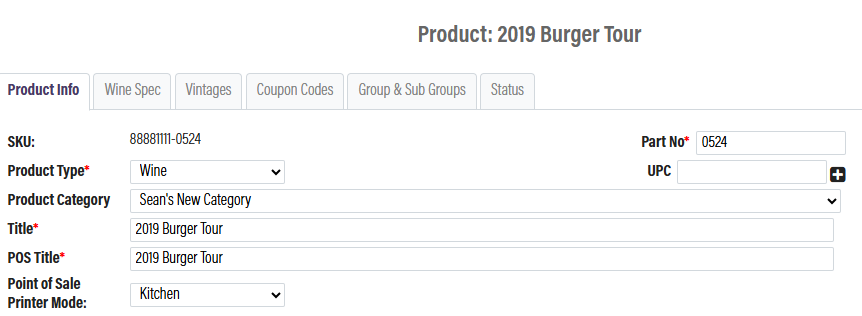
Open the Catalog Manager module, located under Products. At the top of the catalog, select New Product. Wine is the default product type for any new product, so ensure the product type is set to Wine.
Required Feilds
Title: The name of the item.
POS Title: The name of the item as it appears on the Point of Sale.
Retail Price: The price you want to sell the item for.
Case Quantity: The number of this product a customer must purchase to qualify for a case discount. By default, this is 12.
Part No: The identifying number for a specific product.
Additional Feilds
Product Category: Categories set up by the winery that help distinguish between products.
UPC: The product’s barcode number.
Point of Sale Printer Mode: Determines whether the product prints at the bar or kitchen printer.
Hidden On: Removes this product from the selected location.
Manage Additional Required Items: Allows you to require a second item to be purchased with this product.
Print Barcode: Prints the product’s barcode.
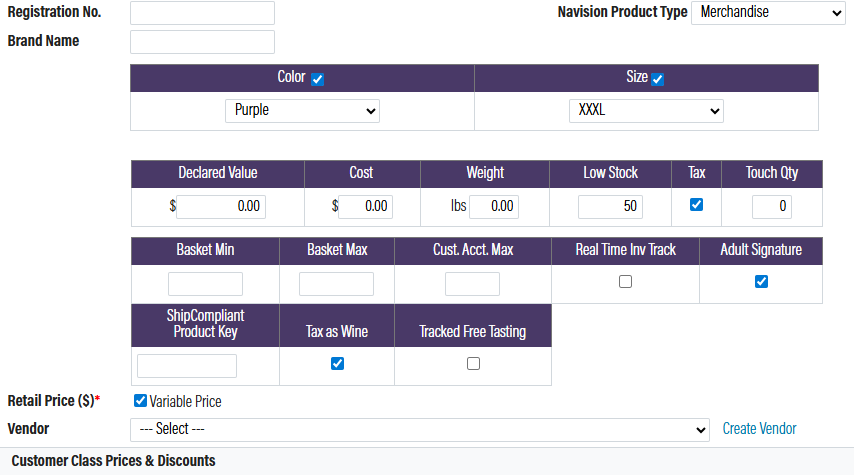
Declared Value: The stated value of the product.
Cost: The purchase cost of the product.
Weight: The product’s weight in pounds. This does not apply to wine products. Instead, enter the volume in the Wine Specs tab.
Low Stock: The inventory level at which you would like to receive a low stock notification.
Touch Quantity: The number of times a bottle must be handled before shipping. This only applies if you have enabled customer charges based on touch quantity.
Basket Minimum: The minimum number of bottles required per order.
Basket Maximum: The maximum quantity of this product allowed per order.
Customer Account Maximum: The maximum quantity of this product a single customer can purchase.
Sale Price: Enables you to set a sale price. This can be location-specific, but the sale price applies to all customers at that location.
Case Discount Quantity: The number of cases a customer must purchase to qualify for a customer class case discount.
Vendor: The person or company supplying the product.
Customer Class Prices & Discounts: Determines which customer classes can purchase the product and receive their associated discounts.
Overview: The product description displayed on the webstore.
Summary Overview: Additional product information displayed on the webstore.
SEO Tools: Information used to improve the product’s visibility in search engine results.
Select Image: Adding an image here will be displayed on the webstore. If the item is added to an OrderPort webstore.
Select Point of Sale Image: Adding an imager here will be displayed on the Point of Sale, if this feature is available for your account.
Wine Specs
This page is where you add the specific details about the wine. The most important fields here are Volume and Alcohol %. Volume is used to estimate shipping costs and for compliance purposes. Alcohol % is also used for compliance.
If you would like to upload a file to your webstore that customers can download as a wine spec sheet, use the Wine Notes upload/select button.
At the bottom of this page, there is a group of optional text boxes. If you fill these out and enable them, they will display on the webstore when customers choose to view more details about the bottle.
Alcohol(%): How much alcohol is in the item.
Appellation: wine-growing region where the grapes were grown.
Designation: specific location or vineyard name within an appellation.
Sugar: The amount of natural grape sugar at harvest.
PH: Measures how acidic the wine is
Fermentation: What was used to ferment the wine
Residual Sugar: Sugar left in the wine after fermentation stops.
TTB ID: Approval number from the Alcohol and Tobacco Tax and Trade Bureau
Is Foreign: Was the wine produced outside the United States
Varietal: Examples: Cabernet Sauvignon, Chardonnay, Pinot Noir.
Cases Produced: How much wine was made.
Varietal Composition: Breakdown of grapes in a blend.
Country of Origin: Country where the wine was produced
Sparkling wine: Indicates the wine contains natural carbonation from a second fermentation
Bottle Type: The style/shape of the bottle.
Volume: How much liquid is in the bottle.
Vineyard: Specific vineyard where grapes were grown.
Harvest Date: When the grapes were picked.
Acid: Total acidity in the wine
Aging: How the wine matured before bottling
Bottle Date: When the wine was bottled.
Wine Style: General taste profile.
Brand Name: The producer’s brand
Is Fortified: Indicates whether additional alcohol was added
Vintage: The year the grapes were harvested.
Glyphosate: Refers to whether the herbicide glyphosate was used in the vineyard
State of Origin: U.S. state where the wine was produced or grapes were grown.
Artificially Carbonated: Carbonation added to the wine
Vintage’s
This is where you can link your bottle of wine together via vintage. Using the filters seach for other products that you have made and check the related box.
Groups & Sub Groups
This page is where you select where you want this product to be located on your webstore and point of sale group. Check the box for as many groups as you want this product to be added to. If you need additional information on product grouping, please review this guide.
Status
This page is where you select the status of the product. If you want this product to appear for everyone, make the product active. See the product Status section of this article for more information on the differnt options.
Physical Products
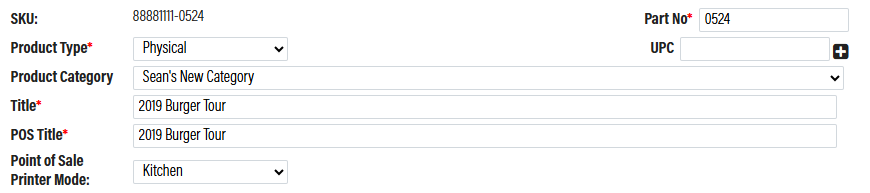
Open the Catalog Manager module, located under Products. At the top of the catalog, select New Product. Wine is the default product type for any new product, so you will need to edit the product type to physical.
Required Feilds
Title: The name of the item.
POS Title: The name of the item as it appears on the Point of Sale.
Retail Price: The price you want to sell the item for.
Case Quantity: The number of this product a customer must purchase to qualify for a case discount. By default, this is 12.
Part No: The identifying number for a specific product.
Additional Feilds
Product Category: Categories set up by the winery that help distinguish between products.
UPC: The product’s barcode number.
Point of Sale Printer Mode: Determines whether the product prints at the bar or kitchen printer.
Hidden On: Removes this product from the selected location.
Manage Additional Required Items: Allows you to require a second item to be purchased with this product.
Brand Name: The brand of the product. Typically used for apparel.
Color: The Color of the Product
Size: The size of the Product
Print Barcode: Prints the product’s barcode.
Declared Value: The stated value of the product.
Cost: The purchase cost of the product.
Weight: The product’s weight in pounds.
Low Stock: The inventory level at which you would like to receive a low stock notification.
Touch Quantity: The number of times a bottle must be handled before shipping. This only applies if you have enabled customer charges based on touch quantity.
Basket Minimum: The minimum number of bottles required per order.
Basket Maximum: The maximum quantity of this product allowed per order.
Customer Account Maximum: The maximum quantity of this product a single customer can purchase.
Tax as Wine: If the physical product you set up needs to be alcohol taxed you can select this button.
Adult Signature: If this product must be signed for by someone 21 and older.
Sale Price: Enables you to set a sale price. This can be location-specific, but the sale price applies to all customers at that location.
Case Discount Quantity: The number of cases a customer must purchase to qualify for a customer class case discount.
Vendor: The person or company supplying the product.
Customer Class Prices & Discounts: Determines which customer classes can purchase the product and receive their associated discounts.
Overview: The product description displayed on the webstore.
Summary Overview: Additional product information displayed on the webstore.
SEO Tools: Information used to improve the product’s visibility in search engine results.
Select Image: Adding an image here will be displayed on the webstore. If the item is added to an OrderPort webstore.
Select Point of Sale Image: Adding an imager here will be displayed on the Point of Sale, if this feature is available for your account.
Groups & Sub Groups
This page is where you select where you want this product to be located on your webstore and point of sale group. Check the box for as many groups as you want this product to be added to. If you need additional information on product grouping, please review this guide.
Status
This page is where you select the status of the product. If you want this product to appear for everyone, make the product active. See the product Status section of this article for more information on the differnt options.
Collection Items
Open the Catalog Manager module, located under Products. At the top of the catalog, select New Product. Wine is the default product type for any new product, so you will need to edit the product type to collection.
Required Feilds
Title: The name of the item.
POS Title: The name of the item as it appears on the Point of Sale.
Retail Price: The price you want to sell the item for.
Part No: The identifying number for a specific product.
Collection Items: This is where you will add what products are going to be included in the collection. Please note: You must enter the Retail Price prior to adding your desired items.
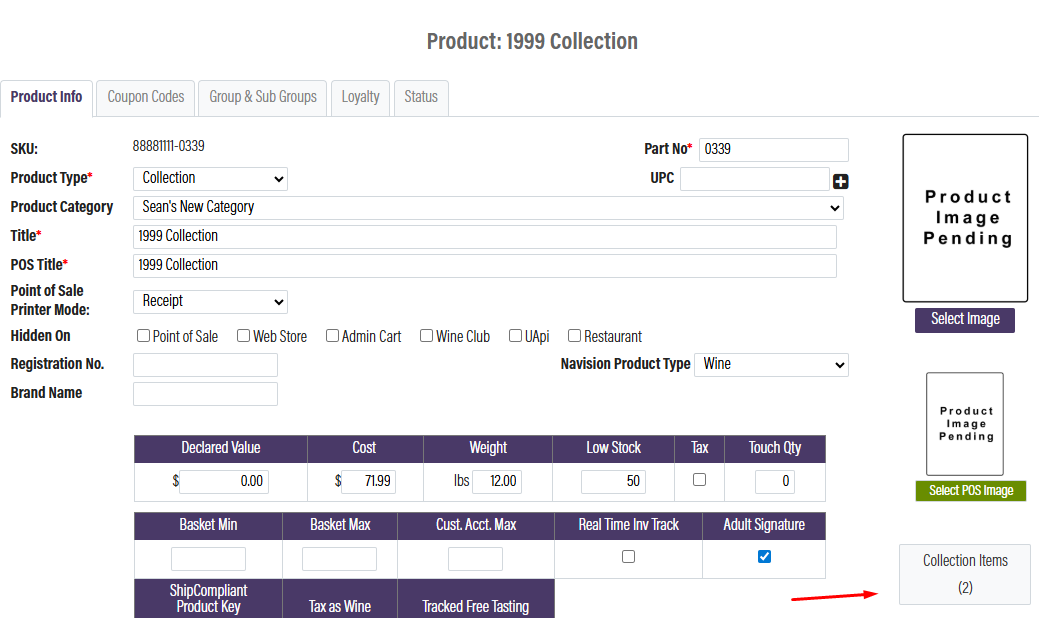
The retail price of your Collection product should be the same as the sum of the retail prices of each of the products in your collection. (Although some wineries do a special discount in the collection, and do not give a further discount for wine club members). If this is the case, set the retail price to the discounted value.
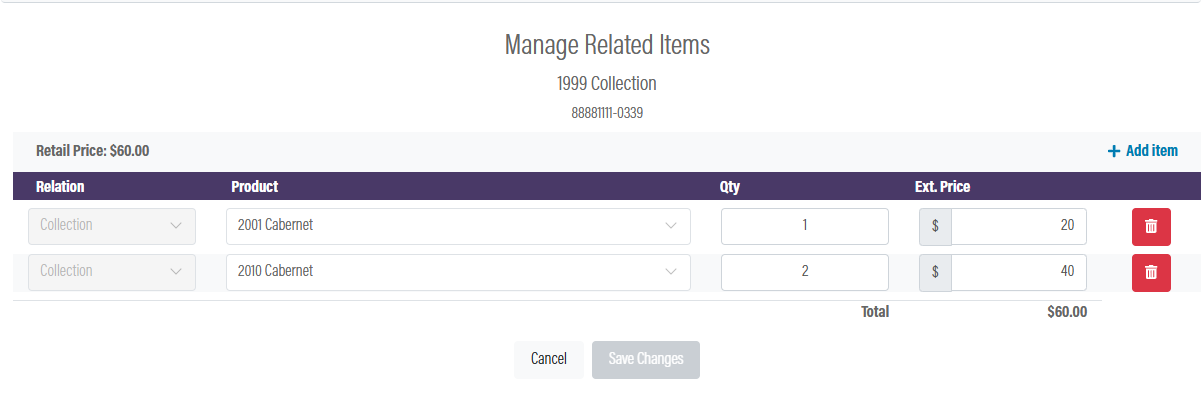
To add an item select, "+ Add Item" in the product drop-down search for your product. Add in as many items as you like. Then you will see the retail price located on the top. Edit the Ext. Price of each item until it matches that value exactly in order to save changes.
Also, remember to add inventory to your new Collection product, just as you would with any other product, so it won't show as back-ordered in Fulfillment. Inventory will be deducted correctly for the individual wine products when you sell the Collection.
The weight of your collection should be the total weight of the collection (not just a single bottle).
If you use Custom Zone Shipping, you will have to be sure you have a Custom Zone Shipping rule for the exact weight of the Collection, and it would be easiest if it's min 1, max 1. If the customer adds something else to the order that you wanted to have e.g. free shipping, and it is not in the free shipping Discount Rule, it could throw off the free shipping you intended.
For example, ‘Buy this collection with any order, and you get free shipping. ‘
You might want to put in the Collection description in the Catalog Manager Product Summary, to say, "Contact Us when you order this to ensure you get Free Shipping!".
Groups & Sub Groups
This page is where you select where you want this product to be located on your webstore and point of sale group. Check the box for as many groups as you want this product to be added to. If you need additional information on product grouping, please review this guide.
Status
This page is where you select the status of the product. If you want this product to appear for everyone, make the product active. See the product Status section of this article for more information on the differnt options.
Reservations Products
Open the Catalog Manager module, located under Products. At the top of the catalog, select New Product. Wine is the default product type for any new product, so you will need to edit the product type to reservations. These products are for event tickets or anything that you would sell that requires a specific date and time. These items do not work in tandem with the reservations module. They are completely separate.
Required Feilds
Title: The name of the item.
POS Title: The name of the item as it appears on the Point of Sale.
Retail Price: The price you want to sell the item for.
Part No: The identifying number for a specific product.
Additional Feilds
Product Category: Categories set up by the winery that help distinguish between products.
UPC: The product’s barcode number.
Point of Sale Printer Mode: Determines whether the product prints at the bar or kitchen printer.
Hidden On: Removes this product from the selected location.
Manage Additional Required Items: Allows you to require a second item to be purchased with this product.
Brand Name: The brand of the product. Typically used for apparel.
Date: The date of the event
Time: The time of the event
Print Barcode: Prints the product’s barcode.
Declared Value: The stated value of the product.
Cost: The purchase cost of the product.
Weight: The product’s weight in pounds.
Low Stock: The inventory level at which you would like to receive a low stock notification.
Touch Quantity: The number of times a bottle must be handled before shipping. This only applies if you have enabled customer charges based on touch quantity.
Basket Minimum: The minimum number of bottles required per order.
Gift Card Products
Open the Catalog Manager module, located under Products. At the top of the catalog, select New Product. Wine is the default product type for any new product, so you will need to edit the product type to gift card. If you do not have the gift card module enabled, these items will not work correctly. Please contact helpdesk@orderport.net if you are interested in getting this enabled.
If you want the gift card to be an undisclosed amount an the cashier can set the amount on the card at checkout, please see the variable price section of this guide.
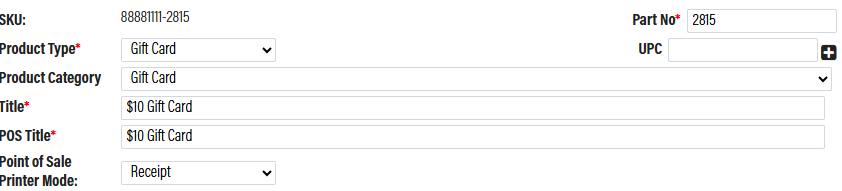
Required Feilds
Title: The name of the item.
POS Title: The name of the item as it appears on the Point of Sale.
Retail Price: The price you want to sell the item for.
Part No: The identifying number for a specific product.
Basket Maximum: The maximum quantity of this product allowed per order.
Groups & Sub Groups
This page is where you select where you want this product to be located on your webstore and point of sale group. Check the box for as many groups as you want this product to be added to. If you need additional information on product grouping, please review this guide.
Status
This page is where you select the status of the product. If you want this product to appear for everyone, make the product active. See the product Status section of this article for more information on the differnt options.
Variable Price
Open up the catalog manager and select an item. Next to the retail price, there will be a checkbox called variable price. When you select this, you will get a warning letting you know that this action is permanent, so be sure that you want to set this as a variable price item.
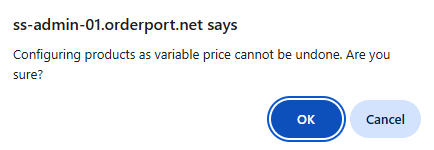
A variable price item allows the cashier to set the price of the item when it is added to the cart. This also makes it so this item can only be sold at the point of sale.
How it works
In reports, each sku will show on its own line and will have a different sku number. Assume we have a Variable Price product with the following sku: 88881111-0123.
- The clerk starts an order that includes 6 misc skus
- The system will automatically create 5 new products (clones of misc product) and assign the next sku numbers in line to each clone.
Assume the next sku in line is 88881111-0222
- The system will generate 5 products with the following skus: 88881111-0222, 88881111-0223,88881111-0224, 88881111-0225, 88881111-0226
- Then the system will add the parent sku and these skus as distinct skus to the order. On the app, it will still look like the same sku was used, but on the server side we use distinct products & skus.
So for, the web service, it will be like the cart has 6 distinct products. When the order is closed, it will show 6 line items with different sku numbers – as if those were different products (88881111-0123, 88881111-0222, 88881111-0223, 88881111-0224, 88881111-0225, 88881111-0226)
From that point forward, whenever a clerk tries to place an order that includes the misc product, child skus created before are going to be reused.
- If the next order has 3 misc products, then the final order will include 3 distinct line items with these skus
- IF the next order has 10 misc products, then the system will reuse the children generated before and generate 4 more child skus (e.g 88881111-0321, 88881111-0322, 88881111-0323, 88881111-0324).
The final order will include 10 distinct line items with the following skus (88881111-0123, 88881111-0222, 88881111-0223, 88881111-0224, 88881111-0225, 88881111-0226, 88881111-0321, 88881111-0322, 88881111-0323, 88881111-0324
Maximizing the potential of your products
Adding a product is simple. However, adding it correctly is what truly enhances your system's capabilities.
Proper product data enhances:
- Profit visibility
- Shipping accuracy
- Inventory control
- Compliance reporting
- Marketing segmentation
- SEO performance
If you leave these fields empty, your system will only store products. Strategically completing them will make your system work for you.
Operations
These fields enhance fulfillment, profitability, and inventory accuracy.
Cost – Allows for accurate margin tracking and profitability evaluation.
Weight – Fuels live shipping rates and warehouse integrations.
Low Stock Alert – Helps avoid overselling and maintains control over limited inventory.
Compliance & Reporting
These fields gain value as time goes on.
Alcohol % – Necessary for compliance and regulatory reporting.
Volume – Aids in tax computations and multi-size inventory management.
Vintage – Enhances reporting, filtering, allocations, and customer targeting.
Varietal – Facilitates customer segmentation and focused marketing efforts.
Brand Name – Crucial for wineries with multiple labels.
Marketing Intelligence
Vintage and varietal are not just product attributes—they serve as marketing insights.
Complete them to:
- Generate targeted customer lists
- Initiate intelligent reorder campaigns
- Customize club and release promotions
- Monitor purchasing behavior over time
Enhanced data leads to improved marketing.
SEO
Your product pages have the potential to draw organic traffic.
Fill out:
- Meta Description – An engaging summary for search results.
- Meta Keywords – Relevant search terms that customers use to find your wines.
Categories vs. Groups
Categories manage reporting.
Groups dictate how products are shown and sold.
Maintain stable Categories. Revise Groups when you want to alter the customer or POS experience.