Product groups are used to organize the presentation of your products on your point of sale and your webstore. They can be set up in OrderPort Admin -> Products -> Catalog Manager.
TABLE OF CONTENTS
- Creating a Group
- Viewing and Editing Groups
- Adding Products to Groups
- Organizing groups for Speed and Sales
- FAQ'S
Creating a Group
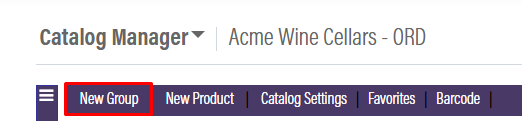
In the bar, click New Group, then select the group type.
Fill out the information, then click save.
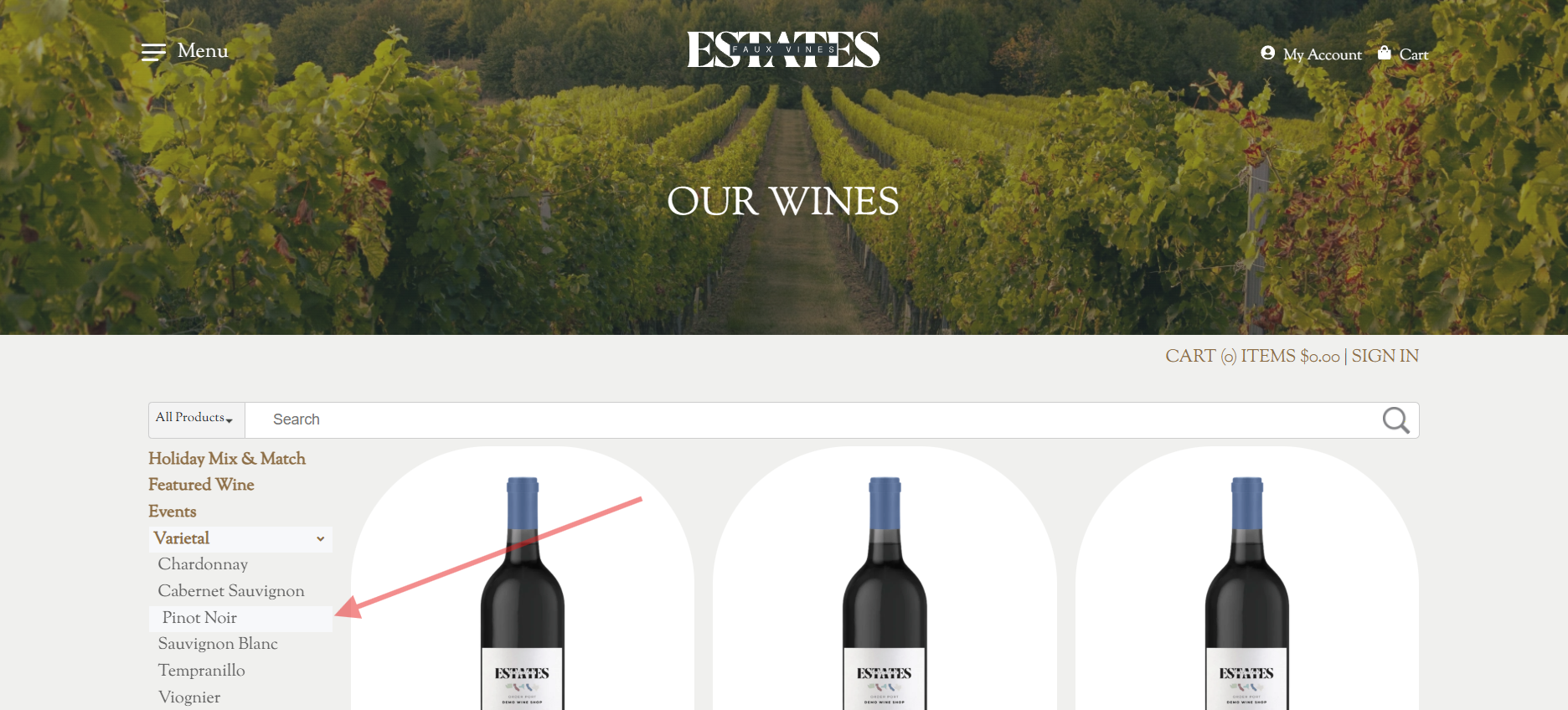
You can make the group a sub-group by assigning a parent group. This will change the presentation of the groups on both the webstore and the point of sale.
The Description for the group is for internal reference only. It will not affect SEO or presentation for the group.
Webstore Groups
Webstore groups have additional configuration options.
Requires Authentication - When toggled on, customers are unable to view the group if they are not signed in.
Web Store Group Type - This adjusts product presentation to better suit the product type being displayed.
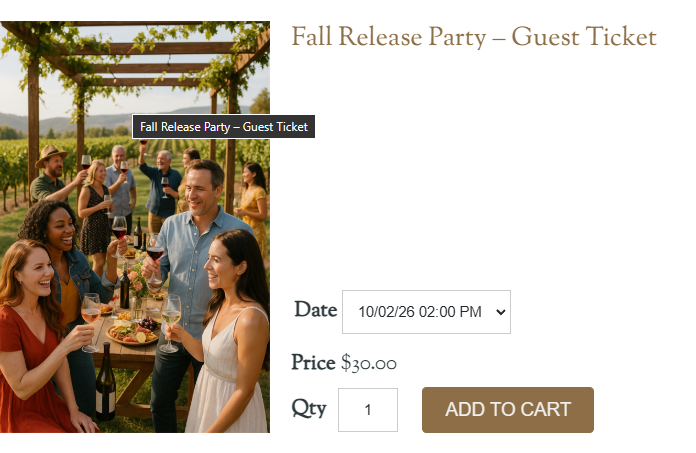
Summary - You can enable the summary for the group, which is displayed to the customer above the product listings.
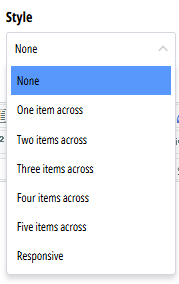
Style - The Style options allow you to customize how the products are displayed.
Viewing and Editing Groups
To view and edit existing groups, click the Groups button on the right of the ribbon.

The groups displayed initially are the Point of Sale groups. You can also view Restaurant and Web Store groups, if needed.
When viewing Point of Sale or Restaurant groups, you can adjust which groups are active based on tasting room (if you have multiple tasting room locations). Webstore groups can be adjusted based on webstore (if you have multiple webstores).


After a location or web store is selected, enable Manage Groups to customize which groups are displayed at that tasting room or web store.

Click view / edit on a group to customize details.
For information on the Group Info tab, please see above under the Creating a Group tab.
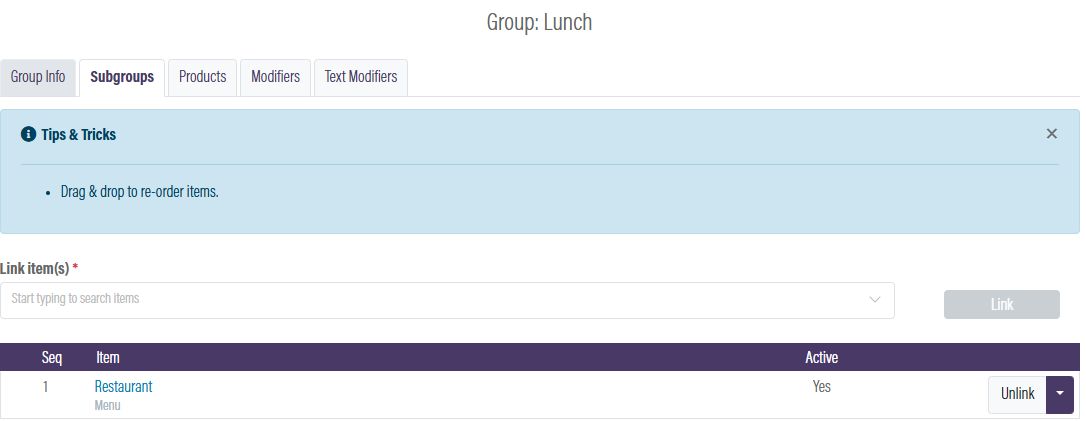
The Sub Groups tab allows you to manage sub groups.
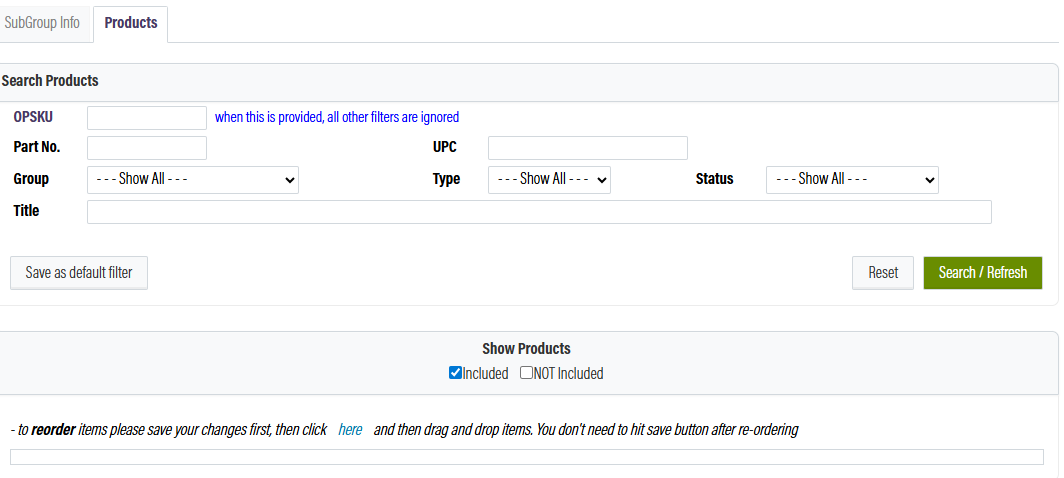
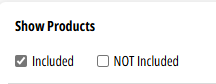
The Products tab allows you to add or remove products from the group. Use the Show Products filter to show all products included, not included, or both.
Adding Products to Groups
You can add products to a group while viewing the group itself. See above for this.
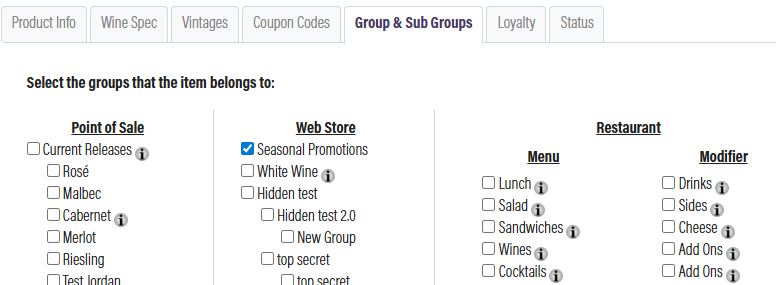
You can also add a product to multiple groups at once when viewing the product. You can do this in the Group & Sub Groups tab.
Organizing groups for Speed and Sales
An unorganized catalog slows staff, frustrates customers, and negatively impacts sales. Well-organized Product Groups enhance your POS efficiency and make your webstore more user-friendly.
Consider it this way:
- Categories = Reporting
- Groups = Shopping experience
- Subgroups = Navigation
Every product must be assigned to a Group.
1. Create a Faster POS
Your team should be able to locate products instantly—without navigating through countless buttons.
Keep Group names brief and recognizable:
- Tasting Fees
- Current Releases
- By the Glass
- Library Wines
- Food & Beverage
- Merchandise
- Events
Position your best-selling items at the top and avoid creative names that staff may not recognize.
Outcome: Quicker checkouts, enhanced service, and increased selling opportunities.
2. Enhance Your Webstore
Online customers browse differently compared to those in a tasting room. Clear Groups assist them in finding products swiftly.
Common webstore Groups might include:
- Current Releases
- Wine by Varietal
- Library Wines
- Event Tickets
- Merchandise
- Gift Sets
Introduce promotional Groups like Best Sellers, Staff Favorites, or Holiday Bundles to boost visibility and stimulate impulse buys.
3. Utilize Subgroups to Drive Sales
Subgroups facilitate easier browsing of extensive collections.
Examples include:
Current Releases
- Reds
- Whites
- Rosé
- Sparkling
Library Wines
- By Vintage
Wine
- By Varietal
Improved navigation enables customers to discover more products, lessens decision fatigue, and naturally enhances average order value.
4. Establishing Product Groups
Step 1: Plan Your Structure
Consider:
- How do customers make purchases?
- What is the staff's method for locating products?
- Which Groups are utilized the most frequently?
Maintain a straightforward and intuitive structure.
Step 2: Create Groups
Standard POS Groups include:
- Tasting Fees
- Current Releases
- By the Glass
- Library Wines
- Food & Beverage
- Merchandise
- Events
Common Webstore Groups encompass:
- Current Releases
- Wine by Varietal
- Library Wines
- Event Tickets
- Merchandise
- Gift Sets
Choose concise names like Reds, rather than Red Wine Bottles.
Step 3: Assign Products
Assign each product to the corresponding Group and Subgroup as it is added to the Catalog Manager.
Best Practices
- Keep Group names straightforward.
- Align POS labels with the terminology your staff uses.
- Promote seasonal deals with specific Groups.
- Feature high-margin products prominently.
- Regularly review and adjust your Groups as inventory evolves.
Starter Templates
POS
- Tasting Fees
- Current Releases
- Reds, Whites, Rosé, Sparkling
- Library Wines
- By the Glass
- Food & Beverage
- Merchandise
- Events
Webstore
- Current Releases
- Wine by Varietal
- Library Wines
- Event Tickets
- Merchandise
- Gift Sets
- Best Sellers
FAQ'S
How do I add existing products to subgroups?
In the Catalog Manager, go to the subgroups section, you will see a Products tab. If you have existing products, this is where you can add them to the subgroups you have created. At the top of the page, you can filter the products you will see. By checking “Included”, you will see products that already belong to the subgroup and by checking “Not Included”, you will see products that do not yet belong to the subgroup. Once you have filtered your results, you will be able to select products to include in your current subgroup. For example, if you are working on creating your “reds” subgroup, you will select your cabernet, merlot, etc.