The OrderPort Gift Card module allows wineries to sell physical and e-gift cards to their customers. These gift cards can be redeemed in multiple ways. The following guide will walk you through enabling the module, gift card setup, gift card usage, reporting on gift cards, and managing the status of your cards.
TABLE OF CONTENTS
- Enabling the module and Ordering Physical gift cards
- Product Setup
- Gift Card Settings
- Selling Gift Cards Online
- Assigning Physical Gift Card Numbers
- Managing Gift Cards
- Gift Card Details
- Using a Gift Card on the Point of Sale
- Why am I unable to modify a Gift Card Order?
Enabling the module and Ordering Physical gift cards
The gift card module is a paid feature so you will need to contact Traci@orderport.net to discuss the pricing and enabling of the module. If you are interested in buying physical gift cards, you will also want to discuss this with Traci. You’re welcome to use any vendor you like to print your gift cards, but here’s a link to a recommended printer: Order Gift Cards Here.
To use the gift card module, you do not have to purchase physical gift cards and can strictly sell e-gift cards. If you need to reorder gift cards, please email Traci@orderport.net letting her know you are re-ordering gift cards.
Product Setup
After you have the module enabled, go to OrderPort Admin > Products > Catalog Manager > New Product. Change the Product type to Gift Card. Then fill out the Title, POS title, and retail price. If you would like this gift card to be a variable price, you can check the box next to retail price. However, variable-price products can not be sold on the webstore, so this would be a POS only product.
Once you have created one product and saved changes, you can then clone this product to create multiple different gift cards. An example would be a $10 Gift card, $25 Gift Card, $50 Gift card, or $100 Gift card. The clone button is located on the top of the screen in the purple banner.
Please note: You do not need multiple products to distinguish between physical and e-gift cards. This will be determined later.
After you have created all your gift cards, put them into the Correct Webstore and Point of Sale groups and add inventory to your products.
Gift Card Settings
Now that you have your products set up, you will want to navigate to OrderPort Admin > Services > Gift Cards. You will see a box labeled settings.
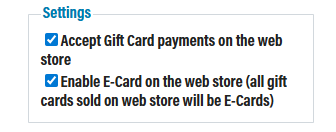
Accept Gift Card payments on the Webstore: If this is enabled, customers will be able to use their gift cards online. If you are on the New Webstore Checkout, they will be able to split the payment between a gift card and a credit card in case it does not cover the whole order. If you are on the Old webstore checkout the gift card will have to cover the entire cost of the order. Email helpdesk@orderport.net to upgrade to the new checkout for free.
Enable E-Card on the Webstore (All gift cards sold on the webstore will be E-Cards): When this is enabled, you can sell E-gift cards on the webstore. These gift card numbers will be delivered through email, and you will not have to ship the customer a Gift Card. Please note on the webstore all gift card sales must be either E-Gift cards or Physical Gift cards.
Selling Gift Cards Online
E-gift Cards
If you have the E-Gift cards setting enabled. They will get the regular Thank You for Order or Thank You for Pickup Order email. This email will contain a link that says, “Click here to receive full gift card info by email.” When the customer clicks on that, the system will send out the Gift Card Details email. It will look like this:
You should review the Gift Card Details notification to customize it with your logo/other wording. Make sure you keep the {GiftCardList} Wildcard in the email notification. The customer can retrieve the card info immediately, but you will need to capture funds on the order before the customer is able to use the card. You will do this as you normally do in the fulfillment module.
Physical Gift Cards
The customer will purchase a Physical card online. They will get the regular Thank You for Order or Thank You for Pickup Order email. This email will say Gift card number "Not Assigned". Since these are physical cards, you will need to navigate to either fulfillment or the gift card module to assign the card number. Once you have assigned the gift card, you should ship the order to the customer.
Assigning Physical Gift Card Numbers
When Physical Gift cards are sold on the webstore, you will need to let OrderPort know which gift card you are assigning the funds to. If you would like to bulk assign card numbers, then I suggest doing this in the Gift Card Module under the Card assignment tab.
In the Gift Card module, navigate to the Card Assignment tab. A list of all unassigned gift cards will populate. Type in the gift card numbers into the box or select Auto-assign all. This will pull available cards from the list you have in OP. However, you will need to find the associated card numbers to send to your customers.
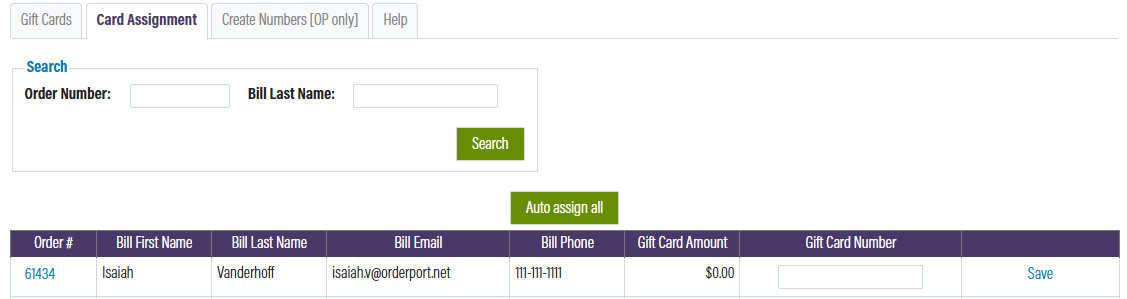
If you would like to process the card through the fulfillment module, select the order in fulfillment and click next to charge the customer's card. As soon as you do, a screen will pop up asking you to enter the gift card number or to auto assign all card numbers. Once you hit save, you can continue with the fulfillment process.
Managing Gift Cards
In the gift card module under the Gift Cards tab, you will see a list of all your gift card numbers. The page is broken up by the card number, who the order is assigned too, the current status, what type of gift card it is, and the balance.
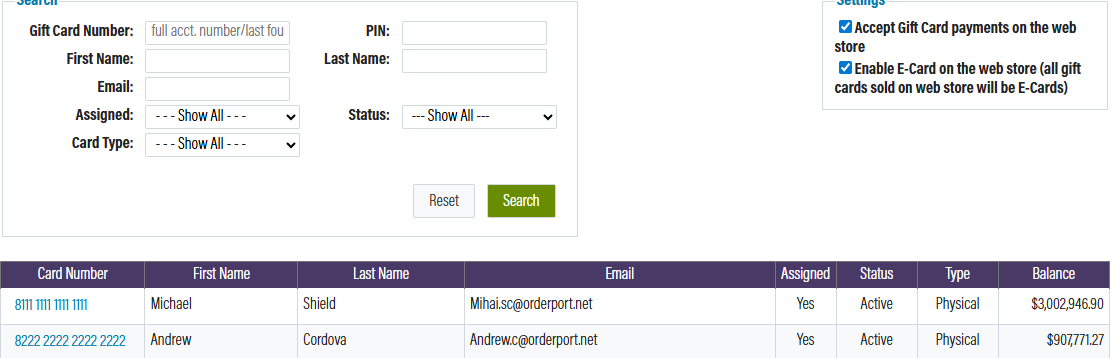
Card Number: This is the card number associated with the physical or e-gift card and is provided to you. You do not need to create your own card numbers
Customer assigned: This will be listed by First Name, Last Name, and Email fields. if this gift card is purchased on the Point of Sale on a Guest order then the guest number of the order will be attached here.
Assigned: If this field is yes that means this card number currently belongs to someone.
Status: The status of a gift card can be changed by the winery.
- Active means it is in use by someone.
- Inactive means the card is not in use. This is the status of unassigned gift cards
- Revoked means the card was lost and has likely been replaced.
- Expired means the winery has manually expired the card. OrderPort does not have expiration dates and it is up to the winery to decide if they would like to expire their cards. If you set a Gift card to expired all funds will be removed from the gift card. This is not a reversible action.
Type: OrderPort offers physical and e-gift cards.
Balance: This is the current balance of the gift card or how many funds or attached to the card.
Gift Card Details
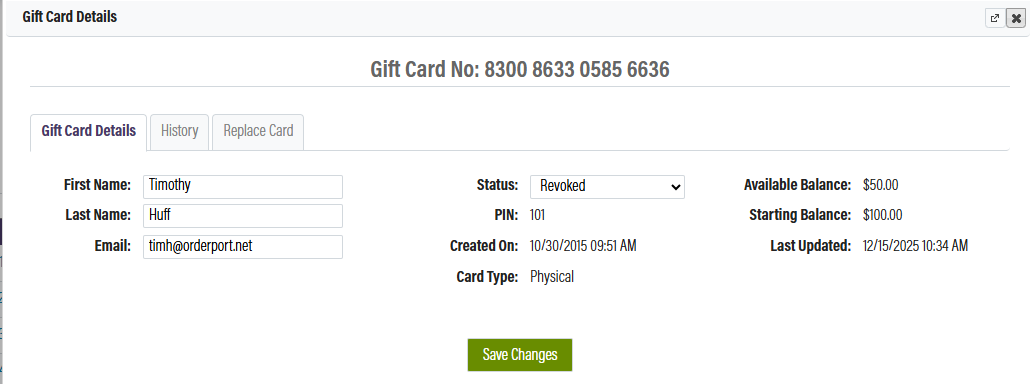
If you would like to see further details, please select the gift card number. This will bring you to the Gift Card Details page. From here, you can view things like the starting balance, the date of the card assignment, and the last time the card funds were updated. This update can either be adding funds or spending funds.
To see everything that has happened on this card, navigate to the History Tab. To read this note, the most recent events will be at the top, and the Oldest events will be at the bottom. Use the Breakdown below for assistance in reading the history. You can also contact helpdesk@orderport.net for assistance.
Trn Type: The transaction type will help you determine what action was taken. The Main types are:
- Sale: Funds from this card were spent on a transaction
- Load Money: Money was added to this card
- Refund: A refund to the gift card was issued.
- Transfer: The funds on this card were transferred due to a card replacement
Status: The event was Approved or Declined. Typically, this takes place on sale transactions.
Amount: The number of funds added or removed for this transaction. If the funds are in parentheses, they were removed.
Message: This section gives you the specific message form OrderPort. This is where decline messages will populate.
Memo: This is where the Order Number or Cart ID for the transaction will populate. It will also tell you the full card numbers involved in a card replacement.
Created On/Updated On date: This tells you the date and time of the transaction
User: This tells you which user's account is associated with this action.
Load Funds
If you would like to manually add additional funds to a gift card, you can do so either in the module or on the Point of Sale. For loading funds on the Point of Sale, see the Gift Card Balance section of this document.
In OrderPort Administration, navigate to Services > Gift Cards > Select the Card Number > Load Funds. From here, you can select the amount you wish to add and choose whether the payment will be made by credit card, check, or cash. Enter the information and click Load Funds.
Replace Card
If someone loses their physical gift card, you can look it up by the order number or the customer’s name or email. Once you have found the associated gift card in the Gift Card module, click on the gift card number. From here, select the Replace Card Number tab.
You will need to enter a new, unassigned gift card number. If it is a valid card number, once you click Verify Card, the funds should transfer.
Gift Card Balance
Open your OrderPort Point of Sale app. From the Manage screen on the right-hand side, there is a gray button labeled Gift Card Balance. From here, you can either check the gift card balance or add additional funds to the gift card. To use this section, you need an already assigned gift card.
Enter the gift card number and select the orange Check Balance button. The Current Balance field will populate. If you would like to add additional funds, select the Amount to Add field and enter the desired value. Next, click the Add Card button and choose whether you would like to add funds via cash, credit, or check.
Using a Gift Card on the Point of Sale
At checkout, on the right-hand side in gray, there are the payment method options for checkout. Click on the Gift Card button. This will bring up a window where you can scan or enter in the card number. If you want to scan the gift card barcode, select the Barcode icon in the left-hand corner. Use your device's camera to capture the card number or manually type it in. Once you are ready, click checkout.
Please note: Physical and E-Gift cards are considered Gift Cards. On this screen, there is the option to enter in Gift Certificates. Gift Cards should not be entered into this screen. Gift Certificates are a completely different Payment Method.
Why am I unable to modify a Gift Card Order?
Gift Card orders are unique in that the gift cards are allocated at the time the order is placed and cannot be altered in the same manner as wine products. If significant changes are required, you will need to cancel or refund the existing order and then place a new one.