The Catalog Manager module is where you will manage your products, groups, and tracking on those products. To navigate to this module, open up OrderPort Admin > Products > Catalog Manager.
TABLE OF CONTENTS
- Catalog Manager Landing Page
- Creating a Product
- Creating Tastings
- Viewing and Editing a Product
- Creating New Groups
- Catalog Settings
- Inventory Tracking
- FAQ's
- When should I set a basket minimum and maximum?
- Can I create a catalog item for donations?
- How do you delete products in the Catalog Manager?
- How do I make a product pickup only?
- How do I record Samples?
- How can I search for a product that I have created in OrderPort?
- Can I change a SKU number?
- Why can’t I format text in the Catalog Manager?
- What is a UPC?
- Why are there multiple SKUs for a variable price product in an order? Even though only one product exists in the Catalog Manager?
- Why are the changes I made in the Catalog Manager not appearing on the OrderPort app?
- How do I set up limited-quantity event tickets?
- How do I setup product minimum and maximum?
- How to adjust your size and color options.
- How to create apparel with different sizes and colors.
- Why does OrderPort not accept the product image I am trying to upload?
- Why is it that when I am uploading an image from one of my products, it shows up in the catalog manager after saving it as sideways or horizontal?
- Sometimes when I upload a new JPG product image and then save changes, the changes are not saved properly, and the product image reverts back to what it was before, why is that?
- How do I prevent the price of an order from being shown on a gift order?
Catalog Manager Landing Page
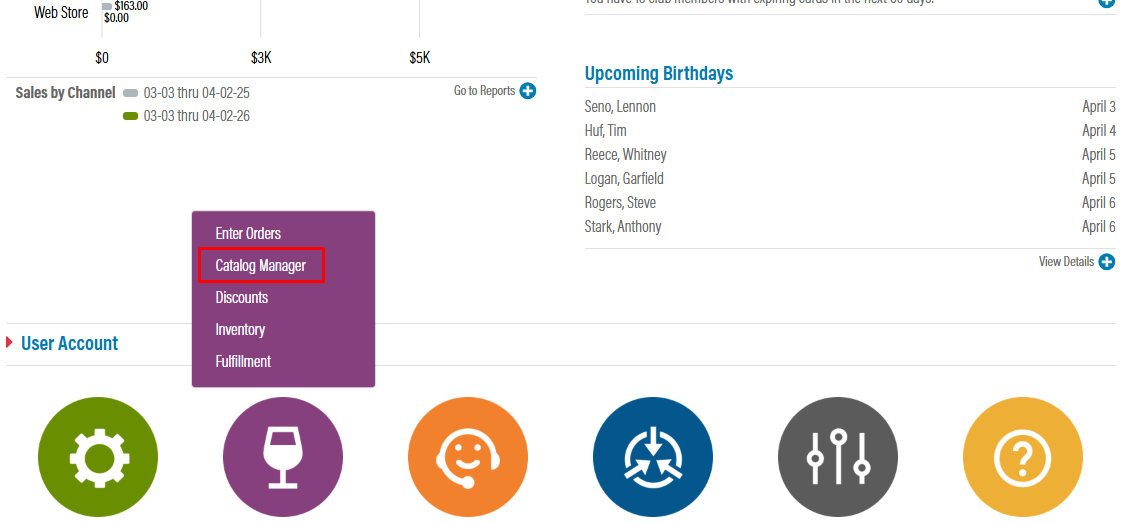
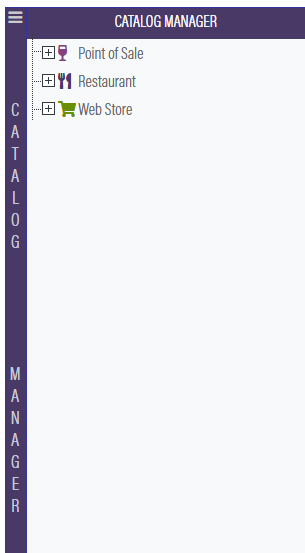
To navigate to this module, open up OrderPort Admin > Products > Catalog Manager. When you open the Catalog Manager, you will see the landing page. The Page is broken up into two navigation bars, a search bar, and a product list. The green buttons on the top of the page allow you to access the catalog manager's different pages. This includes New Group, New Product, Catalog Settings, Favorites, Barcodes, and Groups.

The first button, Catalog Manager, is a dropdown. Click on the three lines to open up this navigation. Select the plus buttons to open up the submenus. Selecting the name of a group will bring you to that group's page.
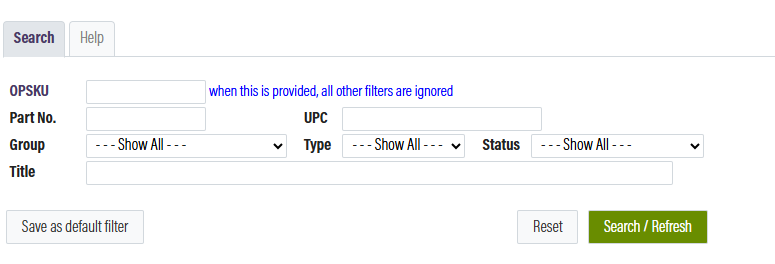
At the top of the page is a filter menu for searching the product list. You can search by OPSKU, name, UPC, part number, type, group, and status. You can set a default search by selecting the "Save as default search" button after adding the desired filters. This would make it so every time you come to this page that will be the default search.
 On the bottom half of the screen, you will see the product list. For every product, it will show you the Part No., name, OPSKU, type, group, subgroup, status, and current stock (This pulls from your default ship location. At the bottom of the screen, you can also change how many products will show up on one page, or navigate to the next page of items. Please note that the more items you try to load onto the page, the longer it will take to load.

Creating a Product
When you are ready to create a product, select the New Product button from the top navigation of the catalog landing page. The first thing you need to do is decide what type of product you want to create. In OrderPort, we offer six main types of products. Please review the product creation guide or video. For more in-depth information on creating a product, please review this guide.
Wine Products - Wine Products can be any alcoholic beverage that the winery is selling. These products will be taxed as wine products.
Physical Products - Physical Products can be any product that you are selling that is not alcoholic. Including merchandise and food.
Reservation Products - Reservation Products can be any product that is for a specific time and or date.
Collection Products - Collections are groups of existing products that are sold together. Things like 6 packs or gift boxes.
Gift Card Products - Gift Card products are used in association with the gift card module to sell redeemable gift cards to your customers.
OnDemand Products- OnDemand Products are fees you want to create that can be assigned as required products on other items.
Product Images on the Point of Sale
OrderPort is thrilled to announce that we now provide product images on the Point of Sale. In your POS settings, the Pictures option can be activated for each tasting room. By default, this setting will be enabled. When activated, all products will display an icon corresponding to their designated type. Please refer to the icons below.
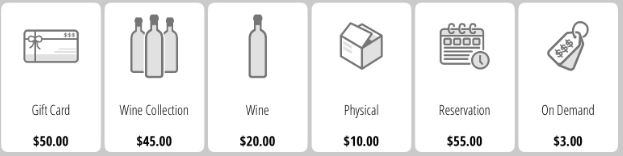 To upload an image, navigate to Products > Catalog Manager > Select the desired product. You will then see a new product image section appear beneath the webstore product image uploader. Please be aware: Once a product image is uploaded, it cannot be deleted; it can only be replaced by another image. If you want to go back to the icons listed above, we have attached the images to this guide so you can reupload them.
When you click to add a POS Image, you will be directed to the image editor. Click or drag and drop the image onto the right side. The display size for the image is 140 x 140 pixels. If your image is too large or too small, you can utilize the built-in editing features to make adjustments. However, it is generally recommended that you upload an image with the exact dimensions for optimal results.
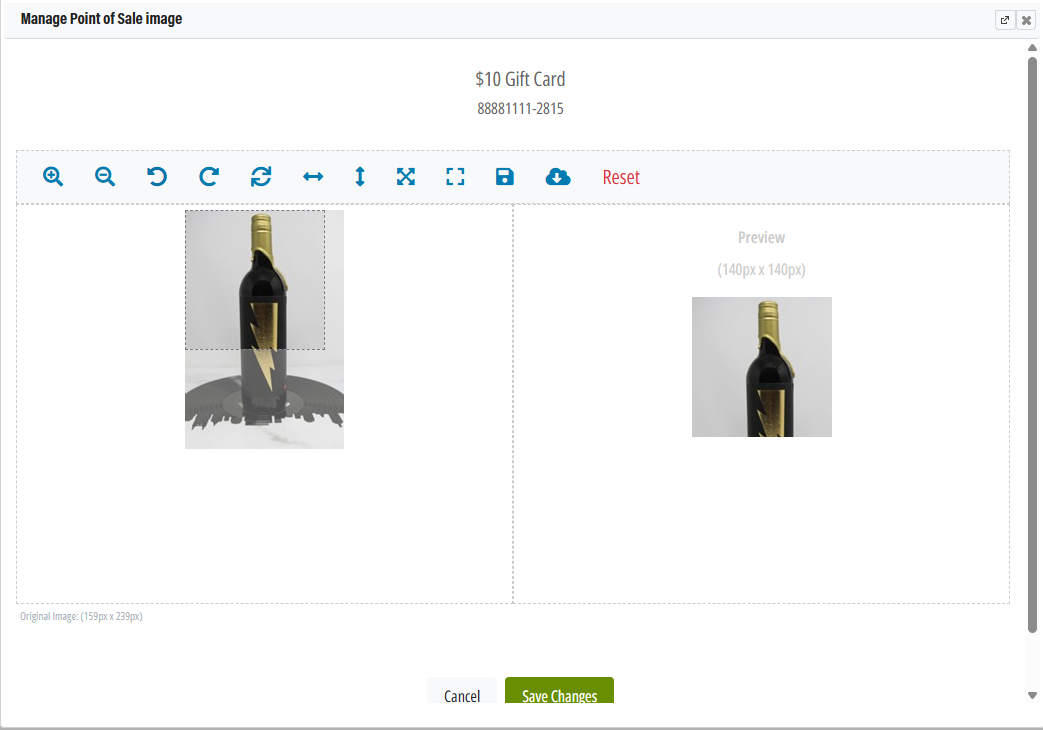 Editing tools
Zoom in - Will zoom in on the image
Zoom out - Will zoom out on the image
Rotate Left - Turn the image 90 degrees to the left
Rotate Right - Turn the image 90 degrees to the right
Toggle Rotate Mode - Will enable you to freely rotate the image at any angle
Flip Horizontal - Flip the image left to right
Flip Vertical - Flip the image top to bottom
Contain within aspect ratio: Will attempt to adjust image position to display the whole image
Fill aspect ratio: Will stretch the image to fill the box
Creating Tastings
There are a few different ways to go about tracking and setting up your tasting items. Please review our full guide on Tastings, Samples, and Donations for more info.
Viewing and Editing a Product
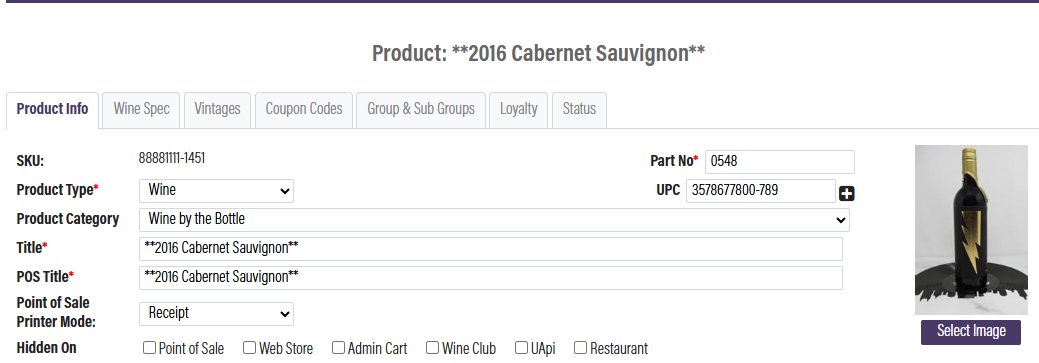
When viewing a product, the first screen you will see is the Product Info tab. This contains information such as the name, size, retail price, and customer class discounts.
When creating a new product, you will fill out each information field so that it can be sold and tracked correctly. If you are editing a product, you can change the information in the necessary fields. Additionally, this is where you can add a photo of the product if it’s being sold on your webstore.
Below the product information are the Discount Tiles, which allow you to choose which customer classes receive discounts on the product. If a customer class tile is not activated for the product, the discount will not be triggered. It also means that customers with that class will not see the wine for price on your webstore. These settings will only apply to this specific product. The discount amount can be customized per class and item.
Please note: If the consumer customer class is set to inactive, for all users not signed into the webstore, the product will display as $0.00. When they add the item to their cart, the actual price will populate. If you don't want non-members to see the item, please review the status section of this article.
You can also set up product descriptions. The text you enter in the Overview section will show when a customer clicks on the product in your webstore. The information entered in the Summary Overview will show as a brief description when a customer is browsing products in a group.

Wine Specs Tab
This tab is where you can enter consumer and technical information on a wine product so that it’s available in OrderPort. The only requirements on this page for wine products are Volume and Alcohol %. This information will show on your webstore if you check the box at the top of the page. 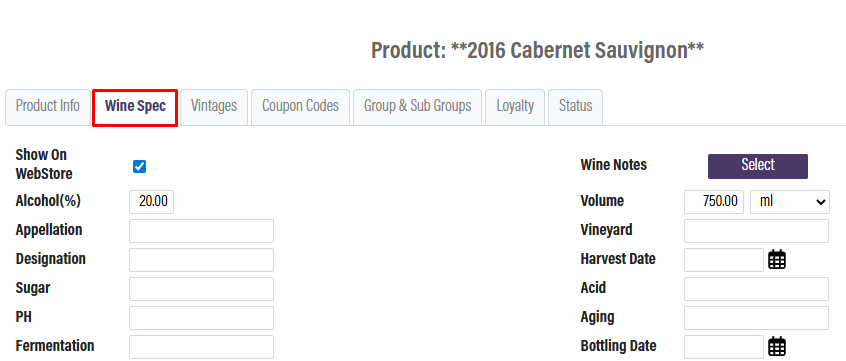
Vintages Tab
The Vintages tab is only available if the product type is set to Wine. If you have multiple vintages of the same wine for sale, use this tab to link them together. This allows a customer to see each vintage at the same time on your webstore.
Please note that you cannot link products that are in a group with the type Tasting.

Coupon Codes Tab
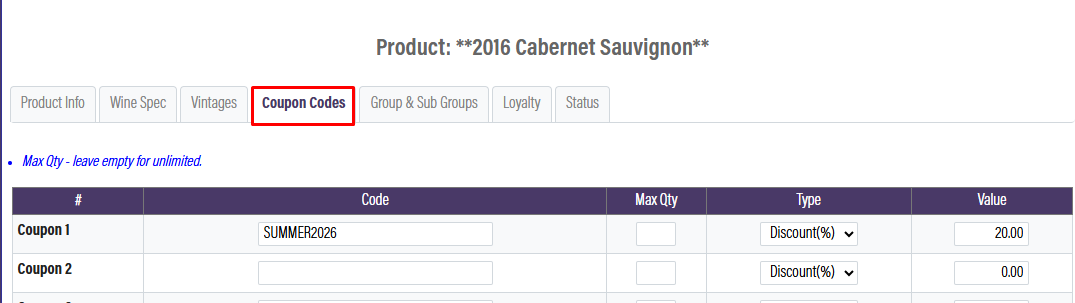
This tab is where you can create a coupon code. A coupon code acts just like a promo code, but it will apply only to this specific product. Create the code, enter the number of units it applies to and then set the discount amount. You can create different codes depending on the number of units a member can purchase. Click Save Changes when you are done.
Groups and Sub Groups Tab
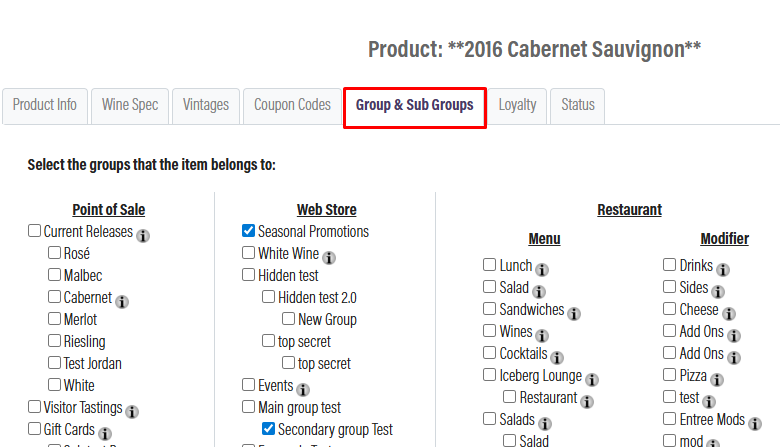
This tab is where you will organize which groups and subgroups you want the product to be in. First, check the box next to the Point of Sale group you want the product to be in. This is where you will find it when checking out a customer in the tasting room. If you want the product available online, check the box next to the Web Store group you want it to appear in. When done, make sure to save your changes.
Please Note: If your business is using OrderPort Restaurant, you can choose a Restaurant group as well.
Loyalty Tab
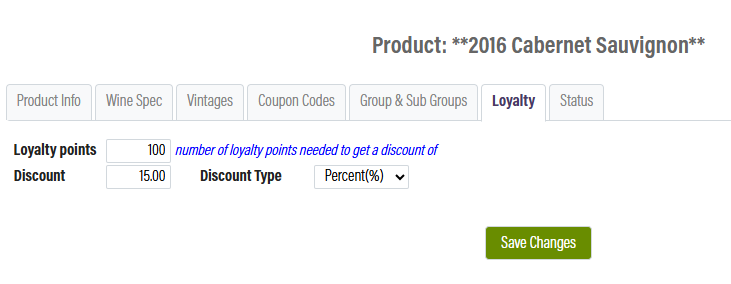
If your winery is utilizing the Loyalty tool, you can choose which products customers can use their loyalty points on. In the example here, we are giving customers a discount on this wine if they use 100 points. Additionally, you can set a special price instead of a discount.
Product Status Tab
The status of a product is the main indicator of its availability to customers. There are six product statuses you can choose from.
Active: The product is currently available to purchase from any group it’s currently organized in.
Inactive: the product is not available for sale.
Coming Soon: The product will show in your webstore, but cannot be purchased.
Sold Out: The product is visible in the webstore, but with a note that it’s sold out.
Club Only: The product is visible online but can only be purchased by club members who are logged in. In order to set this up, you must also make sure the consumer class discount is inactive. Go to the Product info tab and unselect active on the consumer class. You can then choose to type a custom message or if you only want wine club members to see the product.

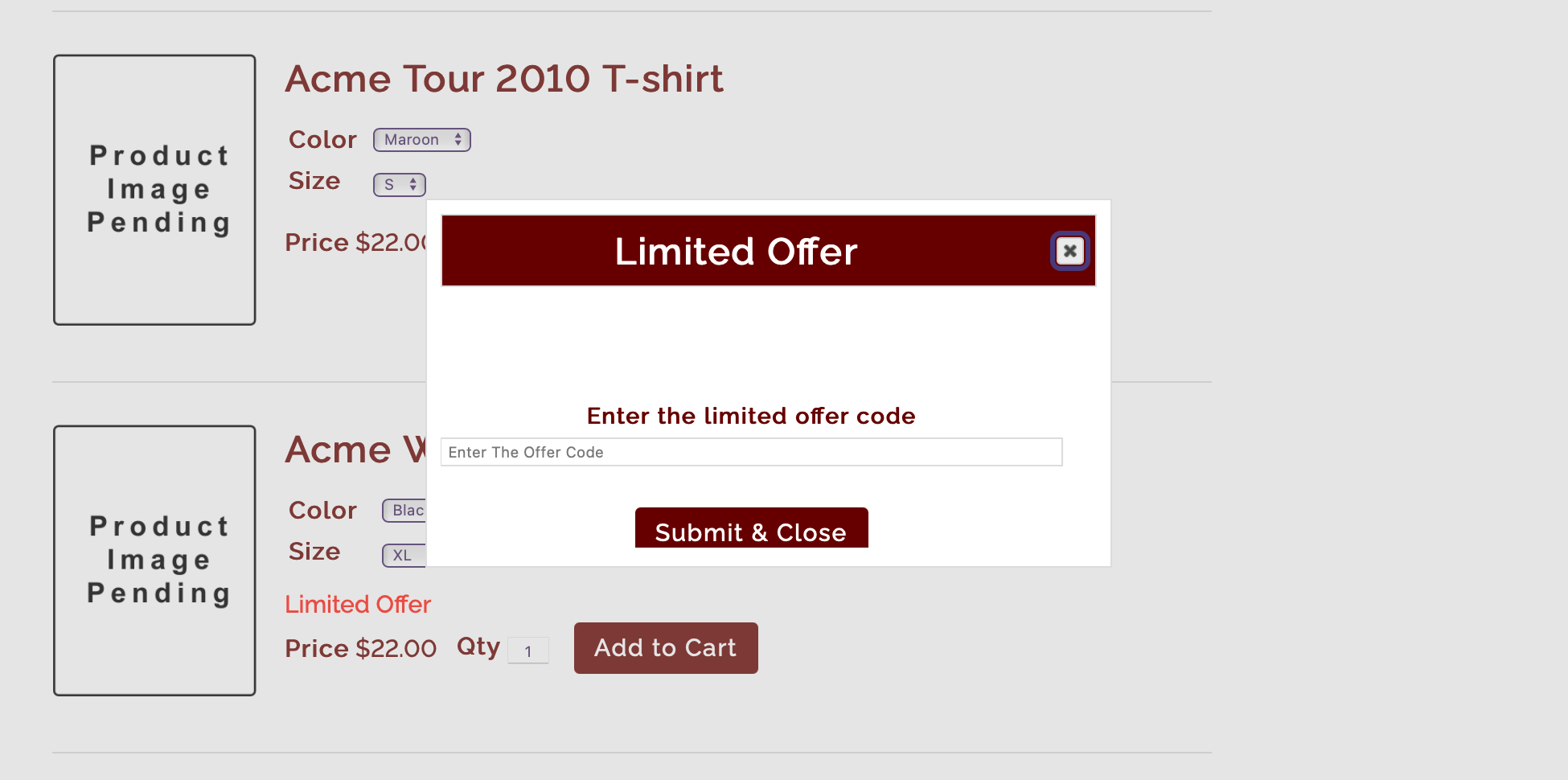
Limited Offer: The product is visible in the webstore with a message that it’s only available for a limited time. This product type allows you to require a product code for the purchase of the product. This code can be distributed by email or over the phone to customers.
Creating New Groups
Using the top navigation bar, select "New Group". There are usually two types of groups: Point of Sale and Webstore. If you are using OrderPort Restaurant, that will also be an option. You will need to select which application you want this group to apply to. You can only select one application, so you may need to create multiple groups. Please watch this video. Interested in learning more about group management, please review this guide.
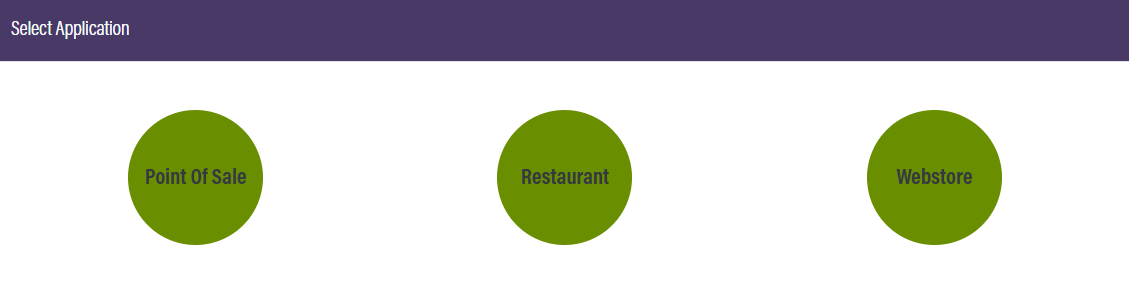
Point of Sale/ Restaurant
When building a new group, you will need to give it a name and a parent group. You can also determine if you want this group to be read-only, and what locations it is available at. The parent group will be defaulted to the correct group, you will only need to change this if the group you are creating is a sub-group. If you are making a sub group please select the parent group you want it to be under.
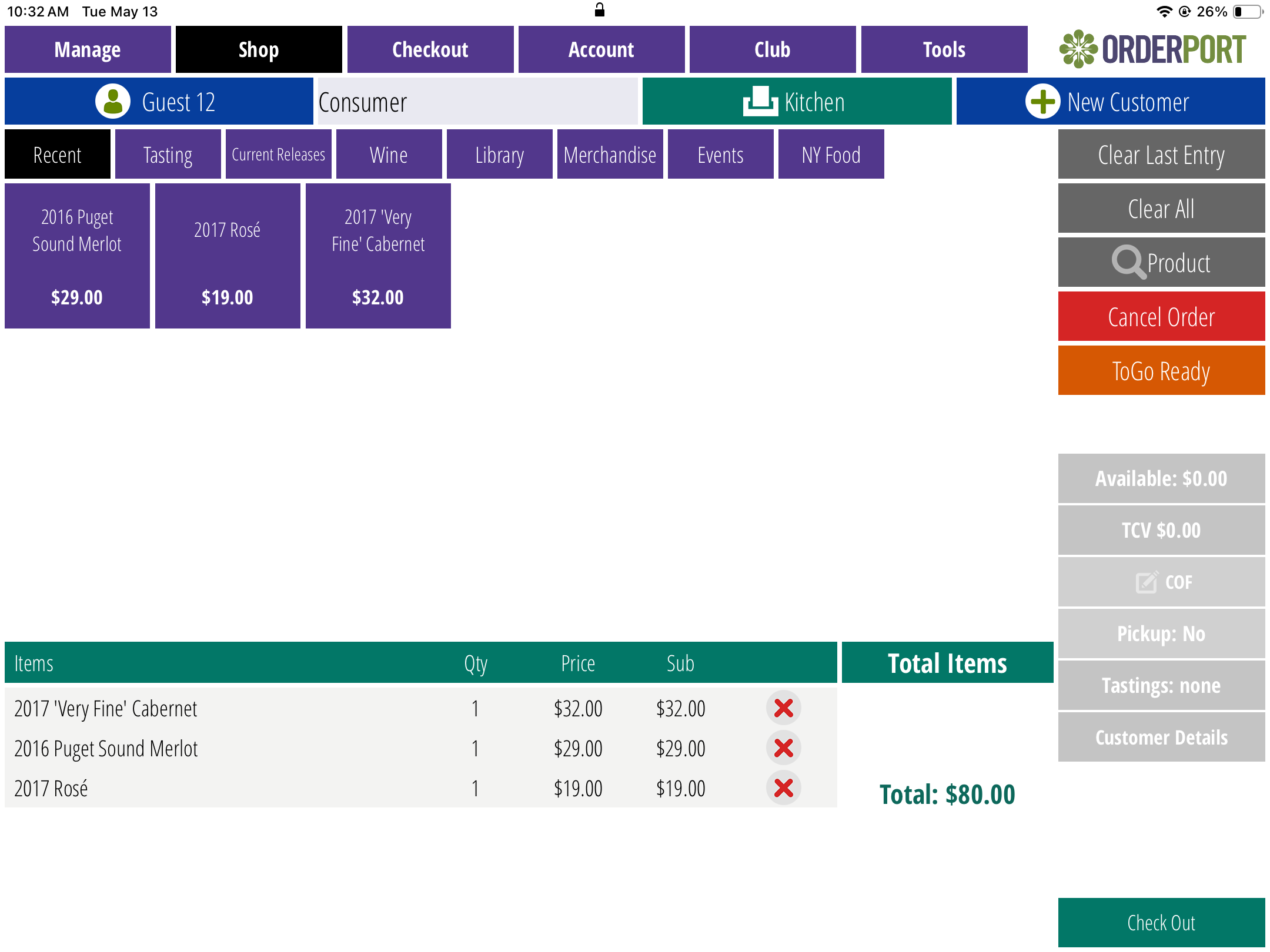
Note: On the Point of Sale, there is a group named "Recent" which automatically lists items that were recently added to the order. This group is not related to the Catalog Manager and cannot be deleted. For this reason, we recommend that you not name any Point of Sale groups "Recent" to avoid confusion.
Webstore
When building a new group, you will need to give it a name, parent group, and webstore group type. You can also determine if you want this group to be read-only and enable the Summary. The parent group will be defaulted to the correct group; you will only need to change this if the group you are creating is a sub-group. If you are making a sub group please select the parent group you want it to be under.
Adding Products to Groups
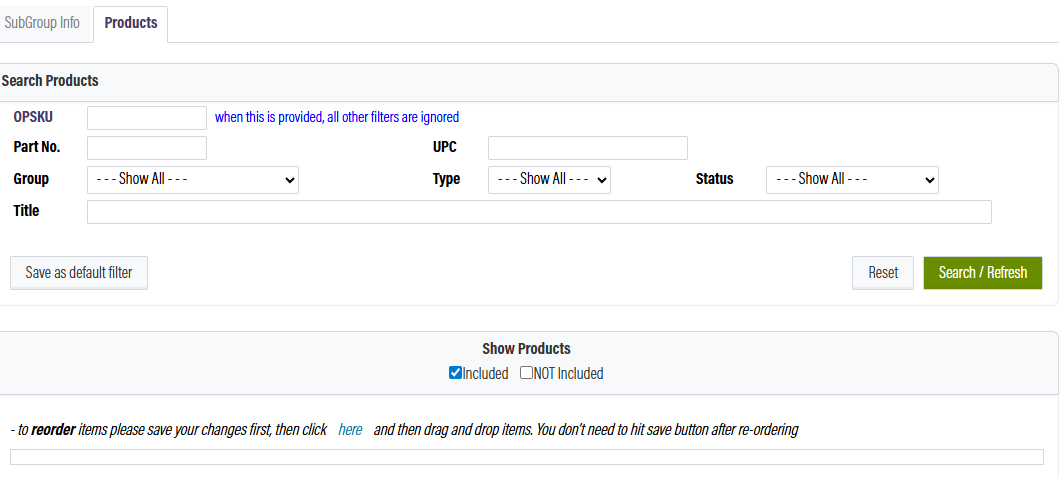
There are two ways to access your groups. The first is by using the top navigation and you will be brought to the group's landing page. You can also use the side navigation and navigate to the exact group you want to edit. After you have selected the proper group, please click the products tab. Search for products, and make sure that you have the "Not Included" option checked. Use the checkbox to the right of the products to add them. Then search for the desired products. To add or remove a product, check or uncheck the box on the left-hand side of the product. Make sure to save changes when you are done. If you would like to rearrange your products, you can do so by clicking and dragging them in the list to the correct order. There are no automatic recording options at this time.
Re-ordering your groups
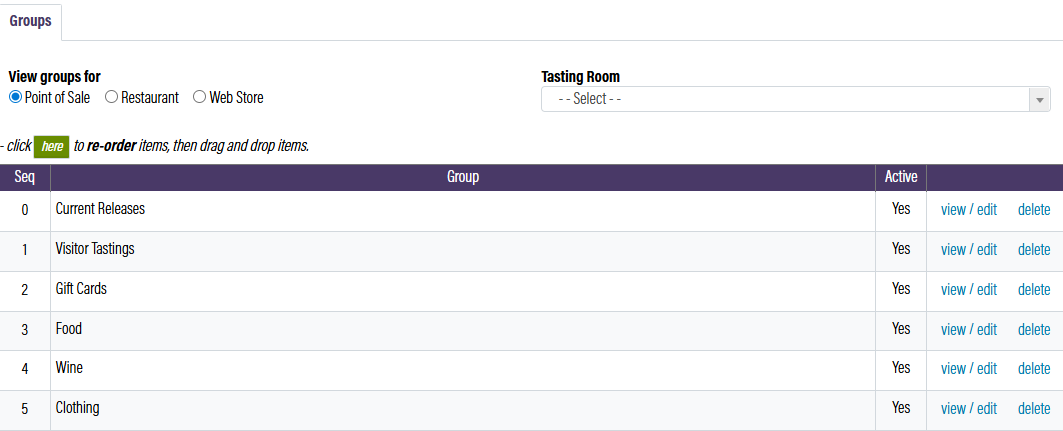
When you are on the group's landing page, you can see all your groups listed out. From there, you can click and drag your groups into the proper order. You can do the same with your products. Make sure you save changes when you are done.
Catalog Settings
The Catalog Settings section contains tools that can help you better organize and present your products. You can get here by selecting the tab from the top navigation menu.
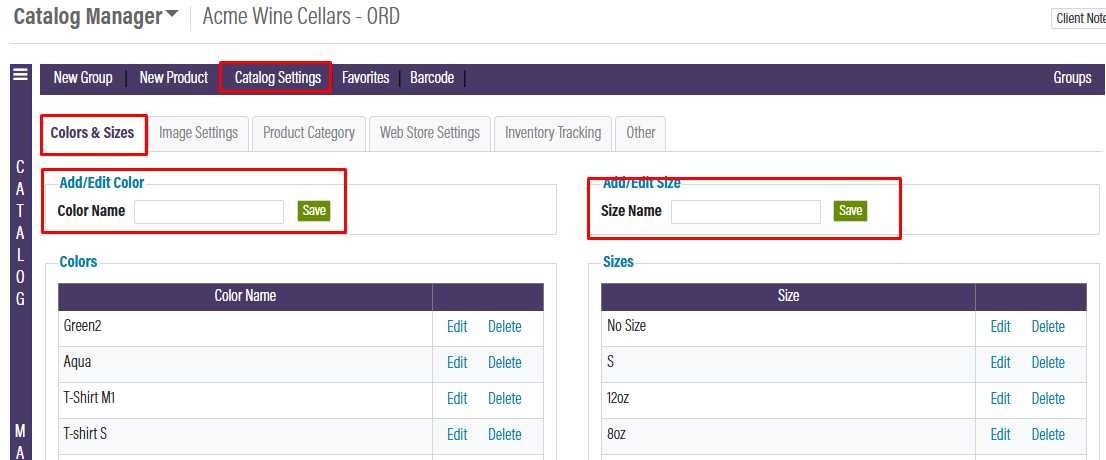
Colors & Sizes: Here you can view/edit and add new Color and Size options for your physical products.
Image Settings: Here you can view/edit your product image sizes on the webstore. Please note these changes are live and will affect all product images on the webstore.
Product Category: Here you can view/edit and add new Product Categories. These allow you to distinguish between your items when reporting. Ex: Beer. The categories will not appear on the webstore or point of sale.
Webstore Settings: Here you can view/edit your webstore settings. If you do not want summary overviews to show for your products, choose the hidden option. If you want OrderPort to automatically remove items that are sold out, check the box. Additionally, you can choose here which location you would like your inventory pulled from when a customer makes an online order.
Inventory Tracking
Real Time Inventory Tracking is a tool that prevents an item from being oversold. This can be enabled for specific items that have limited inventory. Real Time Inventory requires that a customer complete the checkout process within 15 minutes, or the item is removed from their cart. This should not be used during a wine club release to ensure customer customizations are not deleted. For additional information on the setup, please review this video.
Please Note: This tool must be enabled by OrderPort Support. We currently allow up to 15 items to be tracked.
FAQ's
When should I set a basket minimum and maximum?
The basket minimum and maximum is designed to be used for promotions. You may set a minimum required for any order or a maximum number. The maximum is usually used if there is limited inventory, whereas the basket minimum is used to move as much product as possible. The customer account maximum sets a maximum number of units of the product a customer can order in one year. This is generally used for products that have very limited available inventory.
Can I create a catalog item for donations?
For charity events, donations are a helpful product. You can create a catalog item for donations; however, since the donation is not a physical product, it is best to create an "event" as if it were a ticket or a reservation. This is easiest because it does not require you to enter a weight. Make sure that the event is marked as non-taxable. The item does have to have a recommended amount - whether you think this is $1 or $5, etc. (It is up to your discretion).
Go to Catalog Manager > New Product > Select "Reservation" as Product Type > Uncheck the box that says "tax" and the box that says, "tax as wine". The donation will appear just like any other item in your Point of Sale. For more information on other ways to do donations, please review the Donations guide.
How do you delete products in the Catalog Manager?
You would open the product details, and then on top of the page, there will be an option called "Delete Product." If the products are not tied to an order, they can be deleted. For reporting purposes, any item that has been used in an order can not be deleted. If you no longer wish to use an iten you can change the name and set the item to inactive.
How do I make a product pickup only?
When adding only a 0lb weight item to the cart, the order will have no shipping options available. If the cart has an item with weight and an item without weight, then shipping options will be available. In other words, If the total weight of an order is greater than 0 lbs, then the order can be shipped.
There is a setting that we can enable from the backend known as "Will Call Only". Contact customer service to have this option enabled. When this setting is enabled, winerys can mark products as "Will Call Only" in the Catalog Manager. Once a Will Call Only product is added to a customer's cart, it will force the entire order to be pickup only and there will be no shipping options available.
It is recommended that the Will Call Only products are specified as pickup only in the description, or somewhere that the customer can easily see. This way, customers will not be confused when they add one of these products to their cart and cannot ship the order.
How do I record Samples?
The first step into record samples is creating a customer and setting that Customer Class as "Samples." Please review the indepth samples guide on the best practices for sample orders.
How can I search for a product that I have created in OrderPort?
On the main page of the Catalog Manager, you will be able to search for products that have been entered into your OrderPort account. You can search by the SKU number for a specific product. You may also search by part number and filter by product type, status, group, or title. For example, if you search by title: Cabernet, your search results will show all Cabernets your winery has for sale. You will be able to see the part number, SKU number, group, subgroup, status, and the number of bottles you have in stock at the moment.
Can I change a SKU number?
No - SKU numbers are automatically assigned.
Why can’t I format text in the Catalog Manager?
This is typically because the Catalog Manager is pulling in special invisible formatting characters from the source text (from which it was copied).
- Click the source button in the HTML editor to reveal all HTML code as well as all of your text
- Select all and delete all
- If your source document is Microsoft Word or any other word processing application, select all your text and paste it into a basic text editor, such as notepad. This will remove all word macros and formatting.
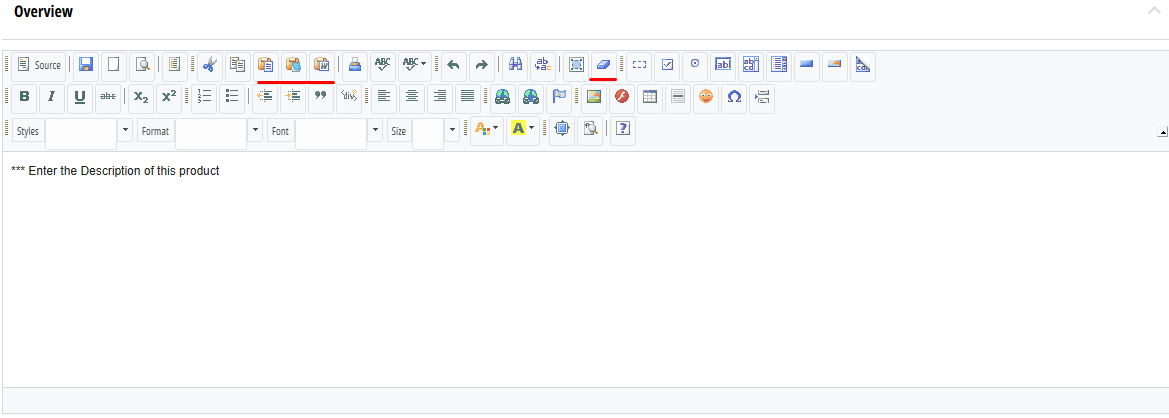
- Do not use an HTML editor outside of OrderPort to create and modify page contents; only place plain text into HTML editor in OrderPort.
- Copy and paste the text from the text editor to the HTML editor in the catalog manager
What is a UPC?
A UPC code is a universal product code, used to create barcodes for products. The UPC can have any combination of numbers or letters and those can be used to create your barcode.
Why are there multiple SKUs for a variable price product in an order? Even though only one product exists in the Catalog Manager?
This behavior is by design when adding two or more line items of the same variable price SKU in the same cart. There is no issue with the system.
Why are the changes I made in the Catalog Manager not appearing on the OrderPort app?
When you make a change to your catalog in admin, you need to reload the catalog in the iPad app. Go to the Tools tab and click Reload Catalog. OrderPort recommends clients to always log out from all iPads at the end of the day and sign back in the next day when they start the day. Logging out and back in ensures the Point of Sale app is up to date with changes made to the Catalog.
How do I set up limited-quantity event tickets?
To create the item:
Create the item for the event in the Catalog manager as a Type=Reservation. Check “Real Time Inv Track”. make Low Stock equal to the value when you want a reminder that tickets are getting low. Make sure that the Inventory system notification is set up so you receive a copy.
You may want to create a group on your webstore for “Tickets” *. Make sure this new item has the appropriate Groups set and is Active. Set this group to be a merchandise group. Then set the inventory level for this item in the Default Ship location to the maximum number of tickets.
To limit individuals to a set number of tickets:
In the catalog product detail, you can set a:
- Basket minimum (minimum number you require someone to purchase - this may be left blank)
- Basket maximum (a maximum number of tickets an individual can purchase at one time)
- Customer account maximum (maximum number of tickets any customer can buy for that event)
- To see who purchased tickets, run the Sales by Product report in the Marketing Reports tab.
When customers go to purchase tickets and put them in their cart (on the web), they will have 15 minutes to complete their purchase. If they do not, then the tickets will be returned to inventory. If you sell in the POS, then make sure you are selling to an account, so you know who purchased the tickets.
How do I setup product minimum and maximum?
Go to Catalog Manager > Open up the product and set the maximum or minimum to whichever amount you desire.
How to adjust your size and color options.
Navigate to the catalog manager, which is located under Products. Select the Catalog settings tab and then colors & sizes. Add a new color or size or edit an existing one.
How to create apparel with different sizes and colors.
In Order to create an apparel option for multiple sizes or colors, you will need to set your products up in the following way.
- Create a physical product
- Select a universal name for the product (for this feature to work, all of the products must have the exact same Title and POS Title)
- Select the size and or color you like
- Clone the product or create a new product with the same name but a different size or color.

Why does OrderPort not accept the product image I am trying to upload?
Only product images in the PNG or JPG file format can be uploaded in the catalog manager. There is also a maximum size 3024 x 4032 pixels for the image.
Why is it that when I am uploading an image from one of my products, it shows up in the catalog manager after saving it as sideways or horizontal?
This is because the image file is too large. Any image file being uploaded that is around or more than 3024 x 4032 pixels is too large of an image file and will cause the image to be skewed and uploaded incorrectly. Resize the image to a smaller size, and it should then upload fine.
Sometimes when I upload a new JPG product image and then save changes, the changes are not saved properly, and the product image reverts back to what it was before, why is that?
If you experience issues uploading JPG images, it could be a result of the image containing some data that the GDI+ library that comes with the .NET Framework from Microsoft cannot process. For more specific information on why this is, see below in the comments. The recommended workaround when this occurs is to use a JPG to PNG converter program or website and try uploading it as a PNG file instead.
The JPEG standard defines a metadata format, a file that consists of a series of "chunks" of data (which they call "segments"). Each chunk starts with FF marker, followed by another marker byte to identify what kind of chunk it is, followed by a pair of bytes that describe the length of the chunk (a 16-bit little-endian value). Some chunks (like FFD8, "Start of Image") are critical to the file's usage, and some (like FFFE, "Comment") are utterly meaningless.
When the JPEG standard was defined, they also included the so-called "APP markers" --- types FFE0 through FFEF --- that were supposed to be used for "application-specific data." These are abused in various ways by various programs, but for the most part, they're meaningless and can be safely ignored, with the exception of APP0 (FFE0), which is used for JFIF data: JFIF extends the JPEG standard slightly to include additional useful information like the DPI of the image.
The problem with your image is that it contains an FFE1 marker, with a size-zero chunk following that marker. It's otherwise unremarkable image data (a remarkable image, but unremarkable data) save for that weird little useless APP1 chunk. GDI+ is wrongly attempting to interpret that APP1 chunk, probably attempting to decode it as EXIF data, and it's blowing up. (My guess is that GDI+ is dying because it's attempting to actually process a size-zero array.) GDI+, if it was written correctly, would ignore any APPn chunks that it doesn't understand, but instead, it tries to make sense of data that is by definition nonstandard, and it bursts into flames.
How do I prevent the price of an order from being shown on a gift order?
When a customer selects "This is a gift" during checkout, they will receive a gift email that will suppress the price of the wines. Here is a sample order using the "This is a gift" option:
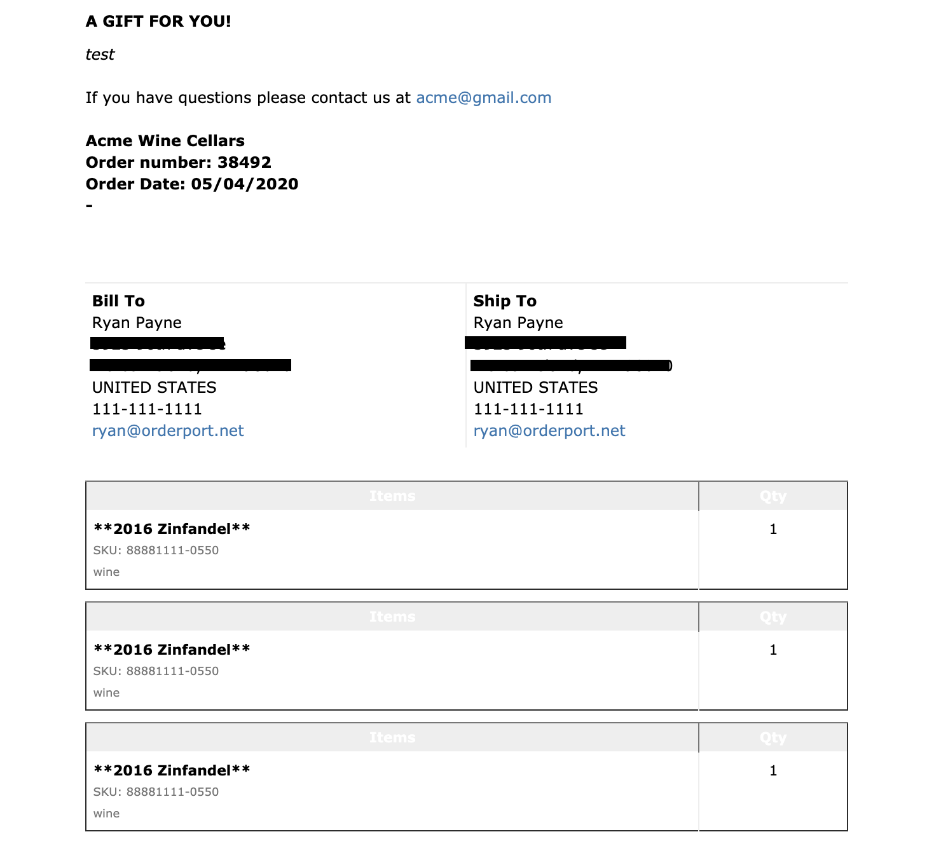
This is what appears in a gift email even when "ProductList" is included as a placeholder in the marketing module.


