Wine clubs are a subsciption based service that delives hand crafted selections straight to clients' doors. The wine club module is located on OrderPort Administration > Services > Wine Club. The Module is broken up into five main tabs. There will be more details later in the document on how to use each of these sections.
TABLE OF CONTENTS
- Overview
- Selecting a Club Type
- Creating a Wine Club
- Wine Club Special Features
- Wine Club Release
- Customers
- Reports
- Wine Club Designs
- Problem Order Errors
- Failed Errors
- FAQ's
- How do I make a different card on file the default for a wine club member and delete the old one?
- How do I cancel someone's wine club membership?
- What do "on Hold" and "Retain privileges" mean?
- When is a customer account supposed to be upgraded to the next tier of my Tiered Case Club?
- Why is my Wine Club customer account displaying as a consumer in the customers module?
- If a customer is a member of multiple clubs, how are discounts applied?
- Why are my customers able to request cancellation from my wine club?
- I am running a Pick up only build, but it's still making me select shipping options.
- How to Re-authorize a Wine Club order after the Customer updated their card on file.
- Where do I find the Problem and failed carts?
- Where can I find the Total Revenue for an individual a specific wine club?
- Where can I find information on wine club members with expired credit cards?
- How can I set up my Webstore Wine Club Signup process to charge customers for joining?
- How can I Re-Order my wine clubs on the webstore?
Overview
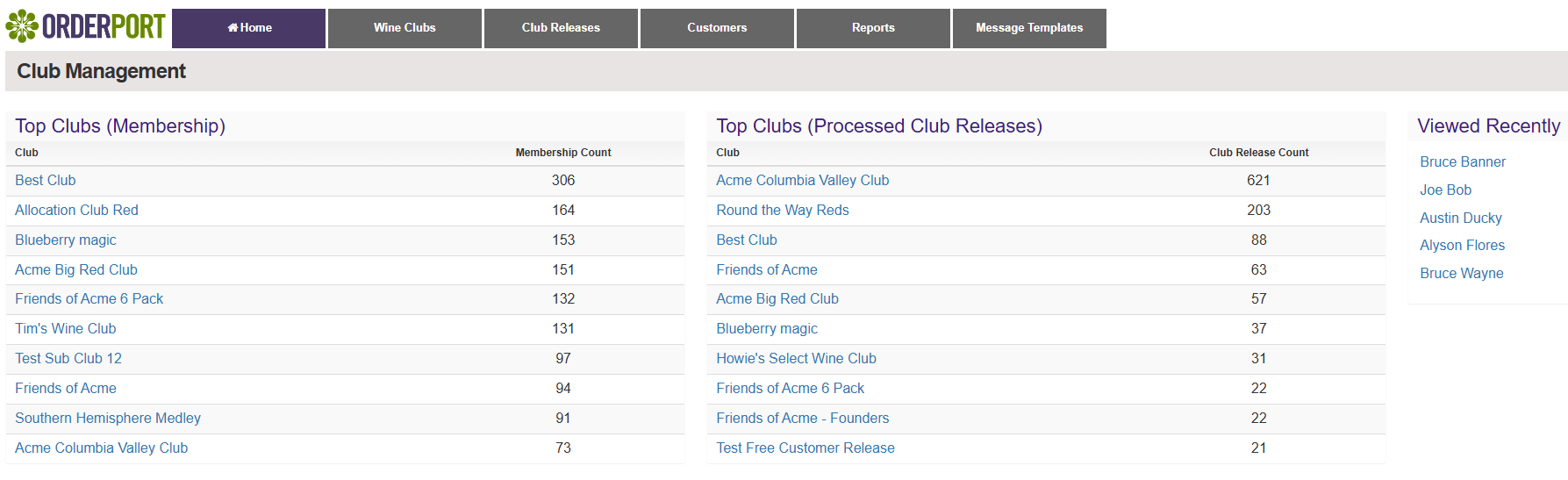
Home
This page is your wine club dashboard, and it gives you some statistics about your clubs and recently viewed club members.
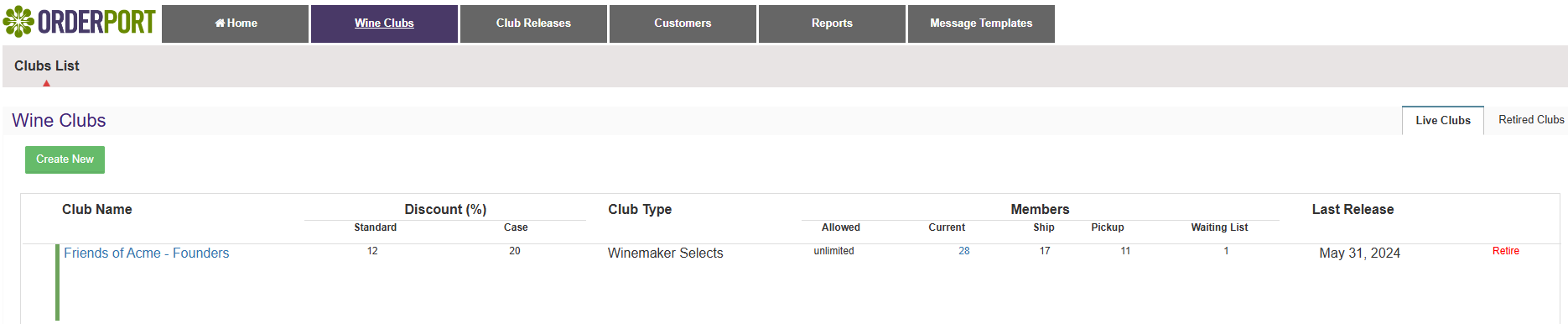
Wine Club
This tab is where you can view all of your live and retired wine clubs. After clicking on the name of a club, it will bring you to the Edit Club tab. From here, you can adjust all the settings that were set up when you created the club. This includes editing the name, discounts, and club-type fields.
On the gray tabs at the top of the page, you will see the Release in Progress and Processed Release. This is the easiest way to navigate to your current and previous releases for an individual club.
 Club Release
This tab is where you can access a list of all your active and processed club releases. After selecting a release, it will take you back to the Wine club > Release in Progress page to make edits to that release.
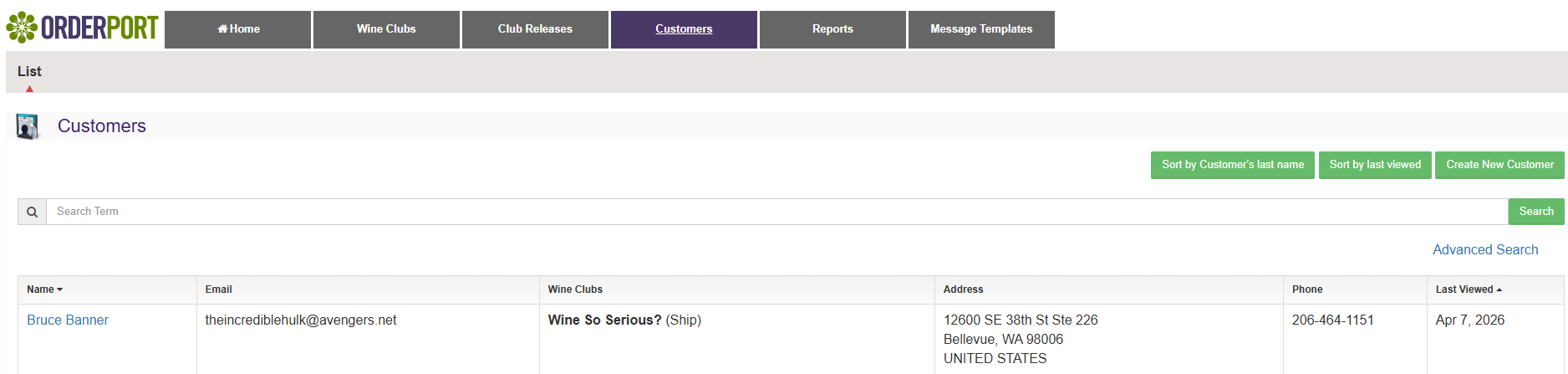
Customers
In this tab, you can see a list of all current and previous club members. Use the search bar to find a specific member. After selecting a club member's name, you will be brought into their wine club account. Here you can edit and review their account info and wine club release orders.
Reports
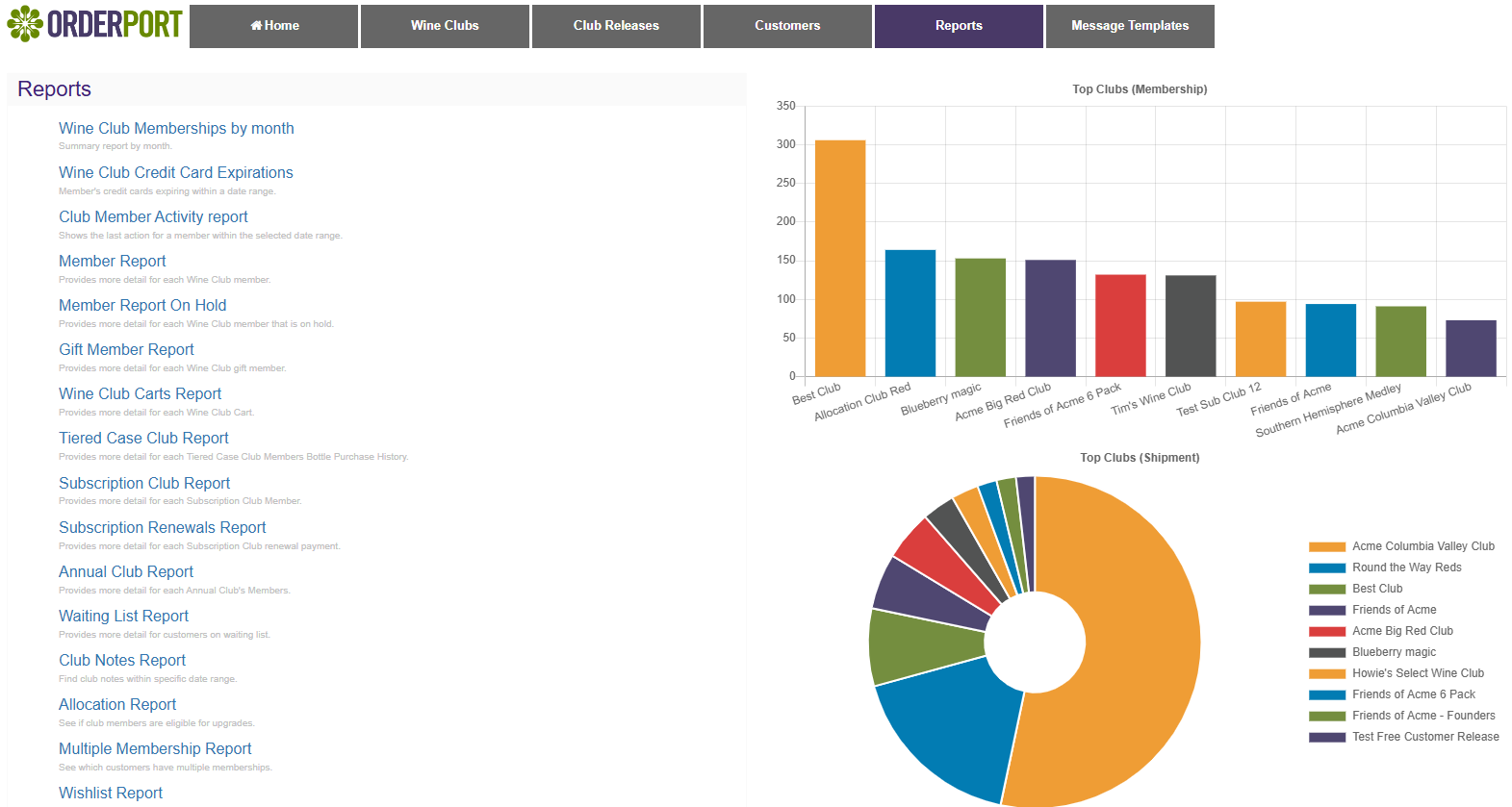
In this tab, you can review information on your wine clubs and wine club customers. There are 18 different reports available in this tab.
Selecting a Club Type
There are six types of wine clubs you can choose from: Customer Choice, Winemaker Selects, Case, Tiered Case, Allocation, and Subscription clubs. All of these clubs give you the option to provide special membership discounts. When making a wine club, you must select a wine club type.
Customer Choice
The customer choice club allows your members to choose which wines they receive within a wine club release. When you have a release in progress, customers are able to log in to your webstore and customize their carts based on the wines you make available. You can use OrderPort’s marketing system to alert customers of the upcoming release so they know when to customize their orders.
Why wineries use it:
- Most popular model for engagement and retention
- Members get personalization without overwhelming staff
- Reduces cancellations and declined shipments
- Supports a modern, consumer-friendly experience
Aligned business goals:
- Fast membership growth
- Attract younger buyers
- Reduce cancellations and improve retention
- Meet modern buyer expectations
Winemaker Selects
Winemaker Selects is the basic club type. You will choose which wines are included in a release, and customers will not be able to customize their orders themselves. You, as the winery will be able to customize carts, so customers can contact you to make changes if you allow it.
Why wineries use it:
- Reliable recurring revenue
- Complete winery control
- Straightforward to manage
- Ideal for allocated or themed releases
- Members appreciate the ease and consistency
Aligned Business Goals:
- Predictable recurring revenue
- Manage limited production or protect high-demand wines
Case Club
Since a Case Club does not utilize releases, this club type allows customers to receive club benefits without committing to set releases. Customers become eligible simply by purchasing a case of wine. After the initial purchase, they continue receiving the Case Club discounts as long as they purchase a minimum of 12 bottles throughout the year. Members who do not purchase 12 bottles within that period will have their membership automatically lapse.
Why wineries use it:
- Boosts average order size
- Encourages repeat visits and purchases
- Very easy for tasting room teams to explain
- Perfect for local supporters and regular guests
Aligned business goals:
- Increase average order value
- Strengthen local loyalty and repeat visits
- Fast membership growth (where local engagement is strong)
Tiered Case Club
A tiered case club works in a similar way to case clubs. There are two differences:
- Tiered clubs allow you to have different club levels, which means members who buy more wine can move up a tier to receive greater benefits. If they do not buy enough wine, they can be downgraded or removed from the club, depending on their current tier level. Each tier can have its own discounts, meaning that you can sell products to different tiers for different prices and make certain products only available for certain tiers.
- If you want to enforce minimum purchase requirements, you can create a release at the end of the year that automatically selects the number of bottles the customer needs to purchase to maintain membership. If there was a purchase requirement of 12, and a customer purchased only 9 bottles throughout the year, the release would automatically place 3 bottles in the cart to meet the minimum.
Why wineries use it:
- Gamifies buying behavior and motivates upsells
- Encourages long term loyalty
- Flexible for wineries without set release calendars
- Simple to scale as the business grows
Aligned business goals:
- Increase average order value
- Strengthen local loyalty and repeat visits
Allocation Club
The Allocation club type allows you to provide exclusive releases to your members. Members can log in and decide whether to participate in a release. You can create tier levels, which allow a member to move up or down depending on how much wine they purchase. You can also decide which wines are available to each tier, and set different quantities.
This club type integrates with your inventory in real time, ensuring that items do not oversell. In addition to letting the members decide which wines they want to purchase, they can add products to a wish list. The wish list allows the member to request additional wines for their allotment. If there are extra bottles after each allotment has been set, you as the winery can add additional bottles to a member’s cart based on their wishlist prior to billing.
Why wineries use it:
- Creates urgency and premium value
- Protects scarce inventory
- Works well for small lot or high demand wines
- Ideal for prestige brands or flagship releases
Aligned business goals:
- Manage limited production or protect high-demand wines
Subscription Membership Club
The last club is the subscription club. This club type is different from a traditional club model. Instead of creating releases charging members for bottles, you will set up a billing cycle that charges a certain dollar amount that will be added to their member accounts as credit. This credit will then be available to the members as a payment method at your winery, and they can use it towards purchases of both wine and non wine products.
Why wineries use it:
- Easiest entry point for new members
- Strong appeal with Millennial and Gen Z buyers
- Builds dependable recurring revenue
- Lower cancellation rates due to full flexibility
- Great for wineries wanting steady income without shipment pressure
Aligned Business Goals:
- Predictable recurring revenue
- Fast membership growth
- Attract modern subscription-minded buyers
- Strengthen local loyalty and repeat visits
- Reduce cancellations and improve retention
Creating a Wine Club
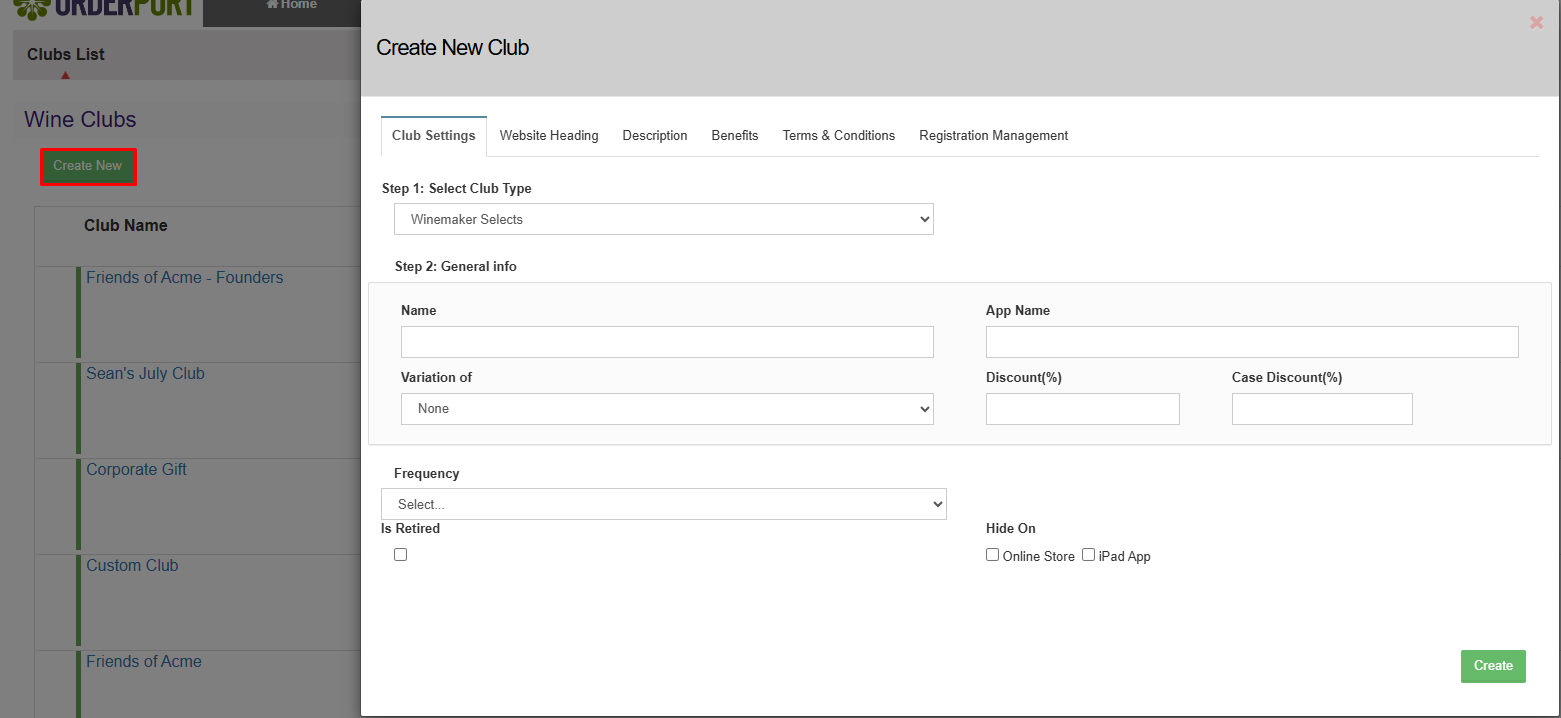
In the Wine Club module, navigate to the Wine Club tab. From there, you will see a "Create New+" button. Once you click on the Create New button, a pop-up window will appear where you enter the specific club information.
Club Settings
The first thing you will need to select is the club type. There are currently 6 club types: Winemaker Select, Customer Choice, Case, Tiered Case, Subscription, and Allocation. Please review the section above to decide on a club type that fits your business model. After selecting the club type, you will decide on the name of the club, the discount percentage, and whether you want this club to appear for your customers. These are the only required fields for creating a club. You can select Create or continue to the rest of the tabs.
Website Heading, Description, Benefits, and Terms & Conditions
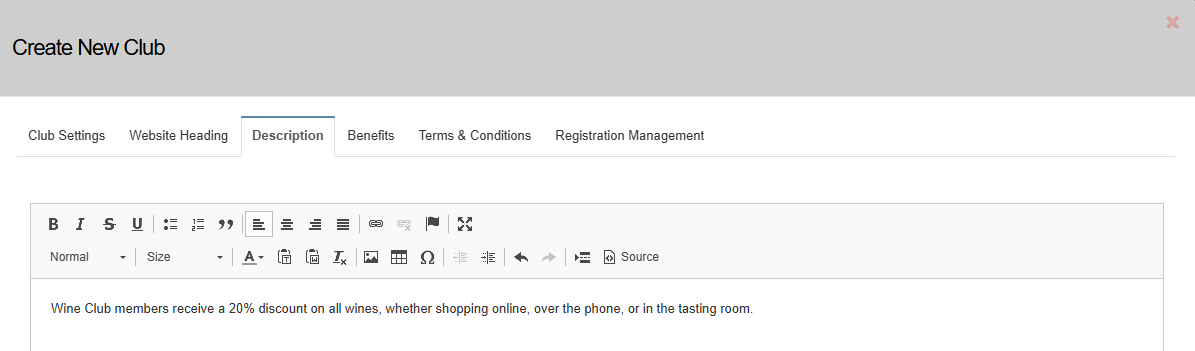
If you plan on making this club available for sign-ups on the web store, you will fill out the Website Heading, Description, Benefits, and Terms & Conditions tabs. The information entered here is what customers will see when they view the club on your webstore. In the picture below, we see an example describing the club. Enter your text and click Save Changes. Follow the same steps for Website Heading, Benefits and Terms & Conditions. This information will also show on the iPad if signing someone up in your tasting room.
Registration Management
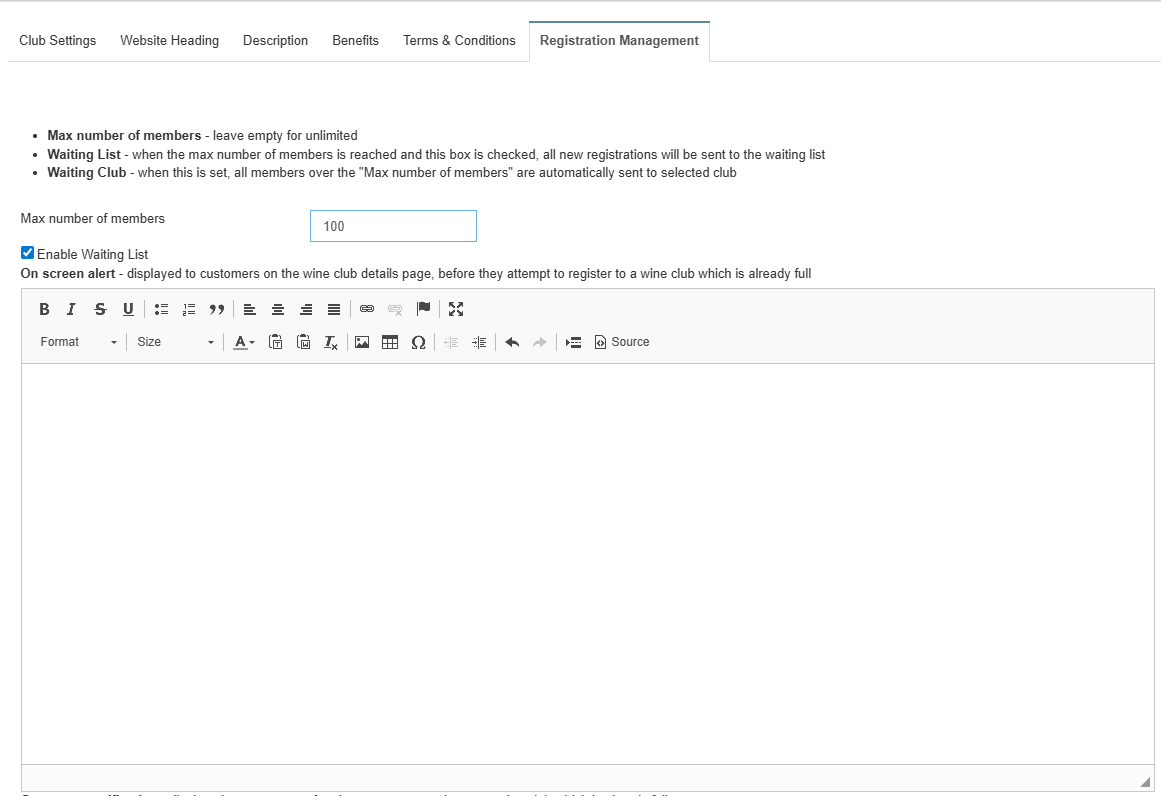
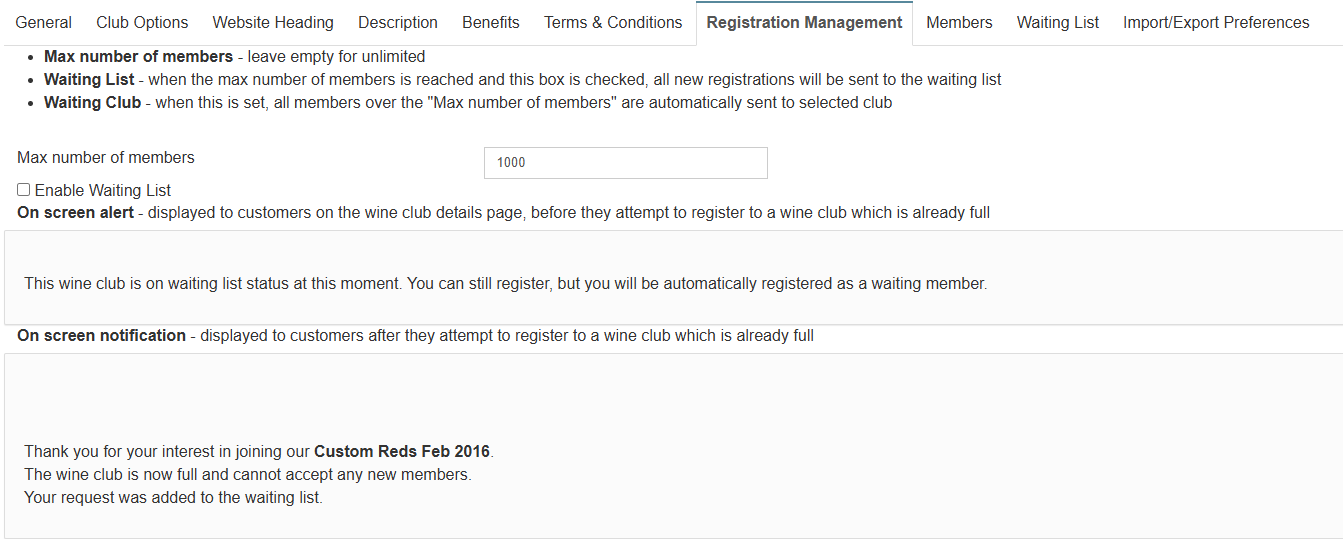
This page allows a winery to set parameters on how many members can be in a club at one time and allows a winery to create and manage a waiting list. If you decide you want a waiting list and a maximum number of members in the club, you will want to enter those in on this page. The text box is where you will decide what is displayed to the customer if they are added to the waitlist.
Wine Club Special Features
Membership Status Settings
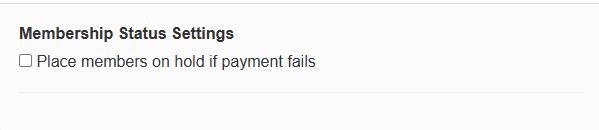
In the club options tab, on every wine club, there is a setting called "Place member on hold if payment fails." This setting will automatically place Wine Club members on hold if their Club Release payment fails. The members will remain on hold until the winery manually removes their OnHold date and reauthorizes the payment.
Preferences Settings
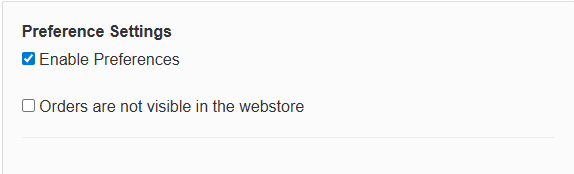
In the club options tab, on every wine club, there is a setting called " Enable Preferneces" This optional feature allows a club member to choose the wines they want ahead of the club release. Preferences are distinct from optional wines because they are in place of the default wines the winery has selected.
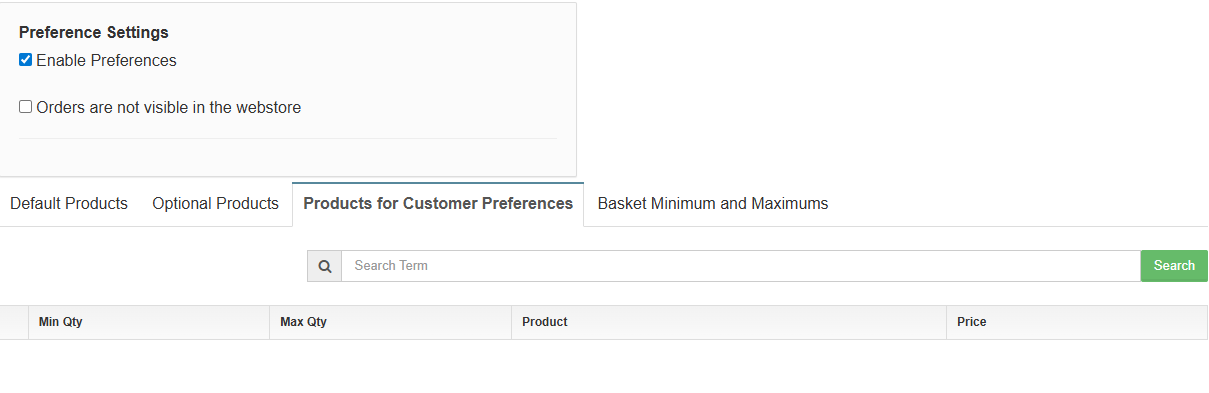
Once this is active, you will need to select what wine the customers can select as their preferences. Go to Wine Club > Club Options > Products for Customer Preferences. Using the search bar, look up products you would like club members to be allowed to select. You may set up a maximum and minimum quantity per product if they select it. Please keep in mind that preferences must still meet the club's basket minimum and the maximum number of bottles.
Updating Preferences
If you plan on changing the available preferences, make sure that you add the new wines and update accounts before removing any current wines. When removing a wine from the list of available preferences, that product will be removed from each member’s preferences. For example, if the 2011 Chardonnay is deleted, any member who had it as a designated preference will no longer receive it in the future. If you attempt to remove a preference from the current list, a warning message will appear. Clicking OK will remove it for good.
Controlling Access
In addition to enabling preferences, OrderPort now allows you to control when members can access their carts through the webstore. If the box is checked that says “Orders are not visible in the webstore,” the member will not see the pending release. This can be turned on and off while a build is in progress. This means that you can enforce a cutoff date without having to bill customers first.
Updating a Customer's Preferences
At this time, preferences can not be changed on the webstore by the customer. Instead, they should contact the winery to do this for them. If a wine club member wants you to adjust their preference, you can do so through the wine club module > Membership tab. If a club has preferences enabled, there will be a button that says Wine Preferences. Click on the button and the preference options will open in a new window. Check the box next to the wines the member wants to receive, and then choose a quantity from the drop-down menu.
Bulk Upload/Export
If you want to upload member preferences for an entire club, you can do so in the Wine Club module. If you have Preferences enabled for a club, a new tab will appear called Import/Export Preferences. You will upload an Excel spreadsheet and each member will be allotted their preferences. Additionally, this is where you can export a spreadsheet with the current preferences so that you can view the items that each customer has listed.
Management/ Waitlist
If you decide you want to limit the number of people who can join specific wine clubs, you have the ability to set a customer cap and have a waiting list for others who are interested. There will be two main tabs you will need to manage this. Go to Wine Club > Select the Club.
Registration Management
On this page, you will enter the Maximum Number of members for this club. Then you can set up a On screen alert message to display on the webstore prior to the customer registering, and On screen Notification after if the club is full.
Waiting List
After your club is full, people will start populating the waiting list tab. When they sign up for the waitlist, they will enter their contact information, Address, and Shipping preferences. To let someone into the club, you will select the Activate button next to their entry. If you have multiple people, the date and time of their sign-up will be displayed.

Gift Membership
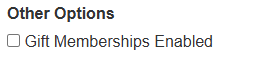
If you want to allow gift club memberships, you will need to set this up per club. Go to Wine Club > Select Club > Edit Club > General > Gift Membership Enabled. Then a new tab will be added on the right-hand side of the screen called Gift Membership Options. You will then want to decide if you want these to be based on Months or a number of releases.
Monthly
If you decide to use monthly, you can select all the variations you would like your customers to be able to select. You will also need to decide how many days in advance you would like to notify the customer that their gift membership will be expiring. If you want to do more months than we offer, you can use the Custom Expiration Limit to create your own.
 Wine Club Release
The Releases in Progress and Processed Releases tabs are where you will create, manage, and review your wine club releases. This section explains how to navigate and use each tab effectively.
Please note that the release workflow varies slightly depending on the club type. For detailed, step-by-step instructions specific to each club type, refer to the corresponding guide linked below.
Release in Progress
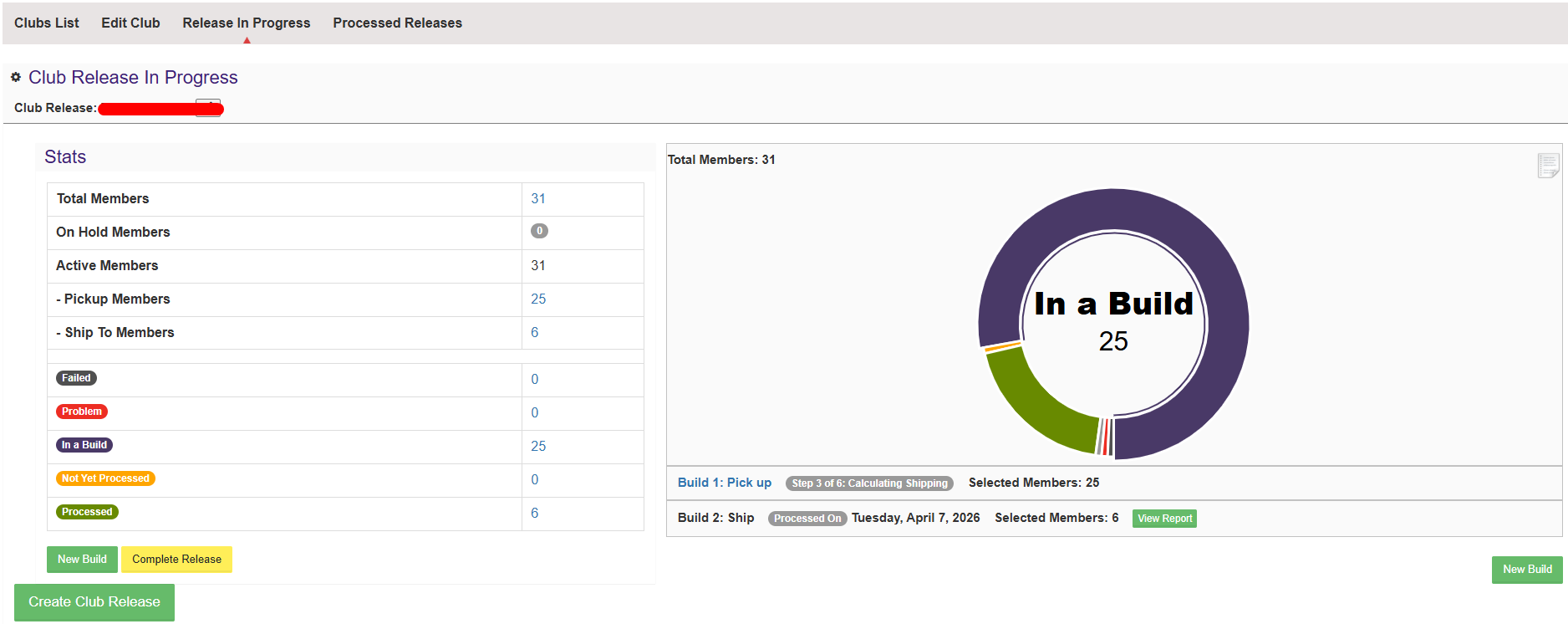
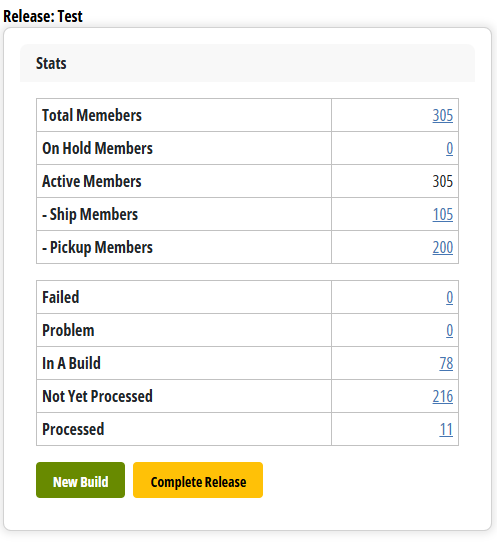
When you are starting a wine club release, there will be a green "Create Club Release" button. Once a release has been started, this page will reflect the current breakdown of who is in the release as well as how many builds you have.
Stats
- Total members - The number of wine club members in the club
- On-Hold Members - The number of wine club members marked as On-Hold
- Active Members - The number of wine club members not on hold
- Ship Members - The number of members who have selected shipping as there prefered delivery method
- Pickup Members - The number of members who have selected pickup as there prefered delivery method
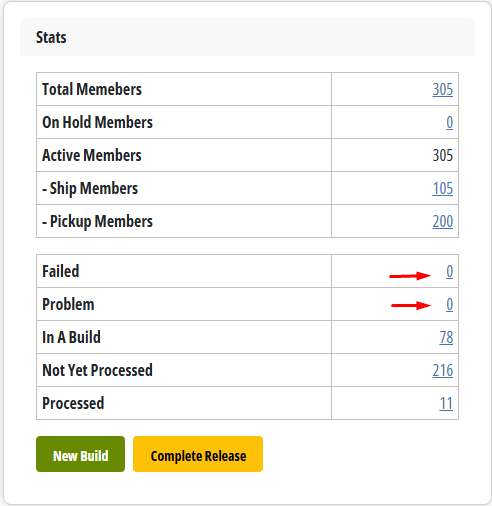
- Failed - Wine club carts that failed. Click on the hyperlink to view the customers and the failed reason
- Problem - Wine club members who have been marked as a problem order in step 3 of the club release. Click on the hyperlink to view each member and the problem
- In a build - The number of wine club members included in a build
- Not yet processed - The number of wine club members who still need to be included in a build. This does include on-hold members
- Processed - The number of wine club members who have sucessfully ben processed through step 6 on a build.
Creating a New Build
In orderport within every club release, we give you the ability to break down your customers into builds. For some wineries, they want to do a ship build and a pickup build, while others might do in-state vs. out-of-state shipping. You can add as many builds as you want to a club release; each customer can only be in one build. To add a new build, click the "New Build Button".
Complete Release
Once you are done with a club release, you will click the "Complete Release" button. This does not process orders. Orders will be authorized once step 6 of each build is completed. Completing the release closes out the ability to add or edit builds within this release. This allows you to create a new one for your next club run.
Processed Releases
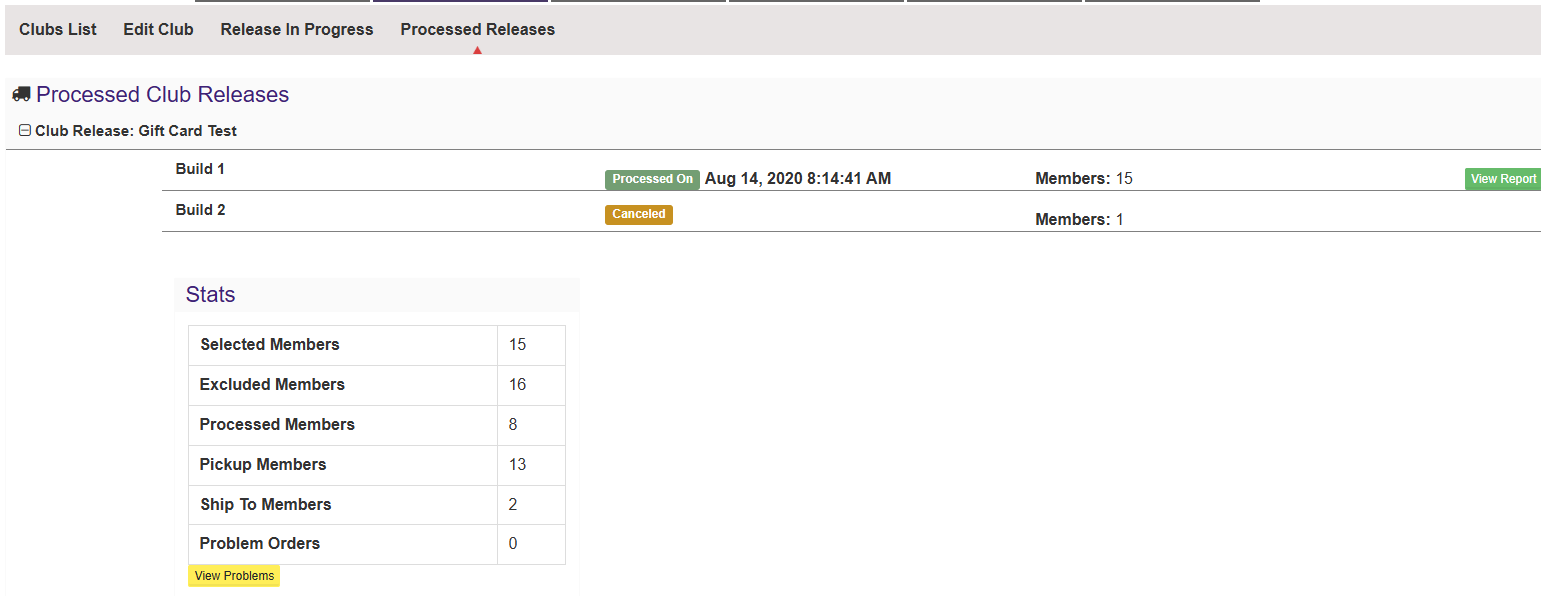
When a release has been marked as complete, you can view all your past wine club releases in this tab. You will see a list of all of your past club releases. Click on the plus button next to each one to view the release stats. You will see the number of builds, the status of those builds, and a view report button. The report will be the same report that displays on step 6 of the build.
Wine Club Release Tips and Tricks
When you are getting ready for your wine club release, here are some things you can do in advance to ensure you have a smooth club release.
- Review the Wine Club documentation for the type of club you are running. If you are unsure about what types of clubs you have, please navigate to the wine club module. Under the Wine Clubs tab, you will see a list of all your clubs. Each club has a club type listed on this page.
- Winemaker Select and Customer Choice Clubs
- Case Clubs and Tiered Case Clubs
- Subscription Clubs
- Allocation Clubs
- If you use OrderPort's Inventory system, make sure that you have decided on the bottles that will be included and verify that you have the inventory for them.
- If you are using ShipCompliant or Vinoshipper integrations with OrderPort, make sure your products are mapped correctly.
- If you use or think you might use the Real Time Inventory Tracking feature, this must be turned off for all wines included in the club release. The reason for this is that this feature will remove the product from the cart 15 minutes after it has created. To verify this, search for one of your wines in the catalog manager. If you see a box labeled Real Time Inv Track, then you use this feature, and you will want to ensure it is unchecked for all wine club products.
- In the Wine Club module, there is a reports tab. We suggest running the Wine Club Credit Card Expirations and Member Report On Hold. This way, you can contact your customers before the club to let them know they will need to update their card or will not be included in the release.
- If you plan on sending out a campaign in step 4 of the wine club, we highly suggest creating the design before the release. Creating a Wine Club design.
Tips for Step 3 of the Club release
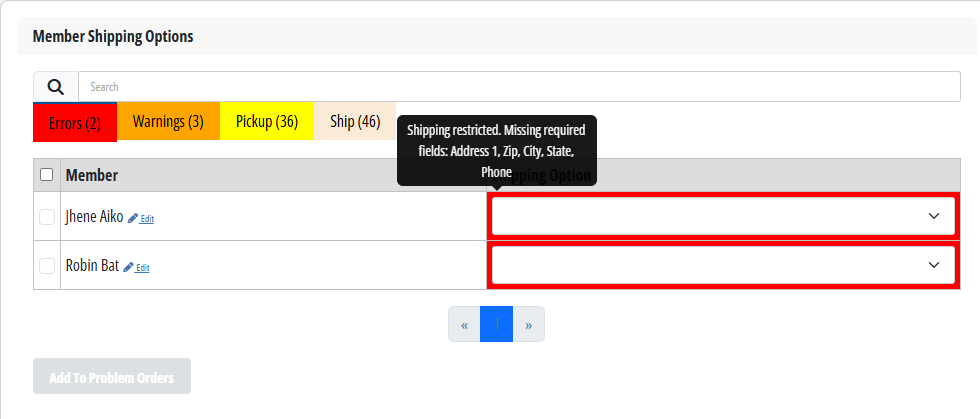
Step 3 is where shipping is calculated. Any errors you may come across will be displayed under the red Errors tab. Hovering over the Shipping option will show you each individual customer's error.
You now have two options: attempt to solve the error now, or mark the customer as a Problem Order and solve the error later, and proceed with your customers who do not have errors.
If you want to mark them as a problem order, click the check box next to their name and choose Add to problem orders. For more information on how to deal with problem orders, please see the Wine Clubs FAQs section of this document.
Tips for Step 4 of the Club release
The "Mailing List Members" only loads the first 25 members; if you have more than 25 it will send to everyone in a build. It's a quick snapshot of the first 25 emails. Don't be alarmed, everyone in the build will be sent an email.
Tips for Step 5 of the Club release
Step 5 has a "Search Term" to look up customers, but it only accepts First Name, Customer Number, and Email.
If you are still struggling to find the account (maybe you are in the wrong build) naviagte to the "Customers" section of the wine club module and find your customer's account, and finally click "Pending Orders" to look for one customer's club order.
Tips for Step 6 of the Club release
Step 6 is when you have completed the build and authorized your customer's cards. Once you click Finish on step 6 no more editing can be done online or in the Wine Club module to these Orders.
After clicking Finish, all wine club members with declined cards will be notified via email that their card was declined. Give your customers time to update their cards. After a while, you can follow this guide on the different ways to reauthorize these Orders.
Do not forget that the cards have not been fully charged after step 6, and you will need to proceed to fulfilment to finish this process. You do not have to charge the cards immediately. You have up to 30 days to charge the customer's cards before it will issue a second authorization. This does not mean you cannot charge the cards after this period it just means that the initial authorization would have expired.
Customers
After you have created your wine club, you are now ready to sign people up for your club. To do this from the Wine Club module, navigate to the customers tab. You can also add club memberships from the Point of Sale and Webstore.
From the Wine Club > Customers page, you will see a list of all customers in your OrderPort account populated. Using the search feature, look up the customer you want to add a membership for. If they are not already a member, select the Green Create New Customer button in the top right-hand corner.
Existing Customer
After selecting the account, you will be brought to their account. There are 3 steps to adding a club member.
- Verify that the Primary Shipping and Billing Addresses are correct.
- Navigate to the Payment Method Tab.(If you want to add a card on file) Add their card information.
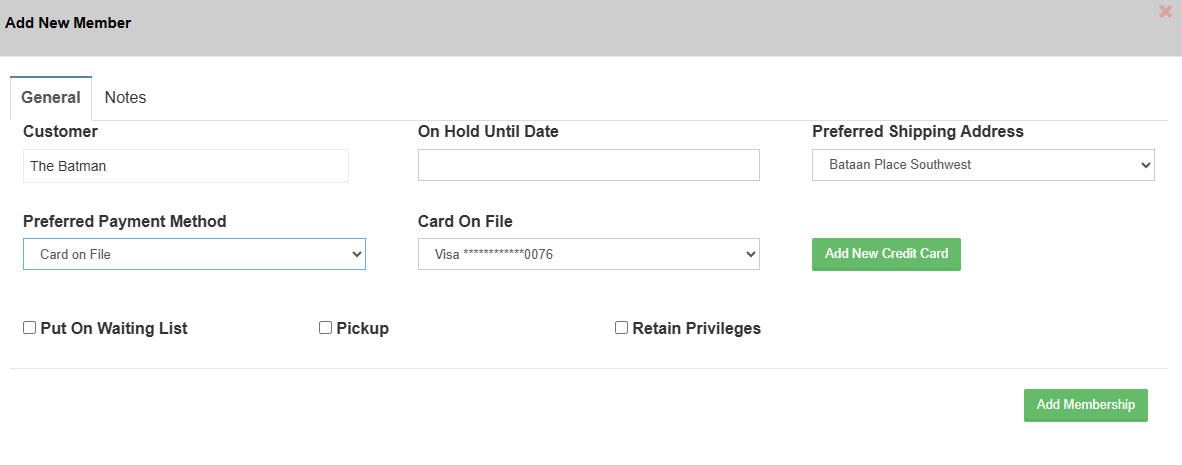
- Navigate to the Memberships tab and select Add a Membership. Enter their preferred club. payment method, and shipping/pick up preference.
New Customer
After selecting the account Create New Customer you will be asked to fill be asked to create an account for them. This includes setting up a Name, Email, password, birthday, and Address. When you are finshed click Create New Customer. Then proceed to the steps above for an existing customer.
Gift Membership
If someone wishes to present a club membership as a gift, there are three methods to enroll them. For customers to be able to register, the gift membership settings must be activated for each club. Please refer to the setup information above for additional details.
To gift a membership, the individual giving the gift must have an account with a card stored on file. This does not need to specifically be a wine club membership; it can simply be a customer account. The initial step when signing someone up for a gift membership is to verify that the giver has an account.
Next, you can follow the instructions below to add the gift membership. When you add a gift membership, the payment will be processed from the gift giver, so when selecting a card on file, it will be the one associated with the giver's account. You will then be prompted to choose the duration of the membership. Once the number of releases or months has expired, the membership will automatically cancel.
Wine Club
- Navigate to the Wine Club Module > Wine Clubs tab and select the desired club
- Click on the members tab > Add Gift Member
- Search for the Giver
- Select an existing customer or add a new one
- Choose the payment method and duration of the membership
Webstore
- When the customer is online, on the wine club sign-up page, select "Join Club."
- Enter the giver's email
- On step 3, it will ask if this is a gift membership
- Complete all the steps to sign them up

Point of Sale
- Go to the Wine Club section on the Point of Sale.
- Input the giver's email address.
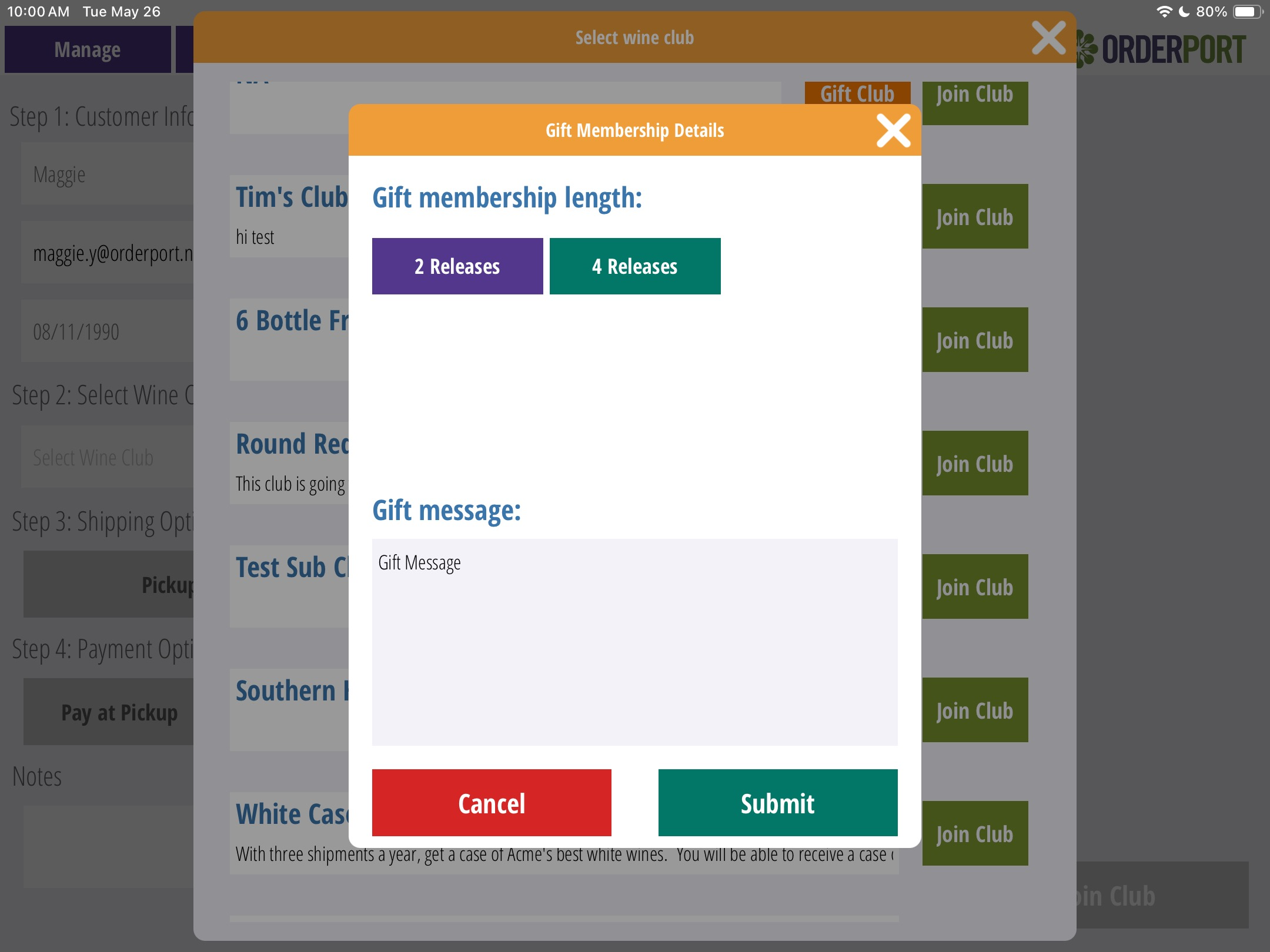
- In Step 2, once you choose the club, an Orange Gift button will appear.
- Select the length of the gift membership and press submit.
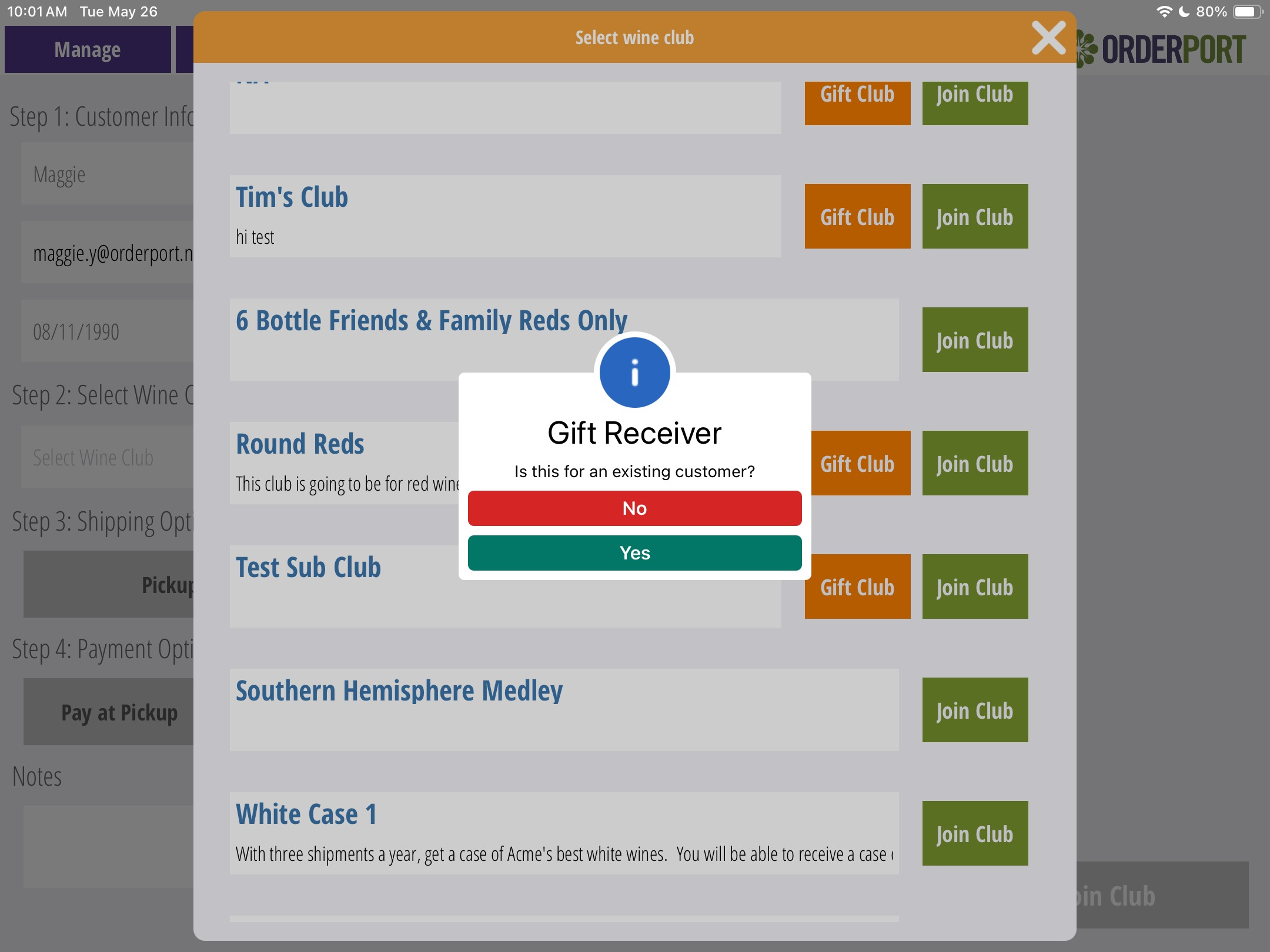
- A pop-up will appear asking whether this is an existing or new customer.
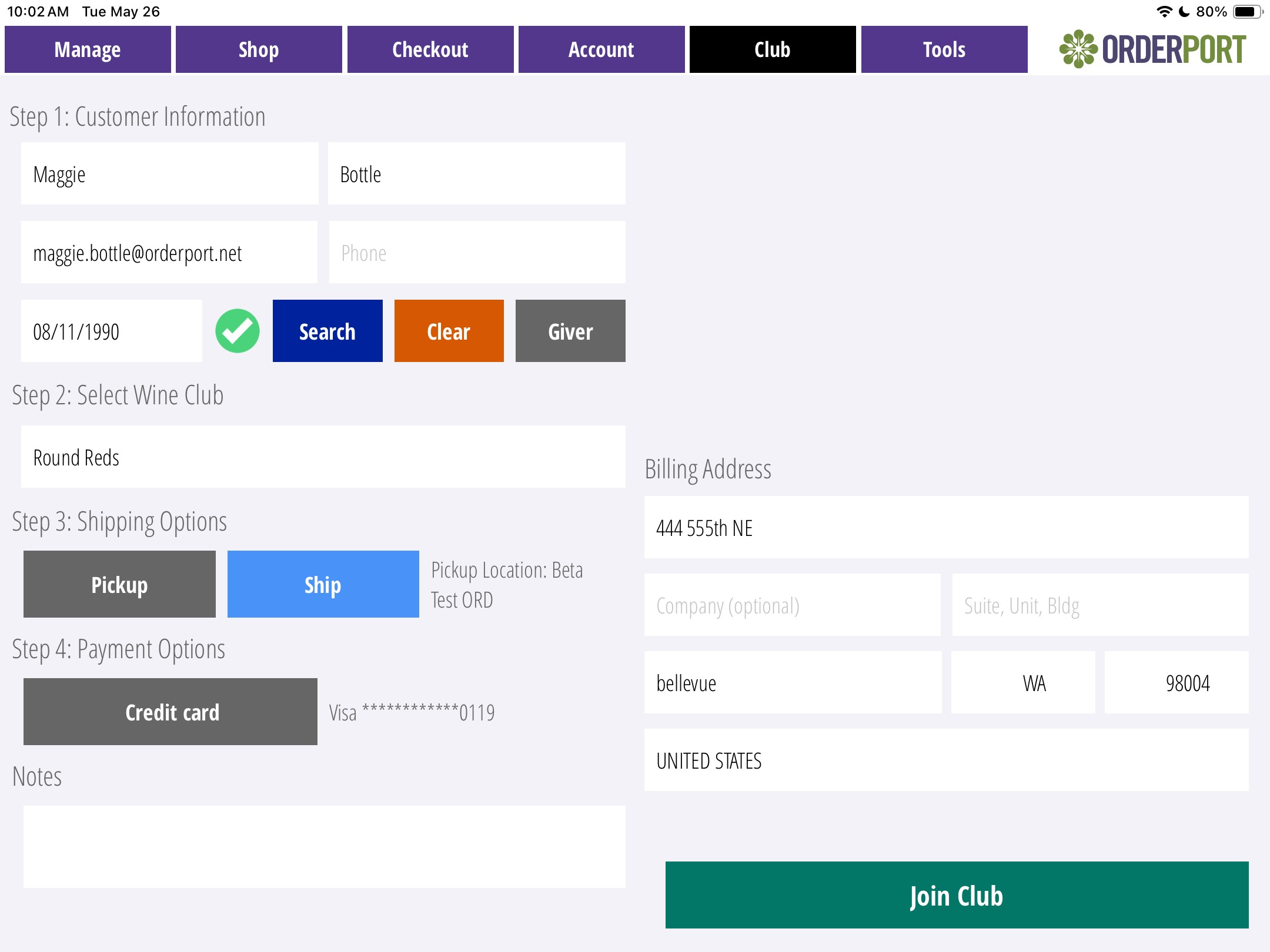
- After entering the information, attach the payment method and shipping option, then join the club.
Reports
Wine clubs are key revenue generators for many businesses. OrderPort offers Wine Club specific reports in the Wine Clubs module. The most popular wine club reports include the Club Member Activity Report and the Wine Club Carts Report.
The Wine Club Reports are found in OrderPort Admin -> Services -> Wine Clubs -> Reports. Be sure not to confuse these Wine Club Reports with the Reports Module.
On the Reports tab, there will be a list of reports on the left-hand side and two graphs depicting how many club members are in each club and which club has the highest amount of wine club shipments.
Running Report
Each report has a description underneath the title. To run a report, click on the report name. From here, you may change the settings of the report. You can either view the report directly in the browser or export it as an Excel file. Some reports do not have customization or a browser view option. Below, you will find the list of all the reports available.
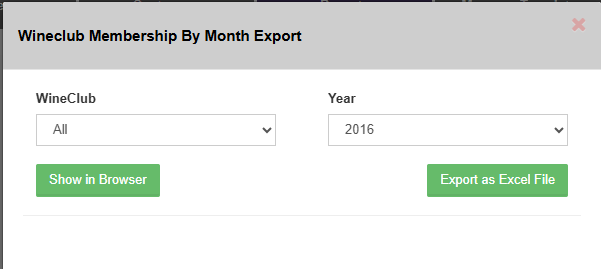
Wine Club Memberships by Month
This report is a general summary of what happened with your wine clubs. You can see how the club statistics changed over the months.
Wine Club Credit Card Expirations
Prior to running a club release, it is good practice to check for expired cards on file. This will reduce the number of declined orders in a club release. This report shows you expiration dates so you can follow up with customers appropriately.
Club Member Activity Report
This report breaks down every action that happened to your club members in the selected time period. This includes joining, switching memberships, and canceling.
Member Report
This report gives you general information about all of your club members. Exporting this report to excel gives you lots more information than showing it in the browser. You can choose if you would like to include canceled members when you export this report to excel.
Member Report on Hold
This report breaks down which of your wine club members are currently on hold and there on hold to date.
Gift Member Report
This report breaks down which of your wine club members have a gifted membership and who gifted them that membership.
Wine Club Carts Reports
This report shows you all active wine club carts for releases that are between steps 3 and 6. This report is useful for tracking cart modifications in customer choice clubs. In some situations, if you need to restart a release, this report should be run so that the cart modifications can be recovered.
Tiered Case Club Report
This report breaks down your case club members and their bottle purchase counts. It also shows how many bottles they need to purchase to maintain their current tier, and when they last upgraded to their current tier. To learn more about case clubs and tiered case clubs, please see this document: Case Clubs and Tiered Case Clubs.
Subscription Club Report
This report breaks down your subscription club members' statuses as club members. It reports their current balance and when their next payment is due. It also gives you their next renewal date and how long they have been a member.
Subscription Renewals Report
You can run this report for subscription club renewals for a given month. It will show you which renewal payments were declined and the reason for the decline. For a summary version of this report, please see the Subscription Club Renewals report below.
Waiting List Report
This report exports the waitlists for your clubs.
Club Notes Report
This report shows you all the notes added to club members over a given time period.
Allocation Report
This report is for allocation club releases. It shows you how many members participated in a given release and if they are eligible for an upgrade.
Multiple Membership Report
This report gives you a summary of all of your club members who have more than one club membership.
Wishlist Report
This report will show you all the Wishlist items for a particular allocation club release.
Preferences Report
This report breaks down customer preferences in customer choice clubs.
Subscription Club Renewals
You can run this report for subscription club renewals for a given month. It will show you a summary of the renewal. You can also run the report for a future renewal date to see a projected renewal count.
Wine Club Designs
The emails sent on step 4 of the wine club are created and tracked in the marketing module. The emails are made the same way that designs are created, but under the Club tab. Please review the marketing designer guide for specifics on how to create a design.
Problem Order Errors
“Marked as Problem during Build” is manually done by the winery on step 3, and or step 5 of the Wine Club build. This could have been done to take the customer out of the build, or the customer had a shipping issue. It’s up to the winery to keep track of why they took the customer out of the build.
If you want to put the customer in a new build for the Release, click “Mark As Fixed.” They will be moved into the “Not Yet Processed” section, making them available to be added to a build on step one.
Error:“Failed to get order shipping options while recreating order. Incomplete address information” and “Incomplete address information.”
Solution: Select Fix Problems. This will take you to the customers' section of the wine club, where you can look for missing address information. If nothing is missing, check the address here. https://tools.usps.com/zip-code-lookup.htm?byaddress. Then make the customer as fixed.
Error: “Member is a pickup member and does not have a valid pickup location selected.”
Solution: Select Fix Problems. This will take you to the customers section of the wine club, where you can look at the membership tab. Click edit on the membership and make sure they have a valid pick-up location selected. Then verify in the inventory module that that location is set up for pick up.
Error: “QTYMTZ: UPS: FEDEX: GSO:”
Solution: This means that the weight of the product or the custom zone shipping rates are set up incorrectly.
Error: “Shipping restricted. Missing required fields: Phone”
Solution: Shipping carrier requires both a billing and shipping phone number in case the delivery driver needs to contact the customer.
Error: “UPS: The postal code 11111 is invalid for WA United States. FEDEX: Destination postal code missing or invalid. GSO: Failure - Destination Zip Code is invalid or not in GLS Service Area.”
Solution: The customer's address, or Zip Code, is wrong. The Shipping carriers are unable to pull rates. https://tools.usps.com/zip-code-lookup.htm?byaddress.
Error: “Wine shipping is restricted due to state laws.”
Solution: The Customer does not have their alcohol licensing set up in orderport for the state. Navigate to the Sales tax and Licensing module -> State license. Search for the desired state and make sure the license is up to date.
Failed Errors
Error: “Payment method not allowed: Gift Card”, “Payment not allowed using this Card on File”, “Payment method not allowed: Pay at Pickup.”
Solution: Go to Admin > Payment Processing > Accepted Payment Methods > Accepted payment methods for Wine Club releases > Add the payment method to the Wine Club. Change the payment method in the customer’s membership.
Error: “Failed to authorize payment. Declined. Reason: Decline: RETRY LATER: 051DECLINE RETRY LATER”
Solution: The [51] Decline code error means that there are insufficient funds on your credit card to process the payment. To fix this issue, submit your payment using a different credit card or have the customer call their credit card issuer.
Error: “Couldn't find order. CartID: 2023041802447”, “Member does not have a cart on the shipment.”
Solution: This means the cart was corrupted, add the customer back into a new build and run their order again.
FAQ's
How do I make a different card on file the default for a wine club member and delete the old one?
In the Wine Club Module:
- Search the customer
- Go to the Payment Method Tab
- Click "Add New Card" and add the New Card Information
- Select the Billing Address and Wine Club account you want this to be the main card on file.
- Save Changes
- If necessary, the other card can now be deleted (will not receive the notice that says "cannot delete this card because it is in use in wine club")
How do I cancel someone's wine club membership?
Wine Club Module
- Select the Wine Club the customer is in.
- Select Member List.
- Locate the member.
- Click Cancel for the customer (on the far right).
Wine Club Module > Customers Tab
- Search for the Customer and open their Customer Details
- Select the Memberships Tab
- Click on Cancel on the Membership and enter your reason (You are not required to enter a reason).
- Click Cancel Membership afterward.
Point of Sale
- Go to the Accounts Tab
- Search for the customer
- Click on Wine Club and select the Wine Club.
- It will bring you to their membership information on the bottom right, select Cancel Membership.
What do "on Hold" and "Retain privileges" mean?
On-hold allows you to put a pause or hold on someone's membership without canceling it. This means they will not be included in wine club releases and will not receive their discounts. When the ‘Retain Privileges’ box is checked, customers continue to receive their wine club discount even though their wine club membership is on hold. The hold date indicates the date in which they'll be taken off hold.
When is a customer account supposed to be upgraded to the next tier of my Tiered Case Club?
All updates to a customer's tier within a Tiered Case Club occur overnight. If a customer orders the required amount of bottles to move to the next tier, they will see the change the following day.
Why is my Wine Club customer account displaying as a consumer in the customers module?
To prevent this from happening, refresh the page before saving changes in the customer's module, or add the customer to a wine club in the wine club module, then afterward access the customer's module to confirm if the change was successful, instead of accessing both at the same time.
If a customer is a member of multiple clubs, how are discounts applied?
If a customer is in multiple clubs, OrderPort will assign them a primary club, which is the club with the overall highest discount. The discounts from the primary club will be automatically applied to the items in the customer's cart - not all discounts from all wine clubs. However, if you would prefer that we use the class with the best discount per product, please contact helpdesk@orderport.net to get this switched for you.
Why are my customers able to request cancellation from my wine club?
Federal regulation requires all businesses to make club membership cancellation just as easy as registration. This is sometimes called the "Click to Cancel" rule. This applies to all states and all wineries offering online wine club sign-ups.
If your winery offers a “click to join” wine club, you must also provide a “click to cancel” option from your webstore. OrderPort has implemented a compliant solution: The “Cancel Membership” link is now available in the Edit section of the customer’s membership portal.

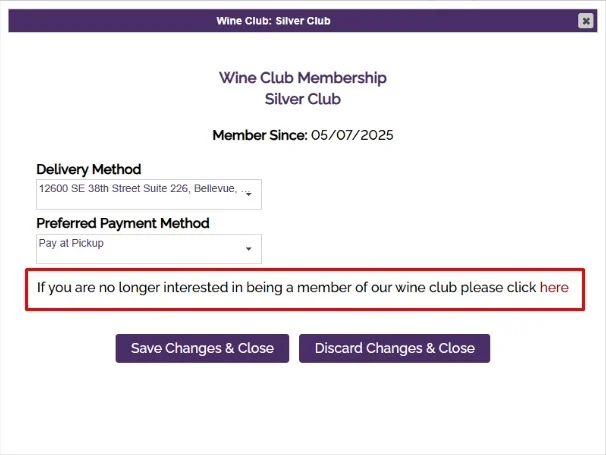
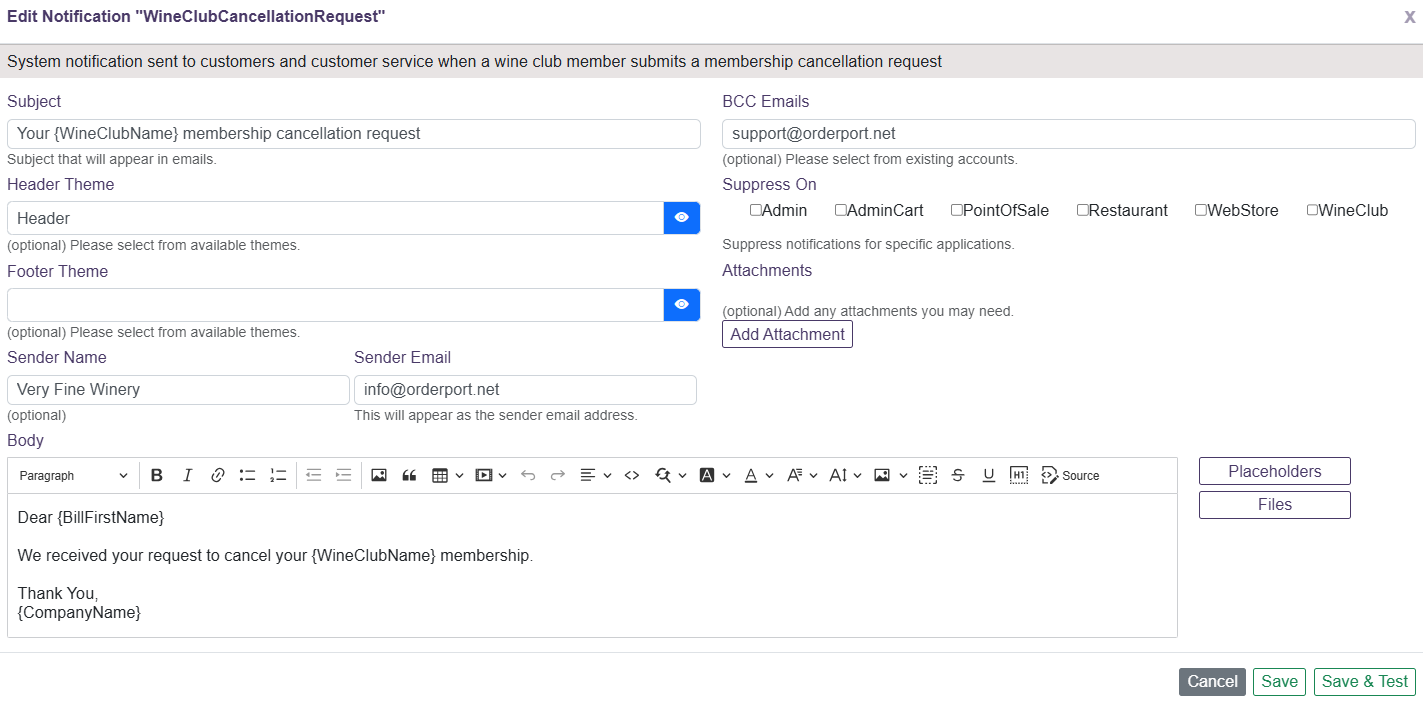
When clicked, a customizable notification is sent to both the customer and the winery. You can edit this message in OrderPort Admin -> Marketing -> Notifications -> "WineClubCancellationRequest".
Cancellations are not processed automatically. Your team will still need to complete the cancellation after receiving the notification. Make sure this notification has a BCC email so that you are notified when someone requests a cancellation.
 If your business does not offer easy club sign-ups online, you may wish to remove the cancellation request option from the customer portal. Please reach out to OrderPort support if you need assistance with this. You can remove this for every state except for California, which has its own cancellation laws. This is in reference to California law. In short, the law requires merchants to allow their customers to cancel or request cancellation of any recurring subscription on the merchant's website. This, of course, applies to wine club memberships, which are subscriptions.
I am running a Pick up only build, but it's still making me select shipping options.
When running a wine club build, you can choose to run a build that is just for Pick Up option customers. On step one, you can have the system show you every available club member or separate it by Ship customers and Pick Up Customers. There will be a drop-down menu that will let you choose the option you would like to go with.
If you choose to run a build that is only for Pick Up customers, you will still need to finish Step 3, which is where the shipping method and warehouse location are chosen. Select a shipping method to continue- the system will know that the customers are all pick up customers and will not apply the shipping method or charge to the order. When the system is done processing Step 3, it will mark them as pick up customers.
How to Re-authorize a Wine Club order after the Customer updated their card on file.
Customers Module
- Go to the Customers Module and search for the customer
- Click on the Details button and then the Order History tab.
- Click on the declined order's number (which will open the Order details) and then on the top right click on the Select drop-down, then press Re-auth/Edit.
- It will then open Admin Cart, so you would Checkout > scroll down to the Payment Information and select the Card on File > Complete.
Customer Service Module
- Go to the Customer Service Module in either the menu bar or under Administration.
- Search for the order and click on the select drop down menu on the right of the order to re-auth/edit the order, which would open Admin Cart.
- There is also a batch reauthorization if you want to reauthorize orders as a bulk, which is below the order Status Legend in Customer Service called Wine Club Re-Auth (You can only do one Club Release at a time).
- If an order declines for a second time, the customer will not receive a notification on the decline.
Wine Club Module
- Search for the Customer and open their Order History. Select the order by clicking on the Order, and it will bring you to Customer Service.
- Then proceed to reauthorize the order on the Select drop-down menu.
Where do I find the Problem and failed carts?
Click on your Wine Club > Release In Progress > Problem and Failed customers have a blue number to the right of them, which you can click on to see why they are in this section.
Where can I find the Total Revenue for an individual a specific wine club?
You can find this information in the Reports module. There is a tab called Wine Club where reports can be generated showing information on wine club membership and sales. There is a report called Wine Club Sales that can be generated to show overall wine club revenue, or it can be broken down by the specific club.
Where can I find information on wine club members with expired credit cards?
There are a couple of ways that the winery and the customer can be notified of declined credit cards. In the wine club module, there is a reports section with a report called Wine Club Credit Card Expirations. This report can be built for a year or for a specific date range and shows all wine club members with cards that expire in that date range. Also, when processing a wine club build, an email notification is automatically sent out to customers whose credit cards were declined when processing and sends them a link to update their card on the webstore. Lastly, there is a report in the reports module, in the My Reports tab > Wine club Reports tab called Declined Wine Club Orders Call List. This report should be built for the day or date range that you processed your wine club builds and will show you all the orders that were declined due to expired credit cards as well as the contact information for that customer.
How can I set up my Webstore Wine Club Signup process to charge customers for joining?
Since there is no step in the wine club sign-up process to charge the customer, here are a couple of workaround options:
You can create a product called "wine club sign up fee" in the catalog manager and then add that to the webstore with the description for it along the lines of "buy this to join the wine club". Or you could set up to be BCCed on the WineClubJoin email that goes out to customers when they join the wine club in the Marketing Module under notifications, and so whenever you are emailed about a customer joining the wine club you can process an order for that wine club fee product on the backend in the admin cart for them. For either of these options, I would recommend adding some info to the wine club description they see when choosing to sign up for it that says they must either purchase the wine club fee product, or they will be automatically charged for that product after signing up.
Another option is to create a Subscription Wine Club, since a wine club with the club type as Subscription can be set up to charge a member upon sign up. For more information on Subscription clubs, check out the attached PowerPoint.
How can I Re-Order my wine clubs on the webstore?
In the wine club module on the wine clubs tab, you can click and drag the wine clubs into the order that you want them to appear on your webstore.