OrderPort offers multiple types of discounts for different situations and approaches to your pricing and promotions. In this guide, we will touch on all the different types of discounts offered.
TABLE OF CONTENTS
- Customer Class Discounts
- Sale Prices
- Coupon Codes
- Custom Discounts
- Discount Module
- Settings
- How discounts work together
- FAQ's
Customer Class Discounts
For most wineries, customer class discounts are the most used discount type. These allow you to set up generalized standards and case discounts for your customers based on their customer class. These include Wine Clubs discounts.
Setting up Customer Class Discounts
You will set up all customer classes besides Wine Club in the Customers module. Navigate to OrderPort Admin > Operations > Customers > Customer Class. It will populate all your existing customer classes and their current discount percentages.
Creating a new Customer Class
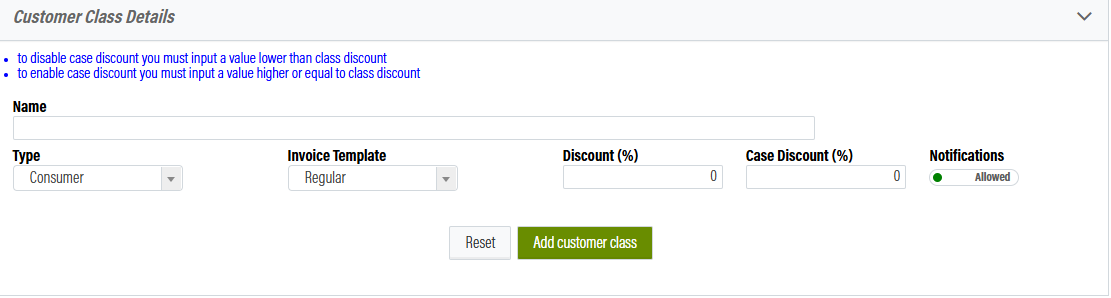
Fill out the Customer Class Details section with a name, type of Class, and discount percentages. Select Add Customer Class. If you have questions about creating a customer class, please review the Customers Module guide.
Editing an Existing Class
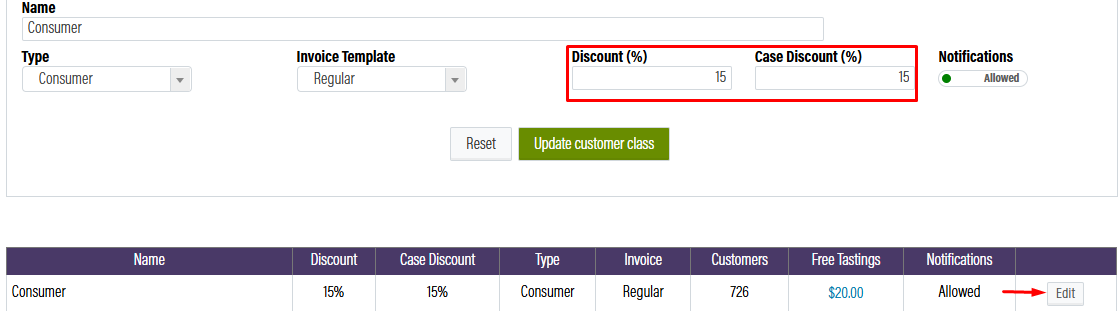
Find the Customer Class you want to edit from the list and click the Edit button. This will populate the data into the Customer Class details Field at the top of the screen. From here, you can edit the Discount Percentage and Case Discount, then click Update Customer Class.
Enabling the Discount
In addition to setting up these generalized discounts, you will need to enable these discounts for each of your products. This allows you to not enable the discounts on certain items and provide different discounts.
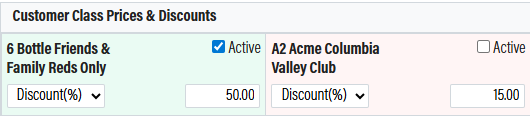
Navigate to OrderPort Admin > Products > Catalog Manager > Select the Desired Product. On the Product Details page scroll down to "Customer Class Prices & Discounts". You will see a rectangle with the name of each of your customer classes. If you check the Active box, the discount will become enabled for this customer class; it will also make the rectangle green so you can easily distinguish between them. You can also manually adjust the discount for this product per customer class, including switching it to a dollar-amount discount.
Using Customer Class Discounts
After you have set up your Customer Class Discounts and specified all the products you would like them to apply to, they will automatically apply when they are eligible. Please note that in OrderPort, case discounts only apply to wine items and will be added after 12 bottles have been placed in a cart. Discounts will be added on the checkout screen.
Case Qty / Case Discount Qty
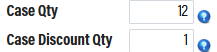
While our standard case discount is 12 bottles in the catalog manager, you have the ability to change how many bottles are required for that item to be considered a case. For instance, if you have 1.5-liter bottles, you might want 6 of them to qualify as a case instead. This is set up in the catalog manager on the individual product.
In addition, you can also specify the number of items counted for each unit added to the cart when calculating case discounts. You can set this to zero if you would like to exclude this item from counting towards a case discount. For example: A glass of wine.
Sale Prices
In the Catalog Manager, you have the ability to set up a hard-coded sale price for different checkout options. This allows you to have a bottle discounted at a specific location. For example, you want the bottle to be 10 dollars cheaper in wine club releases.
Setting up Sale Prices
In OrderPort admin > Products > Catalog Manager, select your desired item. From the Product info tab, you will find a section under the retail price called "Sale Price". As soon as you start typing a number, in it will populate the different areas you can apply this to. Please note that there is no way to make the sale price customer class specific. Please see the discount rules section of this guide. Please see the discount module section to learn more about customer class-specific discounts.
Using Sale Prices
Point of Sale
When an item has a sale price on the Point of Sale app, only the sale price will display.

Webstore
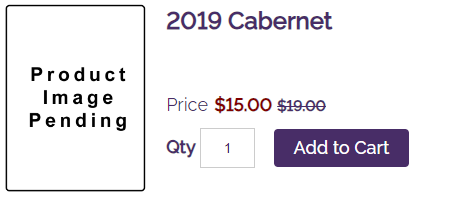
The Sale Price will be displayed in the store in red and will strike through the normal price. This can be a great way to entice customers to purchase the bottle because it's on sale.
Admin Cart
The Sale Price will be displayed in the admin cart on the Product Search page. The Sale price will populate into the price box, and the original price will be off to the side.

Wine Club
The Sale Price will be displayed to the winner on Step 3 during the double-check screen. The Price will display as the price of the team, and then any club discounts will be added on top of the sale price.

If this is a customer choice club, when the client goes on to the website to edit their club order, they will see the sale price and the original price.

Resturant
When an item has a sale price on the resturant app, only the sale price will display.

Coupon Codes
In OrderPort, there are multiple types of discounts that we offer to our clients to set up. One of these is Coupon Codes. Coupon Codes can be used to provide customers with individual product discounts. You can also set up a maximum number of people who can use the code. Ex: The first 25 people to apply the code at checkout will receive a discount. Coupon Codes cannot be used for shipping discounts, so if you need a shipping discount, please see the discount rules below.
Setting up Coupon Codes
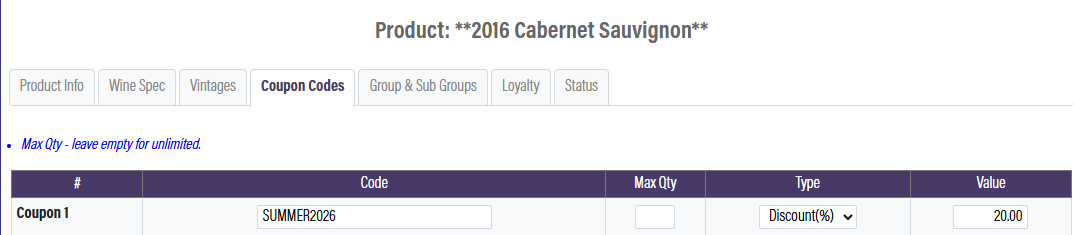
Navigate to OrderPort Admin > Products >Catalog Manager and select the desired product. Once you have selected the product, click on the Coupon Codes tab. Here you can enter the Code, the Maximum Items this will apply to, and the discount's amount.
Using Coupon Codes
Point of Sale
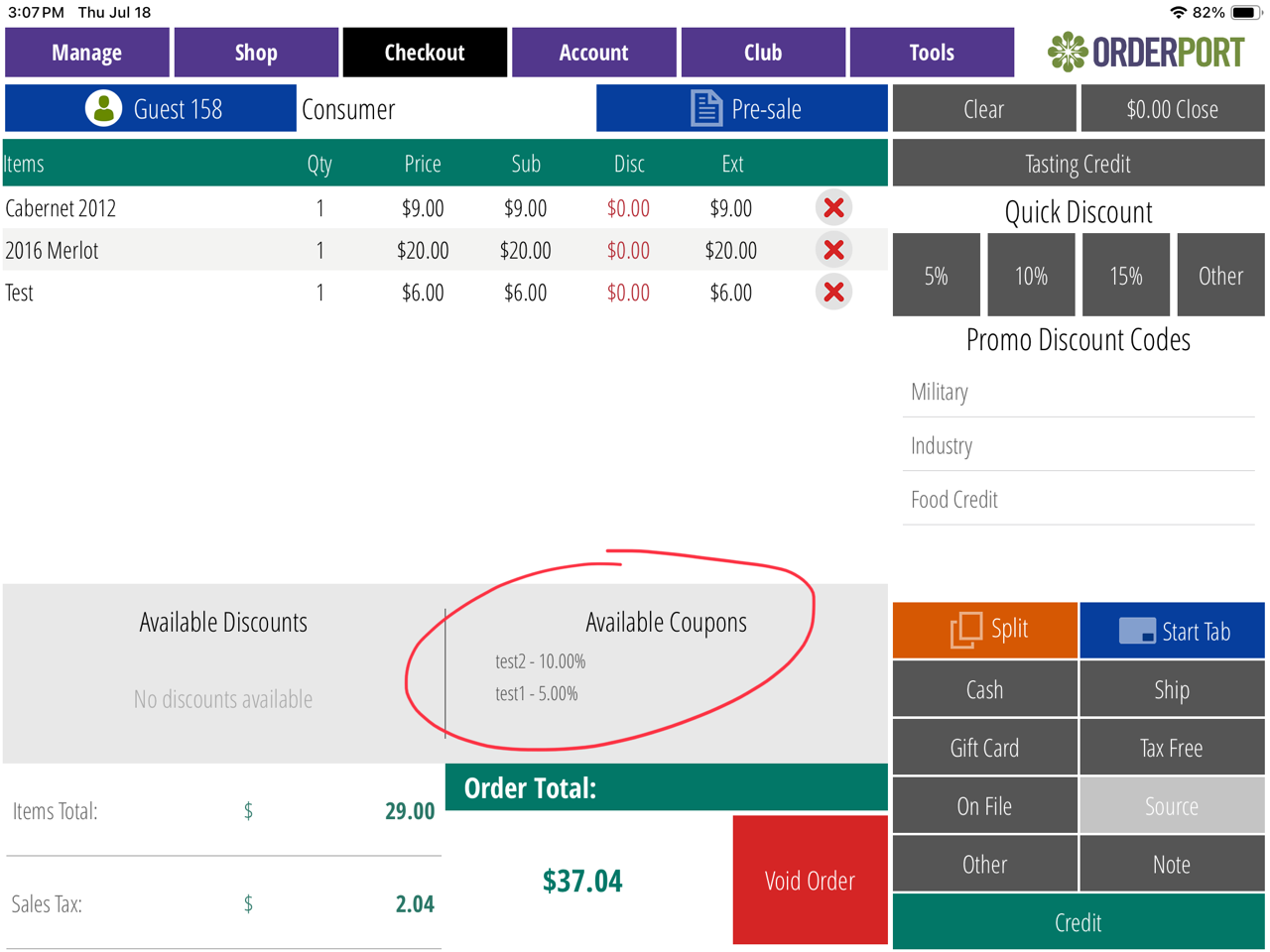
Using Coupon Codes on the Point of Sale is streamlined for the winery because there is nothing they need to type in. When you are on the Checkout Screen, if there is an available Coupon Code for one of the items in your cart they will display at the bottom of the screen. This is the same across all OrderPort Apps. If there is a code available, click on the desired code to have it apply to the order. Please note: You can only apply one coupon code or one promo code to an order at the point of sale at a time.
Webstore
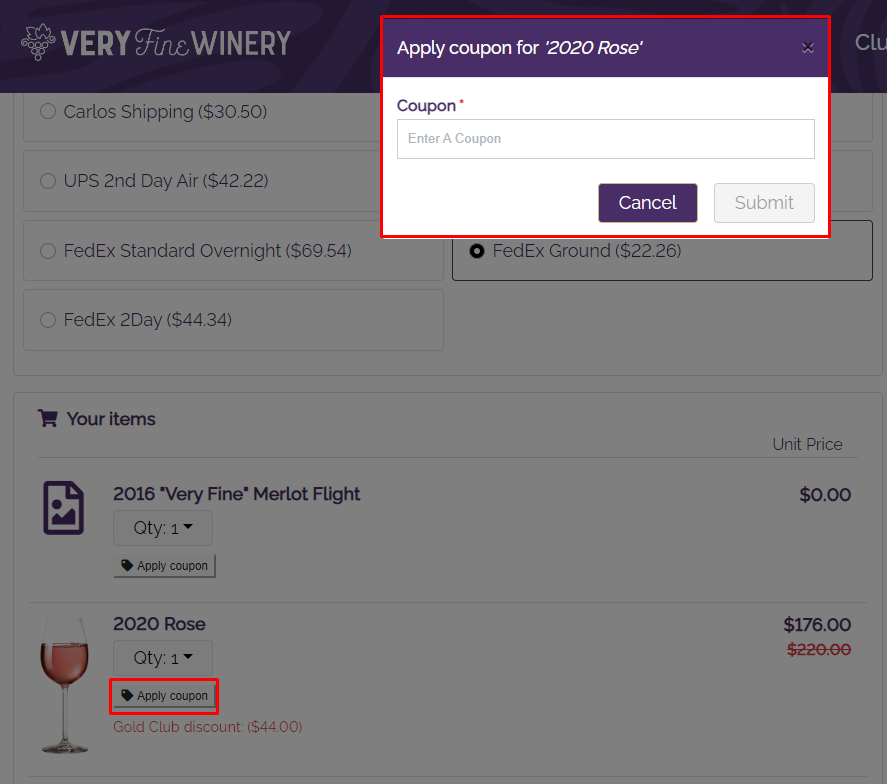
If you have provided your customers with a coupon code for them to use on the webstore, they can enter this on the checkout screen. In both the Standard and Updated versions of the OrderPort webstore checkout, we offer Coupon Code entry. At checkout, the Coupon Code Section will be located on the Individual Products.
Custom Discounts
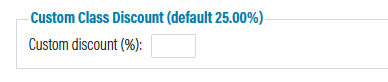
In OrderPort, we offer the winery the ability to set up custom discounts that apply to all items and override other discounts. These are typically used for Owners. To set up custom discounts, navigate to the customer's module and select the desired member. From here on the Customer Account page, find the section titled "Custom Class Discount." Then enter your desired percentage.
Discount Module
The Discounts module is where your business can set up Discount Rules and Promo Codes. The module can be found in the Products section of OrderPort admin.
Discount Rules
In the discount module, the main tool you will use is the discount rules. These rules allow you to customize discounts based on items, qty, customer class, shipping, location, and more. They also allow you to set up custom time frames for the rules to take place. Discount Rules are created to provide customers with automatic discounts at checkout. These can apply to products for sale as well as shipping charges. When you open the Discounts module, the landing page will show your current discount rules. Discount rules can be open-ended, but more often they will have an end date. Rules that are greyed out are not currently active.
You can click and drag your various rules in the order you would like them to apply. Make sure your current rule has the highest priority so another rule doesn’t get triggered instead.
Creating Discount Rules
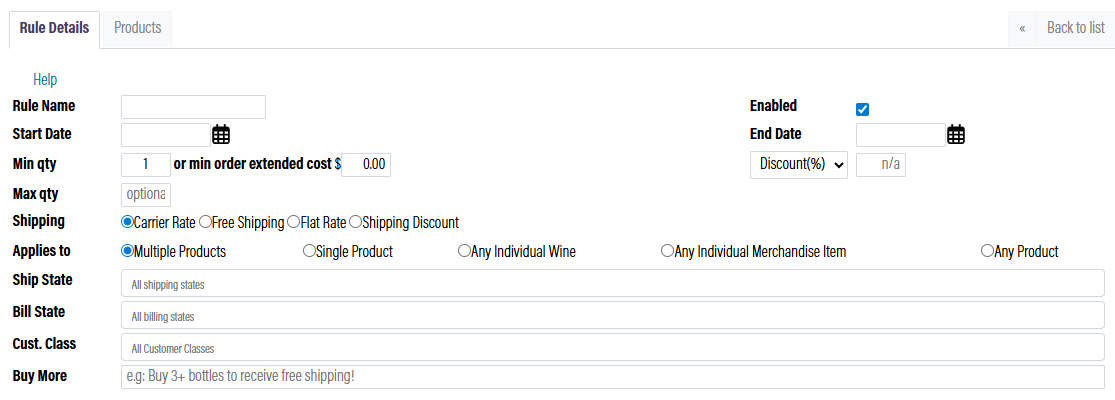
In the discount module, the first tab you will see is the discount rules tab. From here, you will select the "Add Rule" button. Then you will be brought to the Rule Details Page. Enter a name for your rule and then see the options below to determine what fields you want to fill out. Please note: Anything you do not want to include, please leave blank.
Start Date/End Date (Optional): This Rule is only valid during this time frame. If these fields are left blank, no date restrictions will apply.
Enabled: The rule is only considered active if this box is checked.
Min qty (Optional): The minimum purchase required for the rule to take effect. Collections are not considered as a single item. Instead, the rule will consider the quantity of items within the collection.
Max qty (Optional): If this quantity is exceeded, the rule will not be used. Collections are not considered as a single item. Instead, the rule will consider the quantity of items within the collection.
Discount % (Optional): When specified, this represents the discount percentage extended by the rule. This will override any case discount or customer class discount that would otherwise be applied to the order. Setting a value equal to 0 will cancel the class discount and charge the full price.
Shipping (Optional): Specifies the shipping price or shipping discount that is going to be offered when the conditions of the discount rule are met.
Applies to: This is where you set how many items this rule applies to.
- Any Individual Wine Item - any wine item of the same SKU. Example: “Buy 12 or more of any one of our wines and receive a discount.”
- Any Individual Merchandise Item - any merchandise item of the same SKU. Example: “Buy 3 or more of any one of our merchandise items and receive a discount.”
- Single Product - select 1 product that receives the discount. Example: “Buy 3 or more of our 2016 Cabernet and receive free shipping! This weekend only.”
- Multiple Products - select 2 or more products that receive the discount. Example: “Buy a case of any of our current releases and receive a 20% discount. Mixed cases allowed.”
- Any Product - all items (wine and non-wine) in your catalog will be eligible for the discount. Example: “Buy 3 or more of any of our products and receive a 5% discount!”
Ship State (Optional): Restrict your discount rule by the customer’s shipping state.
Bill State (Optional): Restrict your discount rule by the customer’s billing state.
Cust. Class (Optional): When specified, the rule will apply only for customers of the selected class. For example, you can set up a rule that applies only to your wine club members or only to your consumers.
Buy More: This section allows you to advertise your discount on the webstore when someone puts an eligible item in their cart.
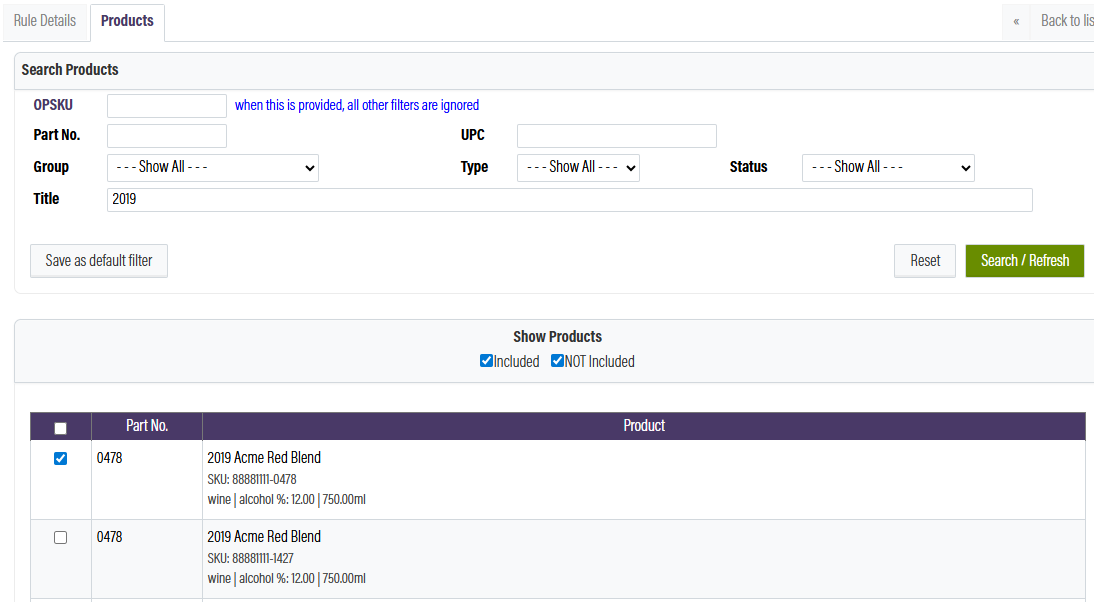
After you have filled out all the parameters of the rule, if you selected single or multiple products, you will need to go to the Products tab and add the desired items to the rule. Once you get to this screen, you will need to check the box titled "Not Included". Then you can begin searching for the desired items. Click on the check box next to each item to add it to the list. Make sure you save changes once you are finished.
Priority and Discount Rules
In OrderPort Discount rules override customer class prices and discounts. They do not stack. In addition to that, we have a priority system set up in the discount module so that you can ensure the best discount is applied for your customers. Higher priority discount rules are selected first. Therefore, if you have a case discount and a half-case discount, make sure the case discount has a higher priority than the half-case discount. To change the priority, click and drag the discount rules.

Promo Codes
In the discount module, there is a tab called Promo Codes. Promo Codes allow you to provide a discount to an entire order with a specialized code. These are sometimes used on the webstore for specific customers to whom you sent the code. For example, the 4th of July sale 15% off your whole order. Another way that wineries use these in the tasting room to apply Military Discounts.
Setting up Promo Codes
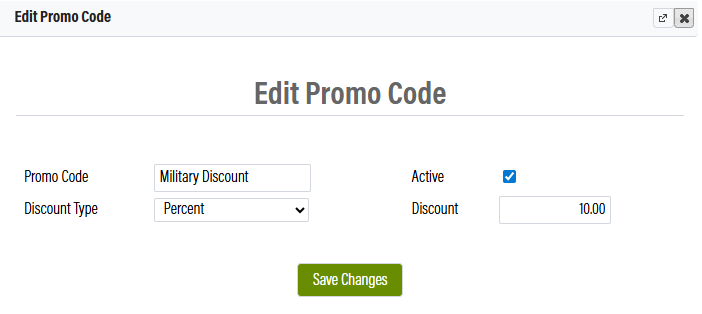
In OrderPort admin > Products > Discounts > Promo Codes, select Add Promo Code. You will need to enter the percentage or dollar amount of the discount, the code you want to use, and decide whether or not to enable it.
Using Promo Codes
Point of Sale
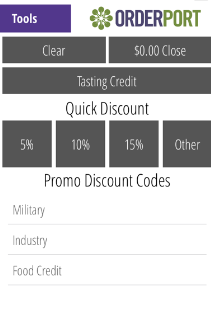
When the Sales associate goes to checkout, all available promo codes will populate. This allows them to quickly select the desired code. Please Note: You can only apply one coupon code or one promo code to an order at the point of sale at a time.
Settings
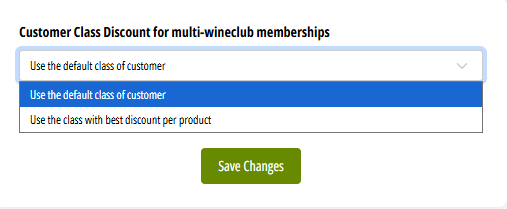
In the discount module, there is a settings tab. In here, you can select how you would like the discount to be applied to customers in multiple customer classes. You can select one of the following options:
1. Use the default customer class. This is the first wine club that the winery joined, and is still a part of.
2. Use the class with the best discount per product. On each product, you can customize the discount, and with this enabled, your customer will always get the highest possible discount.
How discounts work together
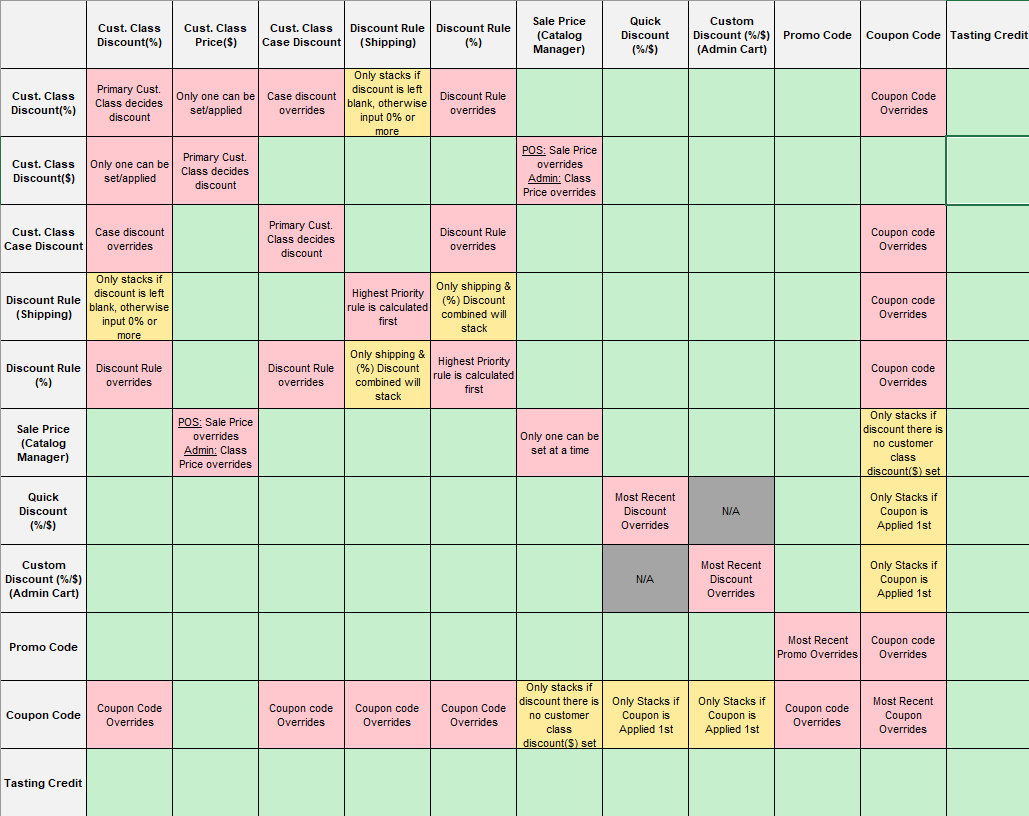
OrderPort offers many different types of discounts. Because of those, there are rules for how they work together and when they override one another. Please review the discount table below or download the Excel file attachment.
FAQ's
If I have a discount rule and a promo code set up, how do I make it so the customer does not receive both discounts? I only want them to receive one or the other?
Discount rules and promo codes stack with one another automatically. There are a couple of options if you do not want these rules to stack with each other.
First, you can disable a discount rule during the time of running a promo code and vice versa, so that the customer does not receive both at checkout. This option works best if either the promo code or discount rule is a limited-time offer and the other is indefinite.
Secondly, you can use coupon codes instead of promo codes. Coupon codes override discount rules but only apply to specific wines. You can add a coupon code to a product in the catalog manager in the coupon codes tab when in the product info for a product. The same coupon code can be added to as many products. This option works best if the promo code is just for a smaller number of wines, such as a short list of current releases, and if you want to give the customer the option to receive either the coupon code discount or the discount rule.
Why isn’t my product receiving any discounts?
If a product is in a Tasting Group, it will not receive any discounts. This includes Customer Class Discounts, Discount Rules, Product discounts, Promo Codes, etc. You would need to move this product to a different Point Of Sale Group to make this product discountable. You can call the group Tastings, but make sure the Tasting Group Type isn't selected.
Can I create a discount rule for a dollar amount discount?
Currently, we do not have this ability. Discount rules are set up with a percentage off, not a fixed amount. Promo codes can be created for dollar amount discounts, but cannot be restricted by customer class or order type.