CellarPass is an online reservations and ticketing platform. The integration between CellarPass and OrderPort provides many features that helps provide a robust guest management solution. CellarPass Plus, Pro or Enterprise subscription plan required. To learn more about this, we recommend scheduling a demonstration with CellarPass.
Getting Started
In order to use this integration, you will need to have a Cellar Pass Account. If you do not have an account, please reach out to them on their site. If you already have an account, please contact CellarPass to enable the OrderPort service. To do so, you must submit a support ticket. Once you have this on, please reach out to helpdesk@orderport.net and request that the UAPI module be enabled.
Setup
To set up the integration, go to OrderPort Admin > Integrations > UAPI. On the Third Parties page select, details next to "CellarPass." This will bring you to the API authentication page.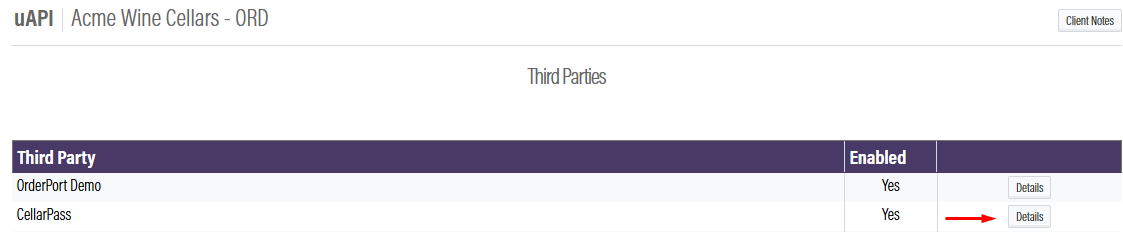
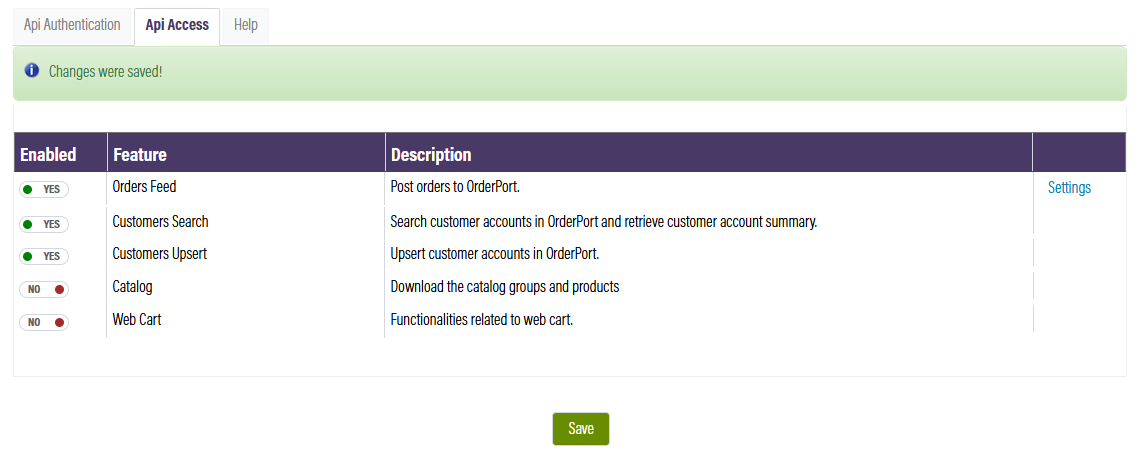
Select the API access tab. Here is where you will enable the cellarpass features. Please set Orders Feed, Customer Search, and Customer Upsert to available.
Set up in CellarPass
Once you have enabled the 3 settings in OrderPort, navigate to OrderPort Admin > Settings > Account and find the client ID.
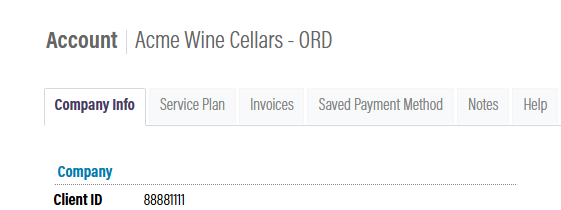
Send an email to CellarPass Support with your OrderPort client ID number. Once CellarPass has received your OrderPort ClientID, we will update your configuration and run some initial tests to confirm the connection is running properly.
Test the Connection
Now that you have completed the integration proccess it's time to test the connection. In CellarPass:
- Select Book & Sell from the left navigation menu.
- Select any of the available Event Times like you would normally do to attempt to book a guest.
- Click the Match button. This will open up a new window that will allow you to search directly into your OrderPort database.
- Enter a valid email address for a club member that you know exists in OrderPort.
- Click Search
- If the integration is setup properly, you will get results. If this loops indefinitely, you'll need to contact support.
Benefits of the Integration
One of the main benefits of integrating CellarPass with OrderPort is the real-time data integration which takes places in several areas of CellarPass.
1. When a Guest books, if their customer record is not found in OrderPort, their information will be automatically uploaded into OrderPort upon booking.
2. When Guest books, they can be immediately recognized as a club member. In return you can provide automated discounts.
3. When booking via the backoffice, you can search for the guest directly in OrderPort within CellarPass.
4. When booking via the backoffice, recognized Guests will display their club member status. Discounts are not automatically applied on backoffice reservations. Use the discount feature or manually adjust fee to provide club member price.
5. Reservations that are complimentary or pre-paid, can be upserted into OrderPort as a Sales Order.