OrderPort has collaborated with Twilio to offer a service for sending text messages to your customers. They will promptly receive their receipts or notifications regarding table readiness on their mobile devices, which can be easily referred to if there are inquiries about an order or reservation.
TABLE OF CONTENTS
Enabling the Module
Please email helpdesk@orderport.net to have the messaging module enabled. Please note that this is a paid feature.
Setup
In today's modern world, there are numerous compliance laws concerning SMS text messaging. Before setting up, a few steps must be taken to ensure your account is fully compliant.
Website Privacy Policy
To establish a Twilio account, your website must include a Privacy Policy page. This document must outline the data you collect, how it is used, and verify that this information will not be shared with third parties or used for marketing purposes. For texting, you collect phone numbers to communicate with customers about their orders and notify them when their table is ready, and this data is not shared with external companies. Click here for the boilerplate terms as provided by Twilio.
Webstore Terms of Use
If you are using an OrderPort webstore, you will be provided with a Terms of Use page. You will need to decide what content you want to include on this page. To comply with Twilio, you must incorporate a section on SMS compliance. Please refer to their help page for details on what exactly needs to be included. If you do not utilize an OrderPort Webstore, then you need to have a terms of use page containing this information hosted on your website instead.
Account Setup
After you have established your privacy policy and terms of use pages, please send the information listed below to your OnBoarding representative or to the helpdesk@orderport.net email to initiate your account setup. Be aware that it may take between 1 to 3 weeks for Twilio to approve your account, allowing you to start sending messages.
1. Legal Business Name:
2. Business Type – please select one from the following options:
- Partnership
- Corporation
- Co-operative
- Limited Liability Company
- Non-profit Corporation
3. Business Registration Number: the EIN / Tax ID as listed in the EIN directory.
4. Business Industry: - please select one from the following options:
- Automotive
- Winery
- Agriculture
- Banking
- Construction
- Consumer
- Education
- Engineering
- Energy
- Oil & Gas
- Fast-moving consumer goods
- Financial
- Fintech
- Food & Beverage
- Government
- Healthcare
- Hospitality
- Insurance
- Legal
- Manufacturing
- Media
- Online
- Professional Services
- Raw materials
- Real Estate
- Religion
- Retail
- Jewelry
- Technology
- Telecommunication
- Transportation
- Travel
- Electronics
- Not for profit
5. Website URL:
6. Business Address
- Country USA:
- Address:
- Address 2:
- City:
- State:
- Zip code:
7. Company Type – please select one from the following options:
- Private
- Public
- US Non-Profit
- US Government
8. Privacy Policy Link
9. Terms and Conditions link
Contacts – Twilio will reach out to the authorized representatives to confirm your identities. Ensure that they can be contacted via email and phone.
1. Authorized Representative #1
First Name:
Last Name:
Email:
Business Title:
Phone Number:
Job Position:
- Director
- GM
- CEO
- CFO
- General Counsel
- Other
Usage
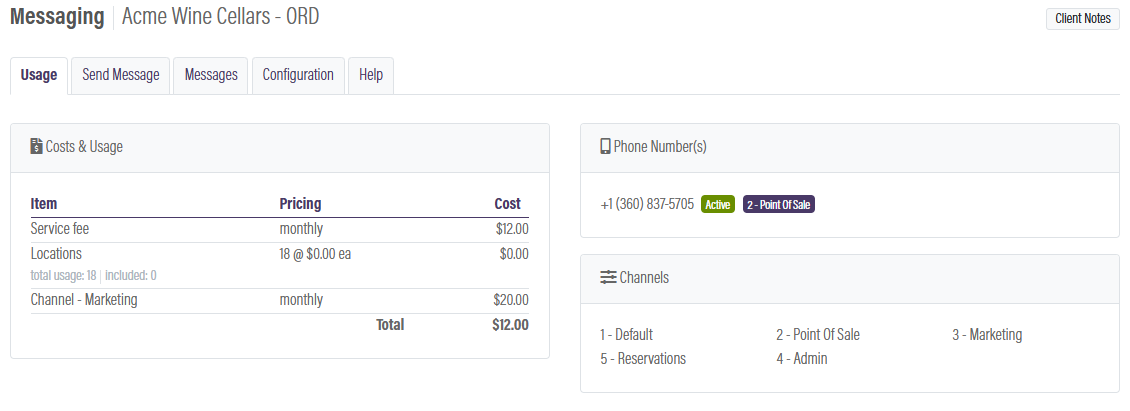
The Usage tab displays what you can expect to be billed for during the current month. It will show your monthly fee, charges accrued from messages sent and additional charges for each phone number being used. It will also let you know how many messages are included as part of your OrderPort plan. Refer to this tab if you have questions about your monthly charges.
Send Message
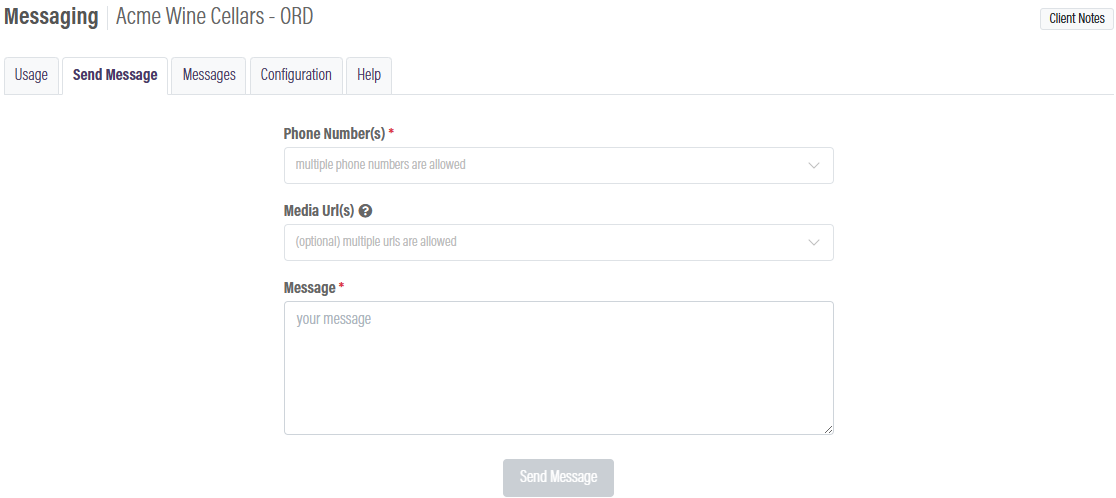
The Send Message tab enables you to send a text message to a customer from the admin interface. First, input the phone number to which you will send the message. Next, if you are including a link in the message, enter it in the Media Url(s) field. Finally, type the message that will appear alongside the link in the Message field. Since you must enter individual phone numbers, it is not recommended to use this for SMS Marketing. If you are interested in SMS Marketing, please review the RedChirp integration.
When you are set, click Send Message. You can confirm that the message was sent by checking your Messages logs.
Messages
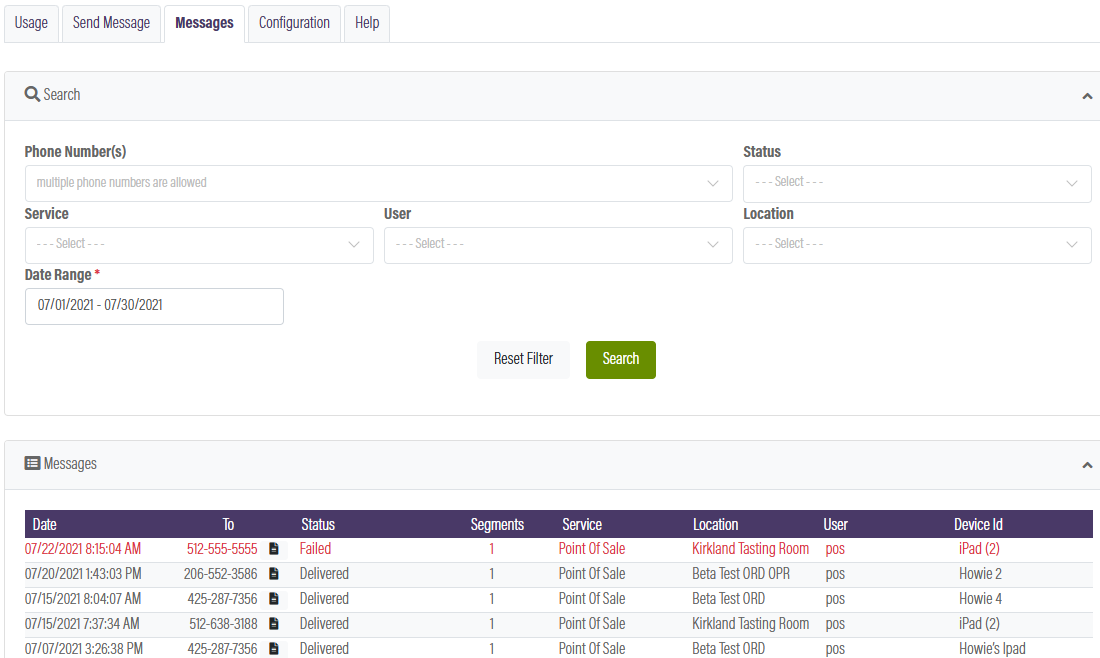
The Messages tab provides a log of text messages that have been sent to customers. Use the search options and filters to see if a message as been delivered to a customer. If you hover your cursor over the file icon next to the phone number, it will show the content of the message, including links.
Configuration
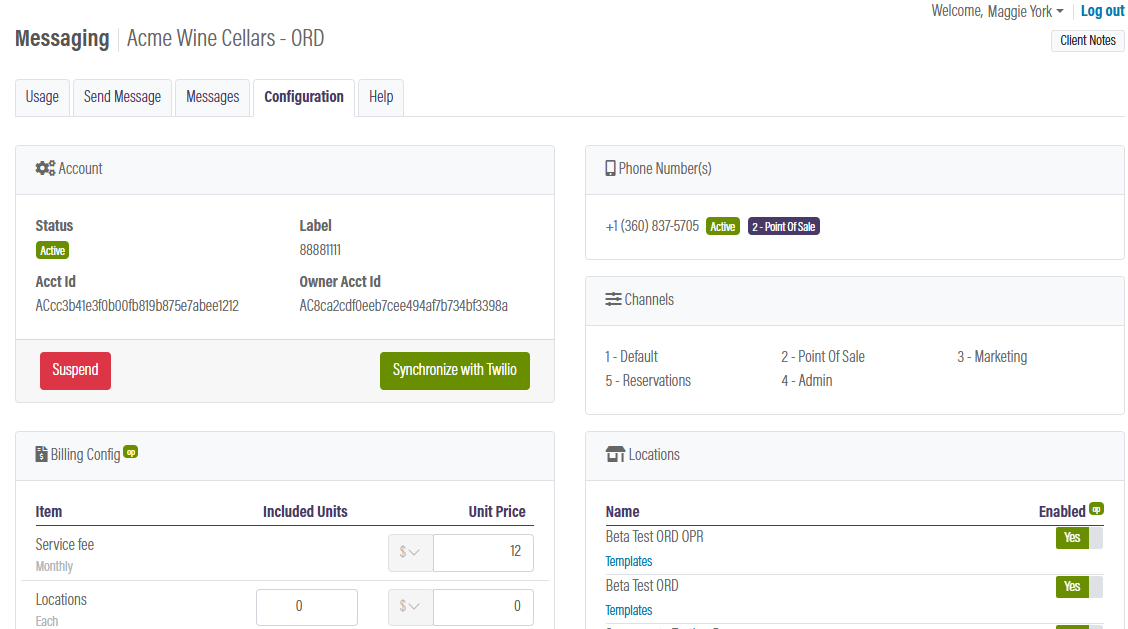
The Configuration tab is where you see how your messaging system is set up. Your Account ID and Label will be generated automatically when your module is enabled. This tab will provide information on how you are being billed as well as which tasting rooms are currently enabled to send text messages. You can toggle Yes or No for each of your tasting rooms, and changes will save automatically.
Message Templates
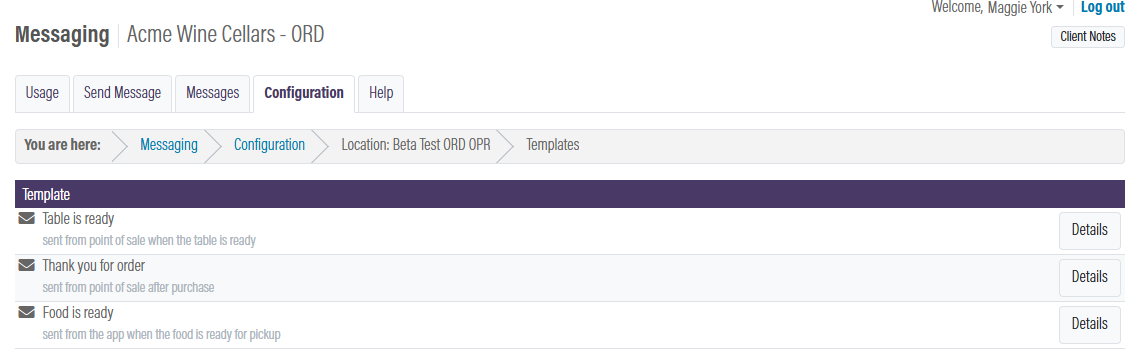
There are two message templates that can be tailored according to the tasting room: "Table is Ready" (for seating a reservation) and "Thank You for Your Order" (sent after a purchase is finalized). To see the templates for each location, click the Templates button. If you are utilizing a restaurant application, there is an additional messaging template named "Food is Ready"(sent with To-go Orders)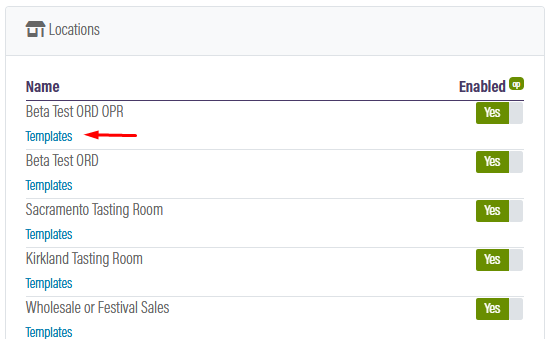
The three templates for that location will be displayed. Select Details if you wish to modify the existing language. A new window will appear featuring a Media Url(s) section and a Message Template section. In the first section, you can include a media image (like a logo), and the second box will be designated for the language in the message.
Once you have completed your changes, click Save & Close.