In this guide, we will discuss the setup of the UPS integration, along with how to use the integration and what to do if you run into any problems. This guide will not cover Order Fulfillment. Please review the associated fulfillment guide.
TABLE OF CONTENTS
- Setup
- Creating UPS Orders
- FAQ's
- Why did I get an Invalid Zip code or Address Error
- On the checkout screen in the POS, when I select "Ship", no shipping options appear. Why would this happen?
- UPS Error 2500002
- "Wine Shipping Restricted Due to State Laws" Error
- Why aren’t my UPS notifications working?
- Can I have my UPS notifications sent when the label is scanned?
- Why does it say, “Action required for UPS credentials,” in Shipping > UPS?
- Why is my bill from UPS different than the shipping rates I charged?
- Which shippers can I use?
- What is the declared value? What is it used for?
- Can you restrict certain shippers to certain states?
Setup
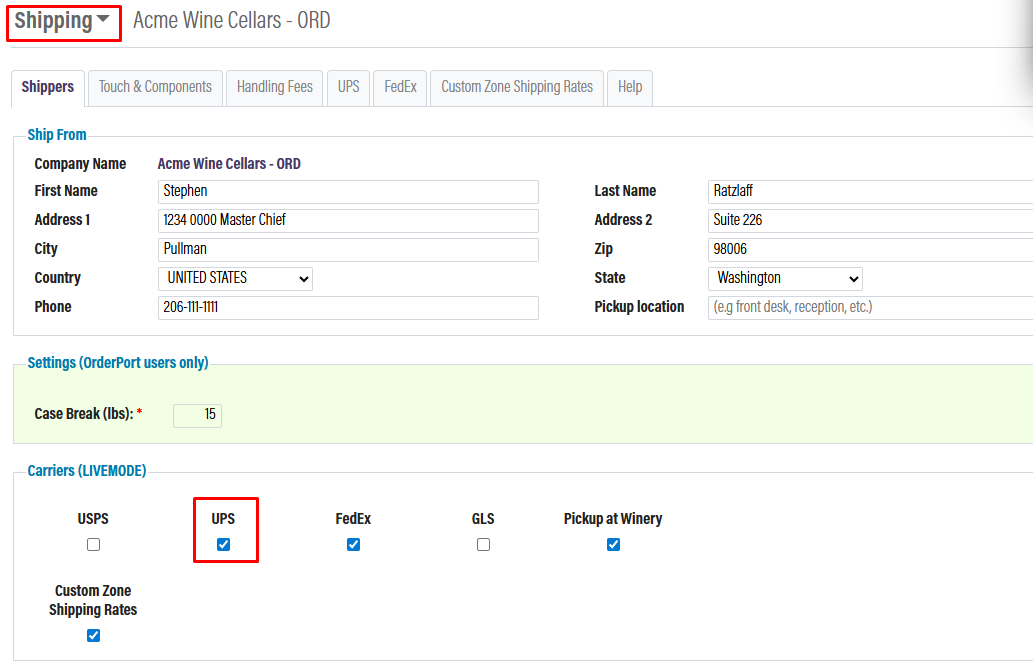
Go to the Shipping module in OrderPort Admin under the settings tab. In the Shippers tab, it must be enabled in the Carriers section. Once enabled, click "save. It will now appear as a separate tab in the module.
The instructions below are for the New OAuth API integrations. Starting on 06/03/2024 UPS will no longer support Access Key API integration. All clients using UPS must use this as the hard deadline. See the Steps below. For more information, click here.
*It can take up to 24 hours to see rates. OrderPort suggests doing this on a day you are not going to ship any products.
- Login to your UPS account from this link. https://developer.ups.com/?loc=en_US
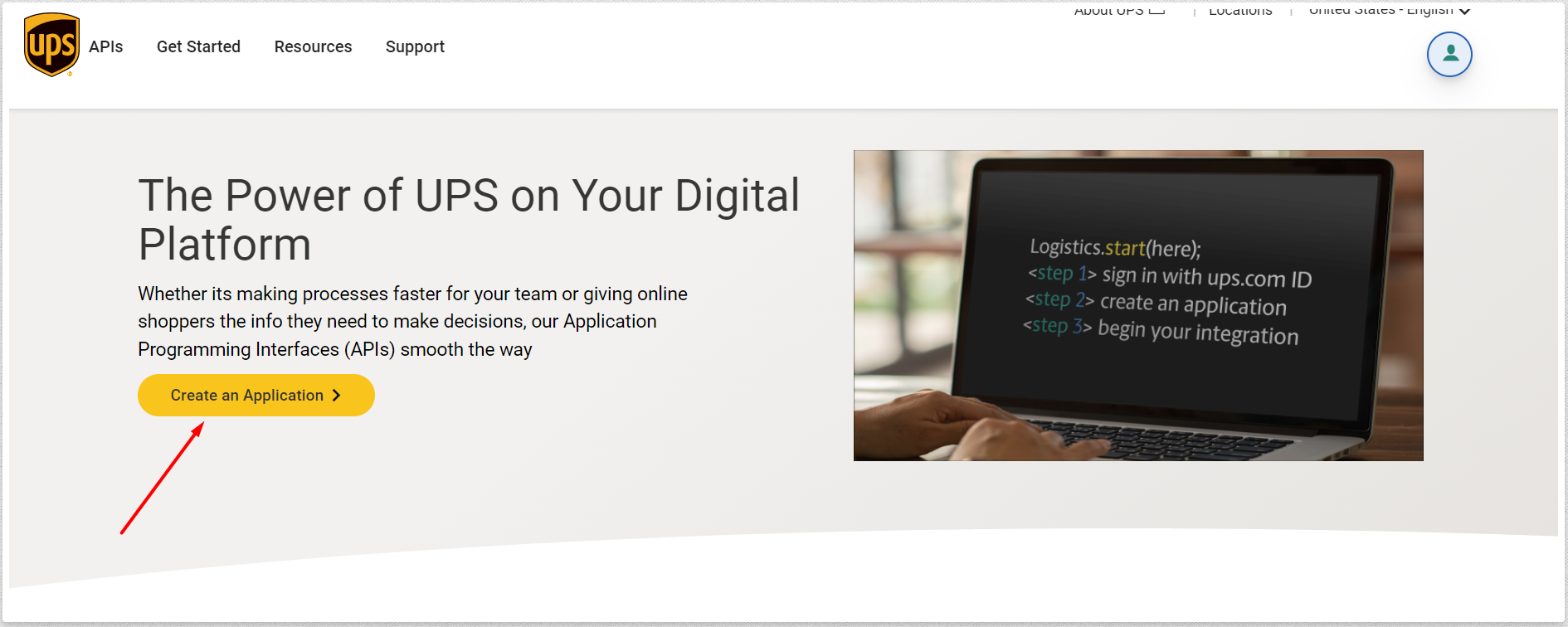
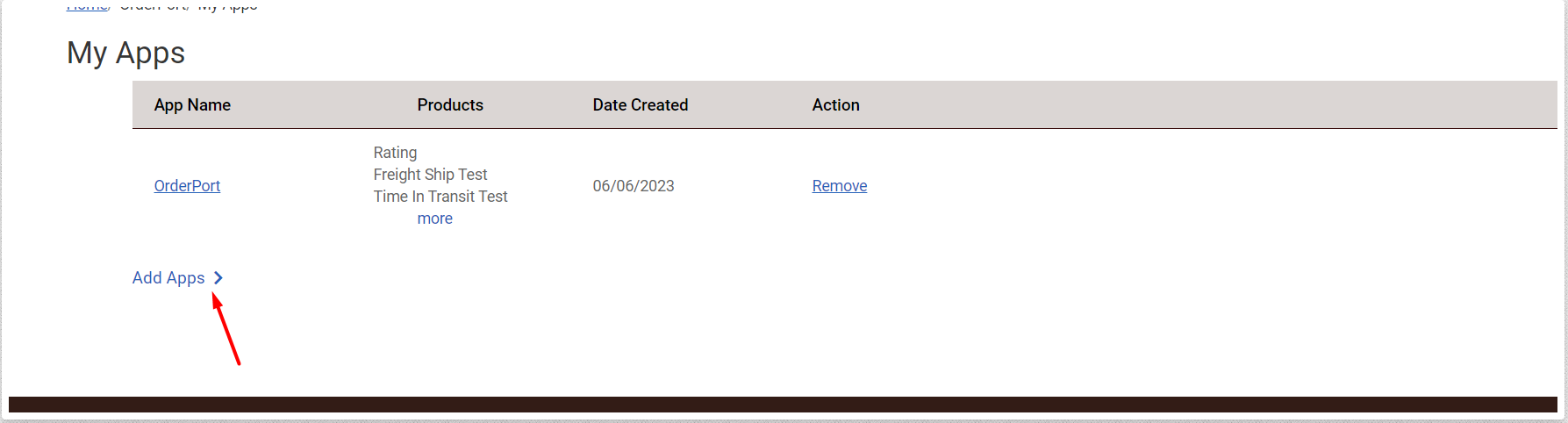
- Click Create an Application. Create an Application for OrderPort. Then select Add Apps.
- On the Next step, select: 'I need API credentials because: “I want to integrate with UPS technology to represent many users”'
- Choose an account to associate with these credentials (select your account #).
- In the next step provide your information
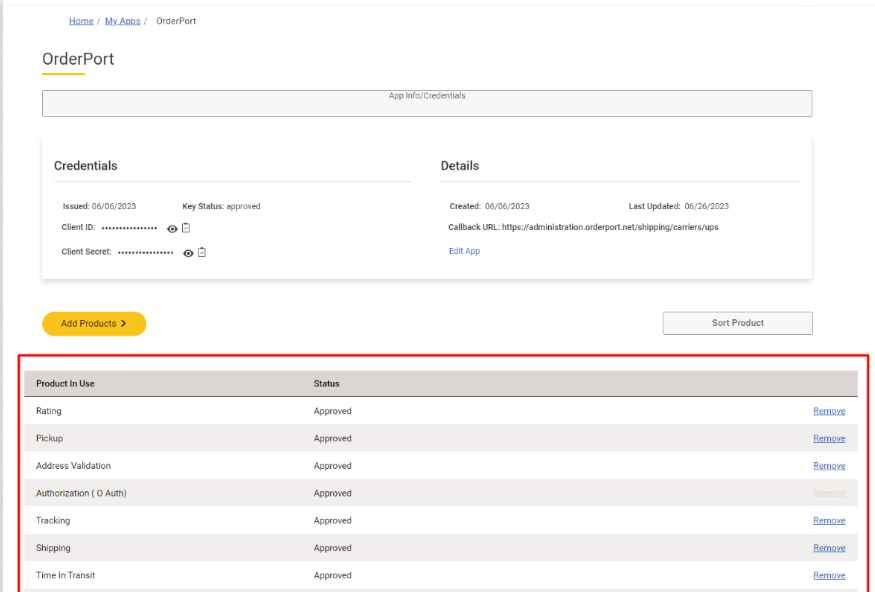
- For this step, make sure to select at least the following products: This is very Important! If you do not select all of these, the integration will not work.
- Rating
- Pickup
- Address Validation
- Authorization (OAuth)
- Tracking
- Shipping
- Time In Transit
- Locator
Callback URL to use if required: https://administration.orderport.net/shipping/carriers/ups
Entering credentials into OrderPort
Once you’re done, take the ClientId and the Client Secret and put them in OrderPort Admin > Shipping > UPS, then save changes. This can take up to 24hrs before you will see rates displayed in OrderPort. Select OAuth Client Credentials under Authentication Mode. Input your Client ID and Client Secret. Save Changes. For information about Shipper Numbers, see this: https://learningcenter-ihub.ups.com/Support/KB/add-shipper-accounts-to-ups-user-account
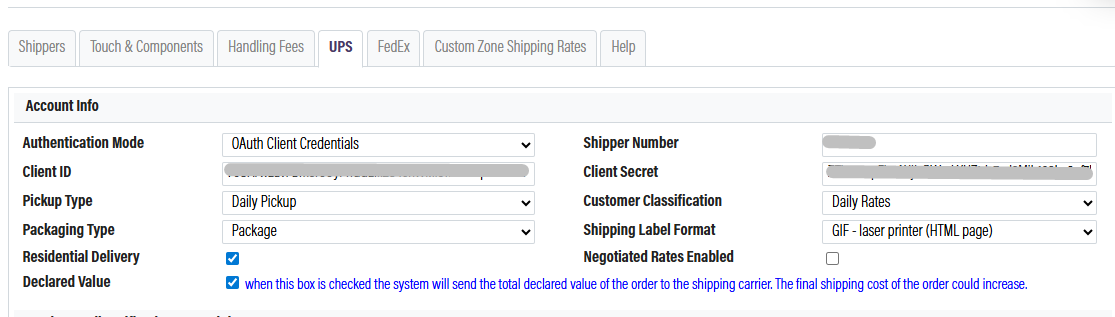
When you have completed the setup, proceed to Enter Orders and try creating a test order. On the first screen, indicate that the order “needs shipping”. When you arrive on the check-out screen, you should see UPS prices. If you see this, then the integration is set up correctly. If you receive an error message, contact helpdesk@orderport.net.
Additional Feilds
Pickup Type
Packaging Type
Customer Classification
Shipping Label Format
Residential Delivery
Negotiated Rates Enabled
Declared Value
UPS Access Points
To enable shipping to UPS Access Points, make sure to activate the "Hold at Location" feature in the shipping module.
During checkout, when customers input their shipping address, they will see a "Hold at Location" toggle. This allows them to look for UPS Access Points nearby.
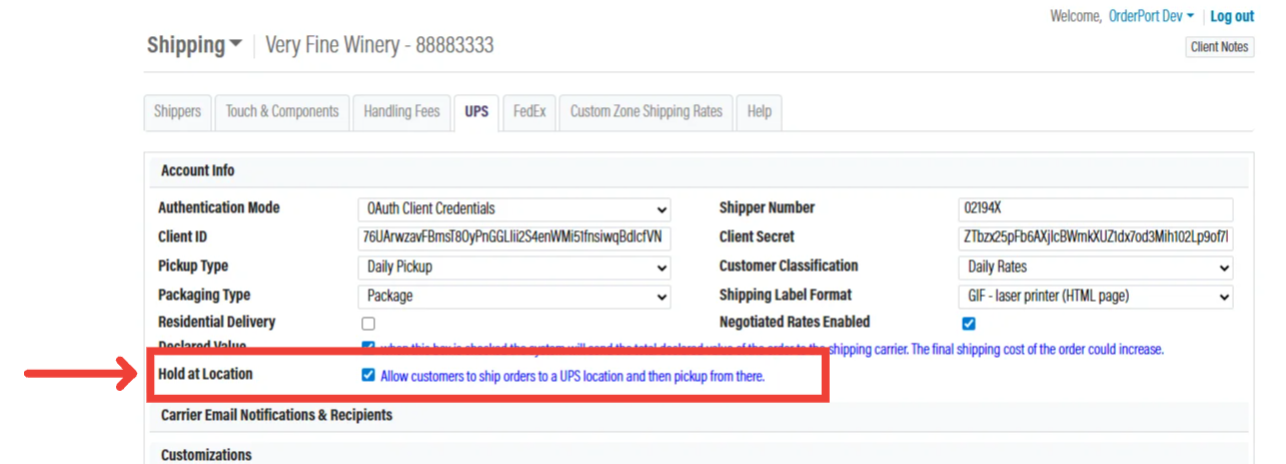
Important: To utilize UPS Access Points, it is crucial to select "Locator" as a product when creating your UPS account using the setup section mentioned earlier. If you're uncertain whether you've added this product, you can verify using the steps below.
1. Log into your UPS Developer account at https://developer.ups.com
2. Go to your App
3. Include the Locator product
Carrier Email Notifications and Recipients
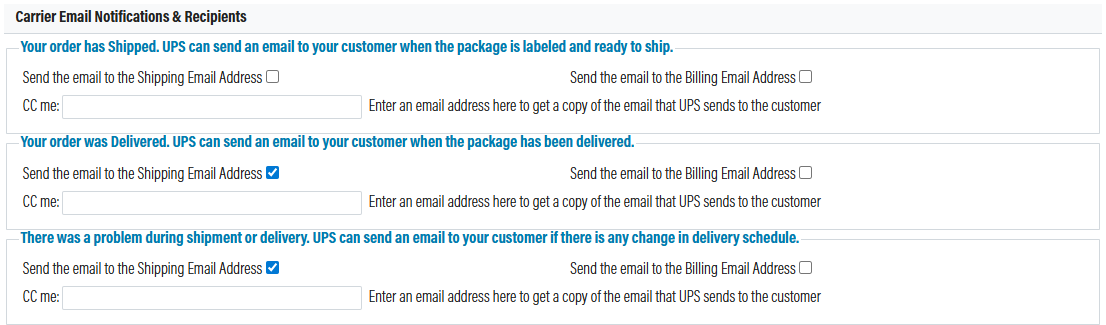
After you have setup, your account will have the option to send automated emails to customers from UPS when certain events occur. Please review the options and decide if you want to send these emails to the customer's billing or shipping address. If nessisary you can also cc someone at the winery.
Customizations
If you want to display your client's customer class on their shipping lable you can decide to enable that from here.
Secondary Accounts
In some instances, a winery may have multiple UPS accounts. If you need to add a secondary account, please click Add Secondary Account and go through the account setup again. When setting up a secondary shipping account, there will be a new field available titled Locations.
The only way that OrderPort can determine which UPS account should be used is based on the ship-from location. You will need to attach this account to a specific warehouse or tasting room. All FedEx shipping orders generated with that location as the ship-from warehouse will use the secondary account. All other locations will use the primary account.
Shipping Merchandise Only
UPS prohibits its clients from shipping orders without an alcoholic product for any alcohol-related shipments. If a merchandise-only order is sold and shipped, UPS will return the package to you and impose a fee. To circumvent this, you will need two UPS shipping accounts: one for your primary orders requiring an adult signature, and a standard account. Utilize the setup mentioned above, including the secondary account configuration, to connect those accounts to OrderPort.
Additional setup
- In the inventory module, you will need to establish a new warehouse for your merchandise shipments.
- In the shipping module, link the location to your secondary UPS account.
Once they have been activated, follow the workflow below to ensure all orders are sent to the appropriate UPS account.
- In fulfillment, before processing your online orders, examine each order to identify any that are merchandise-only.
- Modify the order, and on the checkout screen, change the ship-from warehouse.
- Complete the order.
- Continue with standard fulfillment.
Creating UPS Orders
Once the UPS integration is enabled, you will see UPS rates populate on all of our order-taking platforms. This includes Point of Sale, Webstore, Enter Orders, and Wine Club. Based on the services available with your UPS account, those options will populate on your orders with the associated rates.
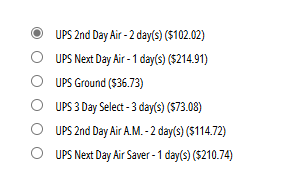
If you would like any of these rates hidden, please reach out to the helpdesk. If you do not see any rates applying, please check that all of the items in the cart have a weight associated with them in the Catalog Manager. The way OrderPort and UPS communicate is based on the weight of the items and the address to determine the shipping rates.
FAQ's
Why did I get an Invalid Zip code or Address Error
When you encounter an "Invalid Address" error, first verify that your address is accurate by utilizing the Zip code lookup tool at https://tools.usps.com/go/ZipLookupAction_input. This error message typically indicates that the billing address does not correspond with the one associated with the credit card. To resolve this, you need to update the address on file for the card by accessing the Customer module and locating the customer. Once you’ve made this change, you can proceed to release the order.
On the checkout screen in the POS, when I select "Ship", no shipping options appear. Why would this happen?
There are two reasons why this could be happening:
1. The zip code of the address you are trying to ship to could be incorrect.
2. You just added a new item to your Catalog Manager and you forgot to add weight to your product. Go into Catalog Manager > Go to your item > Add a non-zero weight
UPS Error 2500002
If you get the error UPS: 2500002, please make sure you added the correct products shown on #6 and the Callback URL shown on #7 has been entered. This error means the integration hasn't been set up properly.
"Wine Shipping Restricted Due to State Laws" Error
In OrderPort Administration:
This means that you do not have a valid shipping license for the address in question. To fix this, go to Sales Tax & Licenses > State Licenses and ensure that you have a valid license for each state that you are willing and able to ship to.
Why aren’t my UPS notifications working?
Pull notifications from UPS My Choice will override any notifications set up in your UPS account or Individual UPS account settings in OrderPort Admin.
Can I have my UPS notifications sent when the label is scanned?
UPS My Choice informed us that there is a modification that can be made at the account level to hold UPS My Choice notifications until the first scan of the label. Rather than the standard, where the My Choice notification is sent (Pulled) when the label is created. This request would have to be made by the winery to their UPS account Rep.
Why does it say, “Action required for UPS credentials,” in Shipping > UPS?
On June 3, 2024, UPS will no longer support access keys for authentication to UPS APIs. You are required to obtain OAuth API credentials from the new UPS Portal and update them in OrderPort prior to June 3, 2024, to continue transacting with UPS APIs. Please follow the UPS API Change (2024) document to update to OAuth.
Why is my bill from UPS different than the shipping rates I charged?
UPS calculates it's packaging charge based on weight and dimensions. If the package weight information that was sent is inaccurate, UPS will recalculate and adjust the shipping charge.
Which shippers can I use?
The most popular shippers are FedEx, UPS, and for those wineries in California, GLS. If you use a shipping system or warehouse system that you do not see in the shipping settings, please contact your OrderPort Representative for further questions.
What is the declared value? What is it used for?
The declared value is used when shipping products outside of the country. Carriers will create a Commercial Invoice with the declared value, which will be used by customs in the receiving country. Declared value is also used for establishing insurance claims should the products be lost or damaged in transit, and also for setting the cost of insurance for that same shipment.
Can you restrict certain shippers to certain states?
Yes, you can physically restrict shippers from certain states. Let OrderPort support know which shippers you would like restricted, and we will forward the information to our technical support team. It will be completed in 24-48 hours.