OrderPort integrates with Woodinville Winery Services, shipping compliance software, allowing you to utilize OrderPort to manage orders, clubs, inventory, POS, etc., while taking advantage of WWS negotiated UPS shipping rates and shipping licenses. WWS will also handle all compliance for orders shipped through their system.
Getting Started
Using this integration requires an existing account with Woodinville Winery Services. Please reach out to them on their site. WWS will then reach out to us to enable your integration. Once enabled, proceed to the next step.
Please be aware: This module is exclusively accessible to wineries utilizing the OrderPort Payments powered by the Stripe Payment Processor.
Setup
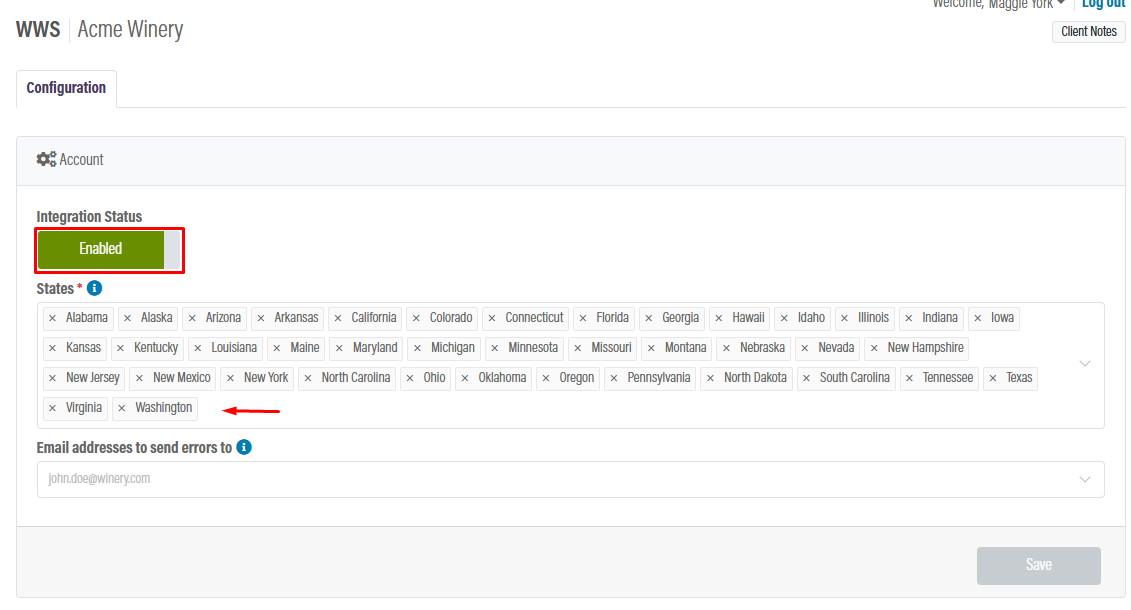
To set up the integration, go to OrderPort Admin > Integrations > WWS. On the configuration page, you will find a toggle to enable the module—make sure to turn it on. Next, in the "States" field, select all the states to which you would like to ship using this integration.
If you would like to receive an email when an order fails, please enter your email address in the "Email address to send errors to" field.
Sales tax Licensing
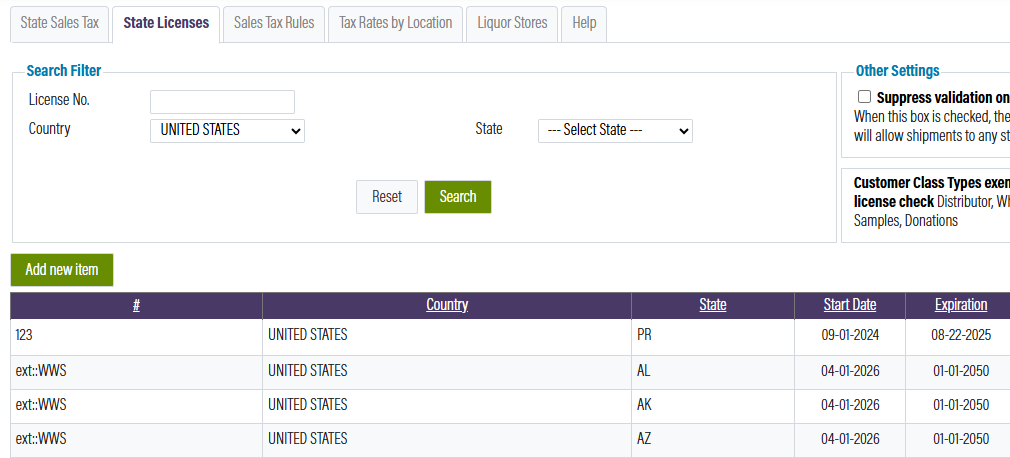
Once you select a state in the WWS module, you will use their sales tax and compliance software, along with their shipping licenses, to determine compliance. In OrderPort Admin > Operations > Sales Tax and Licensing > State Sales Tax, these states will be displayed in lime green.
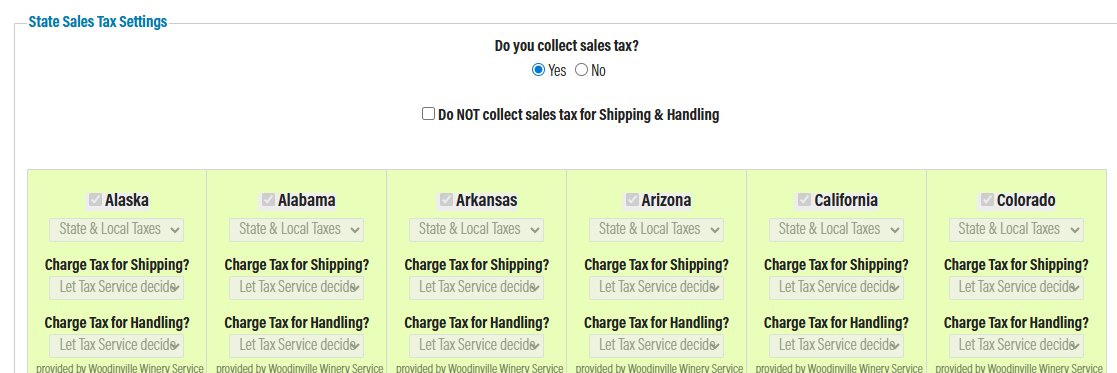
This will also automatically create WWS licenses for each of these states in the "State Licenses" tab.
Creating an Order
Once you have set up the module, you should create a test order to ensure everything is working. Navigate to OrderPort Admin > Products > Enter Orders. Select a customer with an address in a WWS licensed state. Add items and proceed to Checkout. You should see a UPS Ground rate populate.
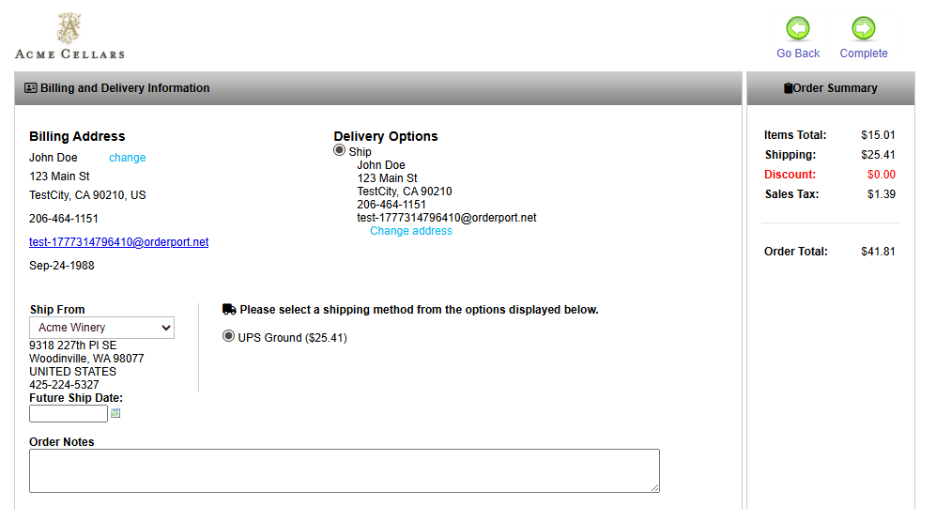
Select the desired payment method. Once the order has been placed, you will notice two things. The payment method will be listed as Other, and the handler will be WWS. This is because WWS will process the payment.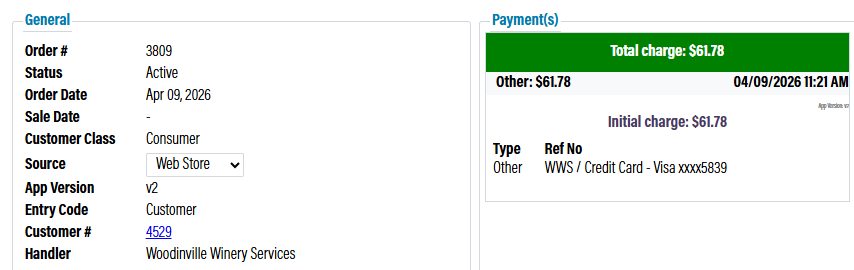
Fulfilling an Order
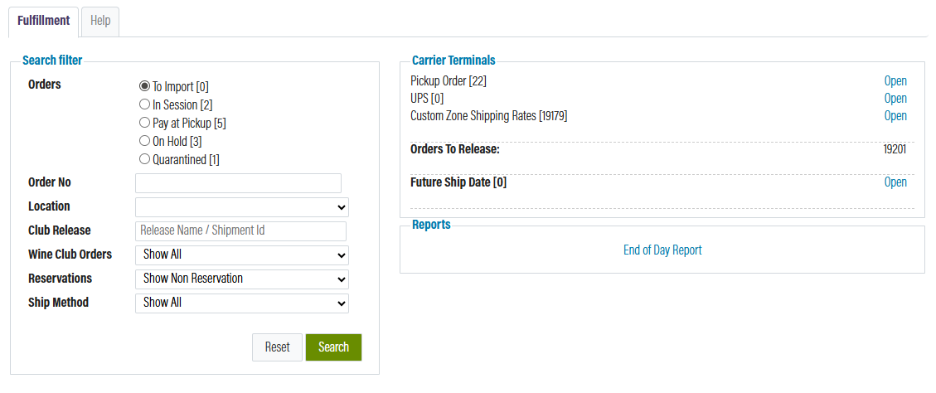
Orders are fulfilled in the Fulfillment module. The process is very similar to non-WWS orders. Orders will initially be in the To Import section. Once you finish inventory checks and push the order through, it will fall into the selected shipping carrier terminal. For more information on the Fulfillment process, please see this document: Fulfillment Module Quick Guide.
Reporting
To view only orders sent to WWS in my reports, select the appropriate option from the handler dropdown. For all standard reports, prior to running the report, you can select which handler you want included in these reports. 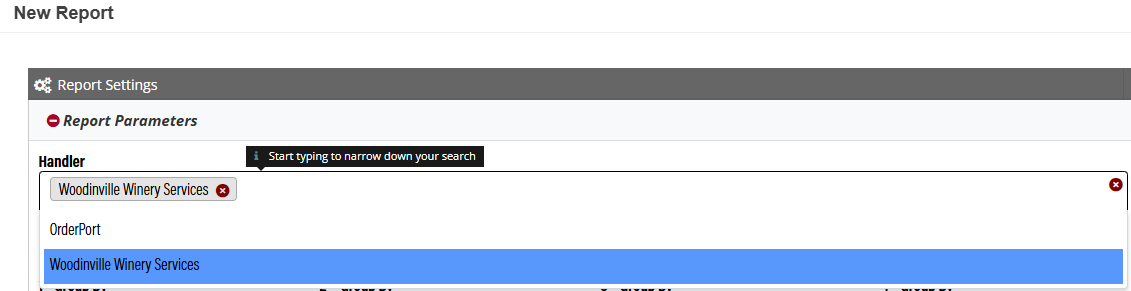

If you are generating the business summary or any other sales report, it's crucial to recognize that sales associated with these orders will appear as 'other.' These transactions will not be categorized under your credit card sales.
Reconciliation with the Dashboard
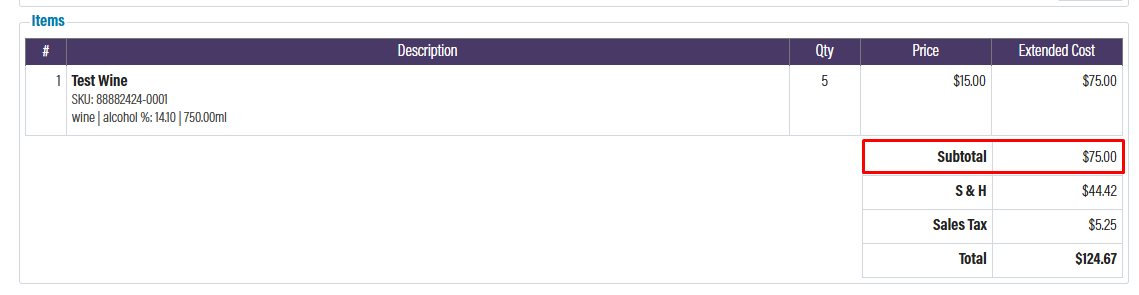
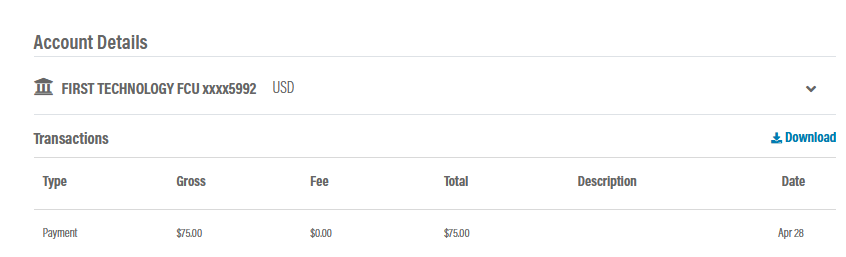
When a transaction is finalized on WWS, the credit card processing will occur through WWS. This indicates that they will handle all credit card fees, sales tax, and shipping costs. After WWS has processed your order, a payout will be directly deposited into your Stripe Account. You should be able to reconcile this amount with the subtotal of the order.