The OrderPort Reservations module is a paid feature that we offer, allowing you to create and manage reservations for your winery. It will include a new module, webstore page, and app functionality. The OrderPort Reservations Module enables customers to conveniently schedule order pickups and make tasting room reservations online and by phone. The online customer interface is built by OrderPort with a responsive design for optimized viewing on mobile devices, and the winery's website design is used for a consistently branded customer experience.
Please note: There are two reservation admin page styles. If you notice these images seem unfamiliar, please review the old interface section of this guide.
TABLE OF CONTENTS
- Getting Started
- Selecting a Workflow
- Backend Setup
- Reservations Module Setup
- Managing Reservations
- Old Reservations Interface
- Using Reservations on Point of Sale
- Reservations Webstore Setup
- Customer Booking Perspective
- FAQ's
Getting Started
If you are interested in the reservations module, please email helpdesk@orderport.net for pricing and to get the module turned on. While you are waiting for the module to be turned on, please review the next section on selecting a workflow.
Selecting a Workflow
This section walks through the different ways you can configure reservations. Each method supports a different operational style-choose the one that best fits how you manage guests. Once you have decided on one, please review the setup section of the guide.
Capacity-Based Reservations
This method is perfect if you want to manage how many guests can book for each time slot without worrying about assigning specific tables.
Best for:
- Open seating tasting rooms
- Experiences that have a set guest limit per session
Setup:
- Create a new Reservations area
- In the area settings, make sure to set up.
- Time Slots
- Max Capacity
- Max party size
- Optionally
- Allow Same-Day Reservations
- 15-Minute Increment Booking
Table-Based Reservations
Use this option if you want reservations to be based on table availability, with guests automatically assigned to tables. Availability is controlled by your tables—their number, size, and how they can be combined.
Best for:
- Restaurants
- Seated tastings
- Structured floor plans
Setup:
- Create a new reservations area
- In the table settings tab, enable table settings and set up your tables
- Create a layout map (Optional)
- Set up your time slots and hours
Group-Based Reservations
Choose this option if you want to limit how many groups (instead of total guests) can book per time slot. In this scenario, each “table” represents one group reservation.
Best for:
- Tours
- Guided tastings
- Experiences with a fixed number of groups
Setup:
- Create a new reservations area
- In the table settings tab, enable table settings and set up your tables
- Create one table per group allowed per time slot
- Example: 4 tables = 4 groups per time slot
- Set up your time slots and hours
Key Behavior
The system limits bookings based on the number of tables (groups)
Party size is controlled by:
- Table seat count
- Max party size
Hybrid Setup (Capacity / Tables / Group + Map)
Use this if you want a simple booking for customers, but prefer to assign tables manually when guests arrive. Customers book easily, and staff assign tables using a hidden internal map.
Best for:
- High-volume tasting rooms
- Host-managed seating
Setup:
- Create your public-facing reservations area. Use one of the three setup options above (Capacity, Tables, or Group Based)
- Create a second reservations area for your internal table map. (Name it whatever works for you)
In the Internal area
- In the table settings tab, enable table settings and set up your tables to match what is in your tasting room
- Then add those tables to the layout
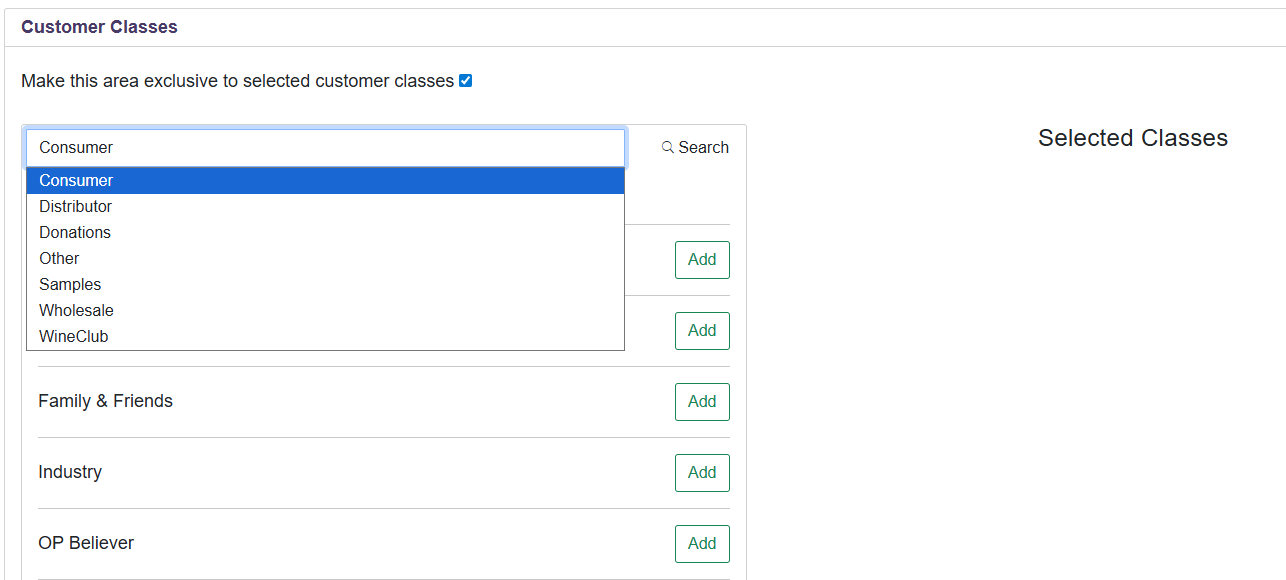
- Select the Customer Classes tab and select (Make this area exc;usive to selected customer class)
- Make sure you do not select a class, though, as this will hide it from everyone on the webstore
Workflow on POS
When a customer arrives for their reservation, you can select a table for them on the table map you have set up. Pro Tip: If you allow walk-ins, consider intentionally limiting the reservation capacity to ensure that tables remain available.
Extended Stay Reservations
Use this option for multi-day bookings such as lodging or on-site accommodations. Reservations are based on date ranges instead of time slots.
Setup:
Create a new Reservation Area
Enable Allow Extended Stay Reservations
Configure availability by date
Important Notes
Time Slots are not used
Products cannot be required or purchased
Products and Purchase
For most of the reservation types above, you can decide if you want to add products and control how payments are collected during booking.
Payment Options
- Capture at POS (Recommended for deposits)
- Charge a deposit at booking
- Final payment is completed later in POS
- Capture in Fulfillment
- Charge when the reservation is fulfilled
- Works like a prepaid ticket
- Pay at Pickup (Not Recommended)
- No upfront payment
- Higher risk of no-shows
Backend Setup
Once you have enabled the module and selected what workflow you would like to use, we can get started setting this up.
Reservations group
To create a new product group in OrderPort Admin, follow these steps:
- Navigate to OrderPort Admin > Products > Catalog Manager.
- In the top right corner of the page, click the purple "New Group" button. A pop-up will appear asking you to choose the type of group. Select "Webstore." This option allows customers to book tastings online, and it lets you decide which products are available for presale.
- Next, give your group a name and choose "Reservation 2.0" from the dropdown menu labeled "Web Store Group Type."
- Click "Save Changes" when you're finished.
If you want your group to be live on your webstore, ensure the "Active" toggle is switched to "Yes." If you prefer not to make it live at this time, leave it set to "No." You can activate it later once you have completed your reservation settings and parameters.
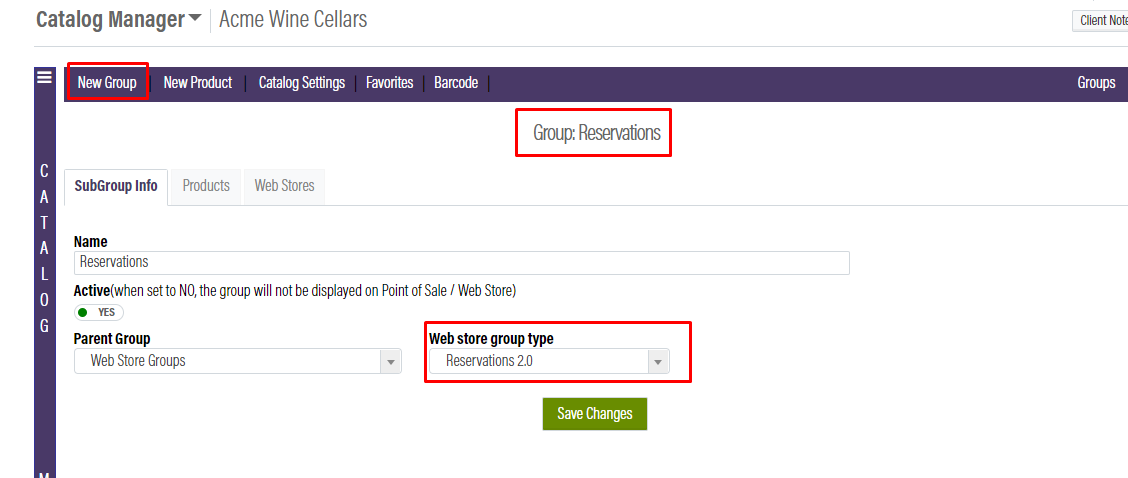
Your winery has the option of having customers pre-order tastings, glass pours, and other items when booking a reservation. This allows you to have tastings ready when a customer arrives, as well as other items they may want to order, such as food and merchandise. You can decide which items will be available for presale and add them to your Reservations webstore group. Placing an item in the group will not automatically make it available for purchase. You will decide the specific items people can purchase when setting up your reservation areas.
Adding Products
First, check the box that says, “Not included.” Next, search for the products you want to include in the group. When the search result appears, make sure to check the box that says “Include.” Also, make sure the status is active so that it will appear as available. You can use products that you already have or create new products specifically for reservations. Regular customer class discounts and prices will apply when booking a reservation. If you need to remove an item, uncheck the “Include” box. Click Save Changes when you are done. If you do not plan on having customers pre-order for reservations, you do not need to add items to this group.
Accepted Payment Methods
In the Payment Processing module, you can decide which payment methods customers can use when booking a reservation online. Click the Accepted Payment Methods tab and scroll down to the Reservations section for Web Store. Click into the box to see the available options. If there is an option chosen that you no longer want available, click the red x to remove it. Click Save Changes when you are done.
Point of Sale Module
In the Point of Sale module on OrderPort Admin, under the Point of Sale settings you will need to enable "Table Numbers" and "Split by Guest" in order for reservations to appear on the POS. For restaurant users these will already by turned on.
Reservations Module Setup
Navigate to OrderPort Admin > Services > Reservations to get started.
Navigation
Dashboard
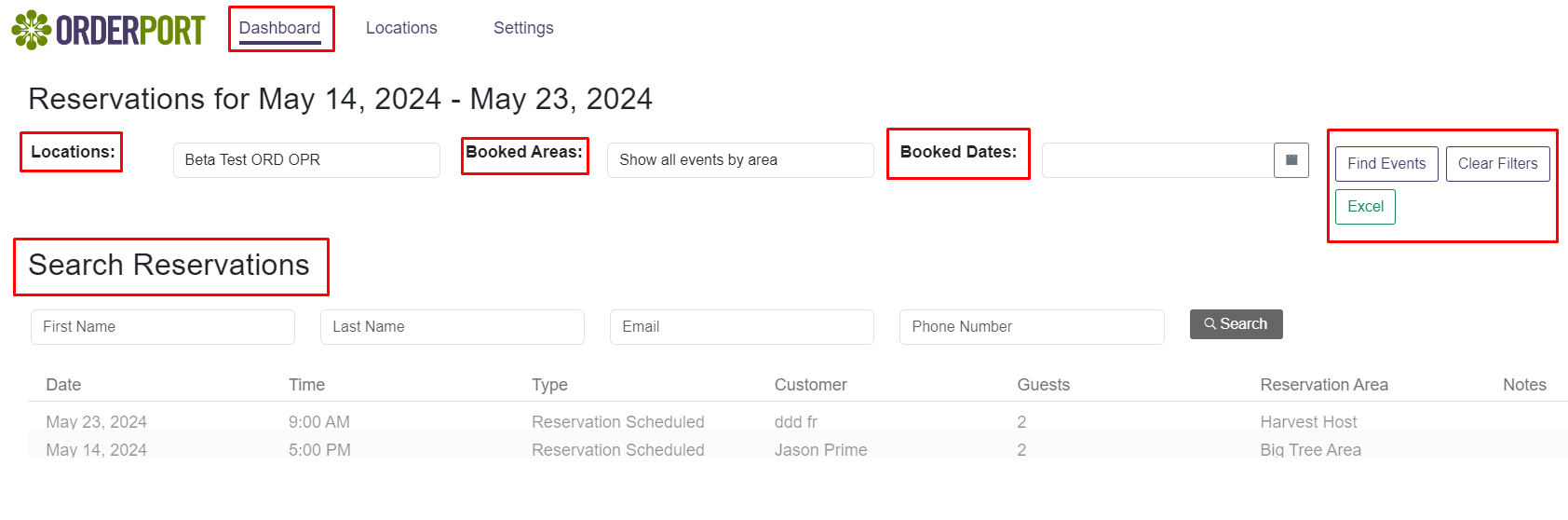
You will be brought to the dashboard page. The Dashboard Page is the landing page for the Reservations Module. Here you will have a list of all reservations made through Orderport. There are Filters at the top of the screen to help you narrow down this list by Location, Area, and Date. With a clean new design, this page is easier to read and now allows you to search for a specific customer's reservation. If you need to print out this list, you can do so by exporting it to Excel.
Location Select
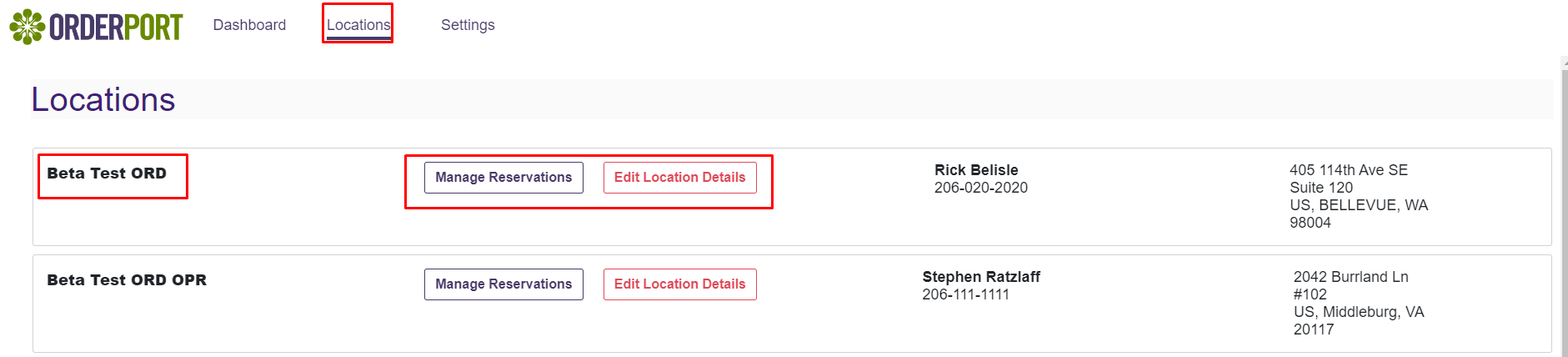
In OrderPort, all Inventory locations set to be a tasting room or resturant locations are eligible for reservations. That being said, if you do not set up any reservation areas for a location, customers will not be able to book reservations there. After selecting the locations tab at the top of the screen, you will be asked to select the desired location. You are also given the choice of whether you would like to Manage Reservations or edit the Location details displayed on the webstore.
Edit Location details
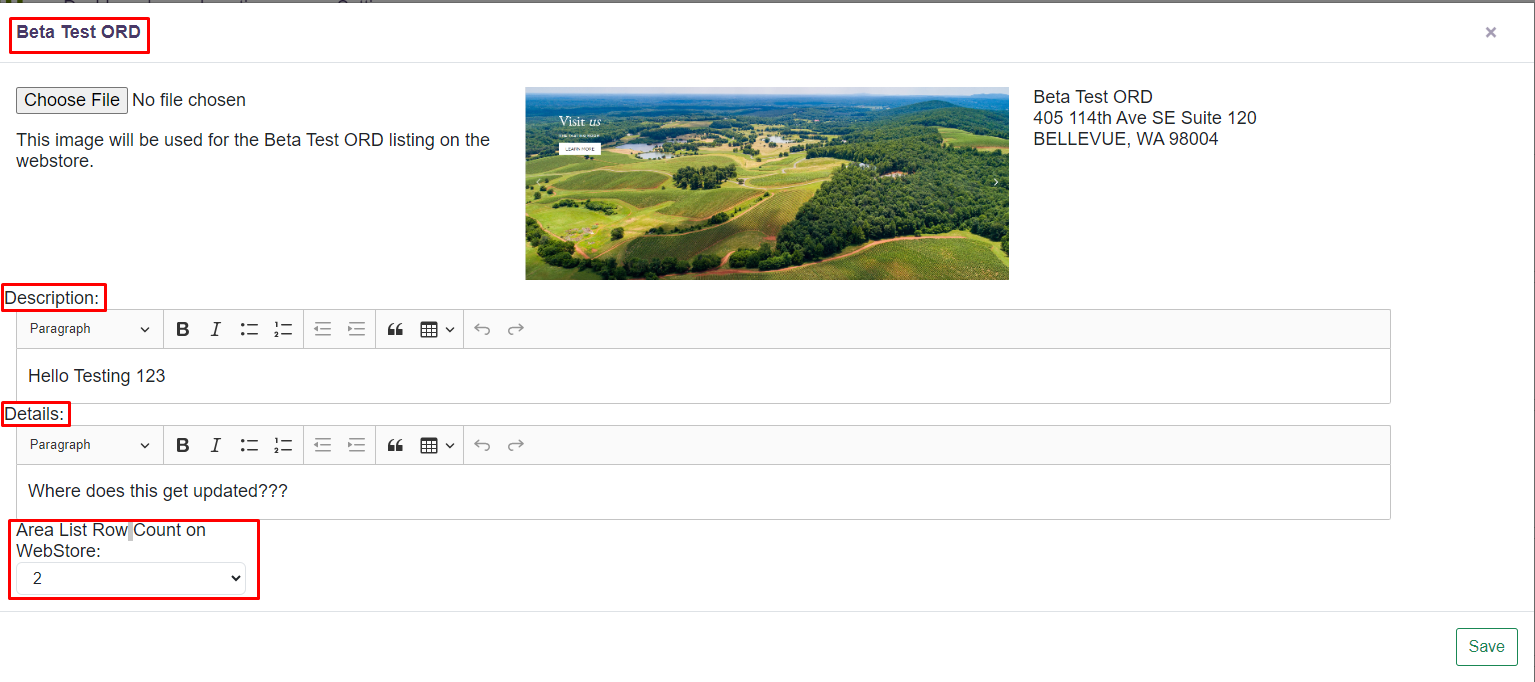
In the edit location details page, you can update the location Image, Description, details, and how the areas within the location will be displayed on the webstore. Please note the location is the tasting room as a whole.
Settings
This is where you will set up your reservation areas. Each tasting room will be organized into specific areas. You can have either a single area or multiple areas. Having multiple areas allows you to set different seating capacities and provide access based on customer class. Additionally, you can offer different items in different areas.
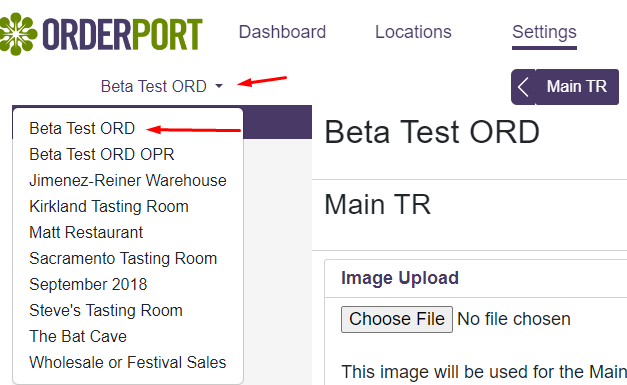
In the top left corner, you will find the Location Select drop-down menu. This menu defaults to the first location on your list and enables you to quickly navigate between settings for all your tasting room locations.
Setting up Areas
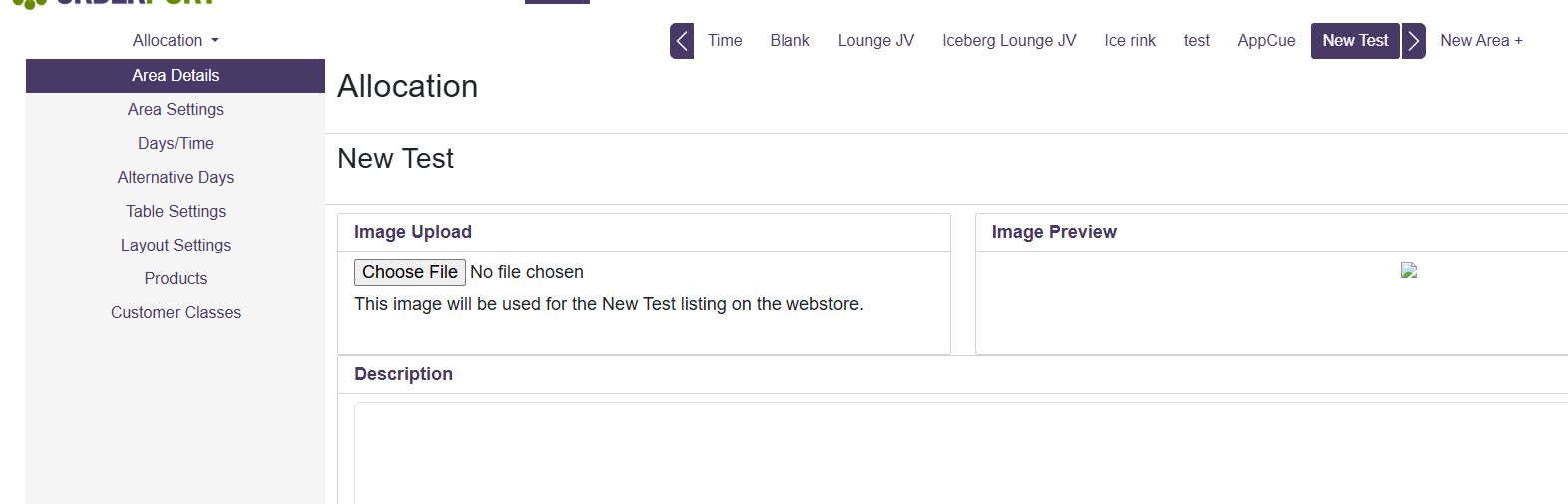
On the settings page, you'll find the Location Select drop-down menu in the top left corner. This menu defaults to the first location on your list, allowing you to easily navigate between settings for all your tasting room locations. Across the top of the screen, there is an area selector for the current location. If you have long names or multiple areas, you can use the arrows to scroll through them. Additionally, you can add a new area by selecting "New Area+" from this banner. Once you select a new area, it will ask you to add a name. Please note: Areas will display on the webstore alphabetically. To use a custom order, consider adding numbers in the titles.

Area Details
Once you have your new area created, select from the area selection banner. The first tab is the area detail section. Here, you can add the Website Image, Description, and Details for the selected Area. This should be filled out for all workflows.
Area Settings
This is your general setting tab. General Settings include the Name, Max Capacity, Max party size, Time Slot duration, Standard Reservations, Extended Stay, Time Slot increments, and Same Day Reservation settings. Based on which workflow you want, you should select the corresponding settings.
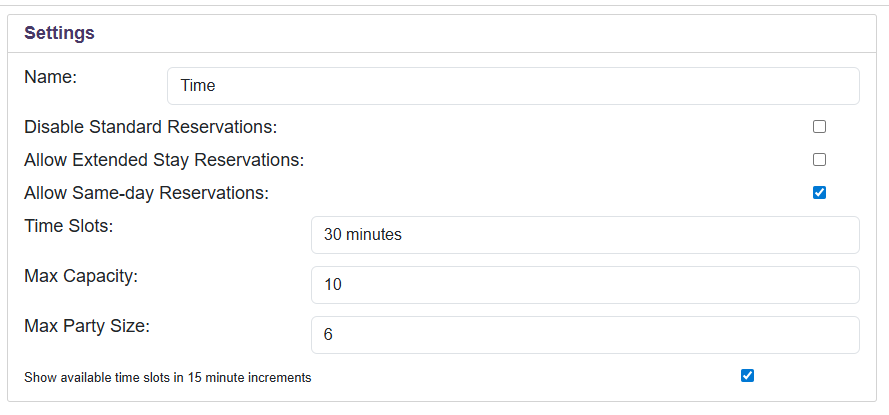
For most reservations workflows, this is the recommended setup.
Name: True
Disable Standard Reservations: False
Allow Extended Stay Reservations: False
Allow Same-day Reservations: This is up to the winery's preference.
Time Slots: How long in between reservations?
Max Capacity: How many people can you see per time slot?
Max Party Size: This is up to you, what you consider a large party. Do you need to call to make a reservation if it's over 6 or 8 people? The website will let them know to call the customer service phone number for inventory if they want to book a large party.
Show available time slots in 15-minute increments: If you want to be able to book every 15 minutes, you can check this. Most likely no as you would just choose the timeslot as 15 if you wanted that.
Days/Times
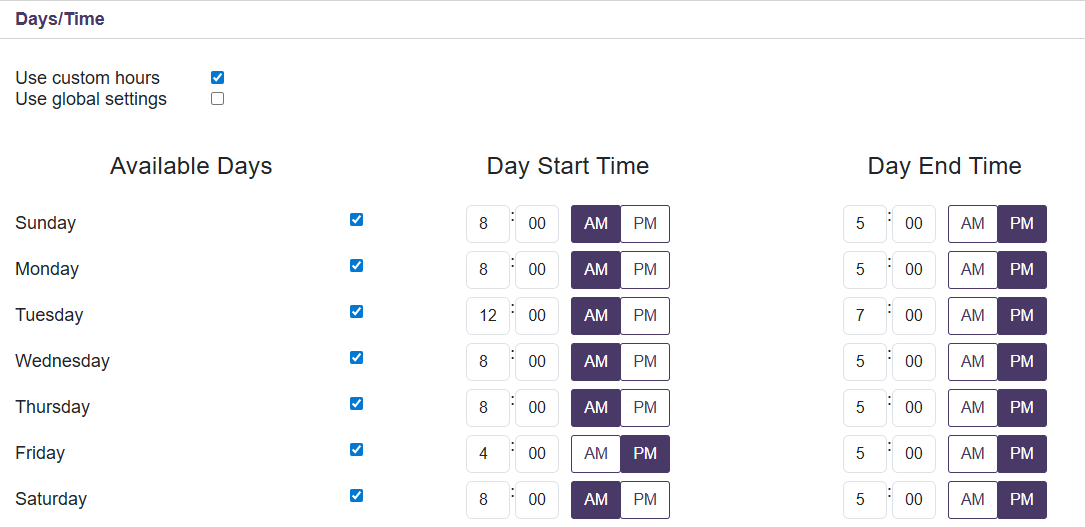
This is where you’ll set up your reservation availability. Start by choosing whether you’d like to use Global Time settings or Custom hours.
- Global Time settings are ideal if your winery offers reservations at the same times every day of the week.
- Custom hours are best if your reservation times vary by day.
Once you’ve selected the option that fits your business, enter your daily start and end times. Then, check the box next to each day you’d like to accept reservations.
Alternative Days
These settings allow you to manage reservation availability for holidays and special events. If there are specific dates when you’d like to enable or disable reservations, you can configure them here.
Simply enter a start and end date, then click “+ New Online/Offline Days” to apply the change. You also have the option to temporarily take the entire reservations section offline if needed.
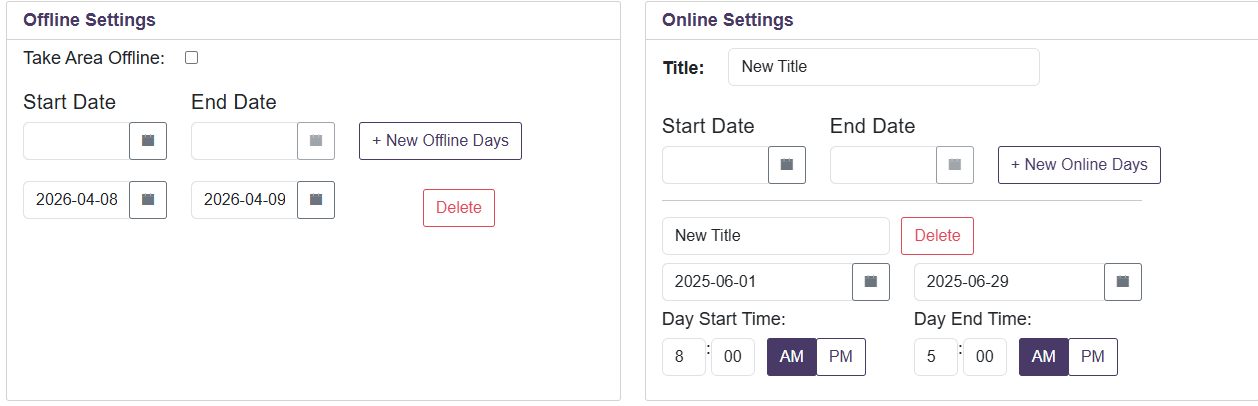
Table Settings
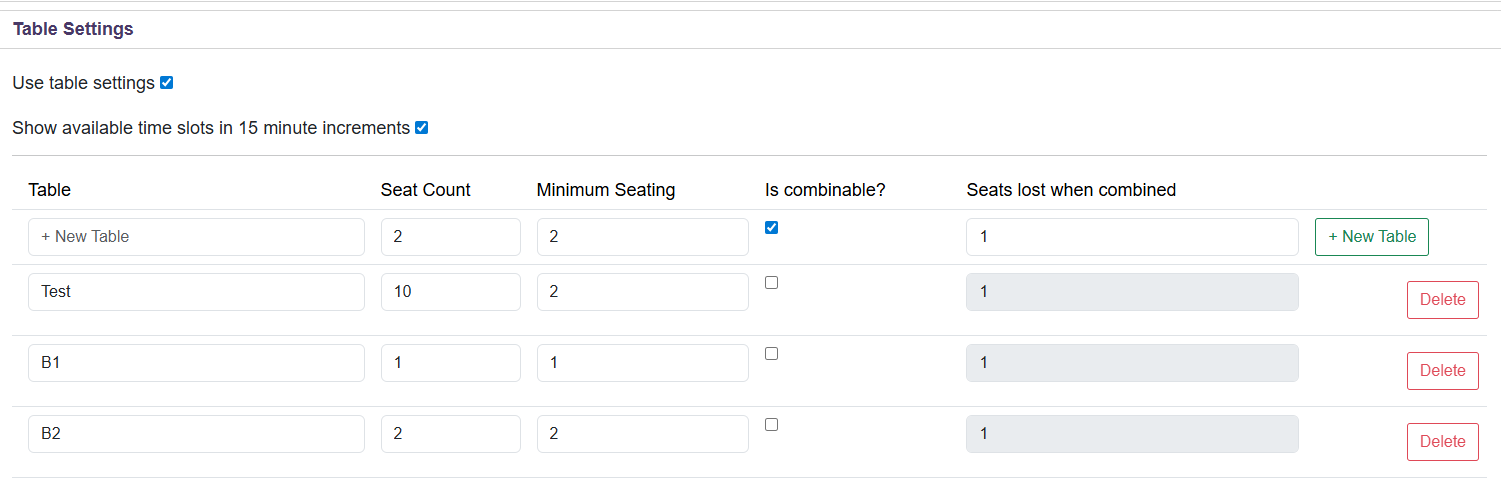
If you’ve chosen to use a workflow with tables, select the “Use Table Settings” checkbox on this tab. If you’re not using tables, you can skip this section.
The Table Settings tab is where you’ll set up your seating layout by adding each table and assigning its unique seat count. You can also mark tables as combinable, which allows larger parties to book even if their group size exceeds a single table’s capacity. Be sure to save your changes when you’re finished.
Layout Settings
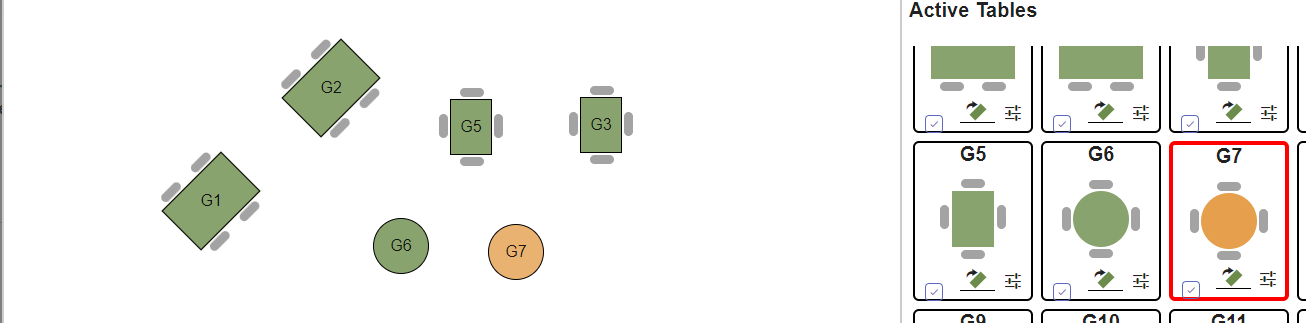
If you have selected a workflow that uses tables, you have the option to set up a table map for your staff. This map will be accessed by your tasting room staff when they are seating customers with or without reservations. To design this map, enter the name of the map and click "+New Layout". Then select the Blue table map button to edit the map. All the tables you created for this area will be populated on the right-hand side. On each table, you will see three buttons.

- Checkbox: Adds this table to the table map.
- Rectangle with an Arrow: Once the table has been added allows you to rotate it in 45-degree increments.
- Three lines with dashes: Allows you to select between 3 table shapes: Standard, Seats on the table end, and round.
After you have added tables to your layout, you can click and drag them into your desired format. These customizations can also be done on the point of sale.
Products
If you want to allow customers to pre-purchase products, you can set this up in the products tab. If you prefer not to offer pre-purchases, you can skip this section. There are three product settings available:
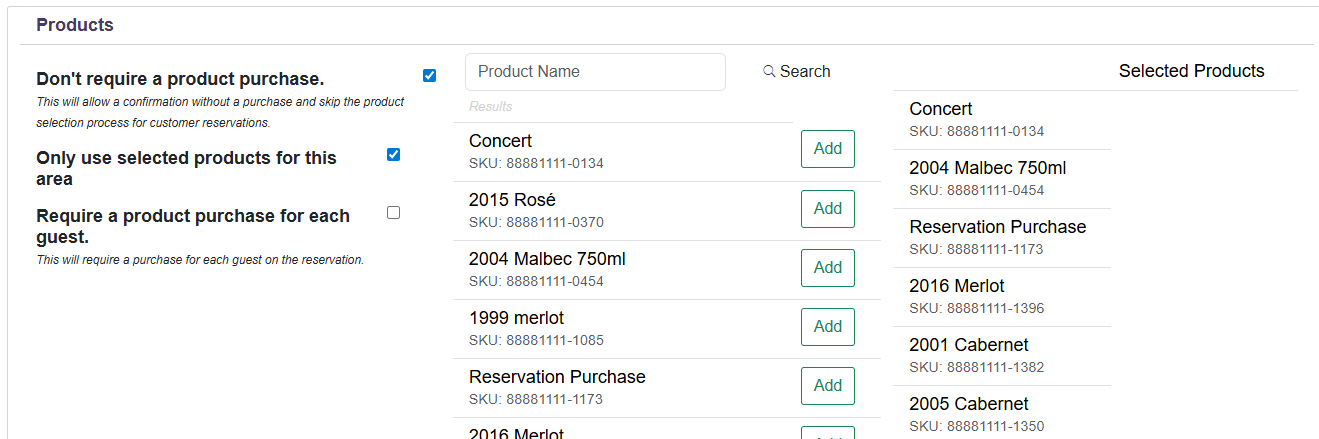
Don't Require a Product Purchase: Enable this setting if you want customers to have the option to purchase items, but it’s not mandatory. This is useful for pre-selecting tastings or menu options.
Only Use Selected Products for This Area: If you are using product purchases, this setting must be turned on. Once activated, you will be able to add items to the selected products tab.
Require a Product Purchase for Each Guest: Enable this setting if you want to make it mandatory for guests to purchase an item. This is applicable for reservation deposits or tickets. Please note that this requirement applies to each guest selected
If you don't see any items listed for you to select from, please see the Reservations group section of this article.
Customer Class
The Customer Classes tab allows you to restrict an area by customer class, making it exclusive to certain customers. Check the box to make it exclusive, then check the box for each customer class that will have access. This means customers will need to sign in during the reservation process, so their customer class is recognized. Click Save when done.
Managing Reservations
Under the Locations tab, you will find each of your tasting room locations. After selecting manage reservations you will be brought to manage reservations for all areas within this location. With this update, there are two new and unique ways to manage these reservations. The page is broken up into two tables: Timeline and Service. Then you have the date you are managing and the option to create new reservations.
Timeline
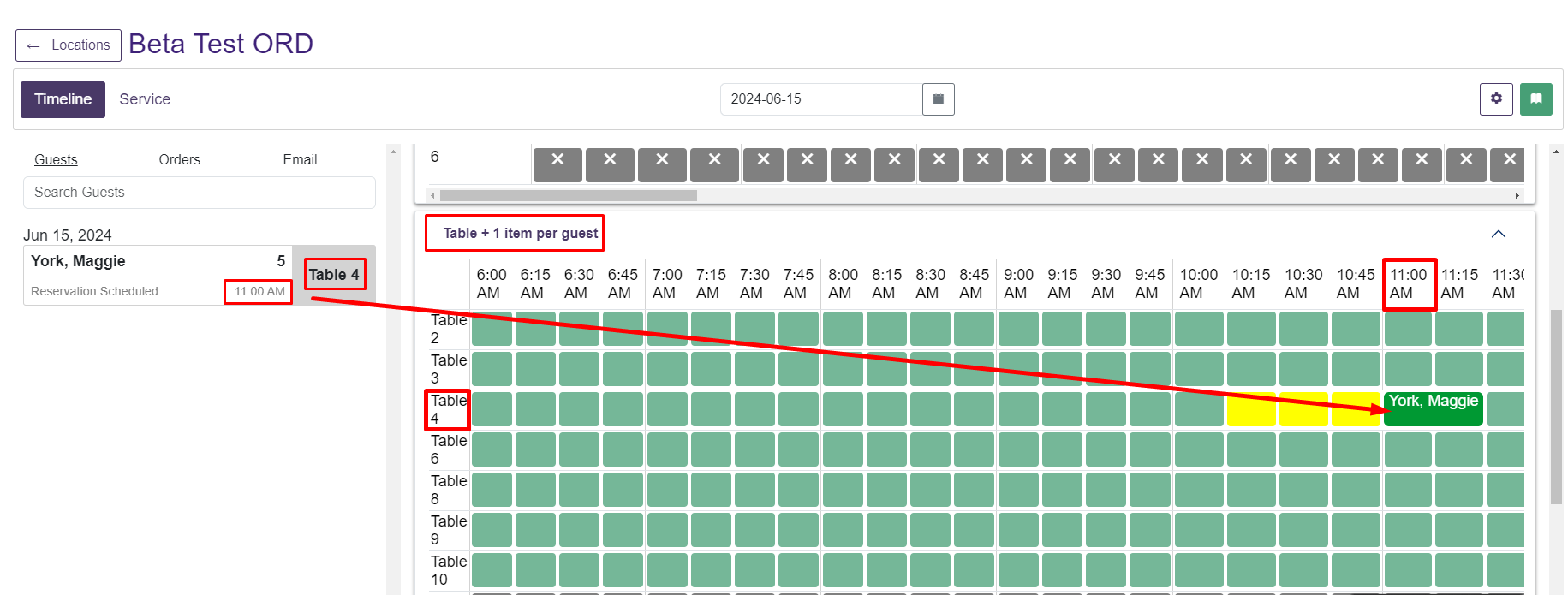
With the new interface, you can assign people to tables in advance. The Timeline page is one way to do this. On the left side, you will find a list of all reservations for the selected date. On the right side, there is a gridded table map showing time slots. If you scroll down, you'll see that each available area has its own grid. The current time slot is highlighted in green.
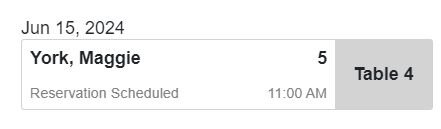
The reservation list on the left displays basic information such as party size, date, time, and the currently assigned table. By clicking on a reservation, you can access further details.
If you choose to assign tables from the timeline page, this allows you to quickly change the time of your guest's reservation. You can also change the area and the duration of their reservation. Click and drag the reservation you want to the desired area, table, and time slot.
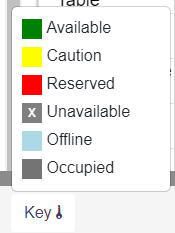
At the bottom of the screen, there is a Key that shows you what the colors in the grid mean.
Services
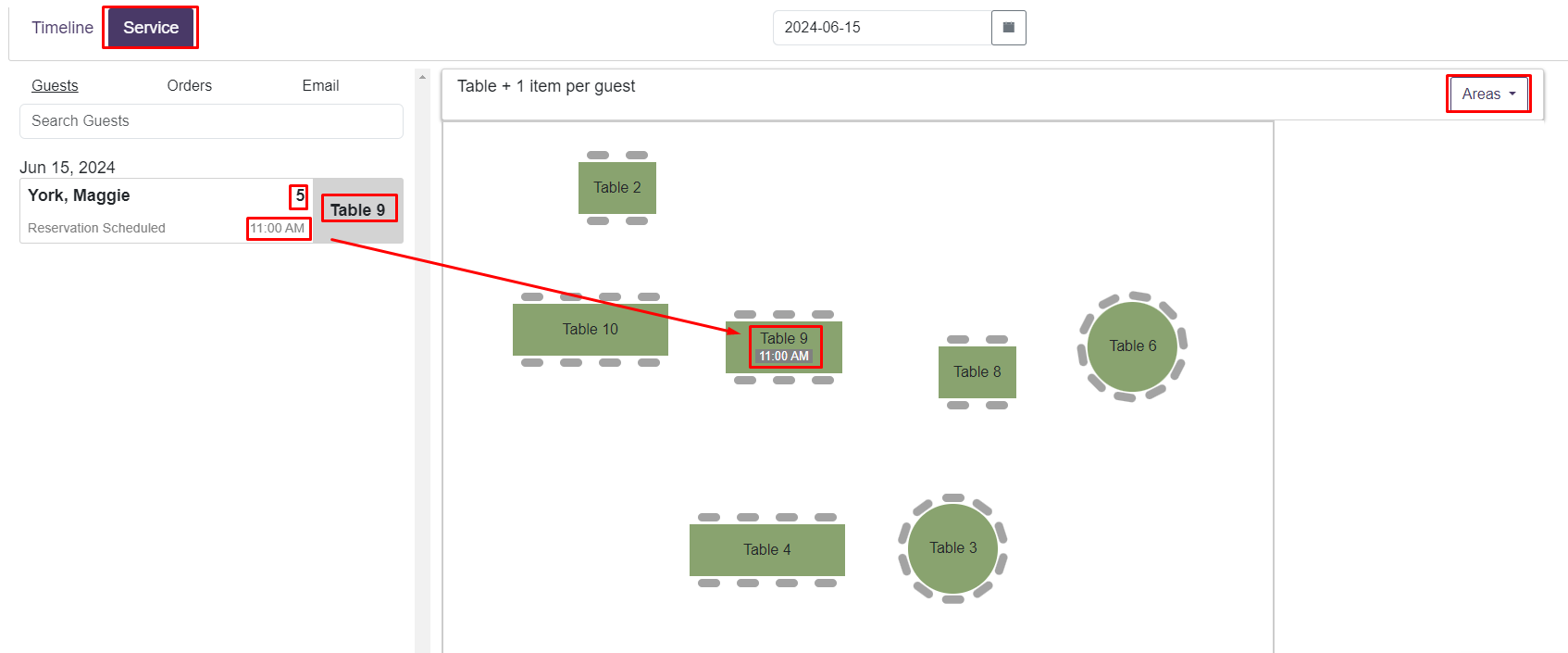
In the Services section, you can assign people to tables in advance. The Services page is one way to manage these assignments. On the left side, you will find a list of all reservations for the selected date. On the right side, you’ll see a table map of the first area. By using the area dropdown menu on the right, you can select and view a different area.
The list of reservations includes basic information such as party size, date, time, and the currently assigned table. Clicking on a reservation will provide you with further details.
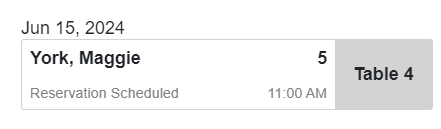
If you choose to assign tables from the services page, this allows you to view your table map and the number of seats available at each table. You can also change the area and the duration of their reservation. Click and drag the reservation you want to the desired area and table.
New Reservations
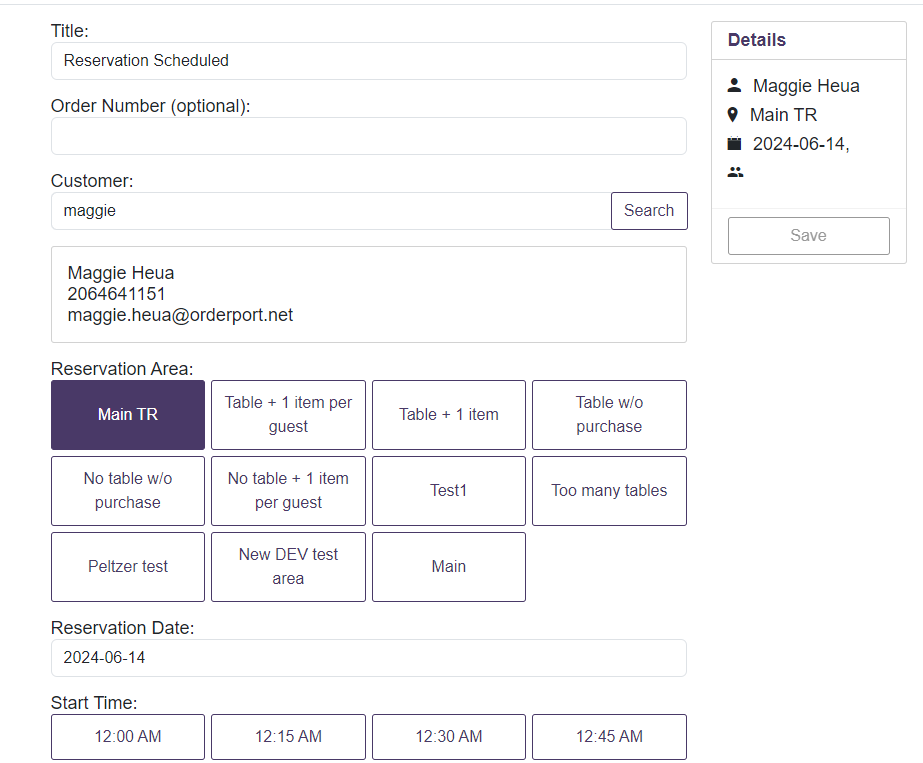
In the top right-hand corner of either the Timeline or Services page, there is a GreenBook icon that allows you to book a reservation. After clicking on this icon, you will be taken to a new screen. From there, you will follow four steps to complete your reservation. You also have the option to change the duration of the reservation. It will default to whatever is selected for this area.
- Search for an existing customer or manually enter their account information.
- Select the Desired Area and Date
- Select the Time of the reservation
- Select the Party Size and Save changes.
Old Reservations Interface
Most functionality between the two reservation interfaces is the same. The key differences are in how you navigate the system and manage reservations.
Navigation
From the Dashboard, you’ll see two buttons: Reservations and Pickup. Click Reservations to open the tasting room selection page. Select the tasting room you’d like to manage. You’ll then be taken to the Area Selector. Within the area, all settings are available just like in the newer interface—however, they are displayed horizontally instead of vertically.
Managing Reservations
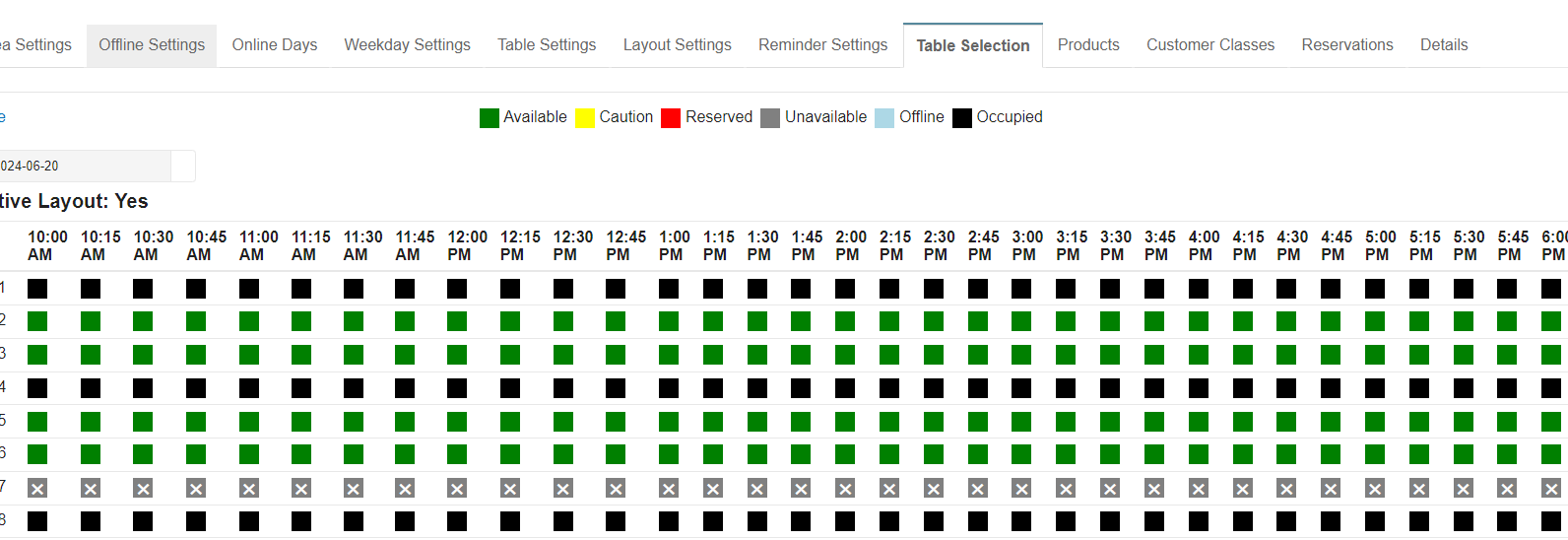
In the old interface, there is no separate page for managing reservations. Instead, reservations are managed within each individual area: If you are using tables, you’ll work from the Table Selection tab. If you are not using tables, you’ll use the Reservations tab.
Table Selection
The Table Selection tab allows you to both create and manage reservations. Here, you can:
- View which tables are available or already reserved for a selected day
- Book new reservations
- Take tables offline if needed
To create a reservation:
- Click on a table at the desired time.
- Select Make Reservation.
- Enter the customer’s contact information, party size, and confirm the time slot length.
- Click Save to complete the booking.
To take a table offline:
- Click on the table.
- Select Take Table Offline.
- Enter the time period the table will be unavailable.
- Click Save.
Reservations Tab
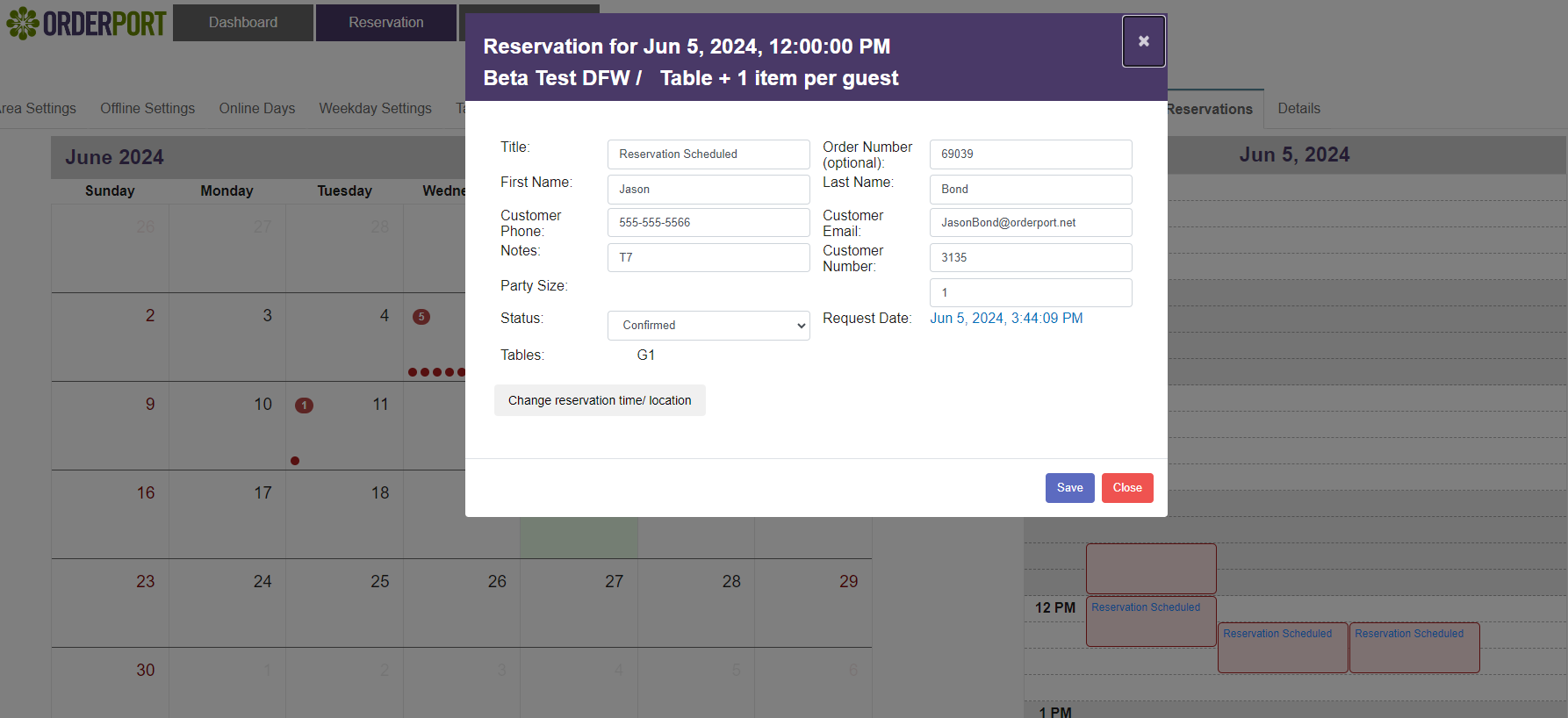
The Reservations tab provides a monthly calendar view of all bookings. Click on a specific day to see that day’s reservations listed on the right-hand schedule. From here, you can confirm, edit, or cancel reservations. To edit or cancel a reservation:
- Click on the reservation in the schedule.
- A new window will open with the reservation details.
- Make any necessary updates (date, time, party size, or contact info).
- To cancel, change the status from Confirmed to Canceled in the dropdown.
- Click Save when finished.
Using Reservations on Point of Sale
All OrderPort apps have access to the Reservations module feature; however, the Reservations module is mandatory for Restaurant Applications.
Viewing Existing Reservations
In the OrderPort app, the Reservations tab allows you to view existing reservations. On the right-hand side of the app, you will find a gray bar with a button labeled "Reservations." Once you select this button, you will be directed to a screen displaying all your reservation areas for the selected tasting room location.
Any existing reservations will be listed under the "All Areas" tab in the Reservations section. This will provide you with a list of everyone scheduled to visit the tasting room today. You can click through the different areas to see which seating area or experience they have selected on the webstore. If you wish to view reservations for a different date, simply select the blue "Change Date" button at the top of the screen.
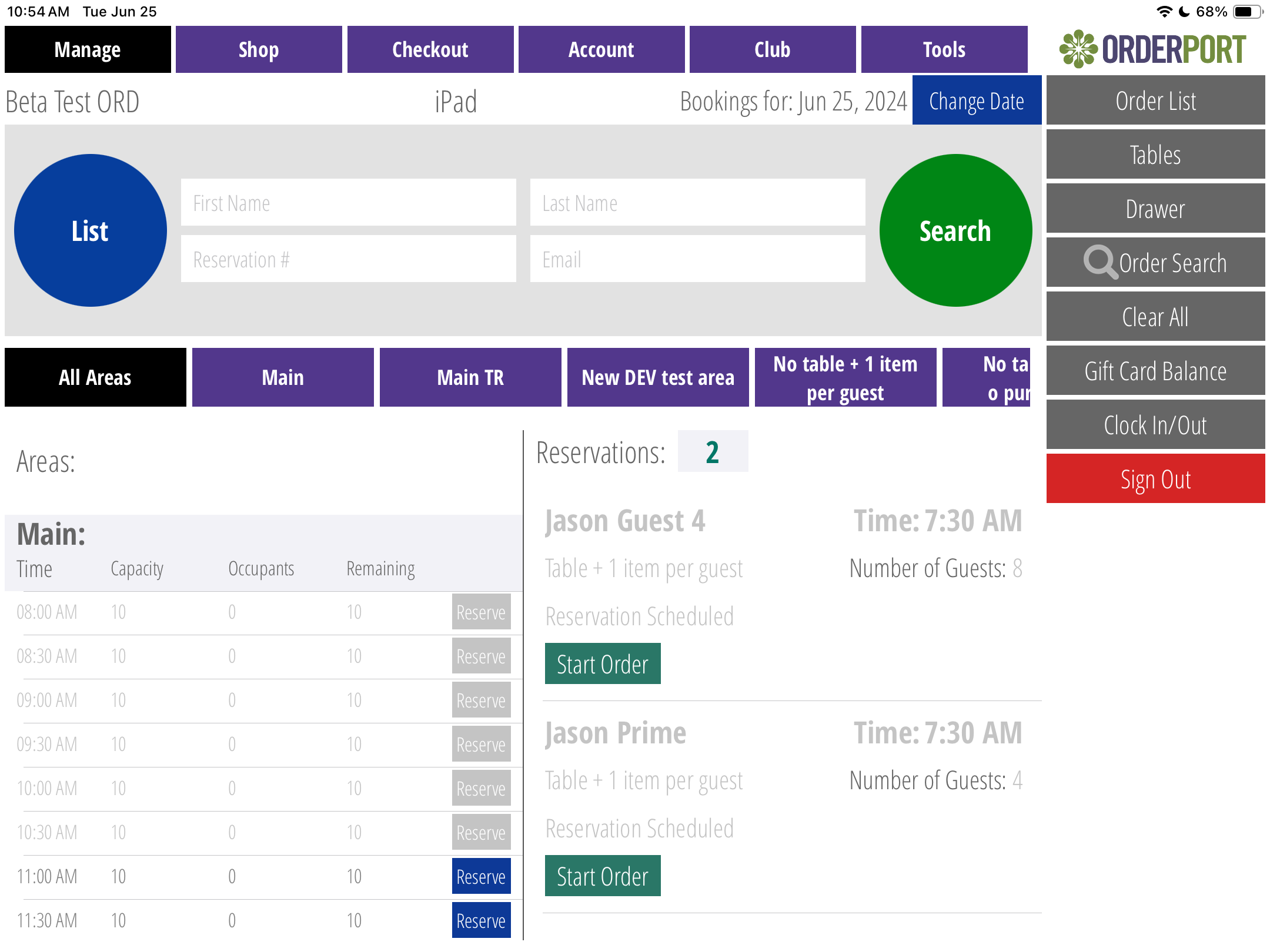
Compacity View
There are two different views for the All Areas list. The first and default view is the Compacity View.
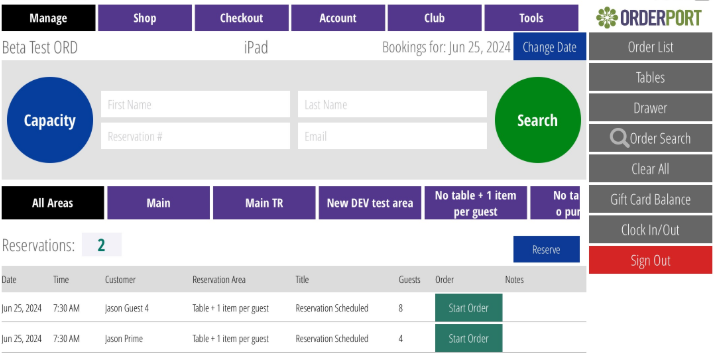
List View
The second view option is the List View. To switch to this view, select the List button at the top of the screen.
Creating New Reservations
If you need to create a new reservation for someone, you can do this through the app. First, select the area where they wish to be seated. The process will vary depending on whether that area has tables or not.
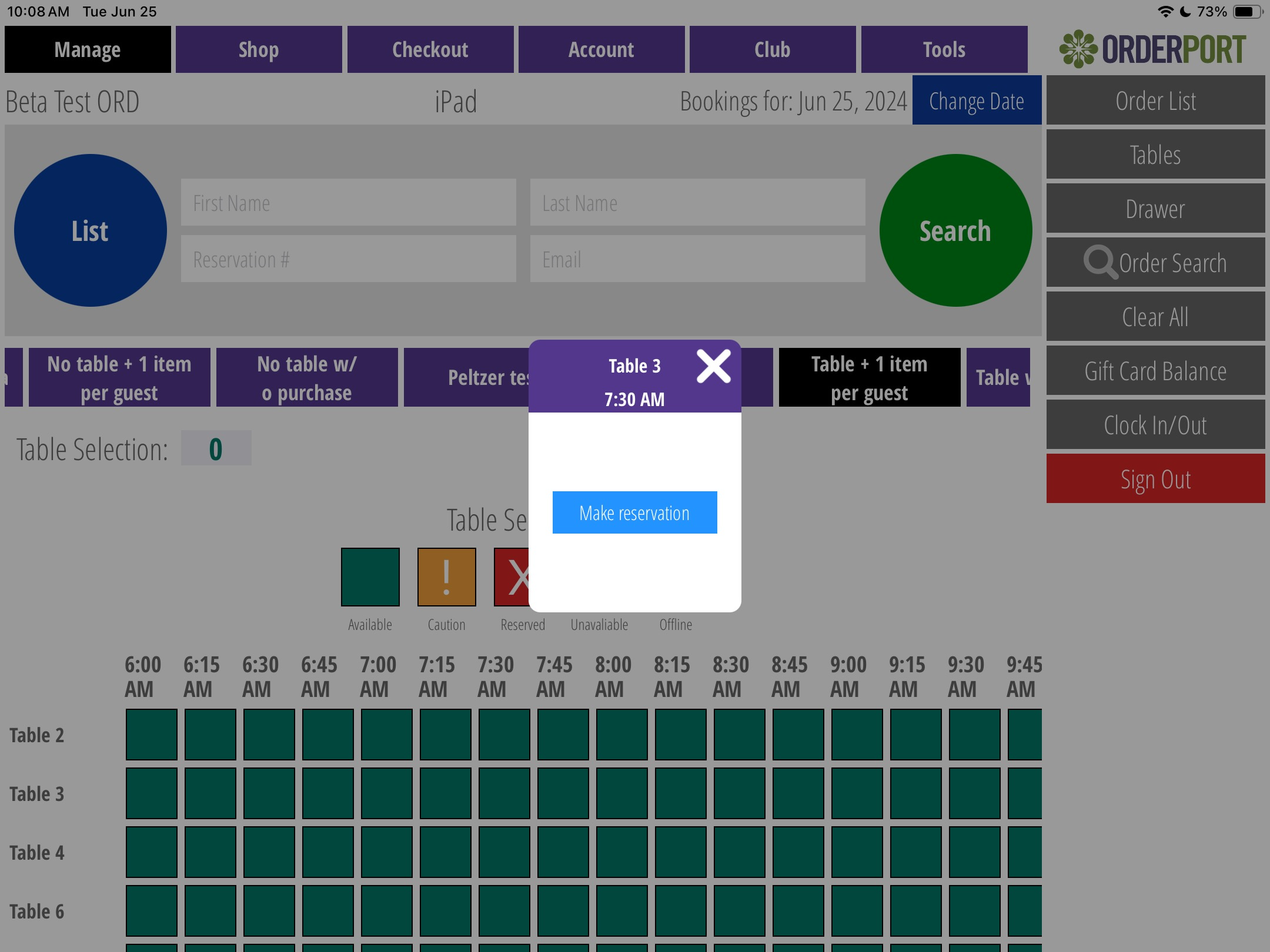
For areas with tables:
After selecting an area that has tables, you will be taken to the table grid. Here, you can choose a table and a time slot for the reservation. Open tables will be highlighted in green. Once you select a time slot, a pop-up will appear prompting you to confirm the reservation. At this point, you can either search for an existing customer or manually enter their information.
For areas without Tables
After selecting an area without tables, you will be brought to a screen with all available time slots. Select one of the Blue Reserve buttons. From here, you can search for an existing customer or manually type in their information.
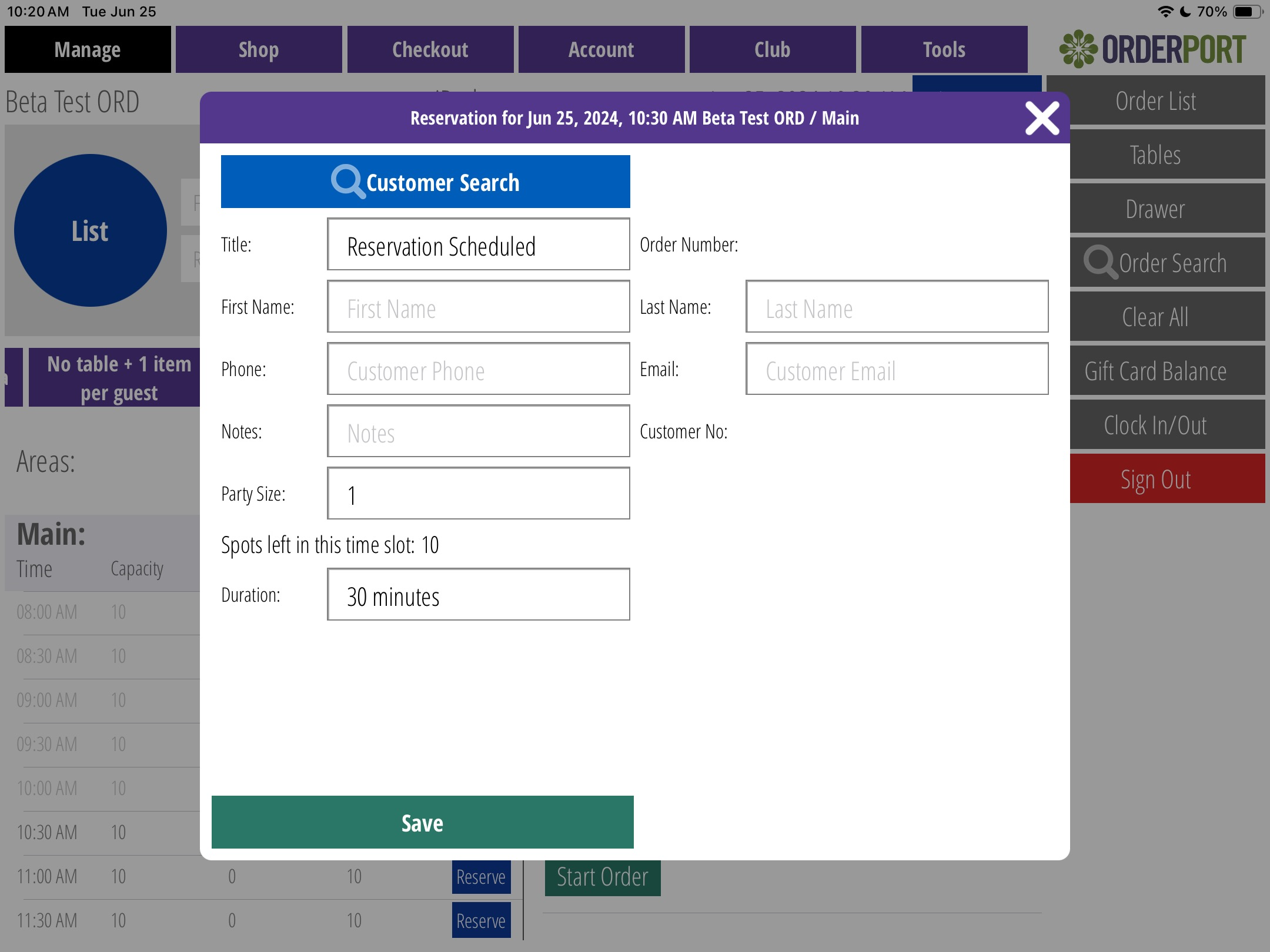
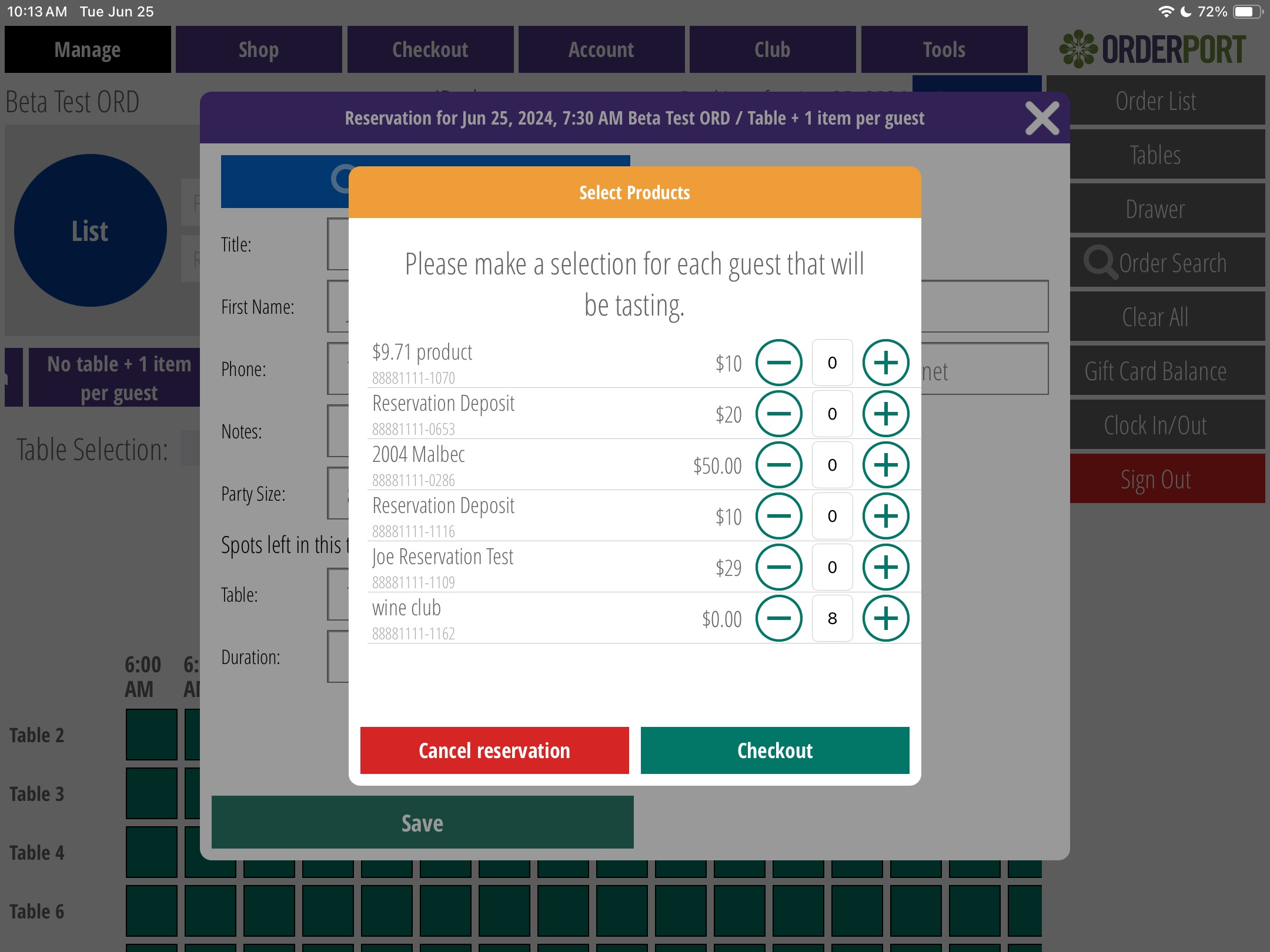
With Product Purchase
If you choose an area that requires you to purchase a product, a screen will appear after you click 'Save' for you to select products. If you select zero-dollar products, you will need to click 'Save' again to create the reservation.
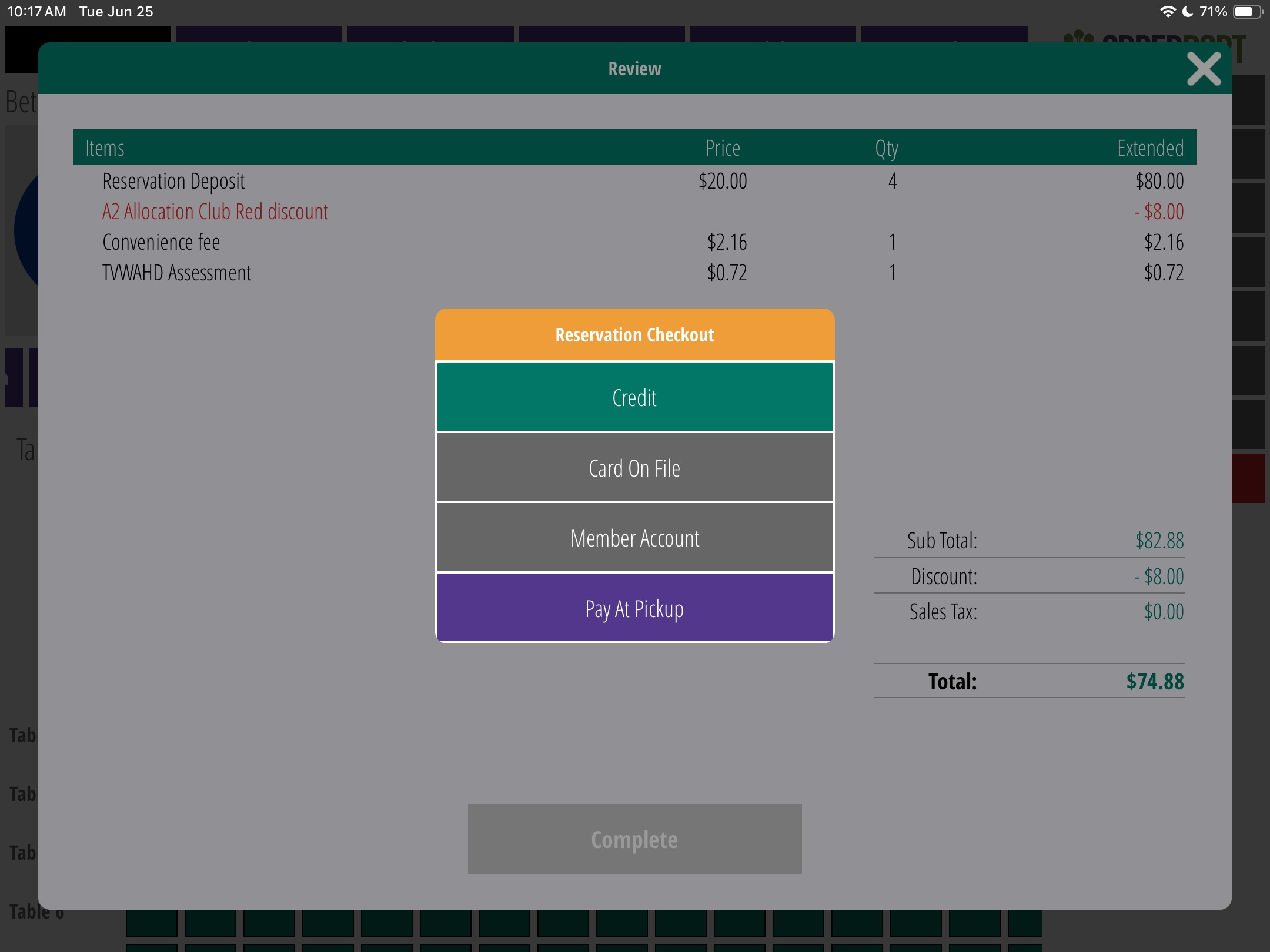
If you select products with a deposit required, it will bring you to a new screen with the total the customer owes. After getting approval from the customer, select complete, and it will ask you to select a payment method.
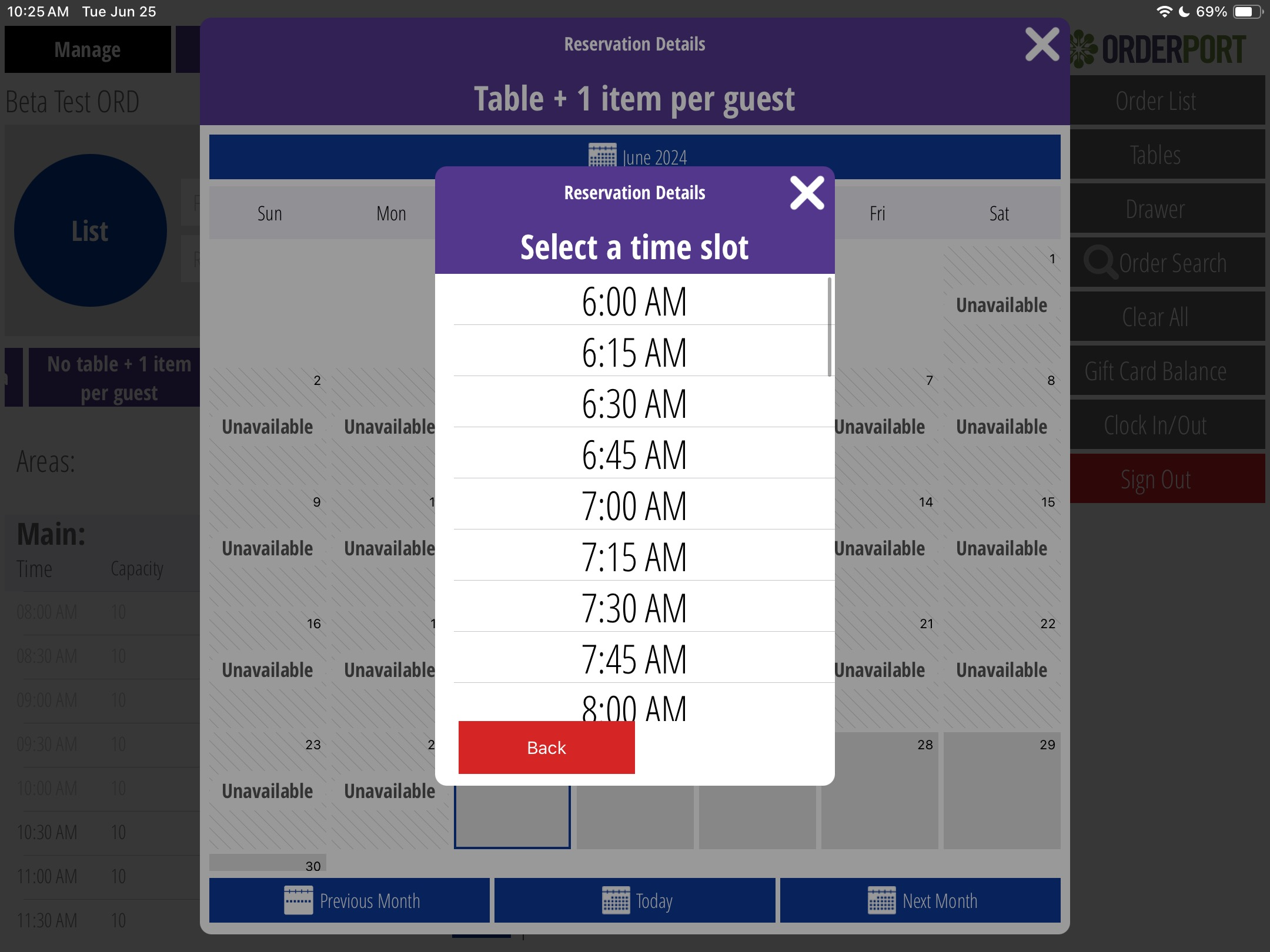
Canceling/ Editing Reservations
To edit an existing reservation, go to the All Areas tab and locate the reservation. Click on the customer's name to open their reservation details. Here, you can add additional guests, change the reservation status, or modify the reservation time. To cancel a reservation, select the status tab and choose "Canceled."
If you need to change the date or time of the reservation, click the blue "Change Time" button. This will open a calendar where you can select the new date and time.
Seating Customers
Once the customer shows up at the tasting room, select Start Order. You can choose to change the number of guests and the table when you seat them. This will create a light blue order for them that will populate any pre-selected items.
Table Map
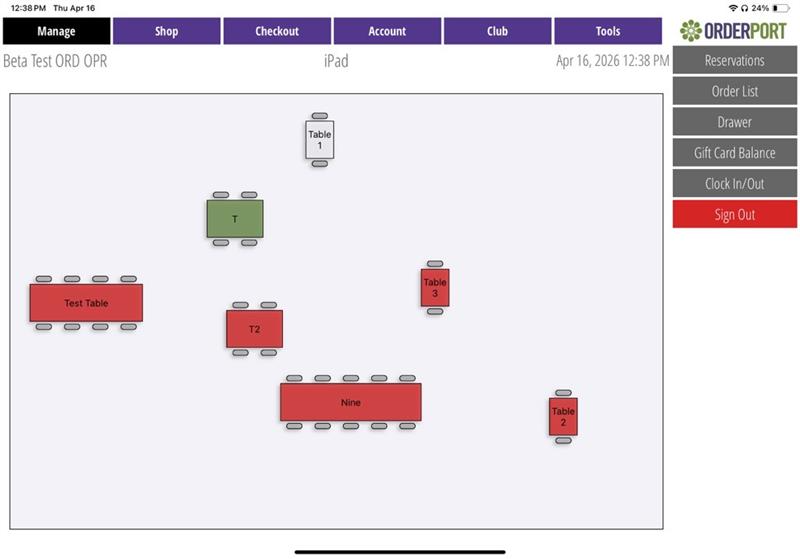
The OrderPort Table Map allows you to have a visual and interactive page where you can see your table layout. To access this from your OrderPort Five app, select the tables button. If you have multiple maps, scroll from left to right to see your other areas. Green tables are available and ready for customers. Once you select a table, it will allow you to search for a customer and enter the number of guests. If you select too many guests for that table, it will notify you to select an additional table or that this table is not combinable. Once all needs are met, you can select to seat guests.
Table Map Starting Screen: In the Point of Sale module on OrderPort administration, you have the option to select the landing page. Under the settings tab, set the landing page for each location to be Table Map.
Reservations Webstore Setup
If you need assistance with linking the reservations page to your webstore or website, please contact the helpdesk, and they can provide you with the link.
Reservations Landing Page
The Reservations Landing Page is the first thing customers will see when they click your reservations link. This will have a description of your winery, your policies, and list each location available to book. If you need to edit the language on this screen, navigate to the Webstore Designer. You will find it under the Services tab in OrderPort Admin.
Editing the Reservations Landing Page
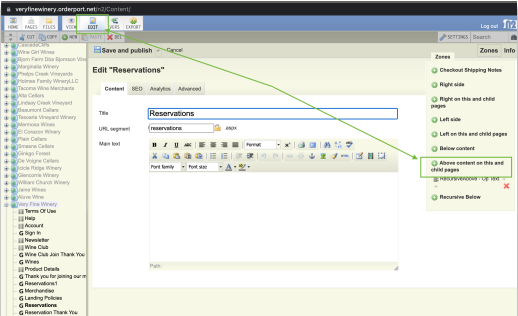
When you open the Webstore Designer, you will see your OrderPort pages listed on the left side of the window. To view your current landing page, click on "Reservations." If you need to edit the language, click "Edit" in the top left corner of the window. Then select "Zones" and choose "RecursiveAbove - Op Text."
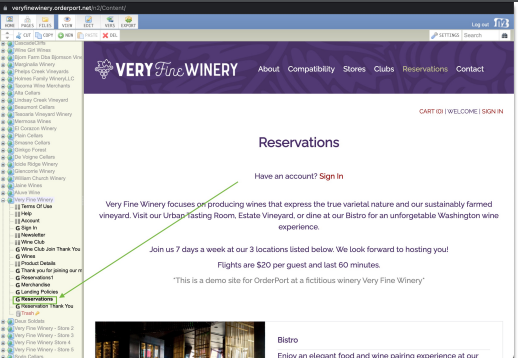
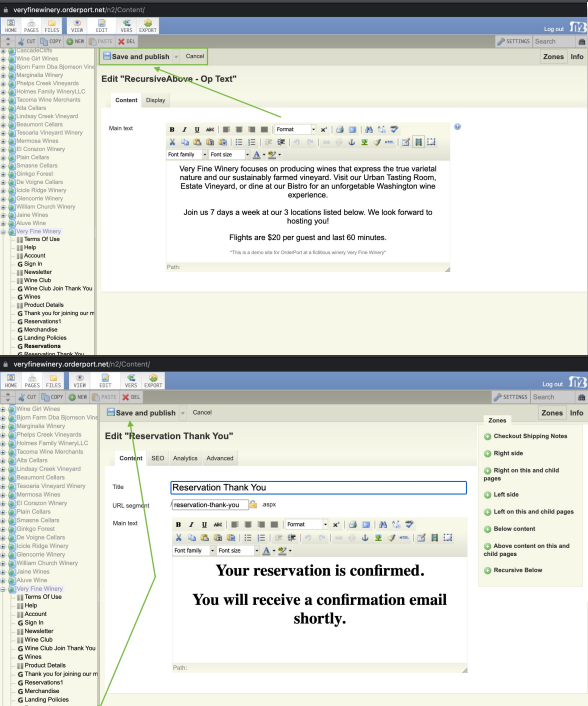
The current language will appear. Edit the language and add any links or images that you need. When you are ready to save your changes, click Save and publish. The changes will be reflected immediately on your Reservations web page. You can also edit the message on the reservation confirmation screen. Click Reservation Thank You in the bottom left, then click Edit. Change the language and click Save and publish when you are done.
Customer Booking Perspective
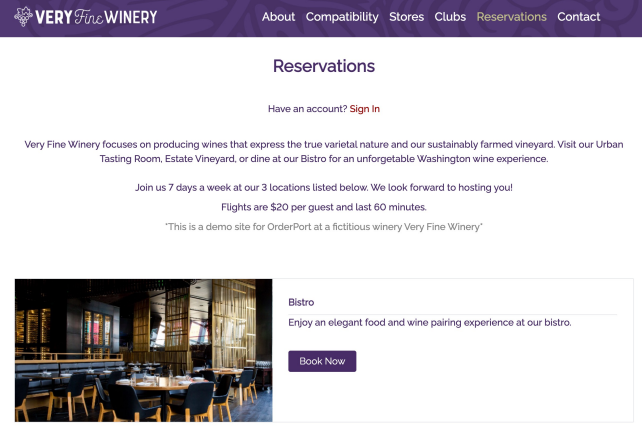
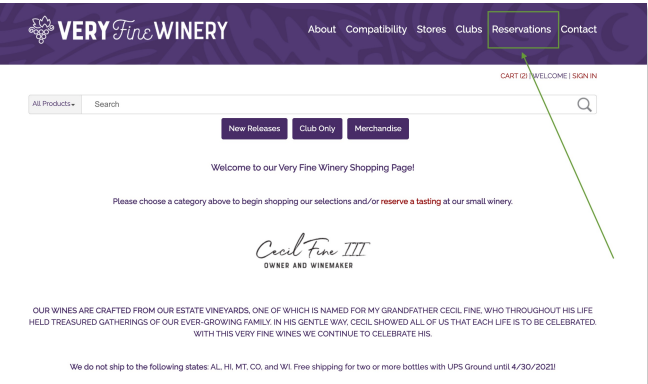
Once your location settings and options are set up, you can make reservations active on your webstore. Your website team can make a new tab or button that can be linked to the main reservations page. In this example, the winery has placed a link in the website’s header that customers can click to get started.
Choosing a Location
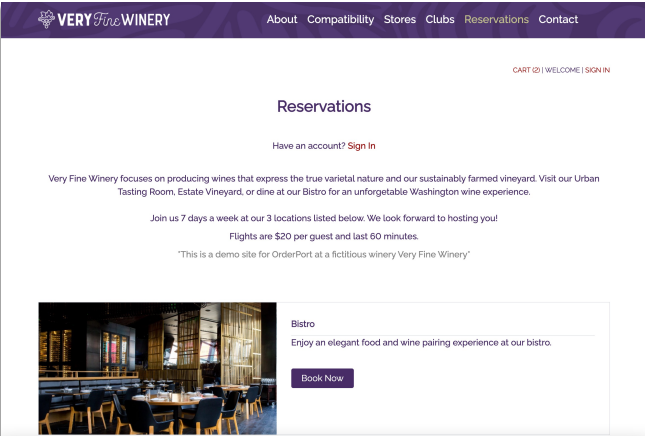
The first screen customers will see is your Reservations Landing Page. This displays a list of locations available, along with a summary of what they can expect during their visit. They will also be able to see a description provided for each location. A customer will click Book Now to begin the process of making a reservation at your tasting room.
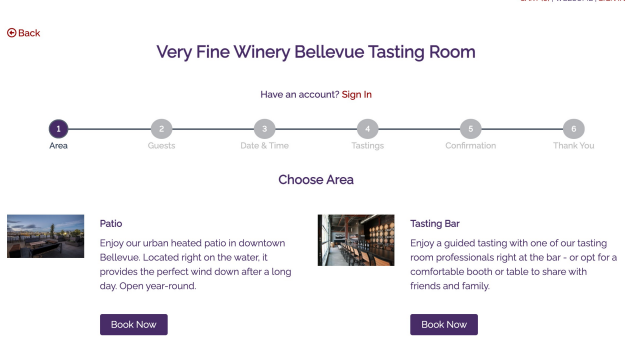
Choosing an Area
After the customer chooses a tasting room, they will be asked to choose an area. This is Step 1 of the process. Clicking Book Now will take them to Step 2. If your location only has a single area, the customer will still need to complete this step.
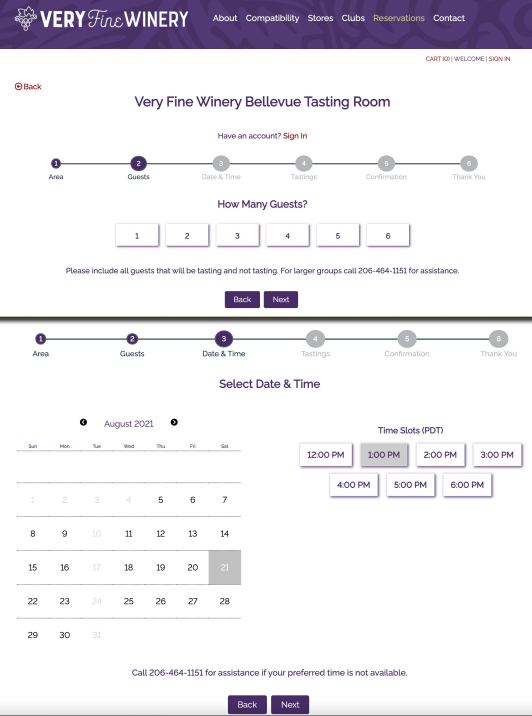
Choosing a Party Size and Date
On Step 2 the customer will enter their party size and click Next. If their desired party size if not available, they can contact your business at the number provided. This number is what is listed as your Customer Service Number in OrderPort Admin. This message can be edited in the Content Management section of your Reservations module. On Step 3 they will first click a date, and then choose from that date’s available time slots. They will click Next to continue.
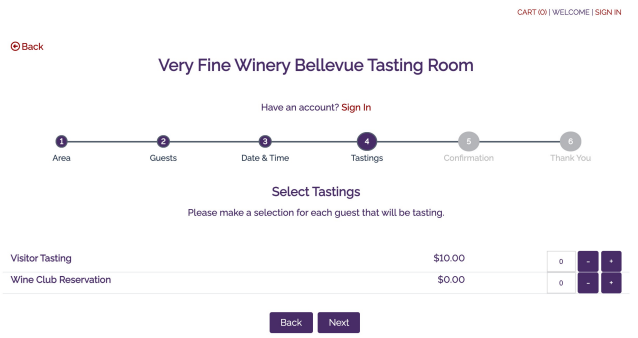
Choosing a Reservation Product
Step 4 will follow if your winery currently has a policy of requiring a deposit to book a reservation. All available products for that area will appear, and they will add each item they want to prepay for. When done, they will click Next. If your business is not currently having customers make deposits, they will move straight to the confirmation screen on Step 5.
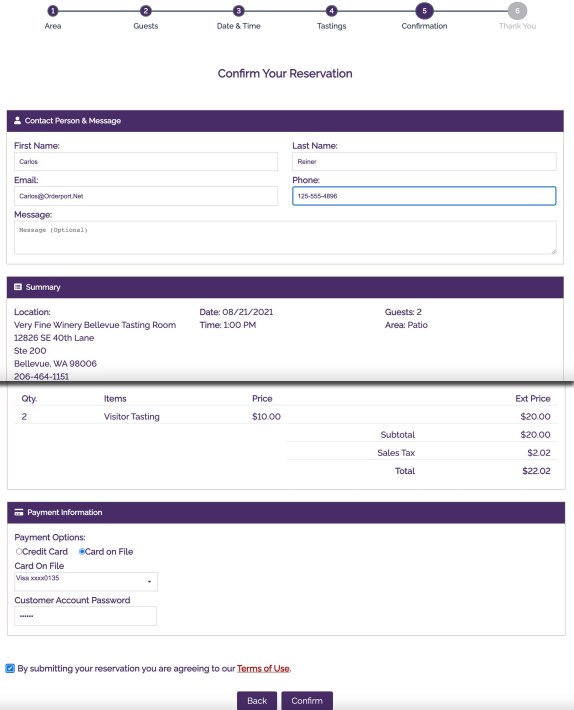
Pay and Book
On Step 5 the customer will enter their contact and payment information. If they have already logged in, their account information will autofill. If the customer doesn’t have an account, they will enter this information by hand. If they have an account they can pay with a card on file. Non account holders will enter card information that is then put on file, ensuring you can charge a no-show fee is necessary. After all contact and payment information is entered, they will click Confirm.
Reservation Completed
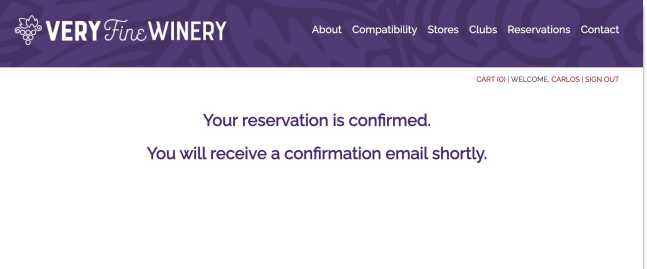
After the customer has clicked Confirm, they will be informed that their reservation has been booked. They will receive an email momentarily with the reservation details and a receipt if they prepaid. Additionally, an order will be created for any reservation that was paid for. The reservation will now appear in your records in both the Reservations module and the point of sale where they can be edited as needed. Any changes will need to be completed by your staff as customers cannot make edits to a reservation online.
FAQ's
How can I delete a Reservations Area?
In order to delete a reservations area you must contact helpdesk@orderport.net and request that this area be deleted. Please take the area offline in the offline settings tab or the desired area. Please also rename the area to "Delete Me" This way it is easier for our staff to locate. It is also important to note that once a reservation area is deleted, it can not be retrieved and all future reservations will be deleted along with the area.