OrderPort integrates with PayPal on the webstore, making checkout faster and more convenient by giving customers an additional payment option. During checkout, customers can simply log in to their PayPal account to complete their purchase with ease.
Create Your PayPal Business Account & Get Your Client ID and Secret Key
- Log in to your PayPal account.
- Click here to go to PayPal Developer Applications.
- Scroll down to Rest API apps and click the "Create App" button.
- Enter an App Name which would be called "OrderPort."
- Click on the "Live" tab to view the live API Credentials.
- Scroll down and click "Show" under Secret.
Setup
After you have obtained your PayPal business account information, you can navigate to OrderPort Administration > Settings > Payment Processing > Payment Accounts. Scroll down to the other accounts section. Click Add New Account and select PayPal.
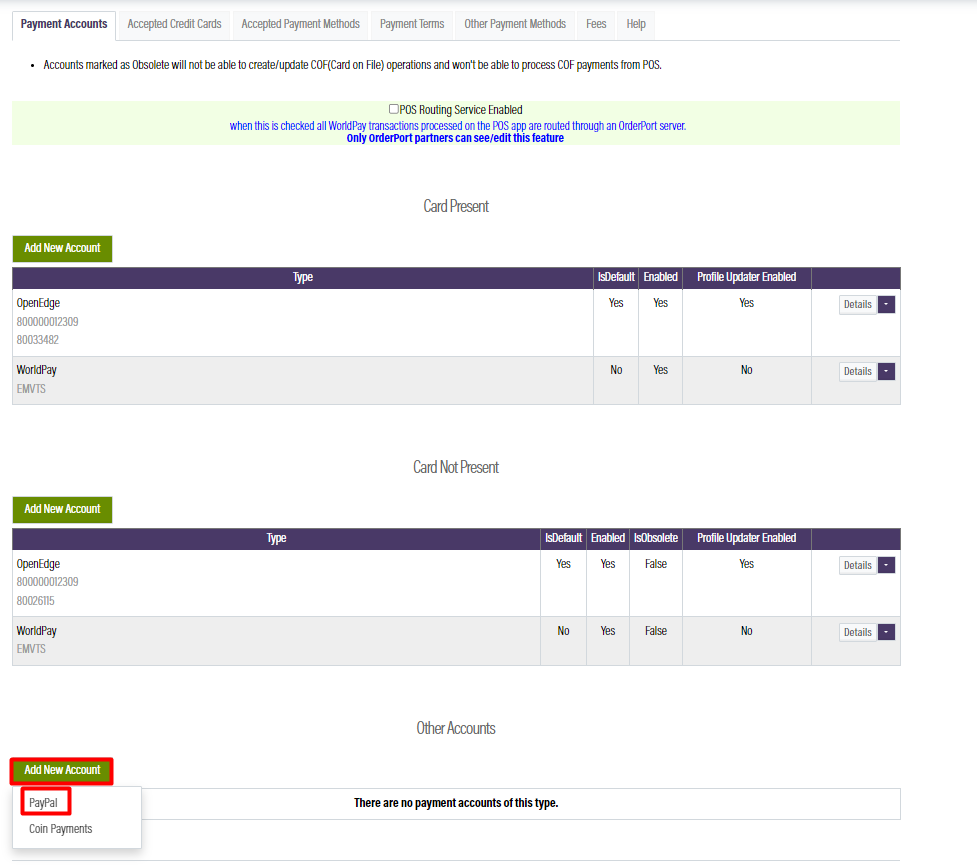
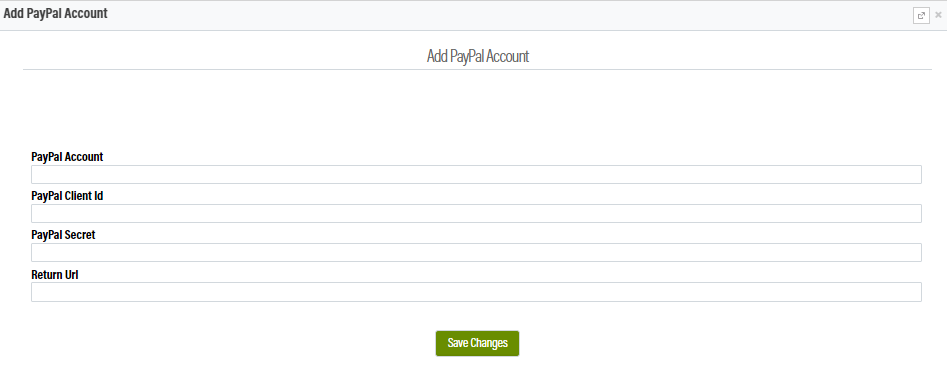
Then input the information below. You can leave the return URL blank.
- PayPal Account
- PayPal Client Id
- PayPal Secret Key
Once the account is activated on OrderPort, you will notice a PayPal icon on the checkout screen of the webstore. Selecting "PayPal" on the webstore and submitting will redirect the customer to the PayPal website, where they can log in and accept the payment. Then the client is returned to the web store, where the order is checked out. At this point in time, we pre-auth funds, then the client must fulfill the order which would then capture funds.