This document covers the initial process of pairing contactless EMV card readers with an iPad or iPhone for use with OrderPort Five, OrderPort WP, OrderPort Restaurant, and OrderPort Restaurant WP. It also includes troubleshooting steps for Bluetooth connection issues or problems reading credit cards.
Please note:
These readers allow touchless payments through Near Field Communication (NFC). This includes credit cards with the touchless symbol, as well as Apple Pay and Google Pay on a mobile device. The readers also support EMV chip cards. Swiping cards is no longer a valid payment method, so the card swiper will not function.
If your processor is OpenEdge, please note that OpenEdge does not currently support touchless/NFC functionality for storing a credit card for wine club transactions. Instead, EMV chip cards or manual card number entry should be used.
TABLE OF CONTENTS
- First Time Pairing
- Pairing/Re-Pairing from Tools and About
- Troubleshooting Tips:
- Card Reader Battery Saving Mode
- Diagnostic Process
- LED Power Indicator
- Card Reader Hard Reset
- Card Reader Warranty
- Card Reader Errors
First Time Pairing
Remove the reader from the box and immediately place it on a charger using the micro-USB or USB-C power cord, depending on the version of the reader. (The cord is used for charging only. You will typically need to charge the reader overnight for a full day’s use. It must be charged for at least a couple of hours before the first pairing, as it needs to have a minimum of 50% power. This is very important.)
Before you can pair your card reader with your iPad, you must first register the card reader’s serial number in OrderPort Admin. This can only be done in OrderPort Admin, not in the point of sale.
- Look on the back of your card reader to find the serial number. It will be printed in very small text. Please note: For serial numbers beginning with CHB3, there is a BT passkey located on the back of the reader below the serial number. This will be needed in later steps and should be recorded. (You may want to use your phone to take a photo and enlarge it to read the small print.)
- In OrderPort Admin, go to the Point of Sale module and navigate to the Bluetooth Devices tab.
- Click Add Device.
- Fill out all required fields, including Serial Number, Name & Model Number, and Status. Leave the status set to Available.
- Completing the Pairing Device (iPad/iPhone) field is optional but recommended. Recording the name of the pairing device can be helpful for future troubleshooting. For the pairing device, enter a name such as “Tasting Room iPad 1” or “Sally’s iPhone.” Please note that card readers are used on a 1:1 basis with a single iPad or iPhone.
- Click Save & Close. You are now ready to pair the card reader with your iPad or iPhone.

Pairing Upon Login
Once you have registered your card reader’s serial number in OrderPort Admin, you can pair it with your iPad or iPhone. Each card reader can only be paired with one iPad or iPhone at a time.
- Make sure the reader is turned on by quickly pressing the power button. You should see a flashing blue light, indicating it is in pairing mode.
- Open the OrderPort point of sale app and log in. During login, you will see a prompt asking, “Do you have a Bluetooth credit card reader?” Select Yes.
- Next, you will see another prompt asking, “Do you want to set up your Bluetooth reader now?” Select Yes. If you select No, you can pair the card reader later using the steps described below.
- The app will scan for nearby card readers. If the app does not find your card reader on the first attempt, it is likely because the reader was not turned on. Turn on your card reader and tap the refresh/scan button again. If the app is still unable to find your card reader after a few attempts, proceed to the troubleshooting steps below.
- You should now see the serial number of your card reader appear in the list of available card readers. Select it and tap Save.
- If you are using a CHB3 card reader, you will be prompted to enter a code. This code is located on the back of the card reader and is labeled BT Passkey.
After the reader successfully pairs, you will see three lines in the status window: the serial number, the firmware version, and the battery level, as shown below.

Best Practice: Attach the reader to the iPad or iPhone using double-sided foam tape (or Velcro), or label both the reader and the iPad/iPhone with a number or name so it is visually clear which device is paired with which reader. Be sure to document the reader’s serial number and BT passkey before attaching Velcro to the reader.
Updating the Firmware and Resetting the Reader
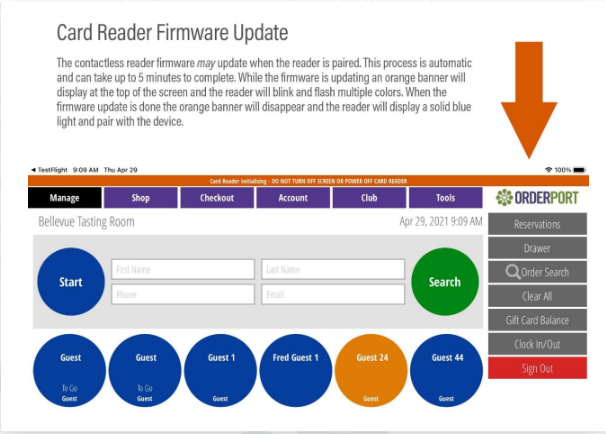
The first time you pair the reader, the firmware will need to automatically update itself. This takes approximately 5 to 10 minutes to complete. You must let it run until it is complete and not attempt to change anything on the iPad or the reader until sufficient time has passed for it to complete. The image below provides instructions on what to expect during the firmware update.
Pairing/Re-Pairing from Tools and About
Once you have registered your card reader’s serial number in OrderPort Admin, you can pair it with your iPad or iPhone. Each card reader can only be paired with one iPad or iPhone at a time.
- Make sure the reader is turned on by quickly pressing the power button. You should see a flashing blue light, indicating it is in pairing mode.
- Open the OrderPort point of sale app and log in. Navigate to Tools, then to the About page.
- Select the Edit button on the left-hand side of the screen. If no reader is paired, it will display No Reader. If a reader was previously paired, it will appear in red.
- The app will scan for nearby card readers. If the app does not find your card reader on the first attempt, it is likely because the reader was not turned on. Turn on your card reader and tap the refresh/scan button again. If it is still unable to find your card reader after a few attempts, proceed to the troubleshooting steps below.
- You should now see the serial number of your card reader appear in the list of available card readers. Select it and tap Save.
Troubleshooting Tips:
- Make sure the serial number on your card reader matches what you entered in Admin > Point of Sale > Bluetooth Devices.
- Make sure the Status of the card reader is set to Available in Admin > Point of Sale > Bluetooth Devices.
- Make sure the card reader is turned on.
- Make sure the card reader is unplugged while pairing.
- If the card reader needs to initialize, it must have at least 50% power.
- Check for mispairing
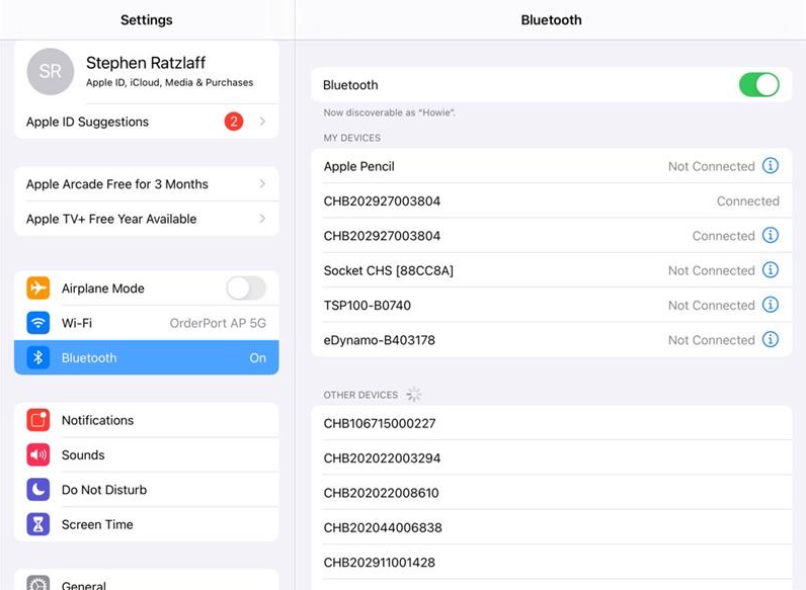
Your card reader must be paired within the OrderPort app. Pairing the reader through your device’s Bluetooth settings will pair it with Apple, not OrderPort. This can result in multiple readers being paired to a single device, or a single reader being paired more than once, and you will be unable to process transactions.
To check whether your reader is paired correctly, open your device’s Bluetooth settings. If an “i” symbol appears next to the Connected status, the reader is not properly paired. Tap the “i” icon and select Forget Device. Then return to OrderPort and pair the reader using the steps above.
If the “i” symbol does not appear, the reader is paired correctly.
Make sure OrderPort has access to your iPad's Bluetooth.
When you log into the POS for the first time, Apple will ask you if you'd like to allow OrderPort to access the device's Bluetooth connections.  If you accidentally said no to this, you need to go to your device's settings to update the permissions.
To enable Bluetooth for OrderPort, go to your Settings App. On the left, search for OrderPort.  Tap on OrderPort and enable Bluetooth.

Card Reader Battery Saving Mode
The BBPOS card readers are programmed to go to sleep after a period of inactivity in order to save battery life. When the card reader goes to sleep, the blue light will turn off and it will appear as disconnected on the Tools > About page in the app.
When you are ready to use the card reader, tap the power button once before selecting the Credit option at checkout. This should automatically reconnect the reader.
If you prefer not to do this, you can keep the card reader plugged in at all times. This will prevent it from going to sleep by providing a steady flow of power. OrderPort offers base plates that attach to your iPad, allowing you to keep the card reader plugged into a battery pack while moving around. Please visit OrderPort.net/hardware to learn more.
Diagnostic Process
If you experience any difficulties using your card reader with your iPad or iPhone, please follow the troubleshooting steps below:
Turn the reader off by holding the power button for 10 seconds until all lights are off. Then turn it back on while monitoring the reader status on the Tools > About page.
Verify that the reader is paired to the iPad by checking Tools > About.
If none of the above steps resolve the issue, perform a hard reset using the instructions below, then pair the reader again using the steps outlined above.
LED Power Indicator
No light: Reader is off. Press the power button to restart.
Flashing blue: Bluetooth paired and in standby mode.
Fast flashing blue: Waiting to connect to Bluetooth.
Solid blue: Bluetooth paired and in active mode.
Solid red: Reader is starting up or charging the battery.
Flashing red: Low battery or critically low battery.
Card Reader Hard Reset
The contactless reader may need to be reset if it will not pair or if it pairs but cannot process a transaction. Follow the steps below to reset the reader:
Go to Tools > About. If the reader’s serial number appears in the card reader section, tap Edit and select Unpair. With the reader turned on, insert a paper clip into the reset opening and press and hold for 15 seconds. The reset opening is a pinhole located next to the power port.
Release the paper clip. The reader will power on with a solid blue light. While still on the Tools > About screen, tap Edit in the card reader section. The app will attempt to pair with the reader.
If the reader pairs successfully, the firmware version will be displayed.
If the reader does not pair, the firmware may need to be updated. This is an automatic process and can take at least five minutes. During the update, the reader will blink and flash until the process is complete. Once finished, the reader section will turn green and display the firmware version and battery level.
After the firmware update completes, the reader will pair with your iPad or iPhone.
Card Reader Warranty
In the event that the reader is not functioning, we would suggest contacting your payment processor if your reader is no longer working. However, you should always contact OrderPort Support First in case we can fix the issue.
Card Reader Errors
macKsn missing. pinKsn missing. trackKsn missing.”
This error message means that the card reader is faulty. The current solution is to get a new card reader.
BBPos Remote Config Update failed to set Target Version 5
This error occurs when a card reader's update is interrupted, or it may occur if the reader is misconfigured by the manufacturer.
To resolve this issue, please charge the reader overnight, then follow the reader reset procedure above. Next, attempt to pair the reader and update the card during the pairing process. This may take up to ten minutes.
If the error continues, contact the payment processor for a replacement.
Peer Removed Pairing Information
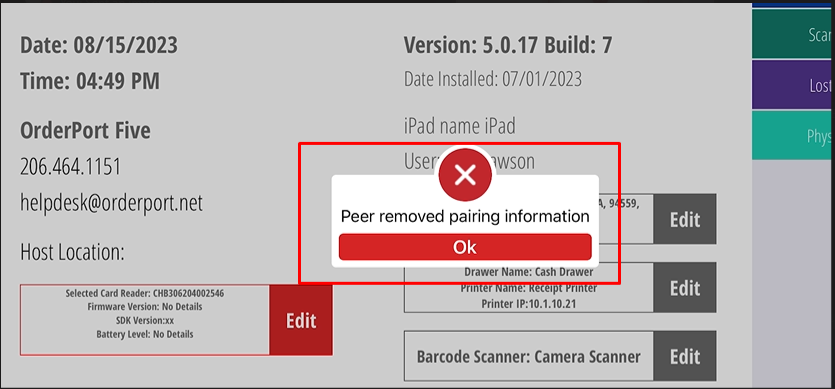
The above error can occur if the card reader is paired incorrectly. This may happen if the reader is paired directly through the iPad’s Bluetooth settings, if another card reader is paired before unpairing the existing one, or if the card reader was forgotten in the iPad’s Bluetooth settings. If this error occurs, follow the steps below.
Solution:
In the OrderPort point of sale app, navigate to Tools > About and unpair the card reader. Go to the iPad’s Bluetooth settings and select Forget for the card reader. Return to the OrderPort point of sale app and navigate to Tools > About.
Select Pair Reader and enter the card reader BT Passkey when prompted.