OrderPort Loyalty allows customers at your winery to accrue loyalty points for each qualifying transaction. Each customer class can be set up with its own loyalty point level. Different people to accrue points depending on their club membership level or customer status. This can be used as an incentive to get people to move to a higher tier of membership or become a member if they currently aren’t. The Loyalty feature is a paid feature. Please contact helpdesk@orderport.net if you are interested in getting this enabled.
TABLE OF CONTENTS
- Setup
- Allocating points to products
- Using Loyalty Discounts on the Point of Sale
- Using Loyalty Discounts on the Webstore
Setup
Once you have enabled the fature a new tab will become available in the marketing module, called loyalty. Once you select the tab, you will be brought to the overview page.
Overview
The Overview page will have five graphs showing you a snapshot of your locality performance.
- Points by Customer Type: This report shows you how many points each type of customer has, for example, consumer vs wine club.
- Top Customers by Current Points: This report gives you a list of which customers currently have the most loyalty points available to them.
- Top Customers by Lifetime Points: This report gives you a list of the customers who have collected the most loyalty points of the course of there account.
- Points by Day: The number of points collected each day. If there were no points on a day, that day would be skipped on the graph.
- Points by Month: The number of points collected each month.
Settings
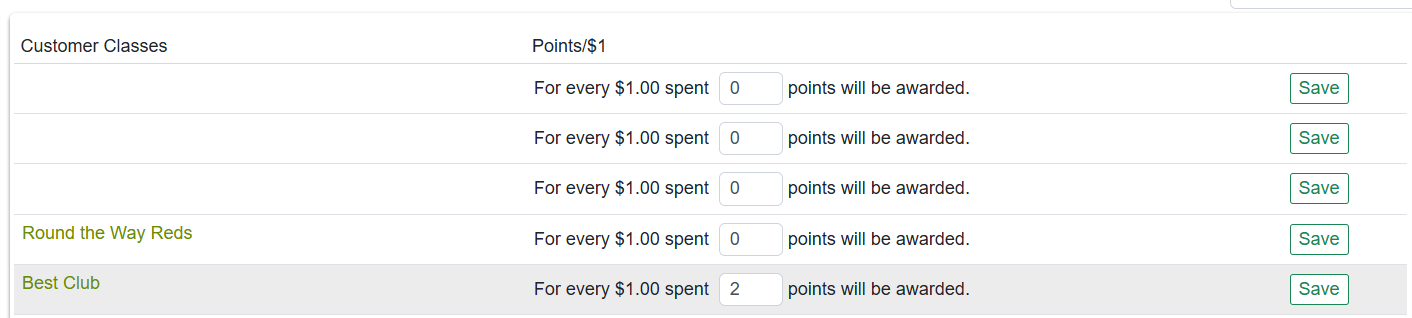
The Settings tab is where you will customize the points awarded based on Customer Class. For every dollar spent, you can decide how many points certain customers will accrue. In this example, those who have a customer class of Best Club will receive 2 points for every dollar spent at your business. If you want to adjust this, enter a new amount in the box and click Save. Your customer classes will be organized by tier type. To see your Wine Club customer classes, for example, click on the Wine Club button.
Customers
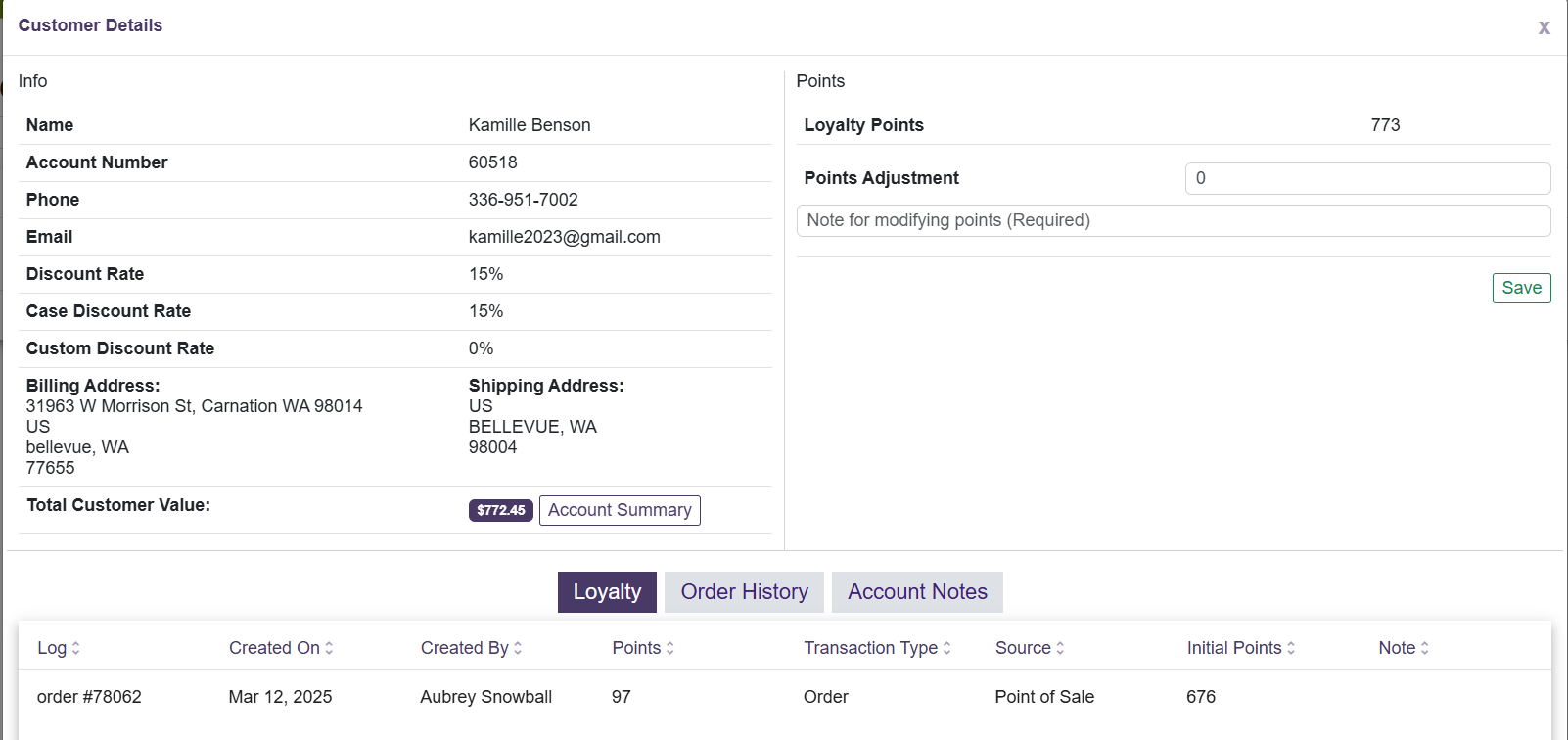
Once you have saved your point settings, you can begin tracking how customers are accruing them. The next tab under Loyalty is called Customers. Here you can browse or search through your customers to view their current points and shopping histories. In this example, we have searched for a customer by last name. At a glance, we can see their current number of points. To see more, click on the Details button.

A customer’s Loyalty account will show their current number of loyalty points in addition to their account details. It will include their Total Customer Value, which represents the amount of money they have spent at your business. On this screen, you see their order history, account notes, and loyalty point logs. You have the option of viewing the Account Summary, which will provide a snapshot of the three logs. It will also show you which items the customer has purchased.
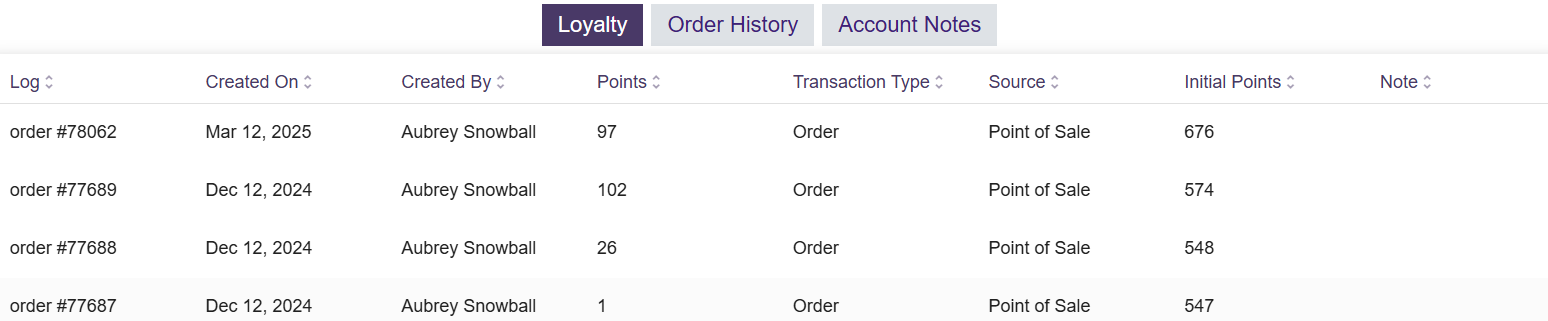
Under the Loyalty tab, you will see a Logs section, which displays the customer’s point accrual history. For each transaction, it shows the number of points accrued along with how many points the customer had prior to the transaction. When points are used in a transaction, it will show how many were subtracted from the account. The Order History tab and the Notes tabcorrespond with those in the Customers module. Here you can view their orders or account notes as needed.
Point Adjustment
If you need to manually add points to someone's loyalty account, you can do so on this page. Under their current loyalty points, you will see a Point adjustment field. You can also subtract points by putting (-) before the number.
Allocating points to products
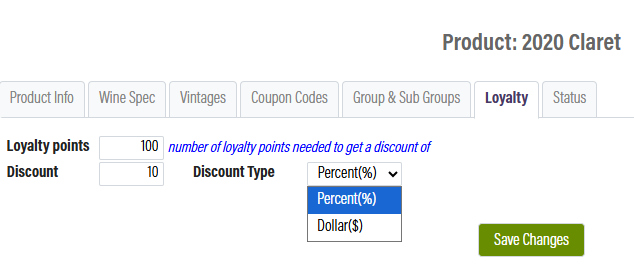
Points are gathered when customers spend money at the winery. Next, you will need to determine what items can be discounted with points and by how much. In the Catalogue Manager, find the product you want to set up a discount for. Once you have opened the products, click on the Loyalty tab. It will appear towards the top of the screen, below the product name. First, enter the number of points a customer will need to redeem in order to receive the discount. Next, choose the discount amount and the discount type. In this example, the discount will be 10% off. The other option would give the customer $10 off instead. In this example, the customer will have the option to use 100 points to receive the 10% discount.
Using Loyalty Discounts on the Point of Sale
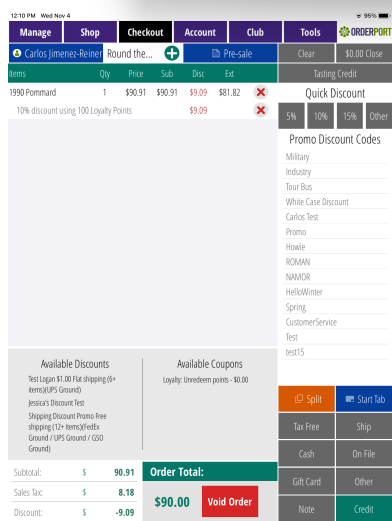
When creating an order for a customer at the Point of Sale, if a product in their cart is eligible for a discount, a new option will appear on the checkout page. Under the coupon codes section, you will see a coupon code labeled "Loyalty: Redeem #/# pcs - $." The numbers will indicate how many points the customer needs to use out of the total points they have available. The dollar amount will show the equivalent value of the discount. Tap on the coupon to activate the discount. These discounts are optional as they will override their customer class discount. Once you have completed checkout, the loyalty points will be deducted from their customer account. If you refund the transaction, the points will be returned to the customer's account.
Using Loyalty Discounts on the Webstore
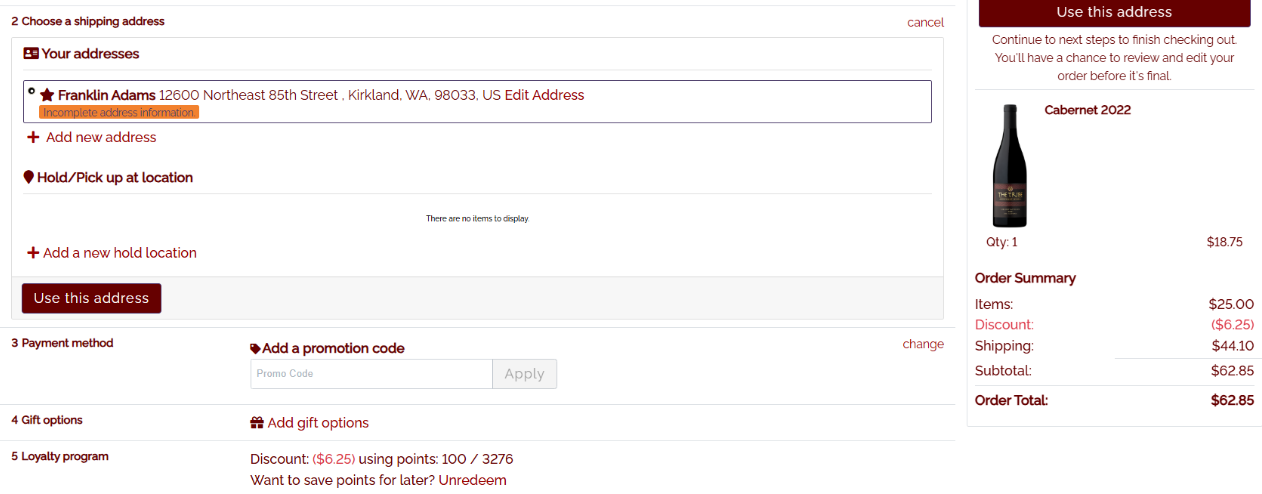
When creating an order on the web store, if a product in the cart is eligible for a discount, a new option will appear on the checkout page. In the Loyalty section, the customer’s current point balance will be displayed, and they will be asked if they want to redeem a certain number of points to receive a discount. If they accidentally select to use their points, they will have the option to unredeem them. These discounts are optional, as they will override the customer's class discount.