The Customers module is used to create and manage customer accounts. It is available in OrderPort Admin, under the Operations category.
TABLE OF CONTENTS
Creating a New Account
- Viewing and Editing an Account
- Deleting an Account
- Merging Accounts
- Assigning Orders to Customers
- Customer Classes
- Settings
Creating a New Account
To create a new customer account, expand the Manage Accounts dropdown and select Create Account. The two checkboxes under the Account Details section configure email communication preferences for the customer.
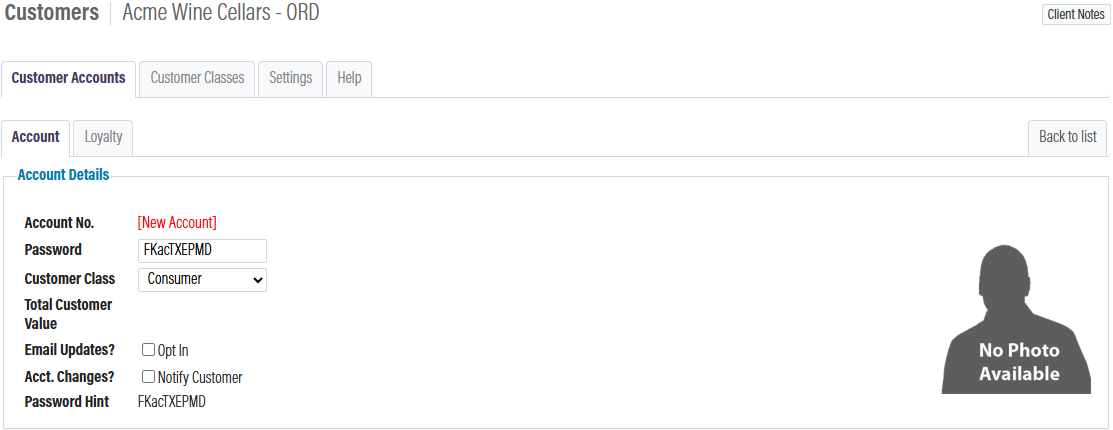
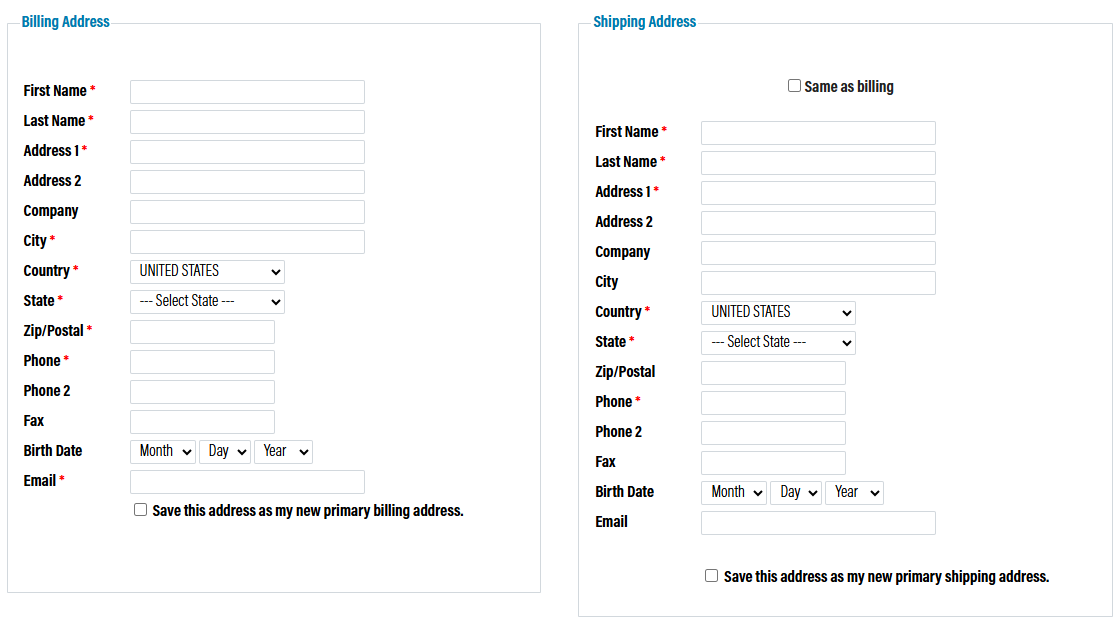
The minimum required fields for an account can be configured in the Settings of the Customers module. Add customer information, then save.
Viewing and Editing an Account
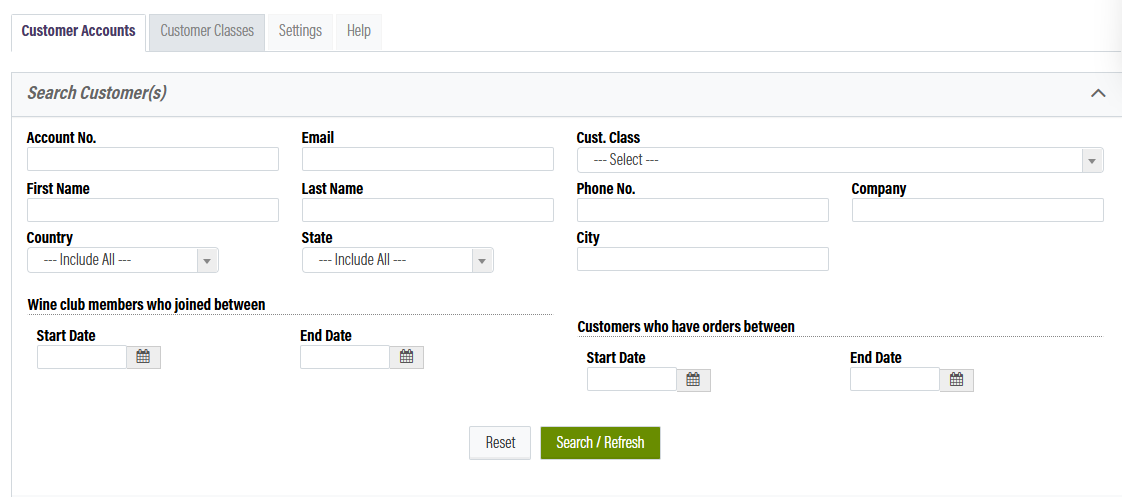
View or edit an account by clicking Details on the customer. If you are looking for a specific account, use the search filters. You will notice a variety of tabs for the customer account.

Account
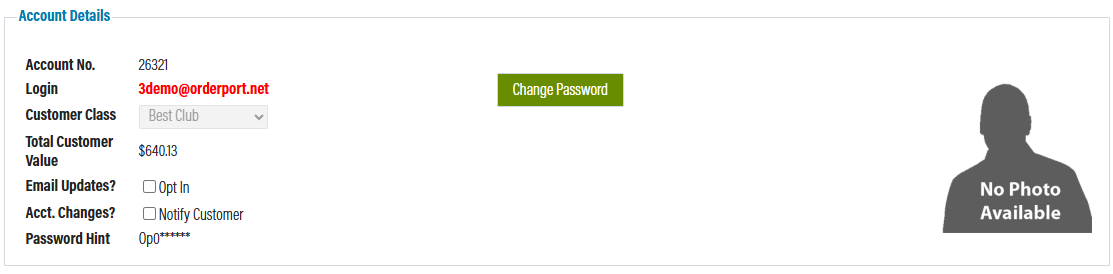
Under account details, you can update the customer class, password, and email communication preferences.
You can set the customer account as tax exempt by filling in the required information.

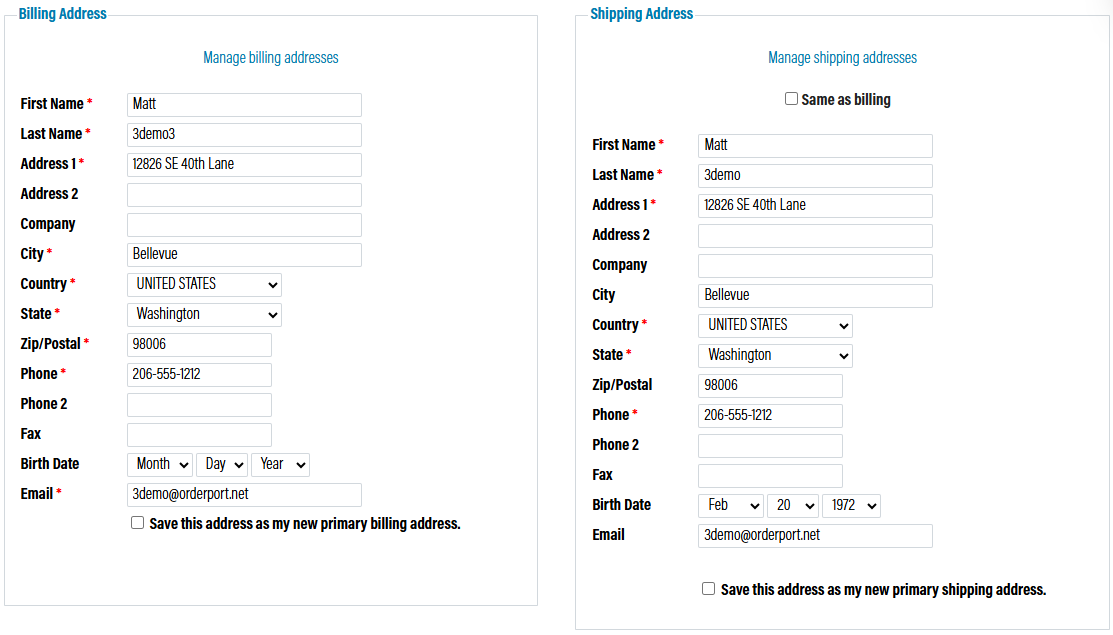
You can have multiple billing and shipping addresses, with one primary address for each type.
Be sure to save if you make any changes.
Order History
The Order History tab displays all orders for this customer. Click on the order number to view more information about a given order.

Saved Payment Method (Card on File)
Depending on your payment processor, the title of this tab may vary. In this tab, you can view saved payment methods, including credit cards and bank accounts.

Adding or Updating a Card on File
From the saved Payment Method tab, you will see all existing credit cards on the account. If you need to edit information on the card or which card is attached to the wine club, click on the green pencil to edit the card.

From here, you can update things like the expiration date, billing address, and wine club membership attached to the card.
Please note: The way OrderPort communicates card information with the payment processor is through a token system. When a card on file is updated, it does not issue a new token. If it has been a long time since the customer used their card, the token might have expired. When adding a new card on file, it will issue a new token
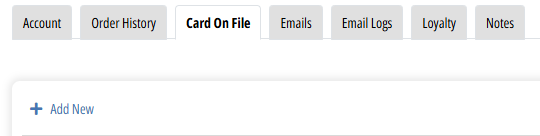
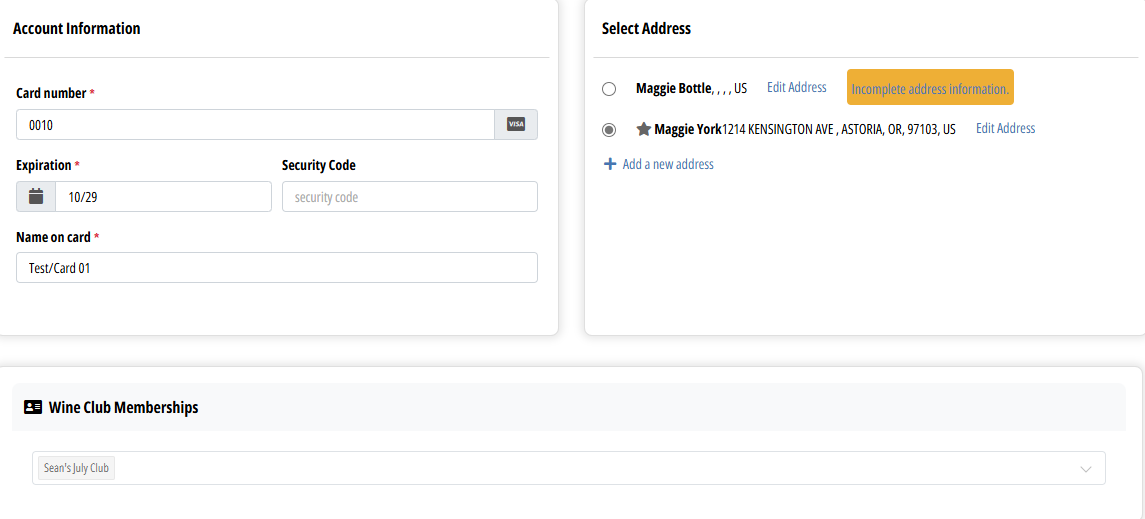 To add a new card, click the + Add New button. Then fill out all the customers' credit card and billing address information. You can also select if you would like to attach this card to a wine club.
 Deleting a Card on File
To delete a card on file, you will need to first make sure that the card is not attached to any wine club memberships. Open a different card on file and assign the club membership to that card, or cancel their wine club membership.
Once you have made sure the card is no longer attached to a club, click the trashcan icon next to the card.
Emails
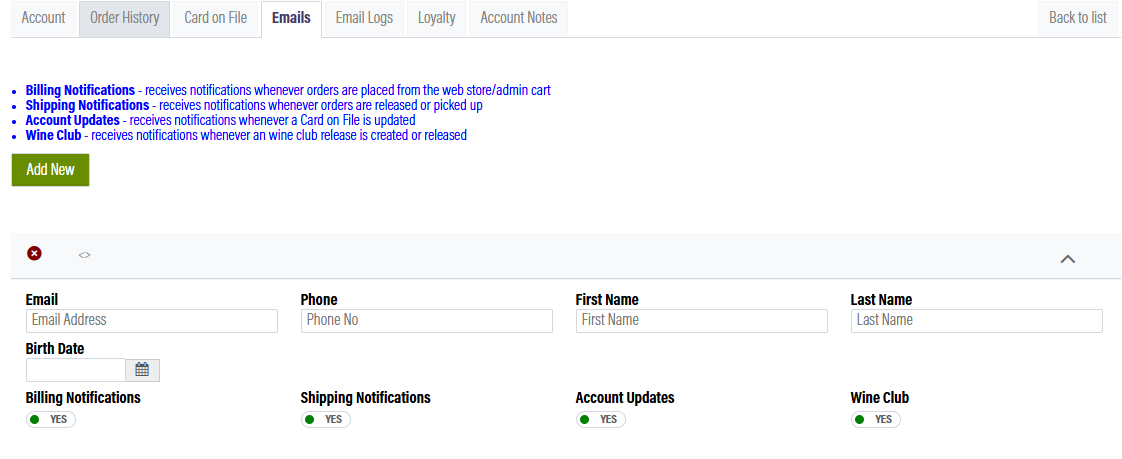
The emails tab allows you to link a new email to receive certain account notifications.
Email Logs
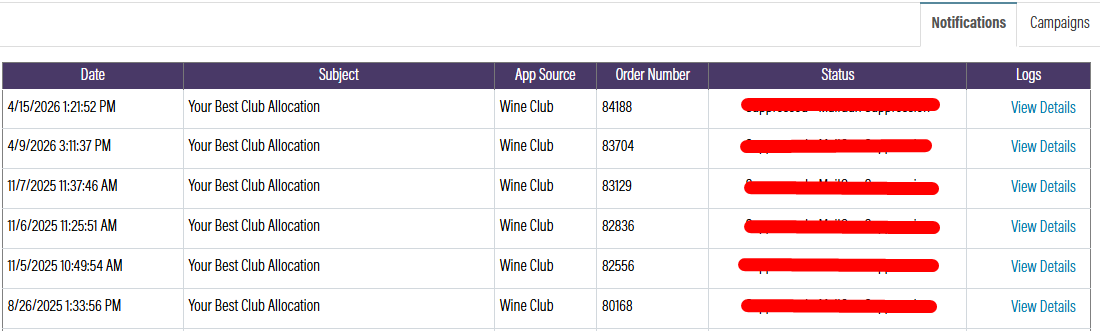
View sent emails in the Email Logs tab. Emails are organized in two sections: Notifications and Campaigns. You may resend an email by clicking View Details and opening the Emails tab.
Loyalty
The loyalty tab allows you to view this customer's loyalty. View the Tastings, Samples, and Donations document to learn more.

Account Notes
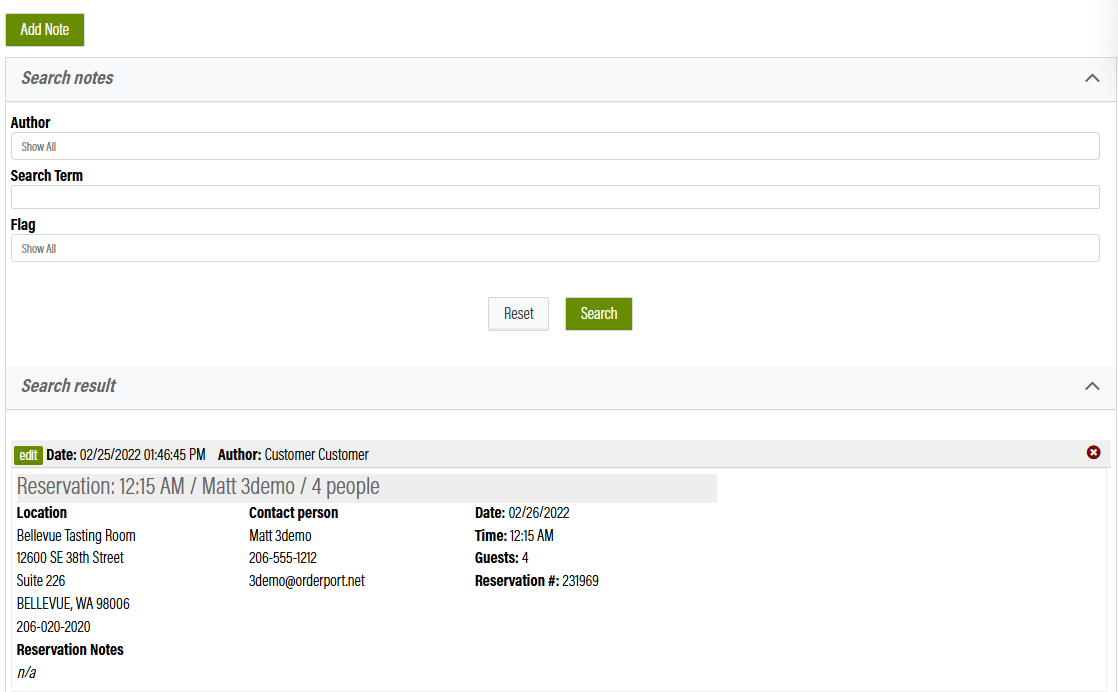
You can create and view account notes in the Account Notes tab. If set the flag of a note to Alert Clerk, it will display a notification on the Point of Sale when you open an order for the customer.
Please Note: On this screen, you will also see notes for the wine club. These are separate and can be edited in the wine club module on their account.
Deleting an Account
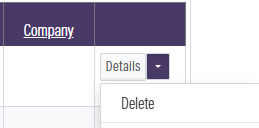
You can delete a customer account by opening the dropdown next to the Details button and clicking Delete. You cannot delete a customer who is a member of a wine club.
Merging Accounts
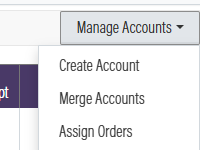
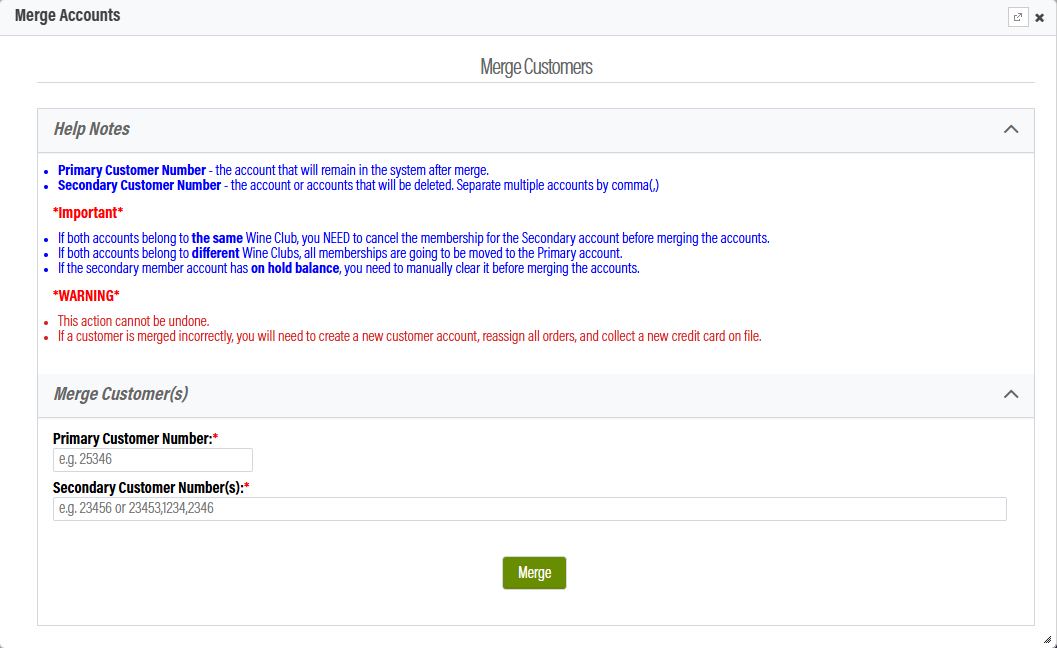
If you have duplicate customer accounts, you can combine them using the Manage Accounts dropdown.
Read the help notes closely prior to completing a merge. This action is irreversible.
Assigning Orders to Customers
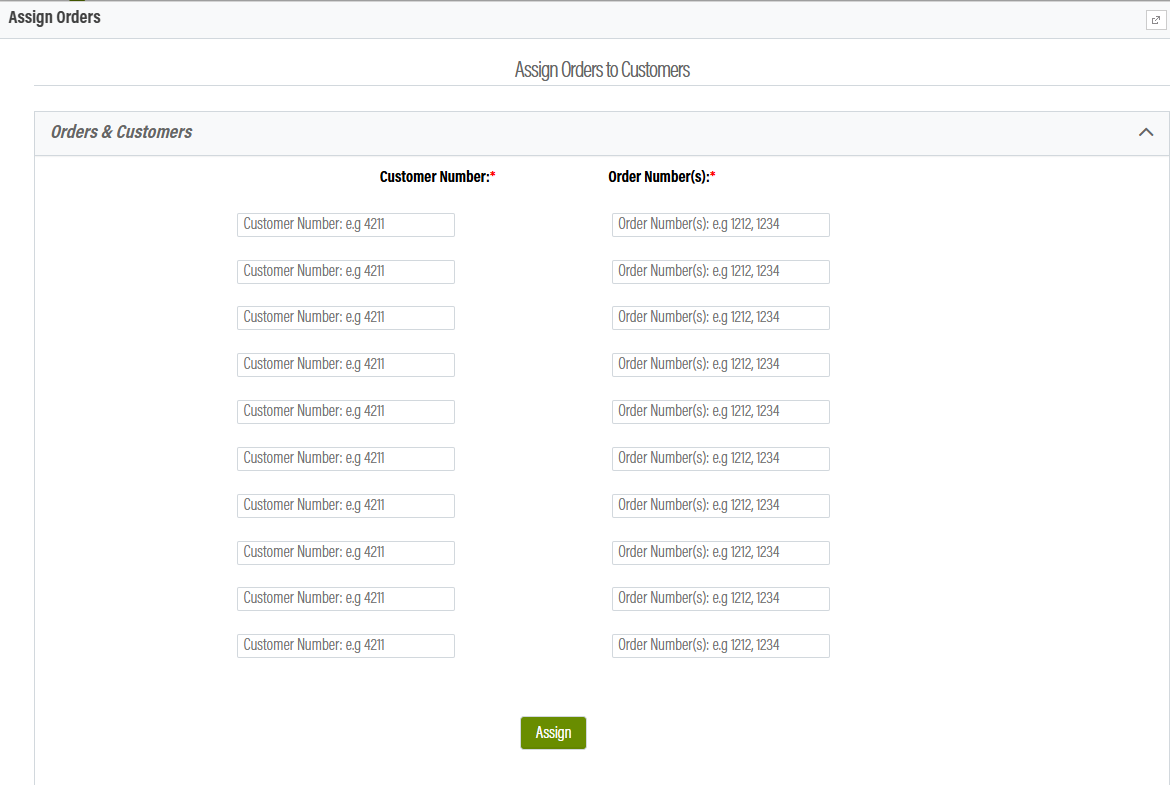
If you have orders that are unconnected to the proper customer account, expand the Manage Accounts dropdown and select Assign Orders. You can assign multiple orders to multiple accounts at once. Fill out as many assignments you need, then click Assign.
Customer Classes
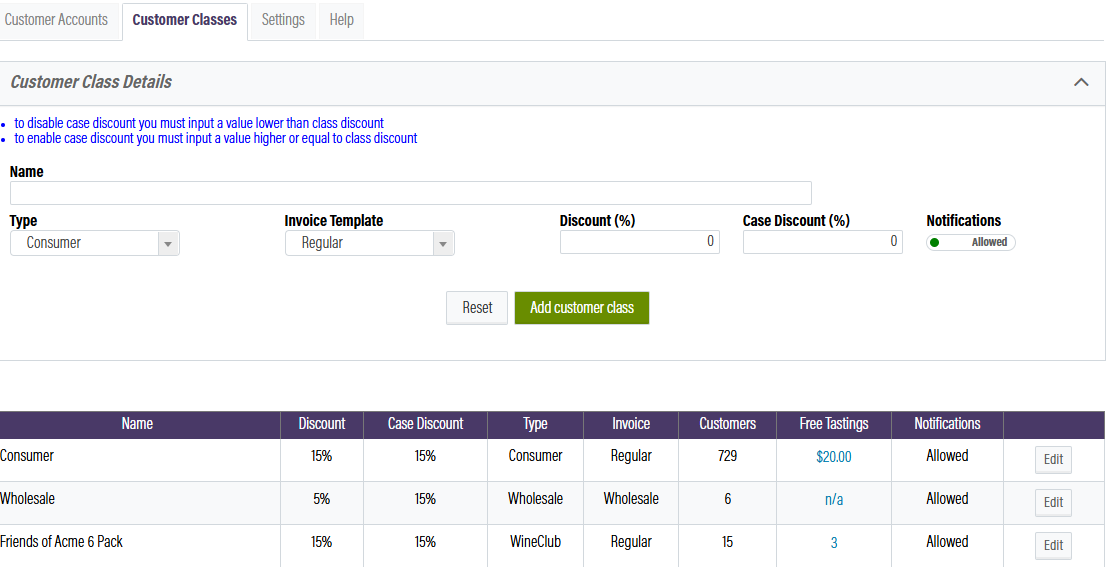
You can edit and create customer classes in the Customer Classes tab. To create a new class, fill in the information, then click "Add customer class".
To view the different invoice types, see the Wholesale, Distributor, and Purchase Orders document.
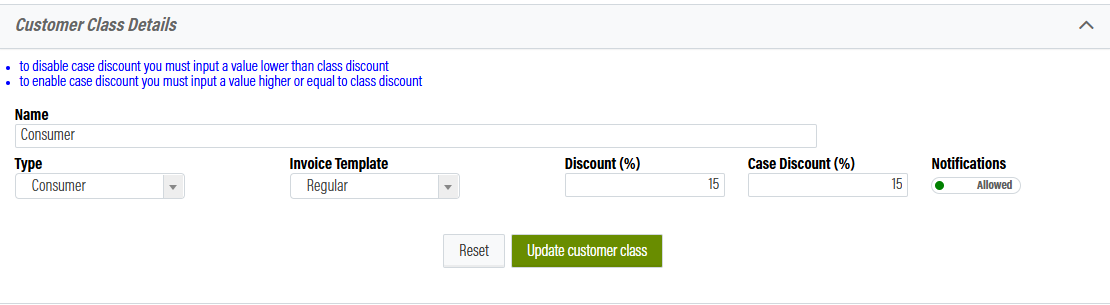
To edit an existing class, click edit, update the fields, then click "Update customer class".
Settings
At the top of the customers module is a tab called settings. This is where you can edit a few different settings for customer account creation.
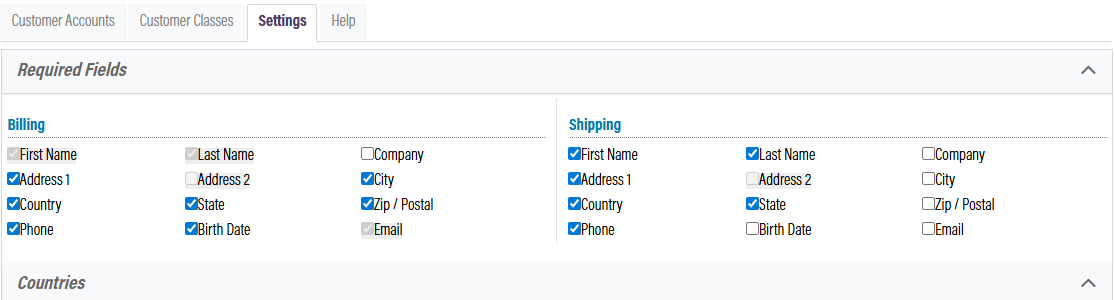
Required Feilds
By default, OrderPort requires that customers have firstname, lastname, and email entered to create a customer account. In this section, you can add additional required fields for admin and eCommerce account sign-ups. As of February 2021, Changing Required Fields in Admin does not impact the POS, the only required fields for POS are First Name, Last Name, and Email address.
For account set up, the email is used so that the customer can log in to their account (it’s a login name), shop, charge their credit card on file, and receive emails (so in case they forget their password, it can be reset and sent to their email address), receive receipts, receive newsletters, and marketing of the latest sales and deals or events at the winery
Counties
If your winery does business outside the United States, you will need to add any additional countries you want to be included in the courty droup down for your customers to select from for their billing and shipping addresses.
 Customer Address
In this section, there is a setting called Restrict non-licensed shipping states. If this is enableded any state without a valid Licenses entereed into the Sales tax and licensing module will prevent customers from signing up for an account using that address. 