OpenEdge is a respected payment processor that offers compatibility with OrderPort. Specifically, it works with OrderPort 5, OrderPort 5 Lite, and OrderPort Restaurant. Please be aware that these applications are no longer receiving updates. Thank you for your understanding.
TABLE OF CONTENTS
- Reconciliation with OpenEdge View
- OpenEdge Transaction query
- OpenEdge - Transaction Decline Minimizer
- Payment Processing Best Practices
- OpenEdge Errors and Declines
- General Credit Card Declines
Reconciliation with OpenEdge View
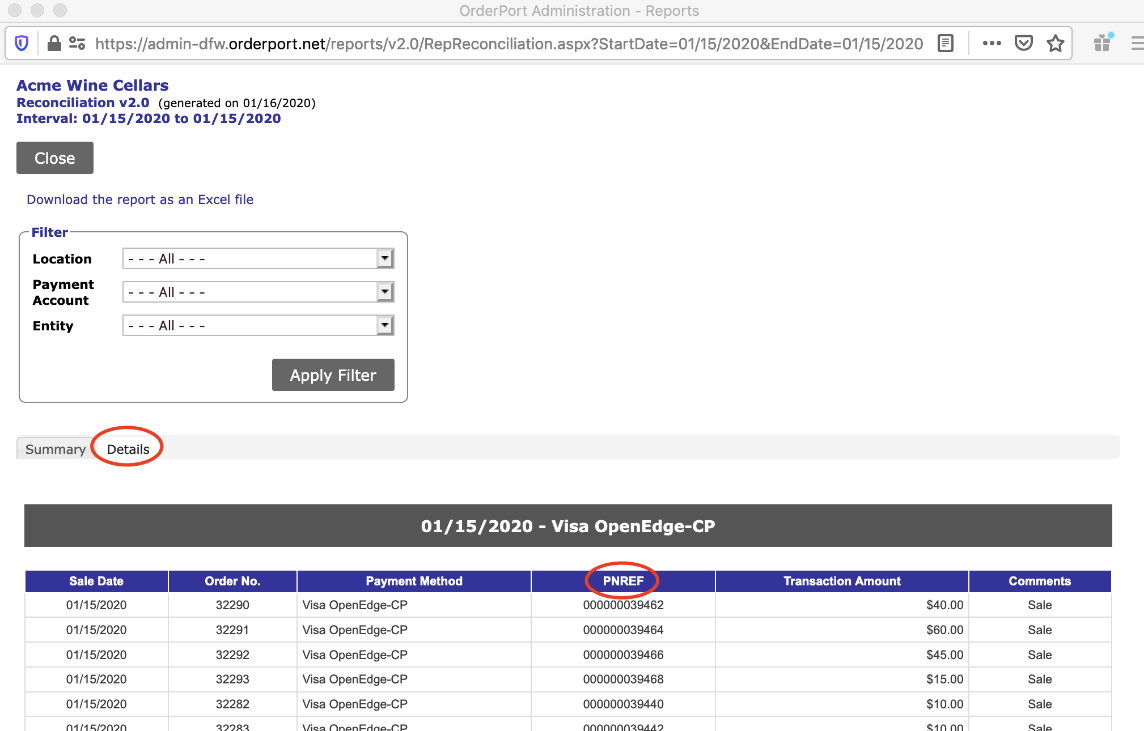
OpenEdge view is the payment processor portal. In OrderPort, run the reconciliation report (Normally done day by day). Go to the Details tab, here you'll reference the PNREF column.
In OpenEDGE, you'll need to go to the Batches tab. If you are searching for a specific day, you'll need to select the first date as the date you want and the second date as the following day.
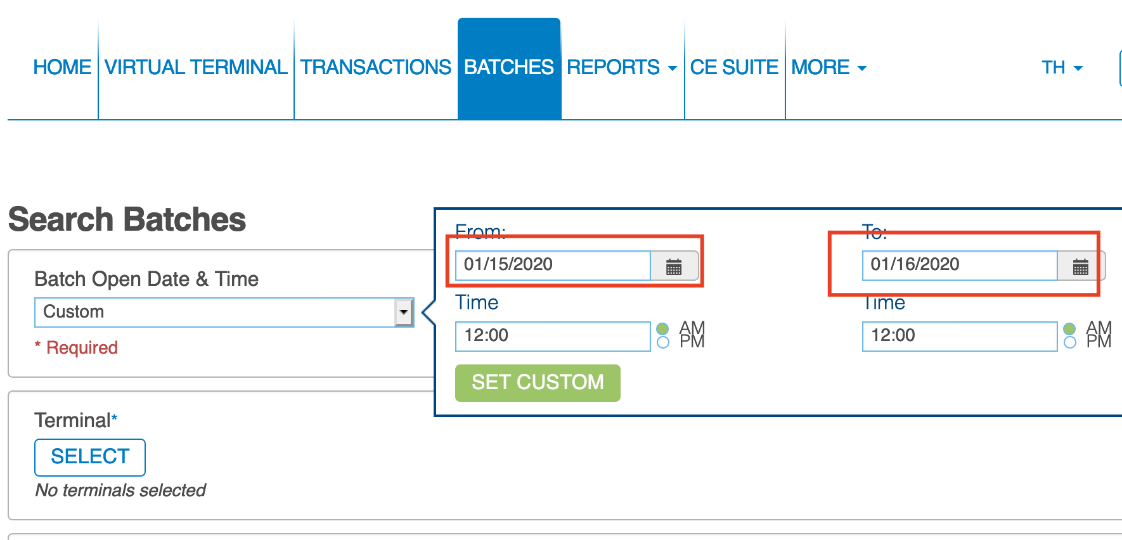
If you have multiple accounts, select all of them. Then click on Search. Select the Batch ID.

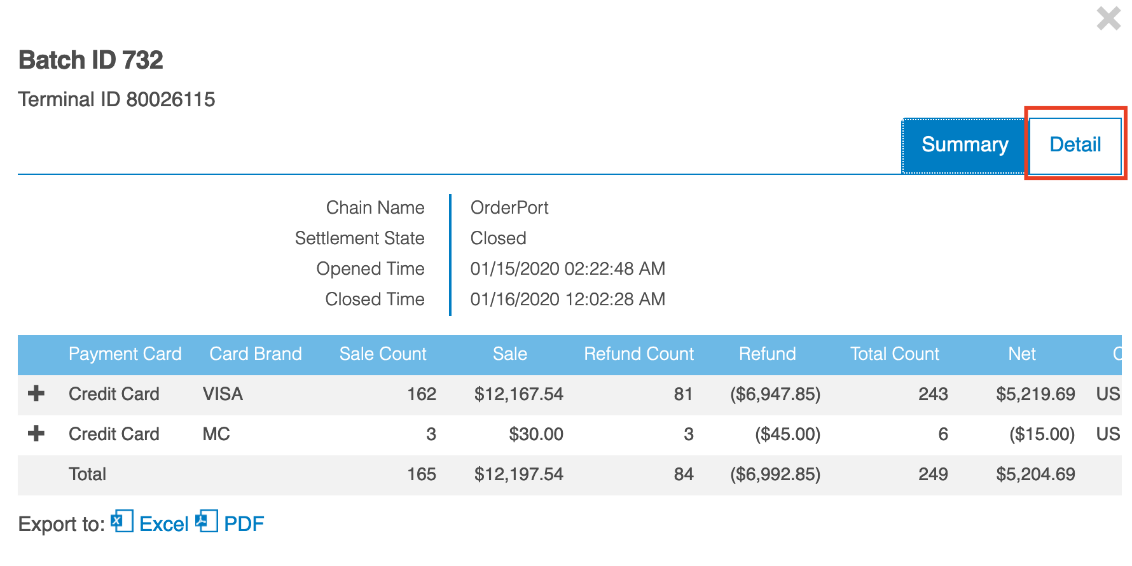
Click on Detail. Here you'll see the Transaction ID. You'll match them to the PNREF column of the previous report. You can export both reports into an excel file to make it easier for you to reconcile.
OpenEdge Transaction query
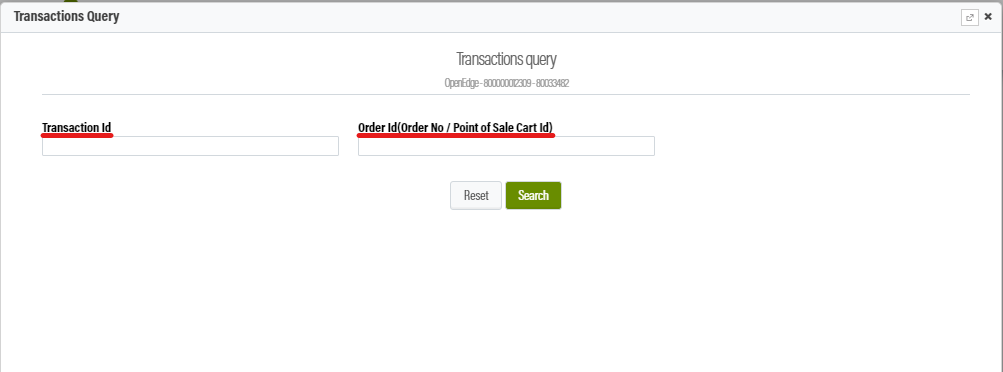
The Transaction Query gives you a way to research payments and get payment information without the OpenEdge View. It can be used to research open carts on the Point of Sale or quickly see if a transaction settled without using the OpenEdge View.
Where can I find the Transaction Query?
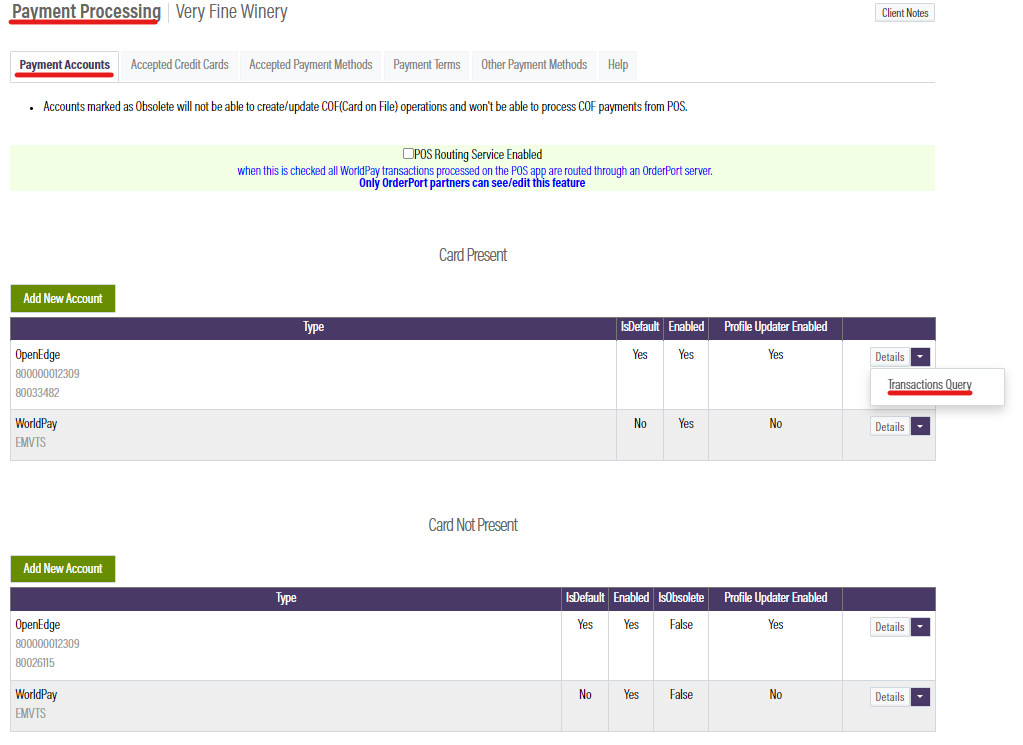
The OpenEdge Transaction Query is found in the Payment Processing module under the Payment Accounts tab. There’s a Transaction Query for Card Present and not Present.
How do I use the Transaction Query?
You can search by Transaction or Order Id.
- Transaction ID is a 12-digit number
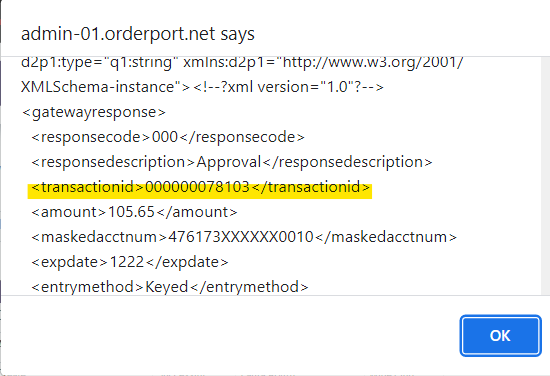
- Example: 000000078378
- Order ID’s always have the Cart Id or Order Number built in them. However, they do come in different formats depending on where the order was made.
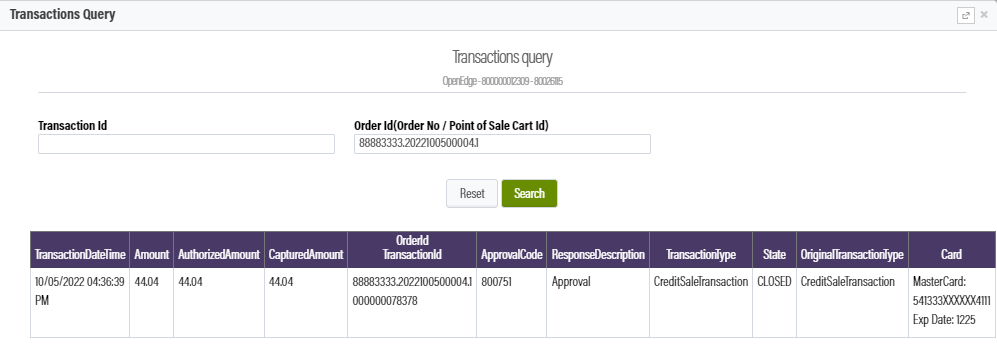
- Example from the POS: 88883333.2022100500004.1
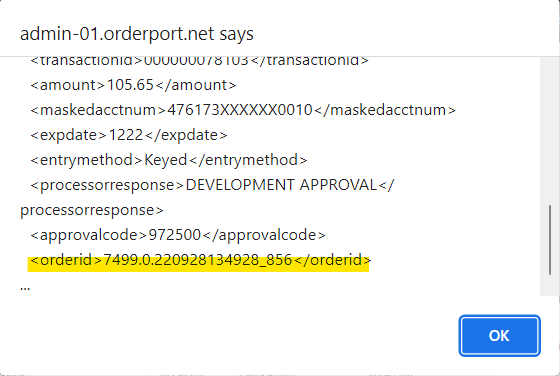
- Example from the Backend: 7499.0.220928134928_856
- Order Id’s can very in the way they look when the order source. Stick to using the Transaction Id for Card not Present transactions.
How do I find the Transaction and Order ID’s?
For orders made on the Point of Sale, the ID’s will be found in the Basket Event History.
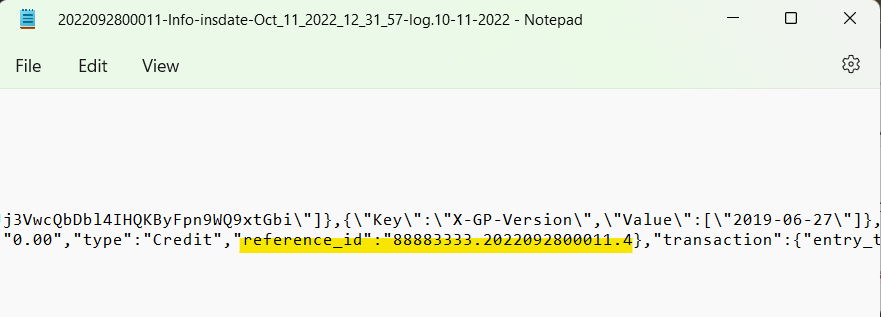
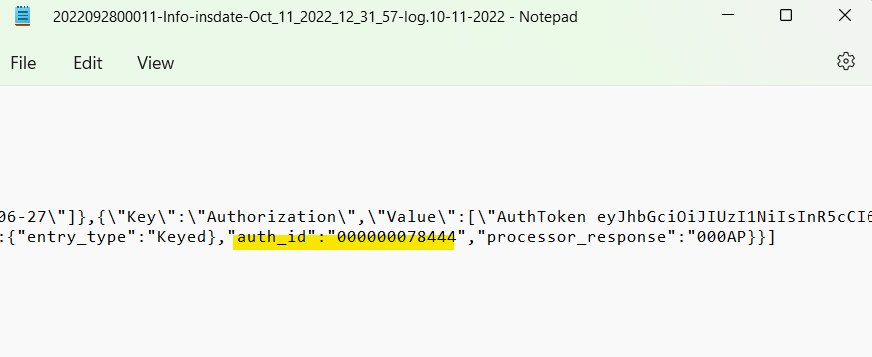
- In the Basket Event History Order ID is called “reference_id” and the Transaction ID is called “sale_id” or “auth_id”

- In a circumstance where there isn’t a “Save payment in OrderPort system” response, you may need to look in the “body log” of a “Log payment transaction” response.

- Click “body log” > open the Notepad file when it downloads > find the “reference_id”, “sale_id”, or “auth_id” > input the Id into the Transaction Query.
Order ID:
Transaction ID:
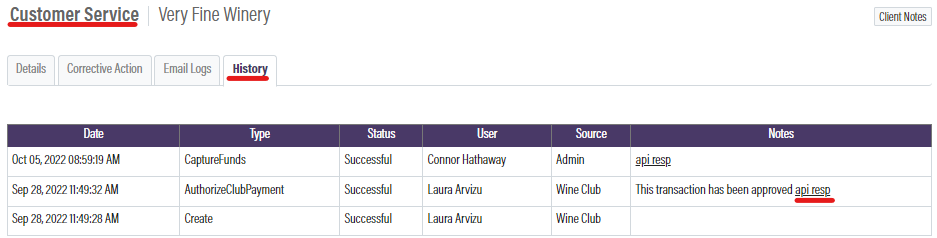
For orders made on the Backend, you will need to go to the Customer Service > History > click on “api resp” > Find the “transactionid” or “orderid”
What information can I get from the Transaction Query?
Transaction Query shows you most of the information that would be on a transaction receipt. For example, see the screenshot below:
OpenEdge - Transaction Decline Minimizer
A customer's wine club purchase was processed successfully, but the card on file is different from the card that was actually charged. This raises the question: why does the order indicate that the charge went through the "card on file" when the actual charged card is different?
OpenEdge offers a service called Decline Minimizer that automatically updates credit card information. When a payment is attempted in OrderPort, this service attempts to retrieve updated credit card details, such as card number and expiration date, for any expired or replaced cards.
If we receive a response indicating that the card details have changed, we update the card on file (COF) in OrderPort. However, a limitation exists for orders placed through the wine club: this automatic update process does not function for those orders.
As a result, while transactions from the wine club are still approved, the COF remains unchanged in OrderPort. Consequently, these orders will display the old credit card number and expiration date, even though OpenEdge reflects the actual credit card details. In such cases, clients can navigate to admin => Customers => Card on File to look up the address and automatically update the COF. This update will apply for future orders, but not for any wine club order that has already been placed. Alternatively, placing orders through the admin cart, POS, or web store will also trigger the COF update automatically.
It's important to note that **AMEX** does not participate in the Decline Minimizer program; therefore, their cards will not be updated in this system. AMEX does not send updates like Visa and MasterCard do. Instead, they have their own "Trusted Merchant" program, which ensures that card on file transactions with expired cards will not be declined as long as the updated card has been activated and the merchant has some level of trusted status with AMEX.
Payment Processing Best Practices
Point-of-Sale (POS)
Wine Club Signup
When processing a transaction, do not attempt to add a customer to a wine club. Adding a customer during the creation of a tab or while checking out will disrupt the normal processing workflow. Interrupting any payment process in the Point-of-Sale App is discouraged.
Check Out
Before selecting a payment method, such as “Credit,” on the checkout page, confirm the order details (products, grand total, etc.). Once you insert the card and start taking payment, do not interrupt the process. Closing the app, removing the card, or closing the checkout window will hinder the normal processing workflow.
Wine Club
Step 5 of the Wine Club release process involves authorizing customer cards and cannot be reversed in OrderPort. Once you proceed past Step 5, do not close the tab, refresh, or attempt to go back on the page. Ensure that you are ready to charge cards and begin processing payments before moving to Step 6.
Split Payments
Split Evenly
To split a transaction evenly, you will be directed to a screen where you can select how many ways to split the payment. If you wish to split the transaction three ways, add a ticket two more times. When ready to pay for a ticket, select “Edit” or “Pay This Ticket.” If needed, adjust the ticket amount and select the payment method. After all tickets have been paid, close any tickets that indicate "Close." This is when you will enter the tip amount. You can also refund a ticket that has already been paid if a mistake was made.
Split Between Guests
To split between guests, select the products for each guest. If a product is assigned to the wrong guest or needs to be divided among multiple guests, tap and hold that product. This will take you to a page where you can choose to split the payment or assign it to a different guest. Tap on each guest at the top of the screen to pay for their ticket. The selected guest will display as a black box, while others will appear in purple. Each transaction must be closed.
Purchase Orders and Work Orders
If you encounter issues with Purchase or Work Orders, please contact an OrderPort representative who will guide you through the best options for your winery.
Fulfillment
To avoid processing issues when fulfilling orders, move each order to its designated shipping/carrier terminal as soon as payment is received. This will help minimize potential declines.
When to Refund, Void, or Cancel
A refund is appropriate if a payment has been taken on an order. To issue a refund, navigate to Tools, then the Reports tab. At the bottom of the page, find the Completed Orders tab. Tap on the order and select Full Refund. Note that you cannot edit or issue a partial refund on Restaurant Orders.
An order can be voided if authorization is completed but payment has not been settled (voids can only be processed through your payment processor, not OrderPort). Generally, voids can be processed within 5 minutes of the payment being taken. An order can be canceled if no payment has been taken. Canceling allows you to delete the cart from the Point of Sale.
Authorization vs Settlement
When a payment is processed, it initially posts as an authorization. This acts as a way for the payment processor to check your bank account for sufficient funds. If there are not enough funds, the transaction will decline. If there are sufficient funds, the transaction will settle within the next three days. Once settled, the transaction is fully complete.
Events
For off-site events, a steady Wi-Fi connection is crucial. Ensure a reliable connection at the location before starting to take payments to avoid potential issues. See if making a Tasting Room specifically for events is right for you by calling our Support line and speaking with a rep.
OpenEdge Errors and Declines
Decline: PIC UP: 004PIC UP
Usually, that is a card that has been reported as missing or stolen. They can contact OpenEdge or the customer bank.
Declined. Invalid Reference Error: Account information provided does not match transaction on file.
This error message occurs when refunding orders that were paid with a Card on File and the COF used for the transaction no longer matches the COF on the customers account. To refund orders receiving this error, this must be done in the Openedge or Worldpay gateway. The winery or Worldpay customers can contact Orderport support at 206-464-1151 and we can have this done for you.
When this refund is done manually by the winery, please send support the refund transaction recipt/information to helpdesk@orderport.net and we can have this refund reflected on the order in Orderport.
Alias does not exist
The error pops up when the card on file to the account has been updated and changed/deleted after the transaction was done. It can also mean the token associated with the card on file no longer exists or has been deleted due to inactivity when you attempt to update the card on file.
If you are receiving this error while refunding, you would need to issue the refund manually for this card on OpenEdge and send the refund transaction receipt/information to helpdesk@orderport.net and we have this refund reflected on the order.
Declined. Global Payments Error: TRAN NOT ALLOWED: 057TRAN NOT ALLOWED:
The full detail of the decline is "transaction not allowed to cardholder". This indicates that it is the customer's bank blocking the refund.
It could be anything from a hold on the card to a security issue.
The customer should contact their bank or try to refund the money to a different card.
Global Payments error must balance now
This means the client would need to close their batch through the bank with OpenEdge. This issue happens on the OpenEdge side when the winery has a $0.00 batch. The customer needs to reach out to OpenEdge Technical Support Team to clear their batch in order to run transactions just fine.
A workaround is using their CNP credentials (XWeb ID, Terminal ID & Auth Key). OpenEdge would look into applying a fix for it long-term. Their tech will manually clear the account.
On the recent version of OrderPort Five (5.0.9), it does not parse the full error so you would need to do a test on OrderPort EMV Lite and OpenEdge Mobile to see the full decline error.
General Credit Card Declines
DENIED 055*
To fix this error, you need to turn off AVS Settings in the Gateway under FRISK (TM) Management > Configure Options. Select Address Verification and set it to "No Match Required"
DO NOT HONOR
This error means that the expiration date for the credit card has passed, or it is an invalid credit card. The issuing bank declines the transaction when it fails their authorization process.
DENIED/DECLINED (Every transaction is being declined)
A simple fix is to Update Device on your EMV Reader (ver 4.0 and up). You would go to Tools > About > 1st Mile Settings > Edit > Hardware > Select Reader's Serial Number > Update Device. That would fix the declined transactions.
PROFILE NOT FOUND (PAYMENT ACCOUNT NOT FOUND)
Add/Updating Card – The Virtual Token for this card was deleted after being inactive for some time. So, you would have to add the Card on File again to create a new profile for that card. Using the ‘update’ function in OrderPort will not create a new token, deleting/adding a new card is required.
Deleted Card
The credit card (used to process the order) was deleted. To fix this, refund the card through the payment processor’s gateway and then contact support to correctly reflect the refund in OrderPort.
PICKUP CARD*
It means the customer has marked the credit card as stolen or lost by their issuing bank.
DENIED 902*
This error indicates that the Merchant ID is invalid, or that changes must be made on the account. If you can process a transaction as a 'Card Present (Key the card, using the chip/swiper)' but not 'Card Not Present (Select Card on File or On file at Checkout),' contact WorldPay for this error message. Worldpay's support line is (866) 783-0809.
Payment Processing Unavailable (Please Try Again Later)
Contact Support at (206) 464-1151.
DENIED SYSTEM ERROR
WorldPay is receiving this on their system with a zero response from the issuing bank. The customer's credit card was revoked by the issuing bank to stop recurring payments from happening. In cases where the credit card is no longer valid, or the customer contacted the issuing bank to not release payment for the following merchant. The customer would have to either use another card (or another form of payment) for the payment to go through. Another option is to have the customer contact their bank to release the hold on their credit card.
Invalid PAN/Account Number or Account Format
PAN/Account Number - Credit Card information is wrong or the number of digits is off.
Account Format - ZIP code in the billing is incorrect.
SERV NOT ALLOWED 07
Merchant account with the credit card processor may not be set up for a specific card type (AMEX, Discover, etc).
“Service Not Allowed" are being declined by the card issuer due to a restriction on the credit card or account. Restrictions are caused by:
• The line of business to the merchant you are paying - for example, a business credit card may prevent personal service transactions.
• The type of transaction - for example, your card may prevent online purchases.
RE ENTER :19*
The customer was attempting to use the chip function of the reader despite not having WorldPay as their payment processor (Example: they would be using VITL/TSYS, First Data, Evalon (NOVA), etc). They would need to fail the chip insert by putting it backwards so they can swipe the card.
DECLINE05
The bank has declined the transaction. See 'DO NOT HONOR'.
TRANSACTION NOT FOUND
WorldPay Express has implemented a policy in which orders past 45 days old can no longer be refunded from the initial transaction. They do however offer the ability to issue a manual credit. Once completed, provide OrderPort Support with the manual refund details and the change will be reflected on the order. Reach out to WorldPay either by email or phone and provide the merchant ID for verification.
PROFILE NOT FOUND
After a year, COF profiles/tokens expire. This notification will appear when this occurs. A new COF must be created in OrderPort to generate a new token (even if the card details have not changed).
Decline: ADDTNL AUTHN REQD: 005ADDTNL AUTHN REQD.
This gets thrown when the incorrect CVV is used, or the wrong address is provided during the transaction. Or it could be both of them. When both or one of them is wrong, it will throw that specific decline. Other issues that could cause this would be the cardholder has enrolled in the "Verified by VISA (mastercards version.. ) and the card issuer is requiring the "verification code" that the system needs to be passed along in the request. OR there's a restriction on the card that the cardholder will need to call the issuer to "validate" the payment.