WorldPay is a payment processing service that is fully compatible with OrderPort. They offer their own support system and customer portal for user access. Furthermore, WorldPay is compatible with both OrderPort WP and OrderPort Restaurant WP.
TABLE OF CONTENTS
- Getting in Contact
- IQ Portal
- Reconciliation with IQ Portal
- Transaction Query
- Account Updater Service
- Payment Processing Best Practices
- General Credit Card Declines
Getting in Contact
For most inquiries, it is recommended to call their general support line. Call 800-846-4472.
Other Contacts:
- IQ Portal Support: support@accessmyiq.com.
- Card Reader Ordering: productsalesteam@fisglobal.com.
IQ Portal
WorldPay provides its own customer portal. To access it, please log in at https://www.accessmyiq.com/login. You can find the WorldPay IQ User Guide, which includes information on logging in, transaction searches, batches, settlements, and reporting, at the provided link.
For additional resources, please visit the WorldPay Knowledge 365 Center online, where you can find guides to help you use their system.
Reconciliation with IQ Portal
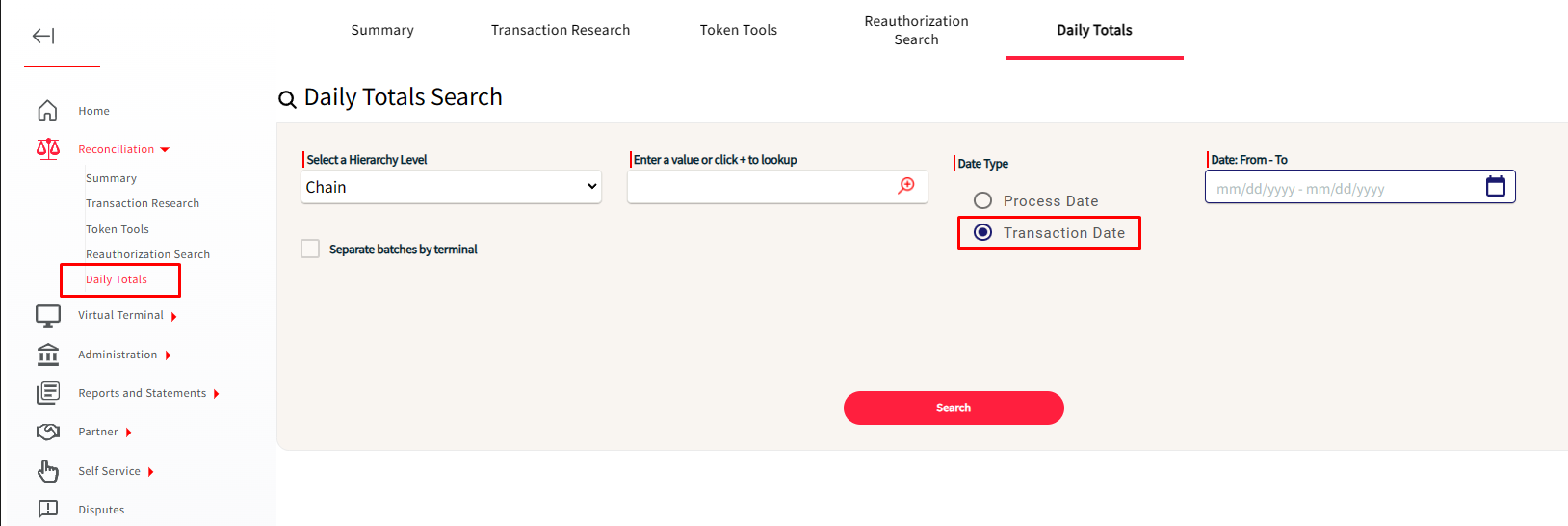
In the WorldPay IQ Portal, you'll toggle Reconciliation, then click on Daily Totals. Input the date you are trying to reconcile. Then hit the search button.
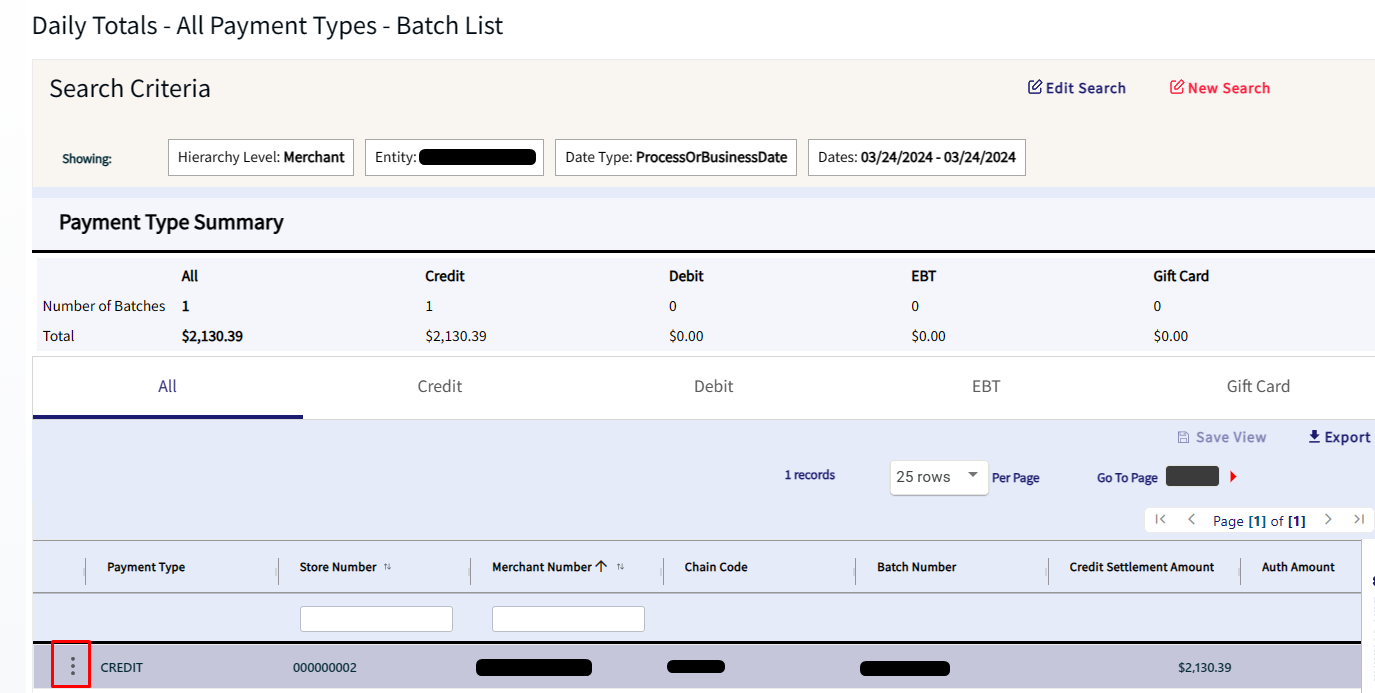
Scroll down and click on the 3 dots next to the first batch, then click on View Details.
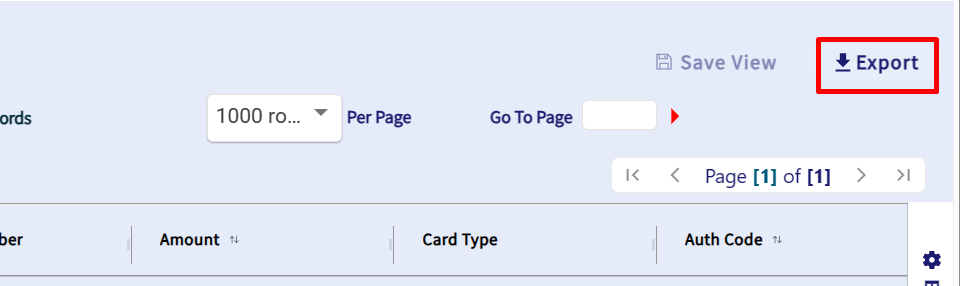
This will bring you to a new page with the detailed transactions of that batch. To export this data into a CSV file, you'll click the Export button on the right-hand side.
Next, you will need to run the reconciliation report in OrderPort Admin.
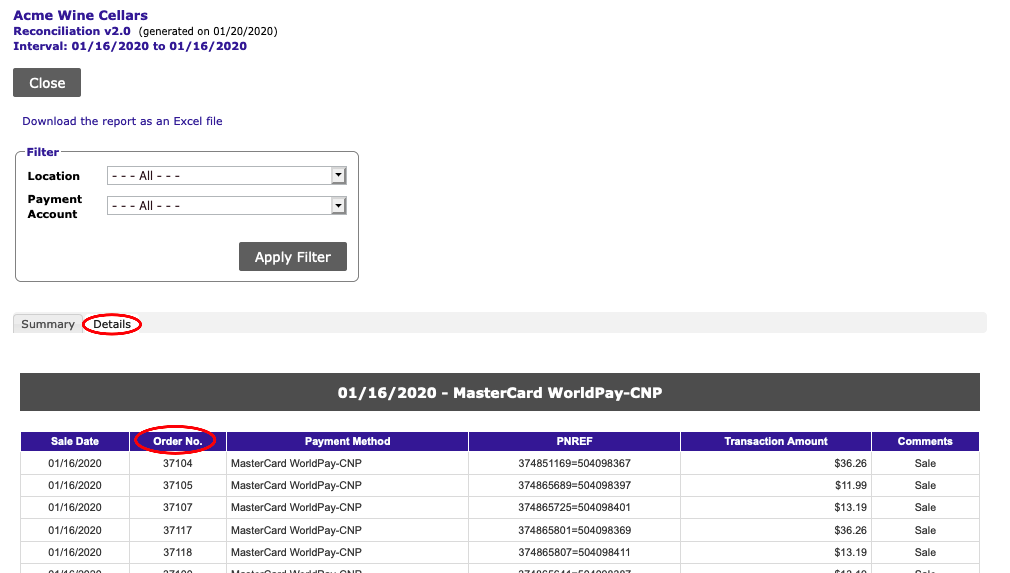
In Go to OrderPort Admin > Reports > Standard Reports > Sales Report > run the Reconciliation report (normally done day by day). Go to the Details tab, where you'll reference the Order No. column and the Auth Code.
Fields to Compare
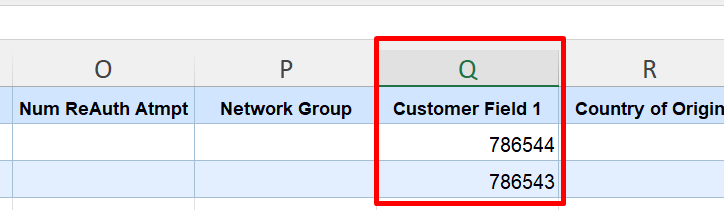
Once you open the CSV file, scroll to Column Q, with the header Customer Field 1. This field is the OrderPort order # or Cart ID. You'll match this order number to the order number in the reconciliation report generated on OrderPort.
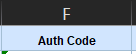
You could also use the Auth Code to match up transactions between the Daily Totals and the Reconciliation Report
Excel Tips and Tricks
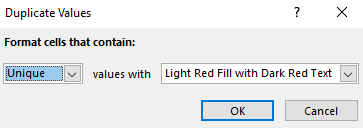
Get all of your Customer Field 1 and Order Numbers or Auth Codes on the same collum > Use Conditional Formatting > Highlight Cells Rules > Duplicate Values > Format cells that contain: unique values.
This is going to highlight any discrepancies between the two systems if the deposits don't match.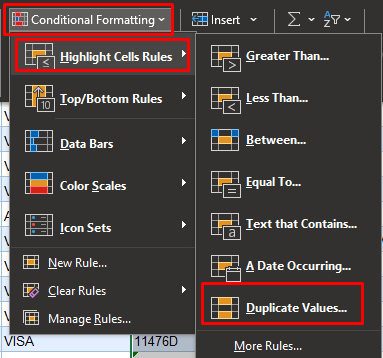
Transaction Query
The Transaction Query allows you to research payments and access payment information without using the IQ Portal. It can be utilized to investigate open carts at the Point of Sale or to quickly verify whether a transaction has settled without the IQ Portal. You can find the WorldPay Transaction Query in the Payment Processing module under the Payment Accounts tab. There are separate Transaction Queries for Card Present transactions and for Card not Present.
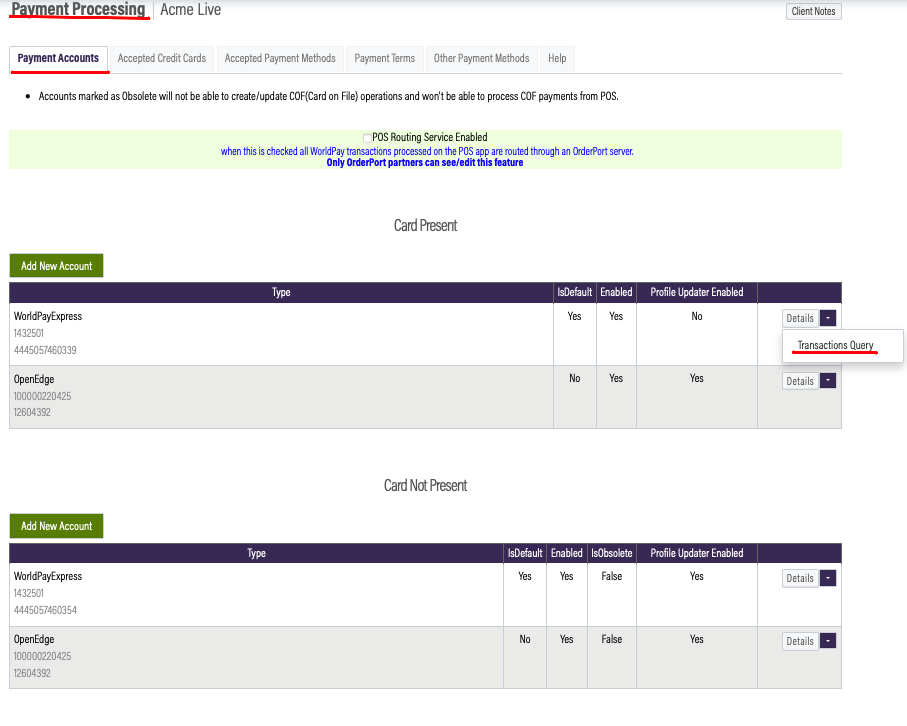
Using the Transaction Query
After clicking on the transaction query, you will be directed to a search page. You can search using any of the following information.
You can search by:
- Transaction ID: This is a 12-digit number.
- Example: 000000078378
- Reference Number:This refers to the Order Number or the Point of Sale Cart ID.
- Example: 1050 or 2022120800017
- Approval Number:This is the authorization code, also known as the Auth Code.
- Example: 519285
- Amount:This is the total credit card payment made for the order.
- Example: $0.55
If a transaction is found, you will receive the transaction receipt. This will provide you with all the necessary transaction information to give to the helpdesk. The most important field here is the transaction status.
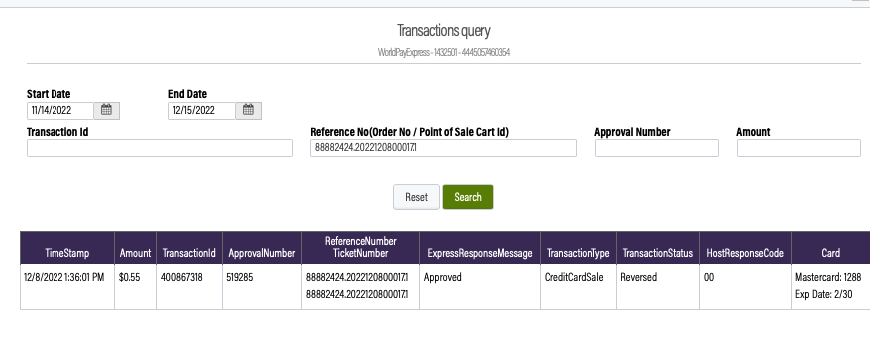
Transaction Status
Reversed: Credit Card Reversal was issued. This transaction was reversed or canceled
Approved: This transaction type has been approved.
Declined: This transaction declined
Account Updater Service
The Account Updater runs on the 2nd of every month. It checks and updates each credit card in OrderPort to match the ones in WorldPayExpress. Sometimes, it can run into Errors when doing this process.
NoMatchNonParticipating Error
Some of the cards on file received the following error message while the Account Updater was pulling data from WorldPayExpress.
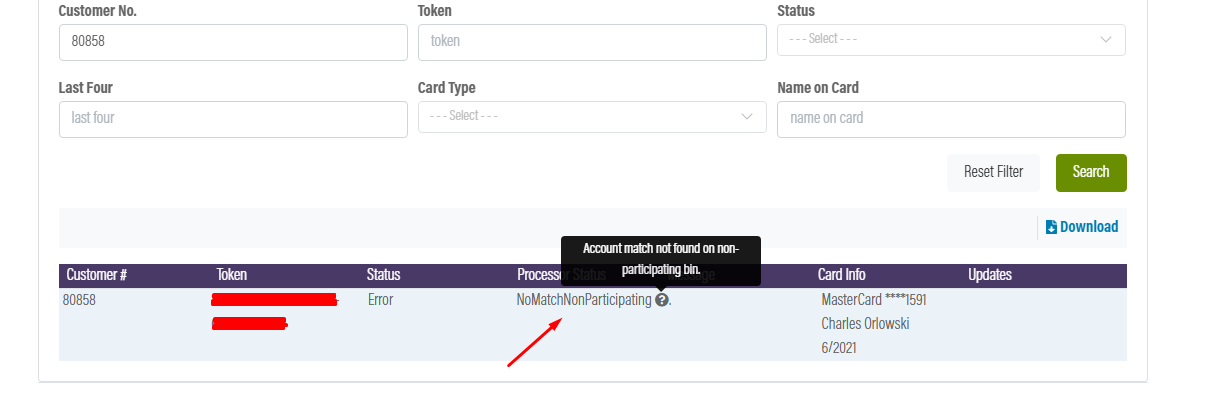
This error comes from WorldPayExpress and there is currently nothing we can do to fix it.
However, we found that if you do a 'Look Up Address', the correct will show. This is strange because both Account Updater and Look Up Address are pulling information from WorldPayExpress and both should return the same data. It seems that there is an issue with WorldPayExpress. We updated our code to save the new information on the card on file when doing a Look Up Address.
If you run into this issue, you can either wait for the Account Updater to run at the beginning of each month or use the Look Up Address function to save the new information on the card on file.
Payment Processing Best Practices
Point-of-Sale (POS)
Wine Club Signup
When processing a transaction, do not attempt to add a customer to a wine club. Adding a customer during the creation of a tab or while checking out will disrupt the normal processing workflow. Interrupting any payment process in the Point-of-Sale App is discouraged.
Check Out
Before selecting a payment method, such as “Credit,” on the checkout page, confirm the order details (products, grand total, etc.). Once you insert the card and start taking payment, do not interrupt the process. Closing the app, removing the card, or closing the checkout window will hinder the normal processing workflow.
Wine Club
Step 5 of the Wine Club release process involves authorizing customer cards and cannot be reversed in OrderPort. Once you proceed past Step 5, do not close the tab, refresh, or attempt to go back on the page. Ensure that you are ready to charge cards and begin processing payments before moving to Step 6.
Split Payments
Split Evenly
To split a transaction evenly, you will be directed to a screen where you can select how many ways to split the payment. If you wish to split the transaction three ways, add a ticket two more times. When ready to pay for a ticket, select “Edit” or “Pay This Ticket.” If needed, adjust the ticket amount and select the payment method. After all tickets have been paid, close any tickets that indicate "Close." This is when you will enter the tip amount. You can also refund a ticket that has already been paid if a mistake was made.
Split Between Guests
To split between guests, select the products for each guest. If a product is assigned to the wrong guest or needs to be divided among multiple guests, tap and hold that product. This will take you to a page where you can choose to split the payment or assign it to a different guest. Tap on each guest at the top of the screen to pay for their ticket. The selected guest will display as a black box, while others will appear in purple. Each transaction must be closed.
Purchase Orders and Work Orders
If you encounter issues with Purchase or Work Orders, please contact an OrderPort representative who will guide you through the best options for your winery.
Fulfillment
To avoid processing issues when fulfilling orders, move each order to its designated shipping/carrier terminal as soon as payment is received. This will help minimize potential declines.
When to Refund, Void, or Cancel
A refund is appropriate if a payment has been taken on an order. To issue a refund, navigate to Tools, then the Reports tab. At the bottom of the page, find the Completed Orders tab. Tap on the order and select Full Refund. Note that you cannot edit or issue a partial refund on Restaurant Orders.
An order can be voided if authorization is completed but payment has not been settled (voids can only be processed through your payment processor, not OrderPort). Generally, voids can be processed within 5 minutes of the payment being taken. An order can be canceled if no payment has been taken. Canceling allows you to delete the cart from the Point of Sale.
Authorization vs Settlement
When a payment is processed, it initially posts as an authorization. This acts as a way for the payment processor to check your bank account for sufficient funds. If there are not enough funds, the transaction will decline. If there are sufficient funds, the transaction will settle within the next three days. Once settled, the transaction is fully complete.
Events
For off-site events, a steady Wi-Fi connection is crucial. Ensure a reliable connection at the location before starting to take payments to avoid potential issues. See if making a Tasting Room specifically for events is right for you by calling our Support line and speaking with a rep.
General Credit Card Declines
DENIED 055*
To fix this error, you need to turn off AVS Settings in the Gateway under FRISK (TM) Management > Configure Options. Select Address Verification and set it to "No Match Required"
DO NOT HONOR
This error means that the expiration date for the credit card has passed, or it is an invalid credit card. The issuing bank declines the transaction when it fails their authorization process.
DENIED/DECLINED (Every transaction is being declined)
A simple fix is to Update Device on your EMV Reader (ver 4.0 and up). You would go to Tools > About > 1st Mile Settings > Edit > Hardware > Select Reader's Serial Number > Update Device. That would fix the declined transactions.
PROFILE NOT FOUND (PAYMENT ACCOUNT NOT FOUND)
Add/Updating Card – The Virtual Token for this card was deleted after being inactive for some time. So, you would have to add the Card on File again to create a new profile for that card. Using the ‘update’ function in OrderPort will not create a new token, deleting/adding a new card is required.
Deleted Card
The credit card (used to process the order) was deleted. To fix this, refund the card through the payment processor’s gateway and then contact support to correctly reflect the refund in OrderPort.
PICKUP CARD*
It means the customer has marked the credit card as stolen or lost by their issuing bank.
DENIED 902*
This error indicates that the Merchant ID is invalid, or that changes must be made on the account. If you can process a transaction as a 'Card Present (Key the card, using the chip/swiper)' but not 'Card Not Present (Select Card on File or On file at Checkout),' contact WorldPay for this error message. Worldpay's support line is (866) 783-0809.
Payment Processing Unavailable (Please Try Again Later)
Contact Support at (206) 464-1151.
DENIED SYSTEM ERROR
WorldPay is receiving this on their system with a zero response from the issuing bank. The customer's credit card was revoked by the issuing bank to stop recurring payments from happening. In cases where the credit card is no longer valid, or the customer contacted the issuing bank to not release payment for the following merchant. The customer would have to either use another card (or another form of payment) for the payment to go through. Another option is to have the customer contact their bank to release the hold on their credit card.
Invalid PAN/Account Number or Account Format
PAN/Account Number - Credit Card information is wrong or the number of digits is off.
Account Format - ZIP code in the billing is incorrect.
SERV NOT ALLOWED 07
Merchant account with the credit card processor may not be set up for a specific card type (AMEX, Discover, etc).
“Service Not Allowed" are being declined by the card issuer due to a restriction on the credit card or account. Restrictions are caused by:
• The line of business to the merchant you are paying - for example, a business credit card may prevent personal service transactions.
• The type of transaction - for example, your card may prevent online purchases.
RE ENTER :19*
The customer was attempting to use the chip function of the reader despite not having WorldPay as their payment processor (Example: they would be using VITL/TSYS, First Data, Evalon (NOVA), etc). They would need to fail the chip insert by putting it backwards so they can swipe the card.
DECLINE05
The bank has declined the transaction. See 'DO NOT HONOR'.
TRANSACTION NOT FOUND
WorldPay Express has implemented a policy in which orders past 45 days old can no longer be refunded from the initial transaction. They do however offer the ability to issue a manual credit. Once completed, provide OrderPort Support with the manual refund details and the change will be reflected on the order. Reach out to WorldPay either by email or phone and provide the merchant ID for verification.
PROFILE NOT FOUND
After a year, COF profiles/tokens expire. This notification will appear when this occurs. A new COF must be created in OrderPort to generate a new token (even if the card details have not changed).
Decline: ADDTNL AUTHN REQD: 005ADDTNL AUTHN REQD.
This gets thrown when the incorrect CVV is used, or the wrong address is provided during the transaction. Or it could be both of them. When both or one of them is wrong, it will throw that specific decline. Other issues that could cause this would be the cardholder has enrolled in the "Verified by VISA (mastercards version.. ) and the card issuer is requiring the "verification code" that the system needs to be passed along in the request. OR there's a restriction on the card that the cardholder will need to call the issuer to "validate" the payment.