2FA is an important security step for all user accounts. When set up, hackers cannot enter your account without your username, password, and access to your mobile device.
Log in to your account on OrderPort Admin, then open the Users Module, which is under the Settings category. If your account does not have access to the Users Module, you should ask your manager to log in and open the Users Module with you present.
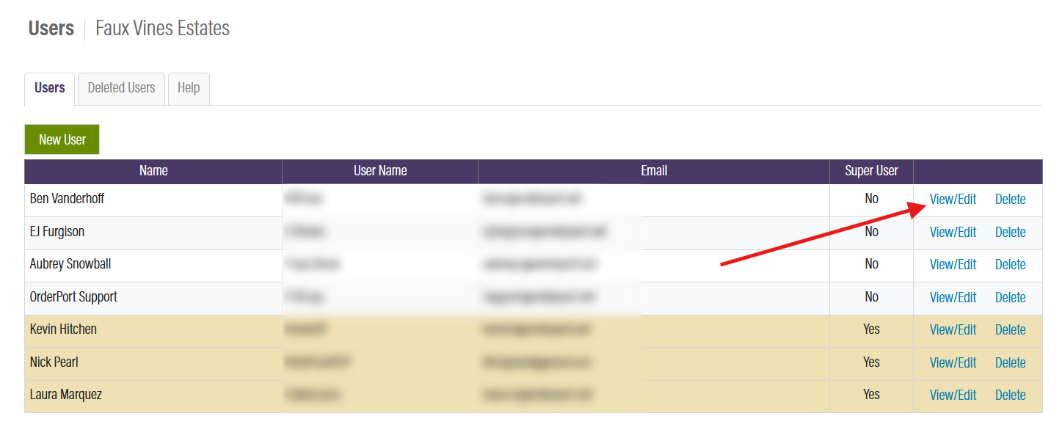
Once in the Users Module, click View/Edit on your user account.
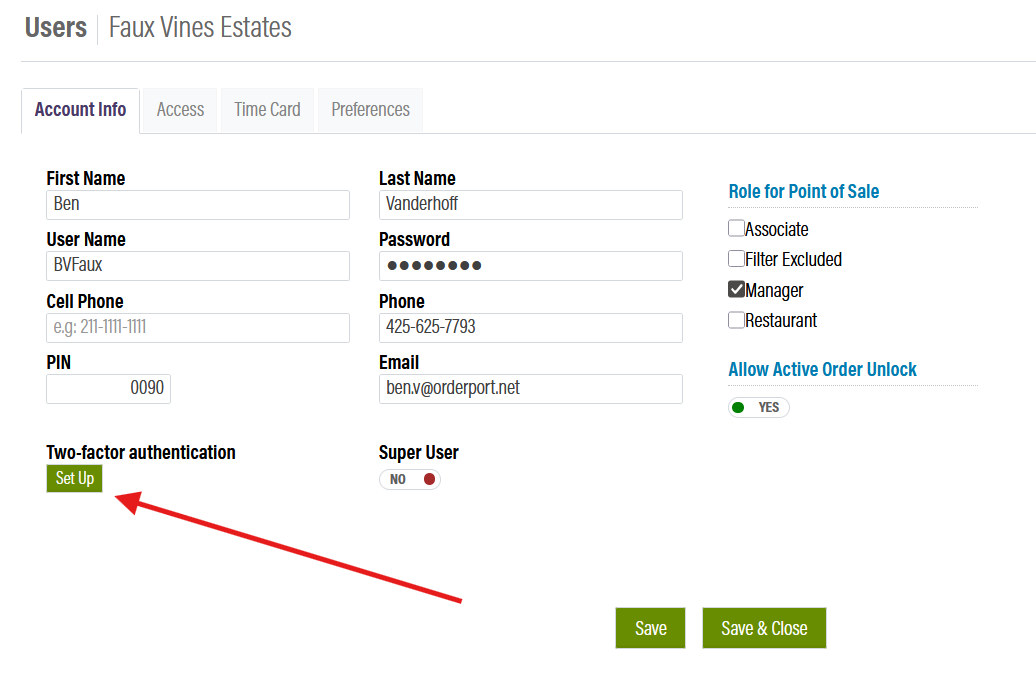
Next, under the Two-factor authentication heading, click Set Up.
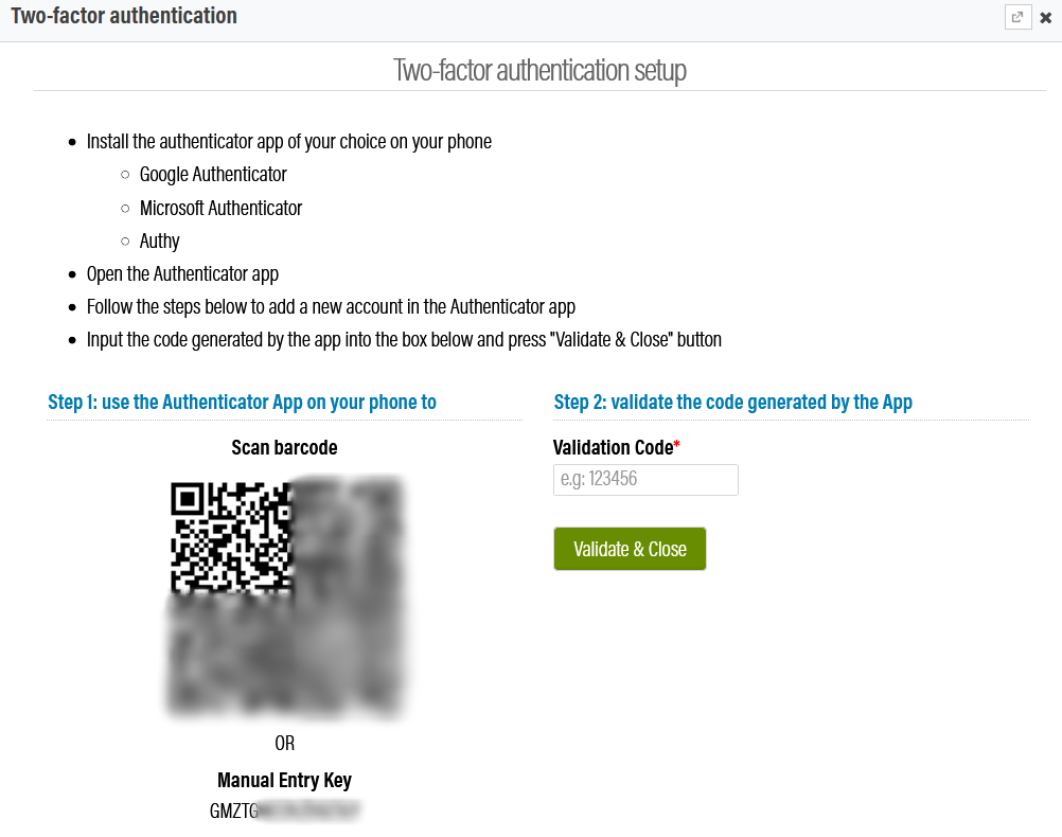
If you do not already have a 2FA application on your phone, you must install one now. Your options include, but are not limited to:
- Google Authenticator
- Microsoft Authenticator
- Authy
Once installed, open the app, then use the QR code or the manual entry key to set up authentication. Enter the generated code from the application in the validation field, then click Validate & Close.
Be sure to save your changes.