GLS or General Logistics Systems, is a parcel delivery and shipping company focused on the West Coast. They do offer shipping to additional states, which would need to be discussed with them.
TABLE OF CONTENTS
Setup
The account holder (winery) needs to call GLS support (1-800-322-5555) and ask for the OrderPort-GLS Integration to be enabled. Once the integration has been enabled, GLS will provide the following information to the winery.
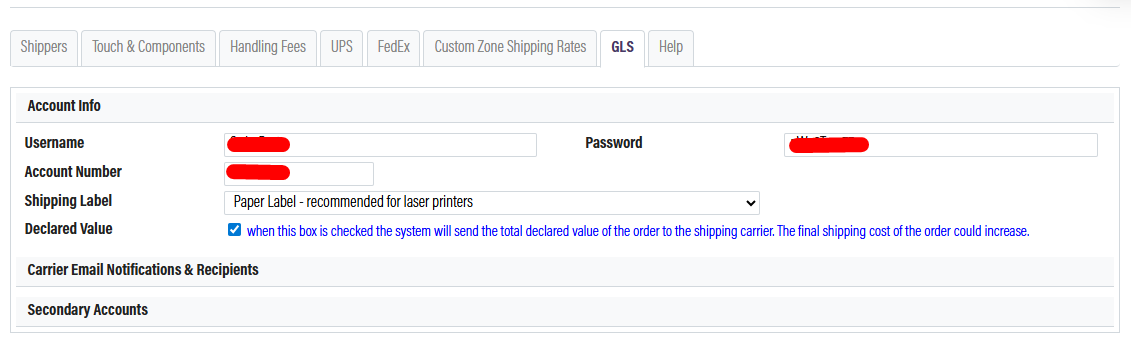
Acct: XXXXX
User Name: XXXXXXXXXXX
Password: XXXXXXXXXX*
*Please note that the password here is different from the password used by the winery to log into GLS.com. This password is specifically generated for use with the OrderPort-GLS integration and can only be obtained by contacting GLS.
Once you have this information from GLS, you need to:
- Log in to OrderPort admin at orderport.net
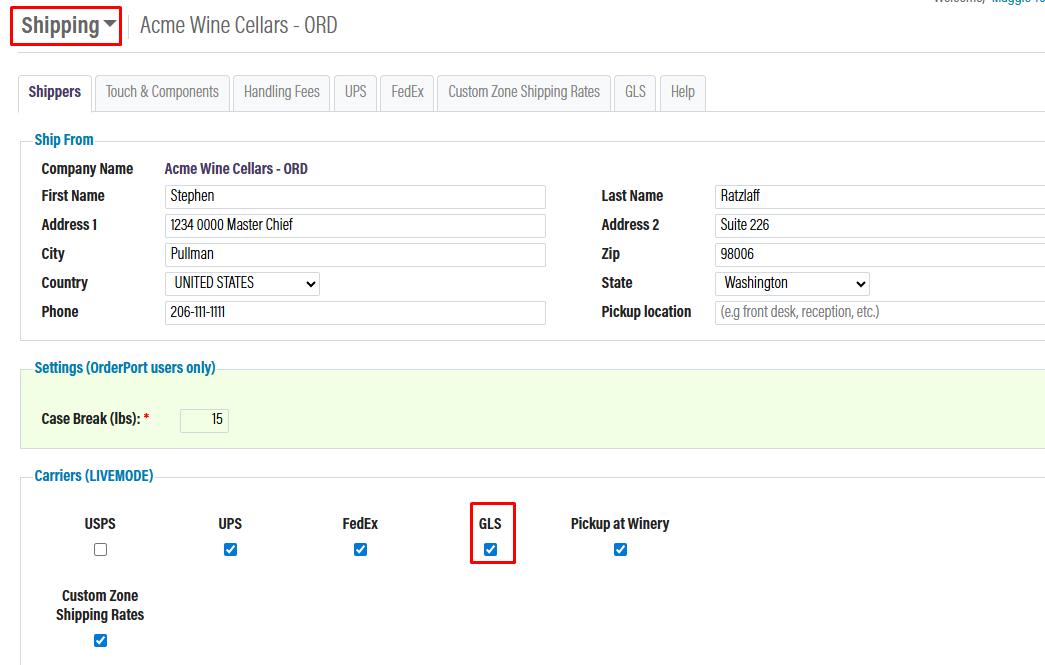
- Go to the Shipping Settings and check the GLS box.
- Open the GLS tab and plug in the values below. Click Save when you are finished.
Carrier Email Notifications and Recipients
After you have setup, your account will have the option to send automated emails to customers from UPS when certain events occur. Please review the options and decide if you want to send these emails to the customer's billing or shipping address. If nessisary you can also cc someone at the winery.
Fuel Surcharge
If a winery is using GLS and if they need to have Fuel Surcharges activated, the winery must reach out to GLS to turn this on. The fuel charges vary week to week, so we cannot create an accurate fee for them to use. The Fuel Surcharge will be added into the total shipping cost, it will not be a separate line item on the order.
Secondary Accounts
In some instances, a winery may have multiple GLS accounts. If you need to add a secondary account, please click Add Secondary Account and go through the account setup again. When setting up a secondary shipping account, there will be a new field available titled Locations.
The only way that OrderPort can determine which GLS account should be used is based on the ship-from location. You will need to attach this account to a specific warehouse or tasting room. All FedEx shipping orders generated with that location as the ship-from warehouse will use the secondary account. All other locations will use the primary account.
Creating GLS Orders
Once the GLS integration is enabled, you will see GLS rates populate on all of our order-taking platforms. This includes Point of Sale, Webstore, Enter Orders, and Wine Club. Based on the services available with your GLS account, those options will populate on your orders with the associated rates.
If you would like any of these rates hidden, please reach out to the helpdesk. If you do not see any rates applying, please check that all of the items in the cart have a weight associated with them in the Catalog Manager. The way OrderPort and GLS communicate is based on the weight of the items and the address to determine the shipping rates.
FAQ's
Error: GSO: Failure - Invalid Token
The account credentials are inncorrect. Please contact GLS and ensure you recived the OrderPort integration crednetials.