The Fulfillment module is used to capture funds on orders and create shipping labels to release an order. Webstore, wine club, and admin cart orders are authorized at checkout, but funds are not captured. If you are using a third-party shipping system, the fulfillment module will be used to send order information to your warehouse.
TABLE OF CONTENTS
- Getting Started
- Fullfillment Home Page
- Settings
- Orders Breakdown
- Viewing Orders In Fulfillment
- Capturing Funds on Orders
- Releasing a Shipping Order
- Shipping Order
- Releasing a Pick-Up Order
- Third Party Shipping
- FAQ's
- Why is this order that I already shipped marked as in progress or unreleased?
- Printing Multiple Shipping Labels for an Order
- What is the futureship date terminal?
- I already released an order and printed the shipping lables, but it is still marked as in progress.
- Stuck Orders in Fulfillment
- I attempted to complete an order, but no label pop-up showed up?
Getting Started
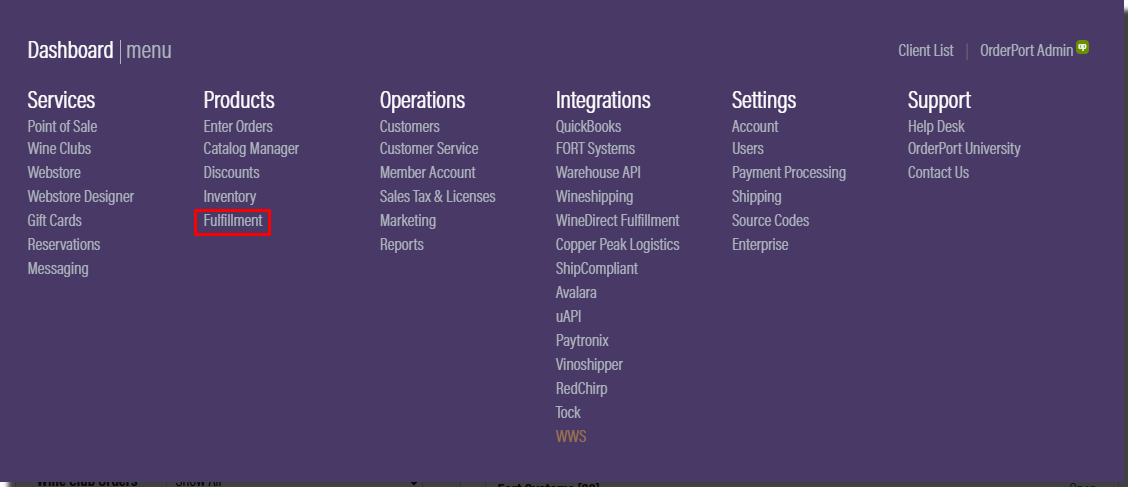
If you need to fulfill or release an order, log into OrderPort admin. To navigate to the Fulfillment module, click the products tab and then click Fulfillment. You will be redirected to the Fulfillment homepage.
Fullfillment Home Page
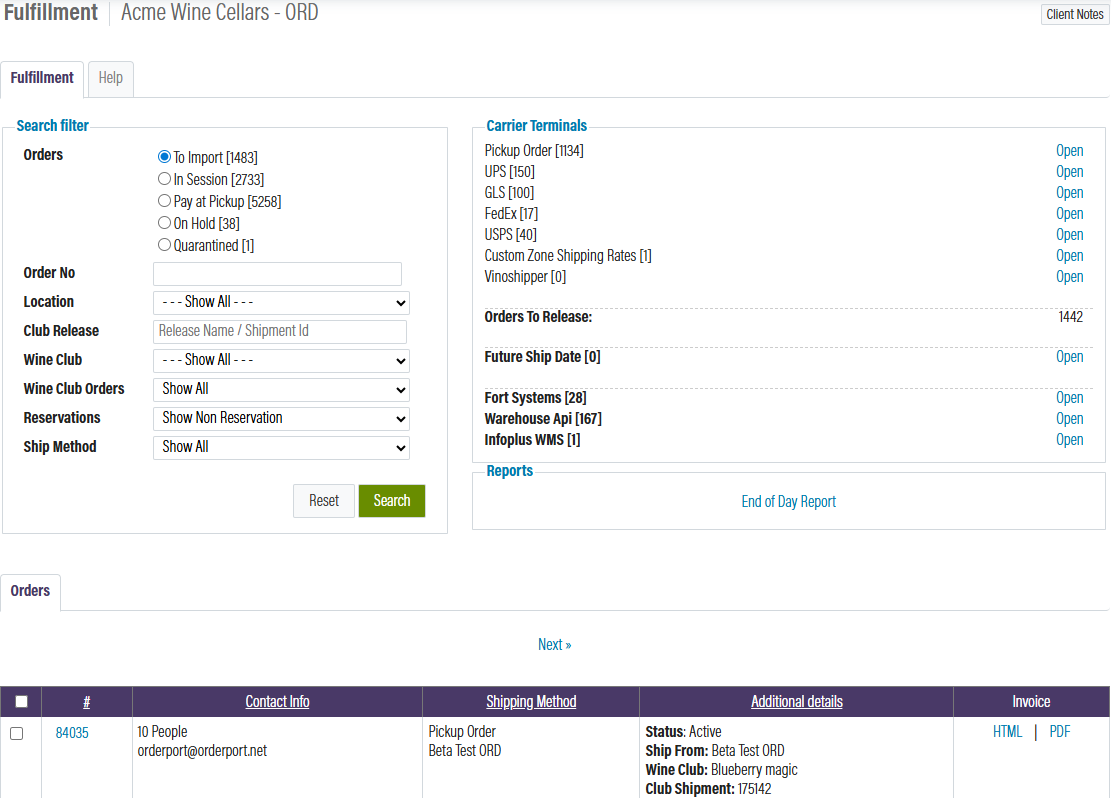
The Fulfillment homepage organizes orders based on whether they’re ready to be released or not. If an order is in a Carrier Terminal, funds have been captured, and it’s waiting to be shipped or picked up. If an order is marked as To Import or In Session, it has not completed the fulfillment process.
The fulfillment process is the same for wine club, web store, and Admin Cart orders. The module contains multiple filters and search options to ensure that you can organize the orders that need to be fulfilled. All wine club orders, regardless of club type, will go through fulfillment.
Settings
Click into the Settings tab at the top of the page. From here, you can select from three different settings.
Packing Slip Format
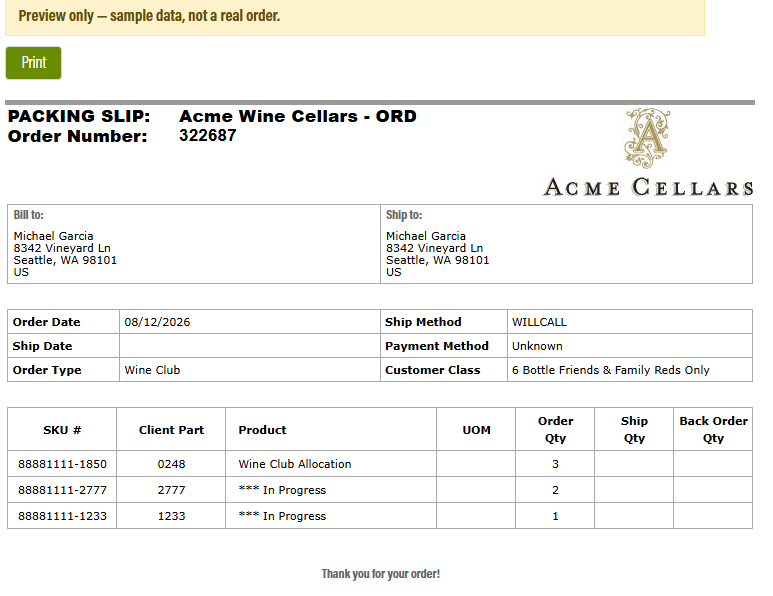
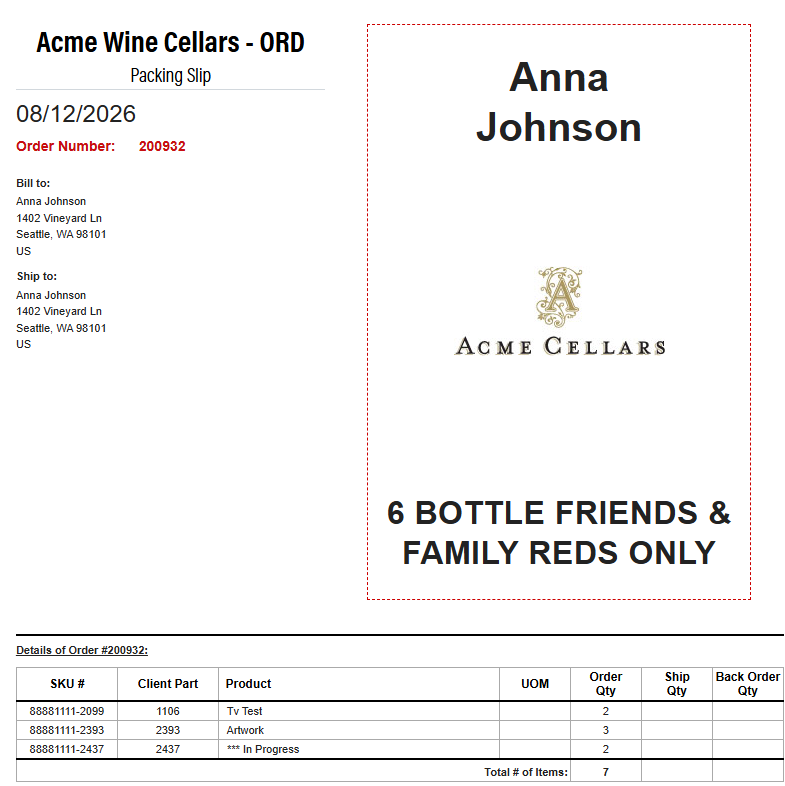
OrderPort offers two different styles of packing slips.
The first is our Standard Label. This includes your winery logo, billing and shipping information, order details, and a list of the products included in the order.
The second is our new Integrated Label. This includes all of the standard information, plus a printable cutout label that can be attached to the box. The sticker includes the customer’s name, customer class, and winery logo.
Status Stamps
This enables you to ascertain whether labels such as "Paid," "Refunded," or "Canceled" appear on receipts and invoices.

Prop 65 Warning
This enables you to ascertain whether the California Prop 65 warning will be shown on receipts, invoices and packing slips
Orders Breakdown
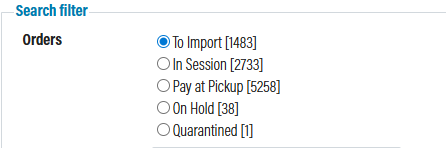
To Import: orders that have been made through the webstore, wine club module or admin cart waiting to be fulfilled.
In Session: orders that are being edited prior to being fulfilled. Will also include backorders and orders that declined during the fulfillment process.
Pay at Pickup: orders created with the payment method Pay At Pick Up. They will remain here until paid for at the point of sale. Not all wineries have this method enabled.
On Hold: purchase orders that haven’t been approved by management. They cannot be fulfilled until approved.
Quarantined: If you have the Shipcompliant integration, and orders that do not pass compliance checks will be hosted here.
Viewing Orders In Fulfillment
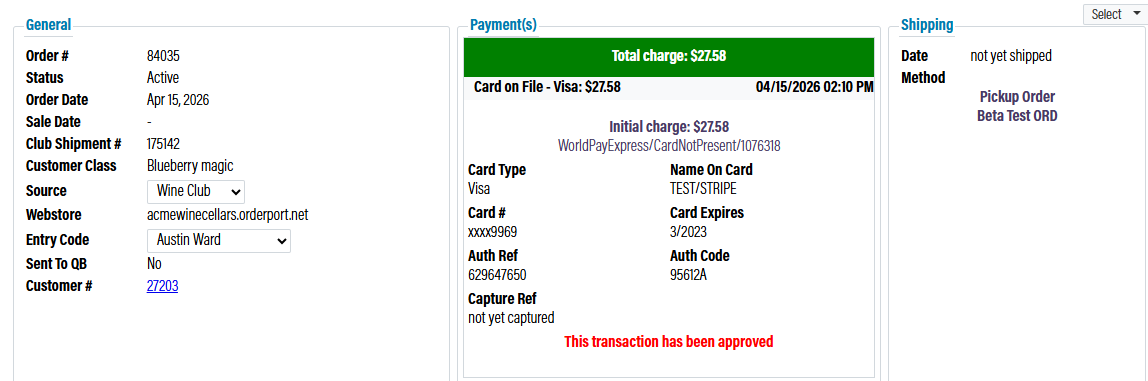
When an order has been created, it will automatically be placed in the Fulfillment module if the credit card is successfully authorized. It will list customer information, shipping information, and club information if it’s a wine club order. Any order that declines at checkout will need to be reauthorized before it shows up in the module.
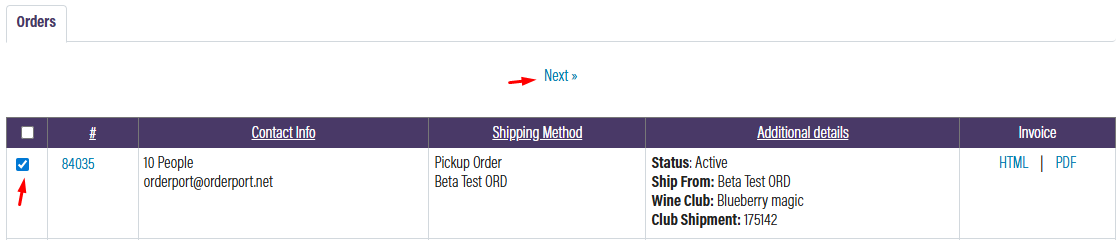
Wine club orders that have been customized, either by the winery or by the customer, will show in blue with the note “Wine Club Custom Order.” This allows to easily recognize which orders need to be fulfilled with special instructions or products. After you have found the orders you want to fulfill, check the box for each order and click Next.
Capturing Funds on Orders
The first step in the fulfillment process is to check inventory and print off pick lists, packing slips, and receipts in a batch. If you are using OrderPort's inventory system and there is insufficient inventory for an item, a pop-up will appear stating that there is not enough inventory. You have two options: either ignore this and click on "Skip Inventory Checks," or open a new tab and navigate to the inventory module to adjust the inventory as needed. If there truly isn't enough inventory, clicking "Continue" at the bottom of the page will change the order status to "Backordered."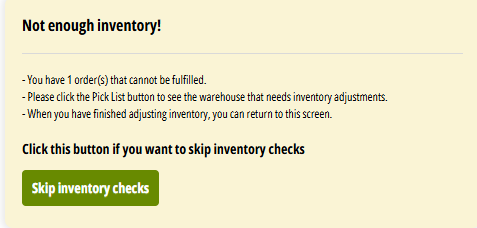 Next, click the document you want to print and a copy will be printed for each order in the batch. This is an optional step, so you can click Continue if you don’t need them printed.
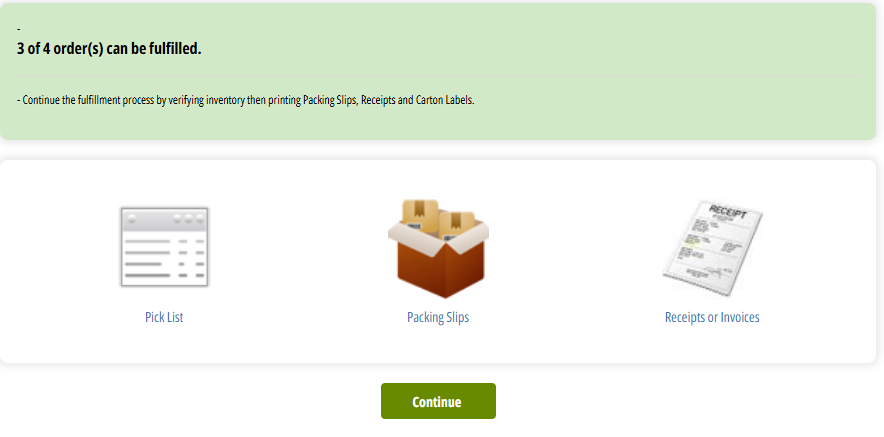
On the next page, you'll need to instruct the system to capture funds by clicking the appropriate button for the order type. For instance, to capture funds for pickup orders, click the "Will Call" button. In this example, we have UPS orders to fulfill, so we will click on the "UPS" button. Remember to click "Will Call" for any pickup orders.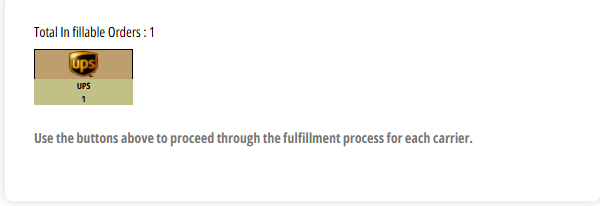
Once funds have been captured for an order, a success message will appear on the screen. The funds will be deposited into your bank account during the next processing batch. Orders will be automatically transferred to their respective Carrier Terminals. Pick-up orders will be released when the customer collects them in the tasting room. Shipping orders will be released either when a shipping label is created or when they are sent to a third-party warehouse.
Releasing a Shipping Order
Once the funds have been captured, the order will be transferred to the Carrier Terminal. In this case, the order is being delivered via UPS, which means it is now located at the UPS Carrier Terminal.
To proceed, find the order you are working on and check the corresponding box. Then, click "Release." If you created a shipping label outside of OrderPort, you can click "Remove Selected Orders" to mark the order as released without generating a tracking number or label.

Shipping Order
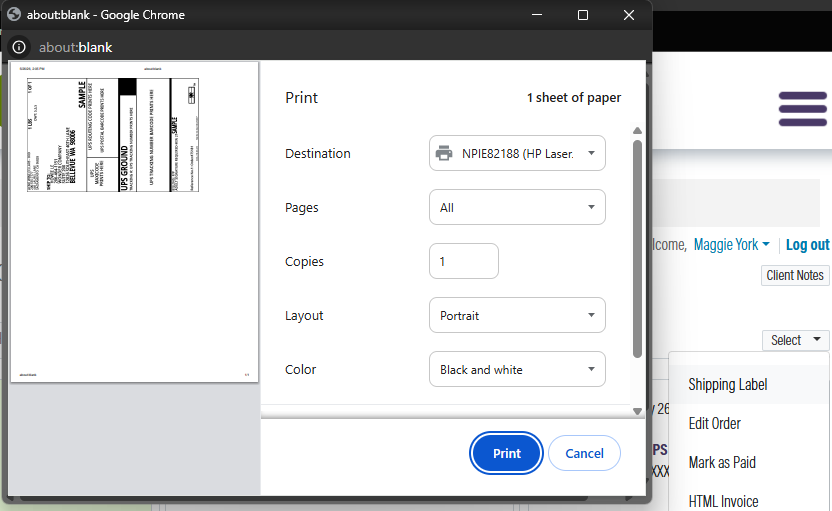
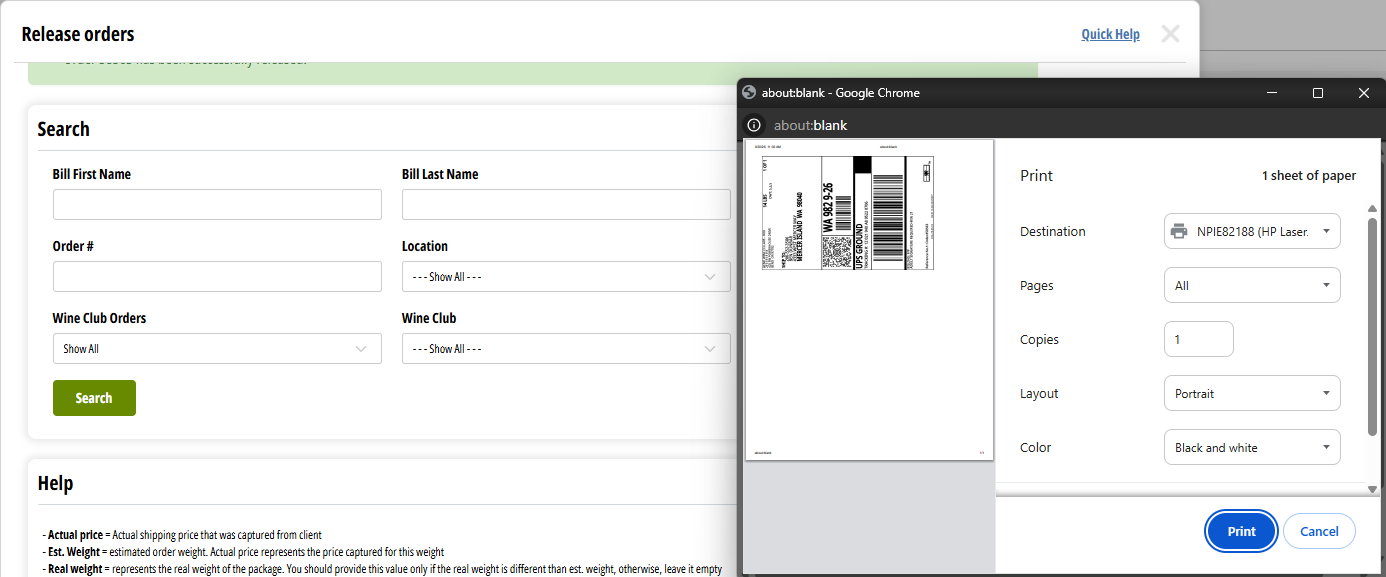
When an order is released, a message will appear confirming the successful release along with a tracking number. The customer will receive an email notifying them that the order is shipping soon, which will include the tracking information. The shipping label will be generated and will open in a new window for printing. Please ensure that you have selected the correct printer settings in your Shipping Settings module to successfully print your label. If necessary, multiple orders can be released in a batch, and a label will be generated for each order in that batch.
Releasing a Pick-Up Order
Pick-Up Orders will now be managed at the Pick-Up Order carrier terminal. When customers come to collect their orders, releasing the order from the POS will automatically remove it from the carrier terminal. No additional action will be needed in the Fulfillment module.
If necessary, orders can also be released directly from the Carrier Terminal. If an order was not marked as released at the time the customer picked it up, the system will still indicate that it has not been received. To release the order, find it in the list and click the "Release" button located to the right of the order information.
Third Party Shipping
When using an integration with a third-party shipper, you have two options for providing order information. If your fulfillment is set to "Auto," order details will be sent to your fulfillment center as soon as you capture the funds. If your fulfillment is set to "Manual," orders will be transferred to your third-party Carrier Terminal after you capture the funds. The order will be labeled as FORT, Wine Shipping, or ShipCompliant, depending on the system used by your warehouse.
Once an order is in your third-party Carrier Terminal, you can choose to fulfill it in-house or send it to your warehouse. To send the order information to the warehouse, click "Send to FF House." If you prefer to handle the shipment yourself, click "Send to OrderPort Fulfillment." The order will then move to the Carrier Terminal associated with the shipping method you have selected.
Next Steps
If you have utilized the inventory bypass feature, it is important to review and update your products in the inventory module to ensure that you have the most current numbers in the system. You can now run various reports to view the sales associated with the fulfilled orders. This will help you gain insights into revenue, order status, and customer information for each order.
FAQ's
Why is this order that I already shipped marked as in progress or unreleased?
What happened is that these orders were opened for edit, which puts them "In Progress" again, which is OK if you want to reprint these labels.
All you must do is in Fulfillment, click on the box to the left of the order that is "In Progress", hit Next, and Continue. This will push it through to the Carrier Terminals' side. You can reprint the labels if you like by "releasing" it again. (You can throw away the extra labels without having to worry about being charged again, since you're not charged until FedEx/UPS scans the shipping label).
Printing Multiple Shipping Labels for an Order
Multiple shipping labels are created based on the order's weight. OrderPort can lower the case break (weight limit) if needed. Below are a few ways to print out multiple shipping labels.
Note: If your order was already released, you would need to recall the order by Editing the order through Customer Service and close the Admin Cart window.
Fulfillment - Through the Release Module (when you release the order in Fulfillment)
Under Packages Collection, you can select the 1 and choose how many labels you want if the order's total weight (weight set up in Catalog Manager) is less than the Case Break.
Through OrderPort Support or through the Catalog Manager
We can lower the case breakdown under Shipping Settings so any future orders that reaches over the requirement will print another label.
Increase the weight in Catalog Manager if you want the order to print out more labels as an alternative if you do not want us to lower the case break down.
The reasoning on why the order only printed one label is due to total weight of the order did not go over the case break (A weight setup by us that if an order reaches over, it would then produce a second label).
GLS: Another reason would be if the customer is using GLS as their shipper. GLS cannot support printing multiple labels for a single order. This is a GLS limitation, which OrderPort cannot control.
What is the futureship date terminal?
How do Orders get into the terminal?
Any order that is selected to have a specified ship date at any time in the future will end up in this terminal in fulfillment. You can also force an order into the terminal if you edit the ship date on the order.
What can you do with these orders?
When Orders are in this terminal you can bulk print the picklist, packing slips, and receipts or invoices. In addition, you can batch update the future ship date on orders and export the orders to CSV. Another cool feature is that you can see all unreleased orders in this terminal in case you need to print out any of their receipts or update their future ship date.
When are Orders Moved out of the terminal?
Orders that are in this terminal will be automatically moved out of the terminal on their future ship date. You can also adjust
Search
The search feature has two main options. The first is to view orders with future ship dates. The second is to view orders without/passed ship date. In addition, you can also filter by specific wine clubs, locations and states.
I already released an order and printed the shipping lables, but it is still marked as in progress.
What happened is that these orders were opened for edit, which puts them "In Progress" again, which is OK if you want to reprint these labels. If you didnt edit anything, you can click mark as released in corrective action on the order to not print out a new label.
All you must do is in Fulfillment, click on the box to the left of the order that is "In Progress", hit Next, and Continue. This will push it through to the Carrier Terminals' side. You can reprint the labels if you like by "releasing" it again. (You can throw away the extra labels without having to worry about being charged again, since you're not charged until FedEx scans the shipping label).
Stuck Orders in Fulfillment
When an Order is canceled or refunded, it may remain in the Fulfillment module in the In Session section. You would click on the Clear Stuck Orders button to remove them from the queue in Fulfillment. Clearing stuck orders will not affect the status- it just removes them from the Fulfillment module. This button is only available when a canceled/refunded order is still In Session.
I attempted to complete an order, but no label pop-up showed up?
If you have a pop-up blocker enabled, you won't be able to print shipping labels through fulfillment. In your browser, look up how to disable the pop-up blocker for your specific browser. After you have turned it off, you can go to the order in customer service > Search for the order. From the dropdown menu on the order, click on shipping label. This will enable you to reprint the label. If you require assistance with this, please reach out to helpdesk@orderport.net.