OrderPort offers multiple shipping integrations and customization options. In this guide we will cover how to setup the module and create shipping Orders. We will also look into getting your label printers set up and ready to use. For specific shipping partners, please review their individual guides. This guide will not cover the fulfillment and label printing process.
TABLE OF CONTENTS
- Shippers
- Touch and Components
- Handling Fees
- Couriers
- Custom Zone Shipping Rates
- Label Printer and QZ Tray Setup
- Printing Labels
- Downloading Drivers for Windows through Zebra
- Downloading Drivers for Mac through Zebra
- FAQ's
- What kind of printer is compatible with OrderPort?
- Can I use a Mac or Windows with QZ Tray and the Label Printers?
- My QZ tray isn’t working yet, what kind of system requirements do I need?
- Why is my printer printing gibberish?
- I want to use my personal printer instead of the QZ printer, how do I do that?
- What about a Vinoshipper order?
- I updated my driver but It's not showing up in the QZ Tray
- QZ Tray Error - "Installation Failed During Pre-Installation"
- Error: Failed to Get Tax Info - How do I verify a customer's address is valid?
- Error - Selected shipping method is not available for this customer
- No Shipping options
- Direct Shipper Registration
- How to bypass OpenEdge shipping restrictions
- How do I update an order's shipping address when it has been released?
- How do I change the Ship From Location?
- How do I resend an order that was returned and charge only shipping?
- Why is my order not charging tax on shipping?
- Where is inventory pulled from for Ship Orders?
- How do I ship with UPS to Canada?
Shippers
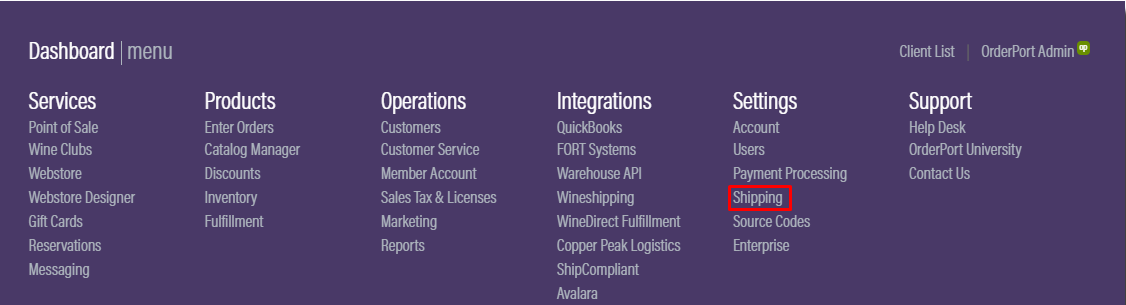
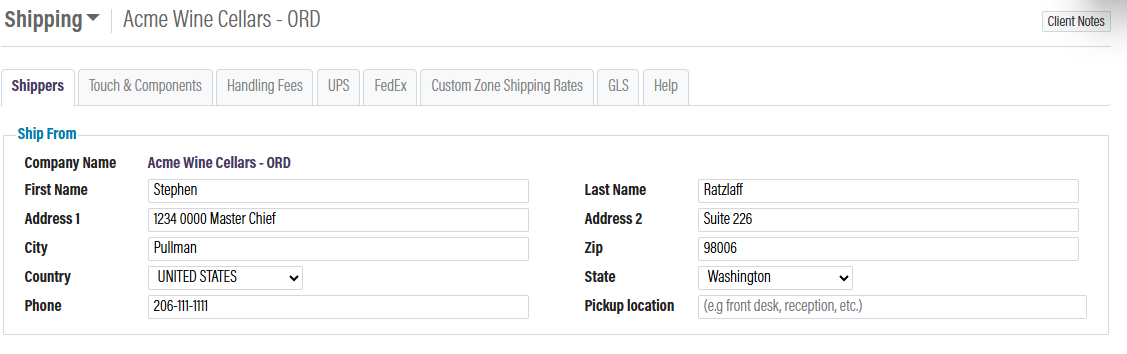
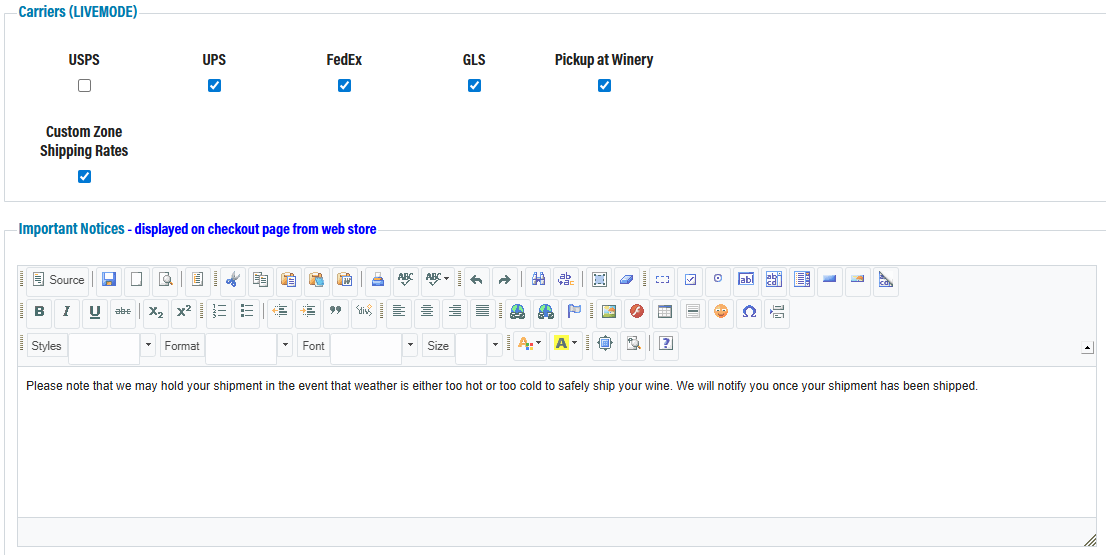
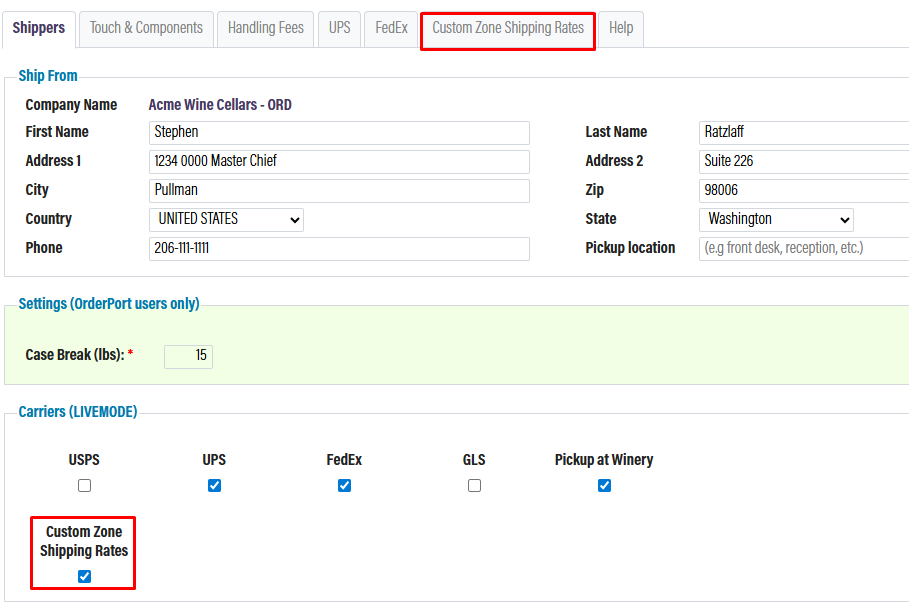
In OrderPort administration, go to Settings and then Shipping to access the shipping module. The landing page will be called Shippers. This is where you enable the shipping methods that you will be using. Check the box next to each method. After selecting the options from the Carriers (LiveMode) a new tab will appear for each courier so that you can enter your account credentials. Make sure to save changes.
This is also where you can enter your primary ship from address and any Important Notice. This is a message that will appear on the checkout screen of your webstore and can alert customers to potential shipping delays.
Touch and Components
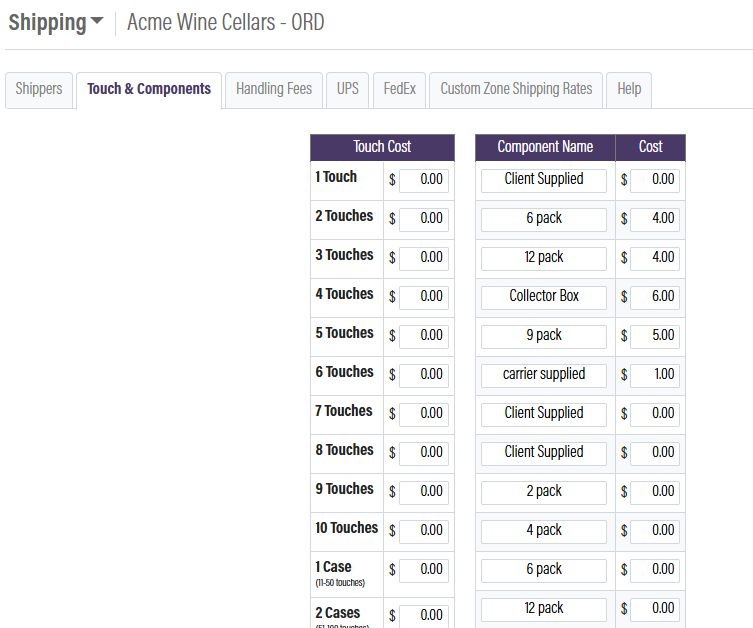
Touch Costs and Components are ways to charge customers for handling fees. A Touch Cost can be created if you need to charge customers a special handling fee. Here you will enter the dollar amount for each touch. In the Catalog Manager, you will then specify the number of touches for that product in the Touch Qty field.
Components refer to the packing materials that are used to ship orders. Your business can create your own components and set a specific price for each one. Components charges are for Wine Club releases. On step 3 of the wine club, you will select a component, and an additional fee will be added to the shipping cost. This only adjusts the shipping Price in Wine Club release orders. When the Touch and Component costs are included, they will be added to the S&H line item.
(Components cost is only added during a wine club release. Touch Cost will be included in every order.)
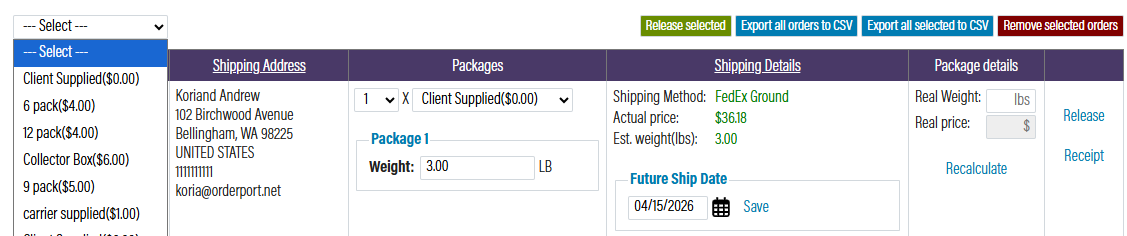
The "Packages" section of fulfillment is just for reporting. It won't adjusts the price of shipping.
Handling Fees
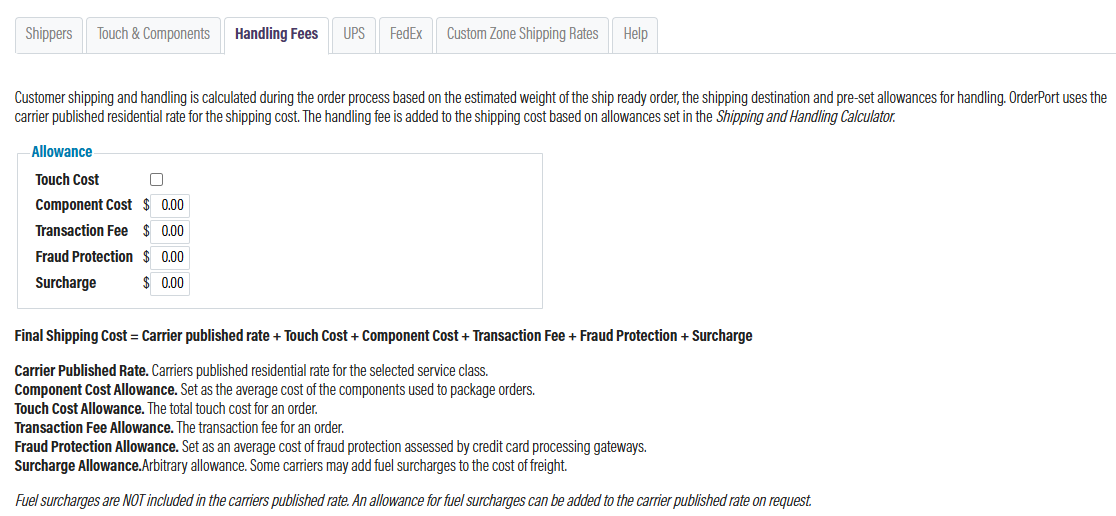
The Handling Fees tab is where you can set up a flat handling fee instead of using touch and component costs. You can enter a dollar amount in each field to equal the flat rate you want to charge. When a customer makes a shipping purchase, this amount will be added on top of the shipping charge. The shipping and handling will show as a single charge.
Couriers
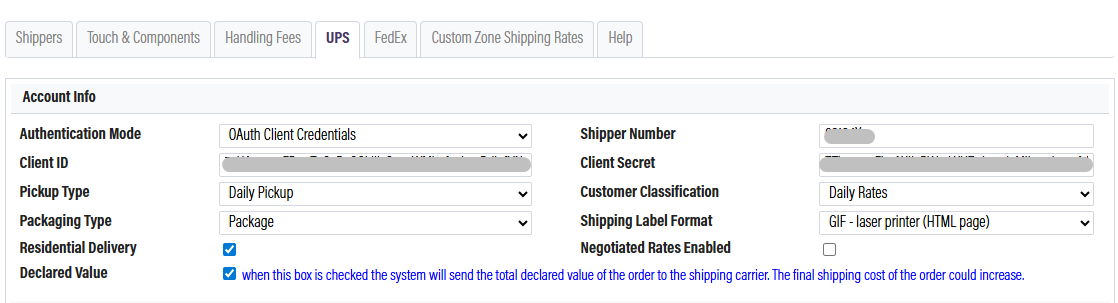
OrderPort integrates with the following couriers: USPS, UPS, FedEx, and GLS. If you want to calculate live rates in OrderPort, enable the courier tab and enter your credentials. These credentials will be provided by the courier. Please look into there individual guides for how to set these up. In the example at right, we are looking at our UPS integration information. The integration allows UPS to provide live shipping rates to customers when placing an order.
This is also where you will set your shipping label type. Ensure that you have the correct label format selected so that you don’t run into trouble printing labels for orders. See OrderPort’s hardware page to see the printers that are currently supported.
Custom Zone Shipping Rates
Custom Zone Shipping Rates are flat rates that your winery can use in place of live rates. You create rates based on a product’s size, quantity, and its destination. If your winery partners with a third-party shipper, they have likely provided you with a spreadsheet that covers their rates. This option allows you to create custom shipping rates to manage the shipping rate that your customers are charged. The custom zone shipping rate will have a name and rate that your customer will see. When it is time to ship the order, it can be shipped via any shipping system that is integrated with OrderPort.
To enable custom zone shipping, you will need to check the box located under Live Carrier Rates and save changes. Once that is done, a new tab will populate called custom zone shipping rates.
Shipping Zones
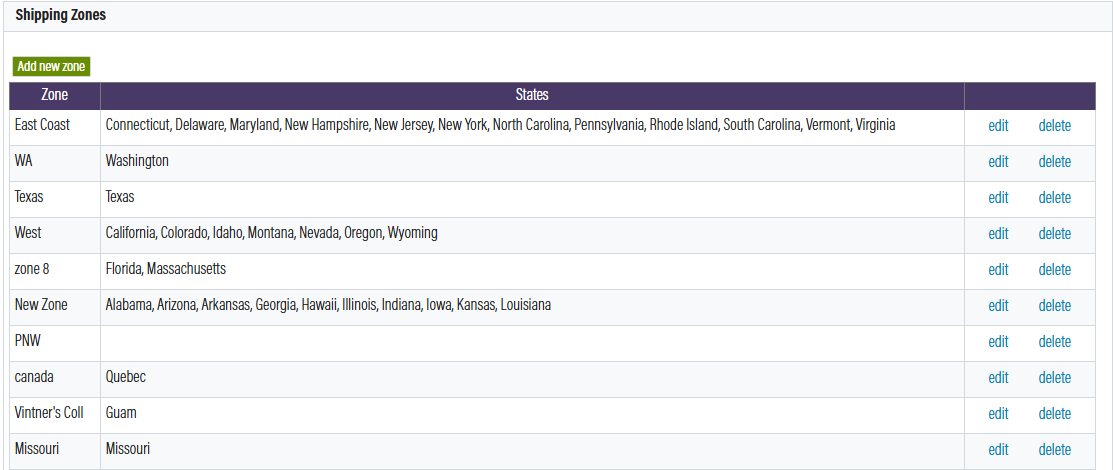
To get started, you will need to create zones. Zones are groups of states that you want each of these rules to apply. You can have as many states as you like in a zone. If you are using a third party, they will give you a list of regions or individual states. Please note: Each state can only be in one zone
To add a zone
- Click add new Zone.
- Give it a name (Internal) and select the country. Then add all the desired states and save changes
Shipping Types
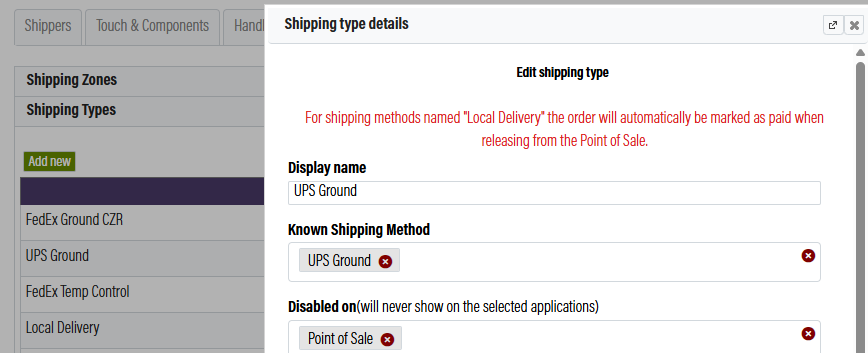
Shipping types are the rates that your customers will see. They also help OrderPort determine which shipping carrier is actually shipping this order. When you create a type, you will give it a name. Next, you have the option to select whether or not there is a known carrier. For example, if you are setting up a flat rate for UPS ground, you would want to select UPS ground as the known carrier. If this is for a third party and you don't see the correct option, leave it blank.
The disable on field will hide this custom zone method from certain payment locations in OrderPort. This will disable all rules associated with this rate on the selected locations.
Shipping Rules
Shipping rules are where you will set up the flat rates that you want to charge. Since these are flat rates, you will need a new rule for every stance where the price changes. Rules are based on Zone (State), Shipping Type, product weight, and product qty. To create a new rule
- Select add new rule
- Select a zone and shipping type
- Enter in the volume or weight of the item. (Use volume for wine items and weight for physical items)
- Unit of Measurement. Use lb. for physical items and ml or L for wine items
- Min and Maximum number of items for this rule to apply
- The shipping cost
You can create as many rules as you need. If you would like to bulk upload rules to OrderPort please see the section below.

Bulk upload
To do a bulk upload of shipping rates, you will need to fill out the "custom shipping zone-rate template" that is attached below and send it to Helpdesk@orderport.net. All existing custom zone shipping rates will be deleted when the new file is imported. If you still plan on using these rates please include them in your upload file. Please make sure that you have your zones and shipping types setup to match what is in the file you want to upload.
Label Printer and QZ Tray Setup
First, you need to download the driver for your printer.
LP2844 and ZP450 are compatible with OrderPort and you need to go to UPS or FedEx to find your drivers. For additional support on the drivers, go to the Zebra Knowledge Base to find your printer.
Next, Login to OrderPort Admin > Shipping > click your shipping carrier > change the printer format to ZPL or ZPII, depending on your carrier. If you are shipping with Vinoshipper, go to the Vinoshipper module > open the Shipper Label Format > ZPL.
Restart your Computer after installing the drives to take full effect.
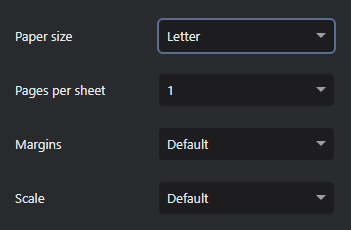
The official OrderPort suggestion is using the QZ Tray with the label printers. However, the GIF label format can be used to avoid the QZ Tray. It will use your computer's default printing software interface to do so. You still need the drivers installed. It may not fill the label out properly. You can mess with the interface merges, paper size, and scale.
Next, we need to download the QZ Tray. Please make sure you download the appropriate link based on your operating system. 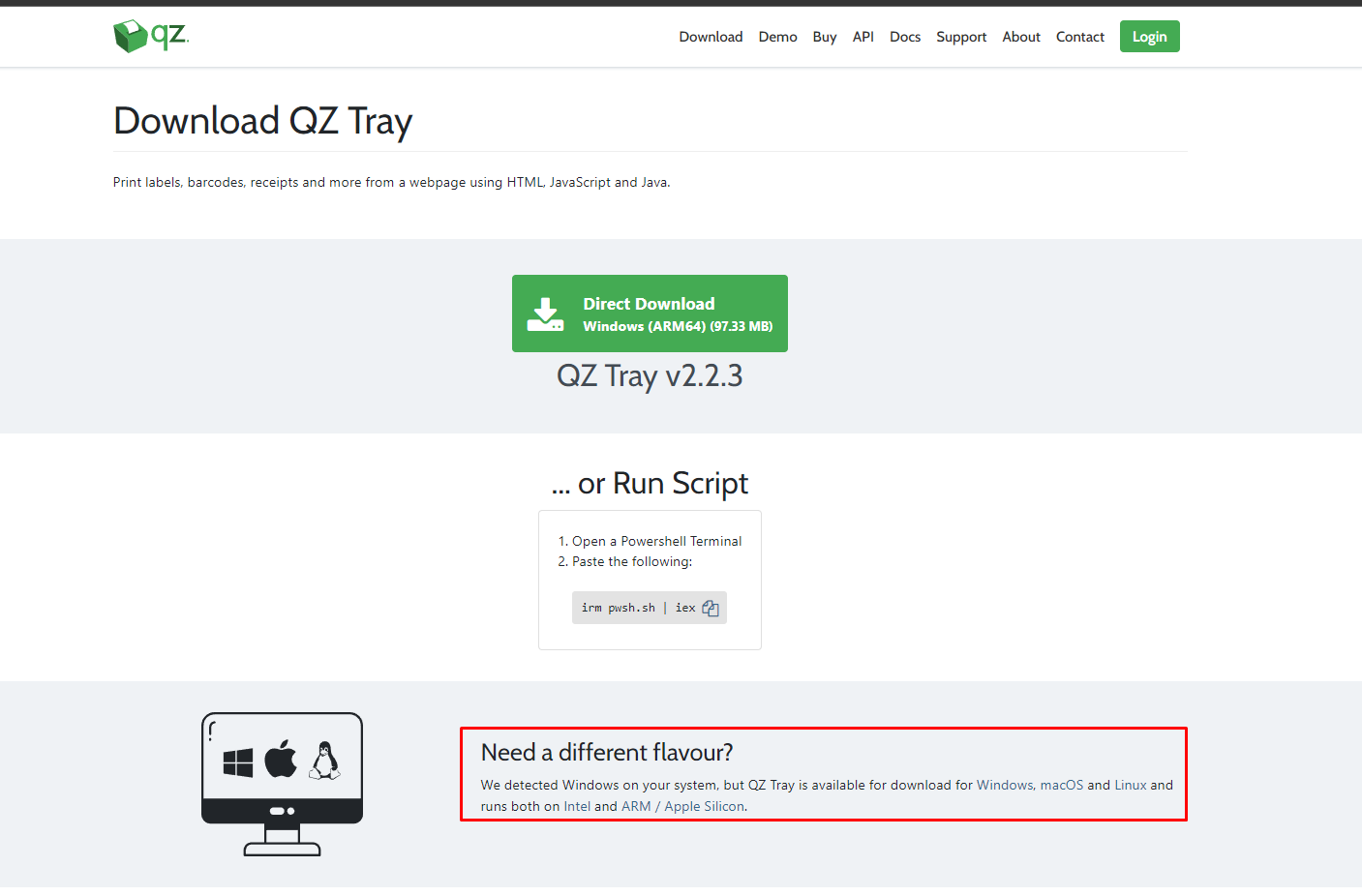
Printing Labels
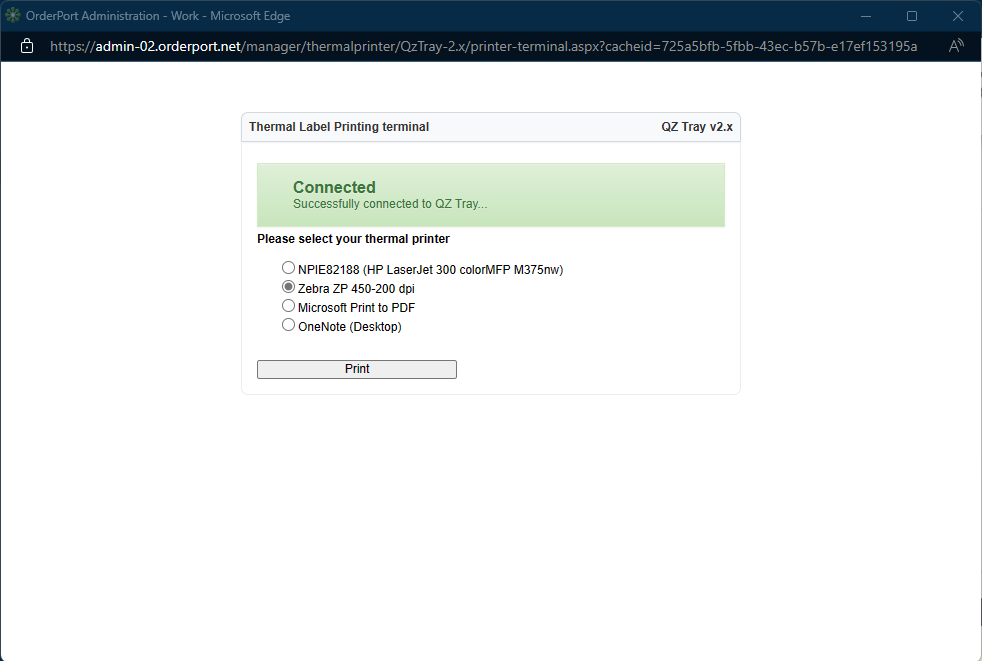
Make sure the QZ Tray is running > create/unrelease a shipping order > Fulfillment > open your carrier terminal > Click the printer you want to print to > “Print”.
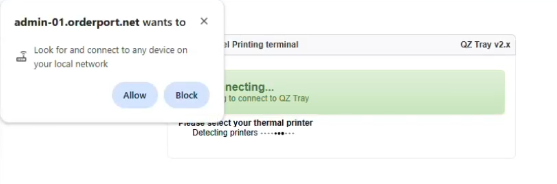
When the printing window appears, you may be asked to allow or block local network connection. You must click Allow, or the print will fail.
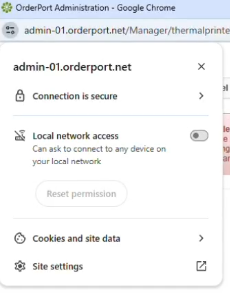
If you mistakenly block access, you can allow it by clicking the option button to the left of the URL. Enable the local network access and reattempt the print. You will also need to ensure that popup blocker is off.
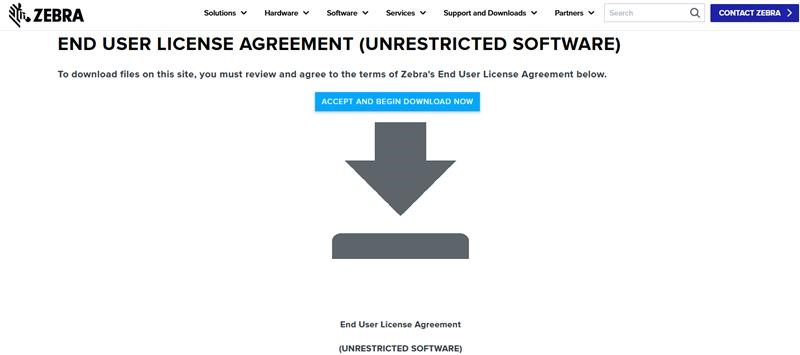
Downloading Drivers for Windows through Zebra
Download the Driver Link:
Extract File "UPS_5_1_7_certified_w10": 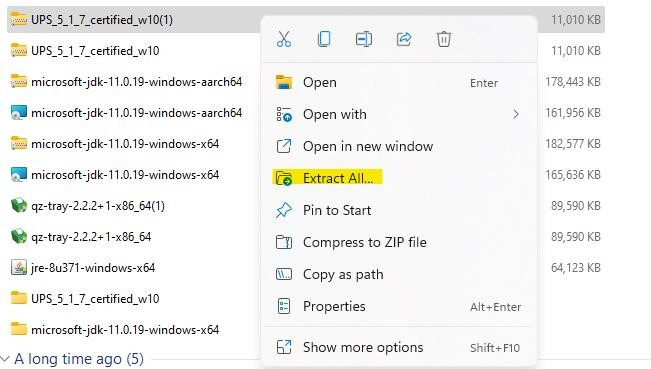
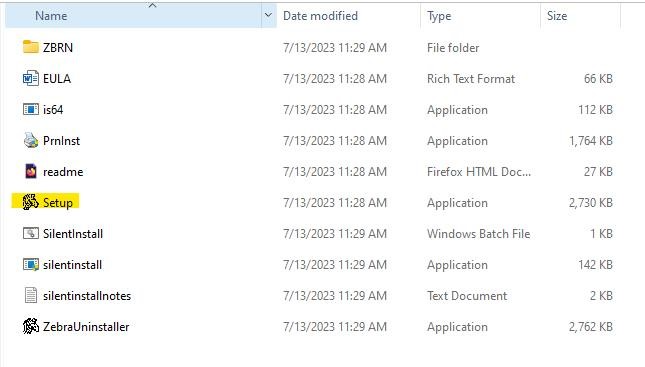
Run the "Setup" Zebra:
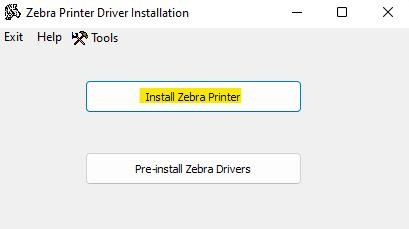
"Install Zebra Printer":
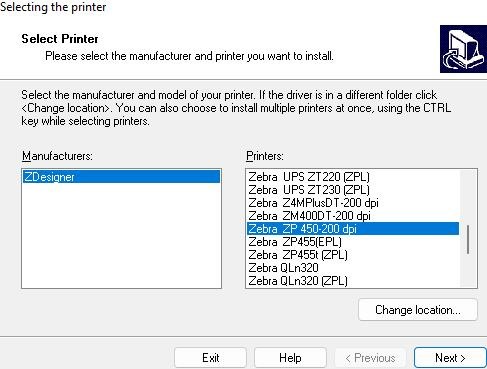
Find your printer's driver and click "Next"
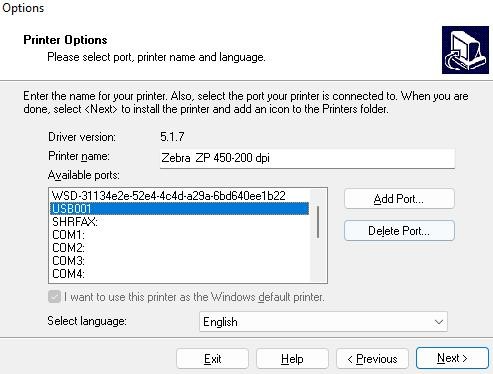
Select your Port (the USB port your printer is plugged into), then click next:
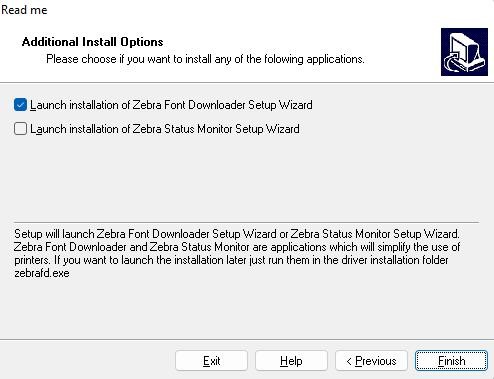
Finish:
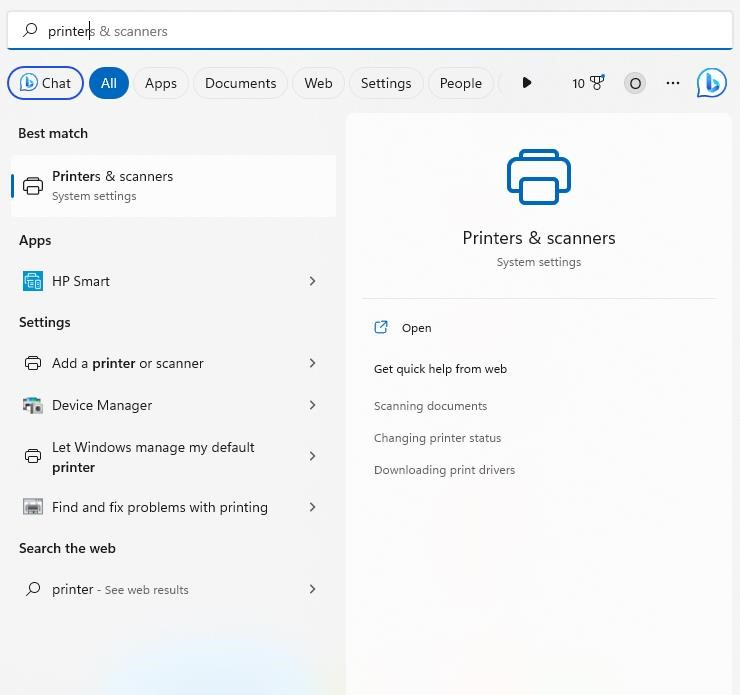
Once the download is done go to Settings --> Printers & Scanners
Find your printer:
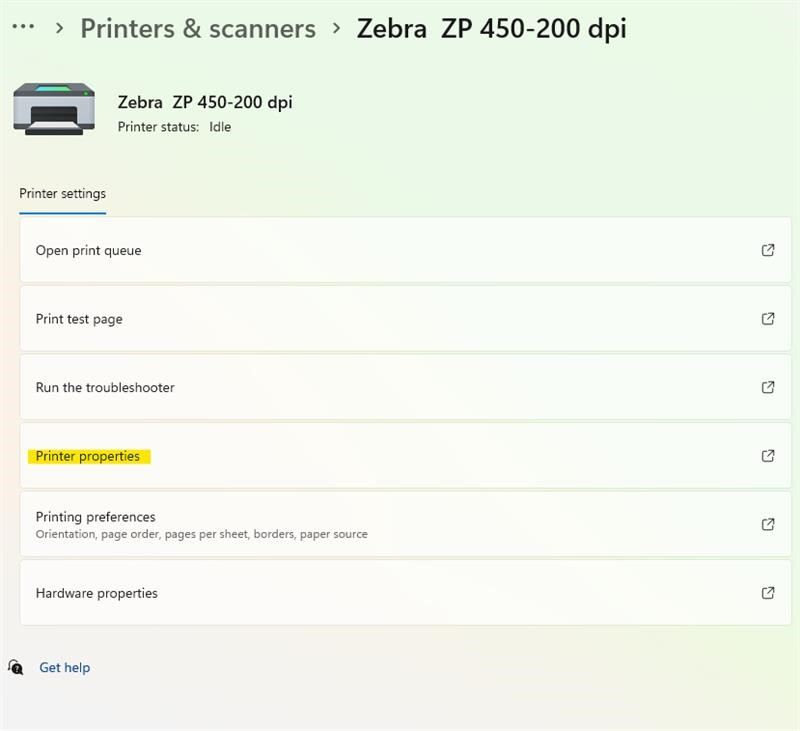
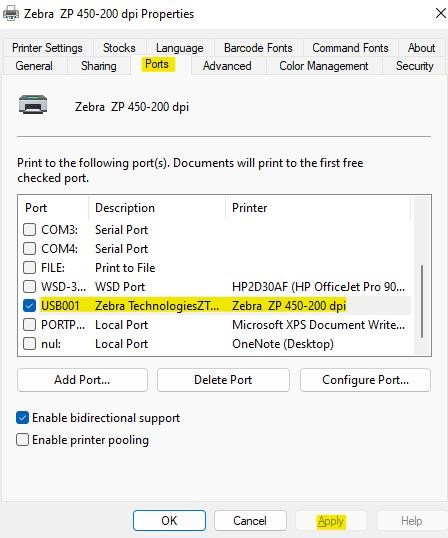
Make sure the printer is configured to the Correct Port:
Downloading Drivers for Mac through Zebra
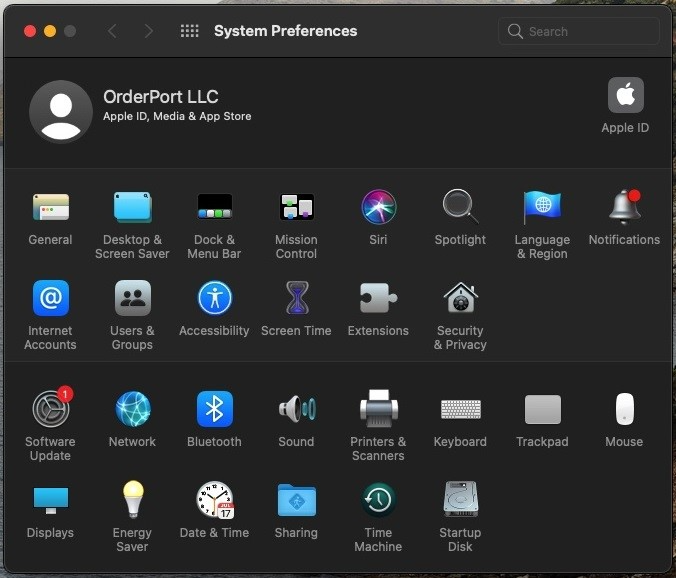
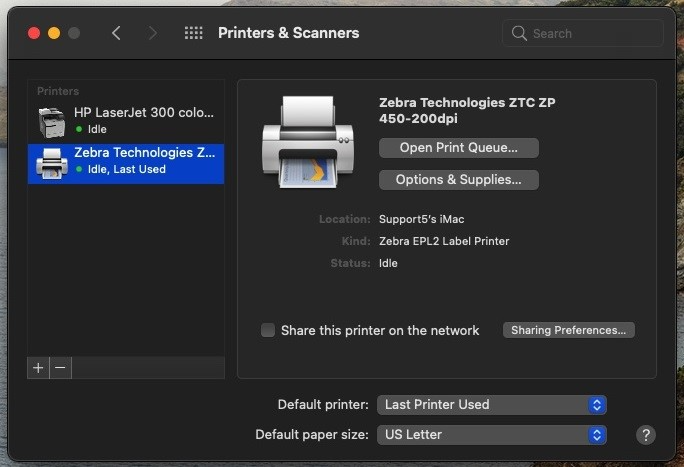
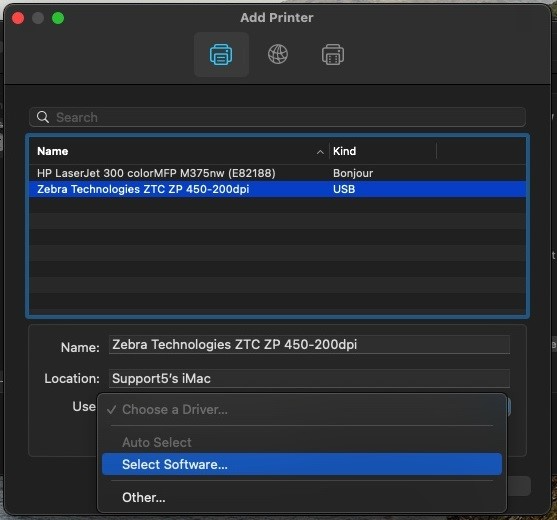
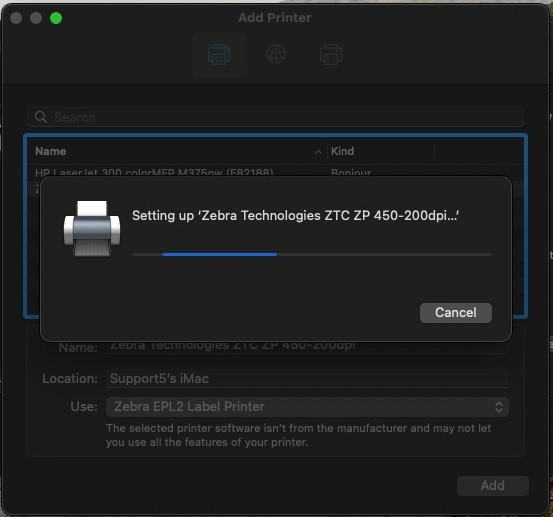
Note, that if EPL2 doesn't work, try the other Zebra drivers. In UPS settings we will use GIF for now.
FAQ's
What kind of printer is compatible with OrderPort?
LP2844 and ZP450 are compatible with OrderPort.
Can I use a Mac or Windows with QZ Tray and the Label Printers?
You can use either operating system but they may have different steps for the setup.
My QZ tray isn’t working yet, what kind of system requirements do I need?
For QZ Tray system requirements see below: https://qz.io/wiki/faq. There is also a ton of troubleshooting if you are getting a QZ Tray error.
Why is my printer printing gibberish?
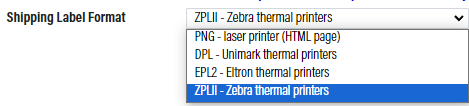
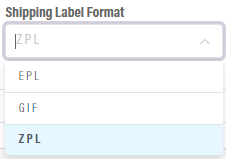
This could be your Shipping label format. Open the “Shipping” Module > Click on the carrier they are using > select the one that matches the printer.
UPS: 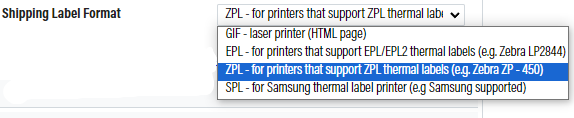
FedEx:
Vinoshipper:
Sometimes changing a Zebra printer to GIF label format will work. You would have to un-release the order to generate a label in that format. If they have 20+ labels already generated, it is too much work to unreleased them all. Let's move on to other troubleshooting.
I want to use my personal printer instead of the QZ printer, how do I do that?
You would have to go to your Shipping Settings and select your shipping carrier. Under Shipping Label Format, you would set it to GIF - laser printer (HTML page). Save Changes. Then you will need to uninstall QZ Tray.
Then, recall the order back to Fulfillment by editing the order after closing the Enter Orders window. After that, you would release the order again, and then it should be able to print the label to your personal printer. If you do not release the order from fulfillment, it will not generate a new label. If you do not want a notification email to be sent out to the customer, you would have to go to the Marketing module in Administration and search for the "ShippedOrderEmail" and suppress it on Admin before you release the order.
What about a Vinoshipper order?
Only support can unreleased a Vinoshipper order, please reach out to support if this is the case you are dealing with.
I updated my driver but It's not showing up in the QZ Tray
If you are using the QZ tray, after each time you update/apply a driver, uninstall and reinstall the QZ Tray. If you need more help with the QZ Tray, use the
QZ Tray Error - "Installation Failed During Pre-Installation"
This error message indicates that your current version of Java is out of date and needs to be updated to complete the installation of QZ Tray.
Error: Failed to Get Tax Info - How do I verify a customer's address is valid?
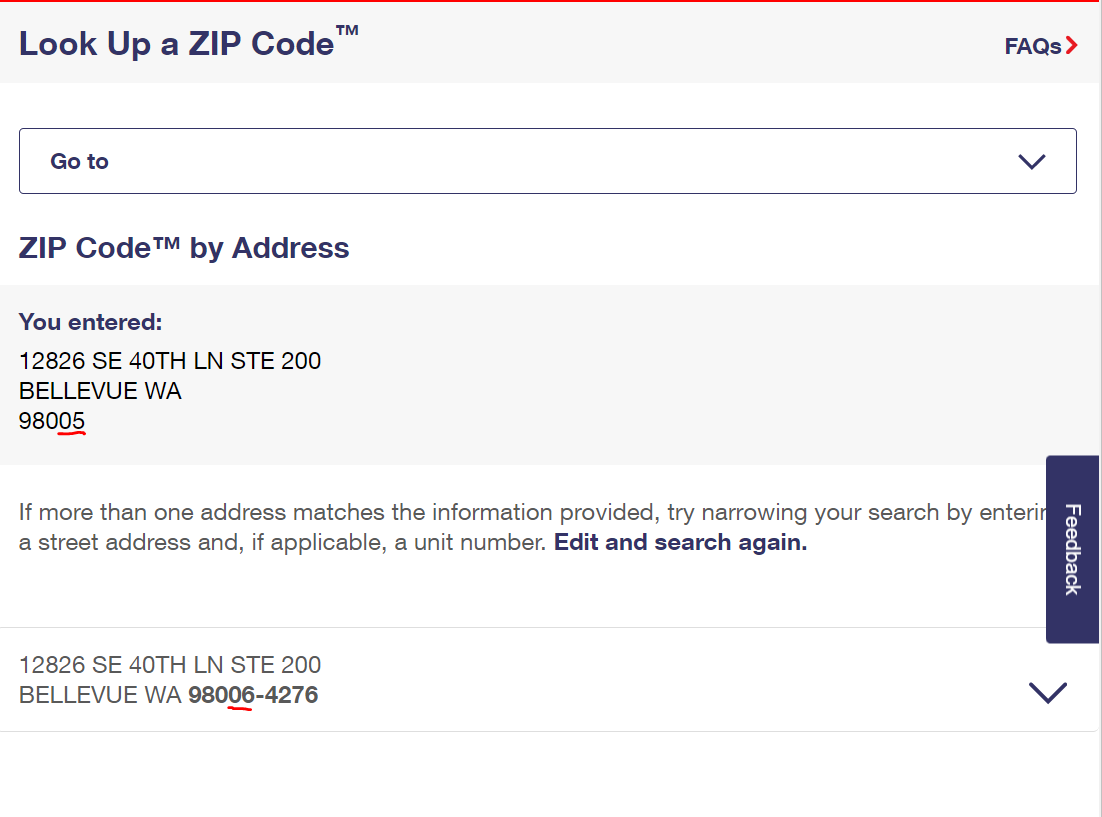
Addresses with invalid ZIP codes cause errors at checkout, e.g. "Failed to Get Tax Info". USPS has an address verification tool that will verify if the address and it's ZIP code. You should always verify the new address with your customer. ZIP Code™ Lookup | USPS.
Using the USPS Verification tool.
Enter in the address you have in OrderPort into the associated fields and select Find. You will see a screen like the one below with the address “You entered” and the correct address below. If these are the same address, then you have entered a valid address. If not, you should contact your customer and update your address accordingly. As you can see in the example, the zip code was entered in incorrectly. If more than one address matches the information provided, try narrowing your search by entering a street address and, if applicable, a unit number. Select Edit and search again.
Error - Selected shipping method is not available for this customer
Two things to check in regard to this error message:
Product's Weight
Check the weight of the product in the Catalog Manager. You would need to add weight to have shipping available for this customer.
Shipping Address
Does the customer have a valid shipping address? Is there a blank address that was primarily set up when the customer created an account?
No Shipping options
When you are trying to ship an order, sometimes no shipping methods may appear. This could be due to any of the following things
1. The customer's ZIP code is incorrect. Use the USPS address verification tool to check.
2. One or more of the products in the cart do not have a weight setup in the catalog manager. Check each product and ensure that there is at least a weight of 0.01lb.
3. There are no valid shipping methods setup in OrderPort. This could mean you need to go through and check your shipping setup again. If you are using custom zones, ensure you have a zone that fits the customer's state and product weight requirement exactly. If you need assistance, please contact helpdesk@orderport.net or call 206-464-1151.
Direct Shipper Registration
Certain states. like Michigan, require a Registration Number to be printed on Shipping labels and to appear in the invoice for each product that is covered by the Shipping License for that state. OrderPort provides that in both the Catalog Manager in the Registration No. field and in the Shipping Settings module with the field called Direct Shipper License No.
How to bypass OpenEdge shipping restrictions
OpenEdge has shipping restrictions for certain states. Restrictions are set by banks and every processor has a sponsor bank; Wells Fargo is OpenEdge's. They dictate all those restrictions to OpenEdge and they are simply responsible for conveying those restrictions to merchants and complying with them. OpenEdge is constantly monitoring those restrictions and, as any are lifted or changed, they adjust their underwriting and compliance policies accordingly.
If you wish to bypass these, you can do the following.
There is the option to change the customer class type of the customer account that the order is for to one of these: Customer Class Types, exempt from state license check, Distributor, Wholesale, Samples, Donations.
Another option is running the transaction through the Point of Sale, which suppresses the validation under the Sales Tax & Licenses module.
How do I update an order's shipping address when it has been released?
You will have to edit the order and change the shipping address. Once you edit the order, it will be back in fulfillment, ready to be released again. Before you make the changes, you might want to suppress the shipping notification email, so they will not get another email unless the customer would like confirmation that it is going to the correct address.
(Suppress the shipping email notification by going to Administration -> Marketing > ShippedOrdeEmail in Notifications > suppressing all the boxes. Be sure to un-suppress them after you are done.) Edit the order, and change the shipping address, making sure that the shipping charges are correct. If they are in the same area, the shipping fees should be the same, so there should be a net change of 0 $. Otherwise, be sure that the difference for shipping is appropriate.
How do I change the Ship From Location?
To edit an order, navigate to the "Enter Orders" window by selecting Products > Enter Orders. In the Customer Service module, search for the order you wish to modify and open its details. On this page, you'll find a drop-down menu that lists different locations. Note that changing the location here will only update the order details and will not affect the actual shipping location.
To ensure the correct shipping location is set, select the "Edit Order" option from the drop-down menu in the upper right corner. This will open the order in the Enter Orders window. On the checkout page of this window, choose the appropriate shipping location and then click "Complete Transaction" at the bottom of the page. The customer will not incur any additional charges unless more items are added to the cart. Once you have completed these steps, the order will be updated in the system to reflect the new shipping location, and the customer will receive a notification of the change.
How do I resend an order that was returned and charge only shipping?
To manage shipping, you will need to create an entry in your Catalog Manager called "Shipping Unit" (some prefer naming it "Shipping Unit One 750 ml Bottle"). Set the product type to "physical" and assign a weight and volume similar to any other wine product (typically 3.3 lbs and 750 ml). The cost for this entry should be $0.00, and ensure that it is active for all relevant classes. It’s advisable to keep this product hidden everywhere except in the Admin Cart.
Since this entry has a weight, you will specify a quantity that reflects the number of bottles for which you are creating the shipping label. This will appropriately calculate the shipping cost. If you offer different bottle sizes, make sure to select the corresponding size for each shipping unit or create a separate shipping unit for each size. To charge only for shipping and handling on an order, follow these steps:
- Create a new order number and include only the Shipping Line item charges for the number of bottles you are shipping. For example, if you are shipping 12 bottles, set the quantity to 12 for the "S & H" product.
- Reference the original order number in the Order Notes of both orders to link them for audit tracking purposes.
- Additionally, include a list of the products included in the shipment in the order notes of the shipping order.
Please remember that any items in your order that are not shipped, such as items consumed in the tasting room, should have a weight of 0.00 to avoid shipping charges.
Keep in mind that items like 'flights' or pizza are not meant for shipping, as they are consumed in the tasting room.
Why is my order not charging tax on shipping?
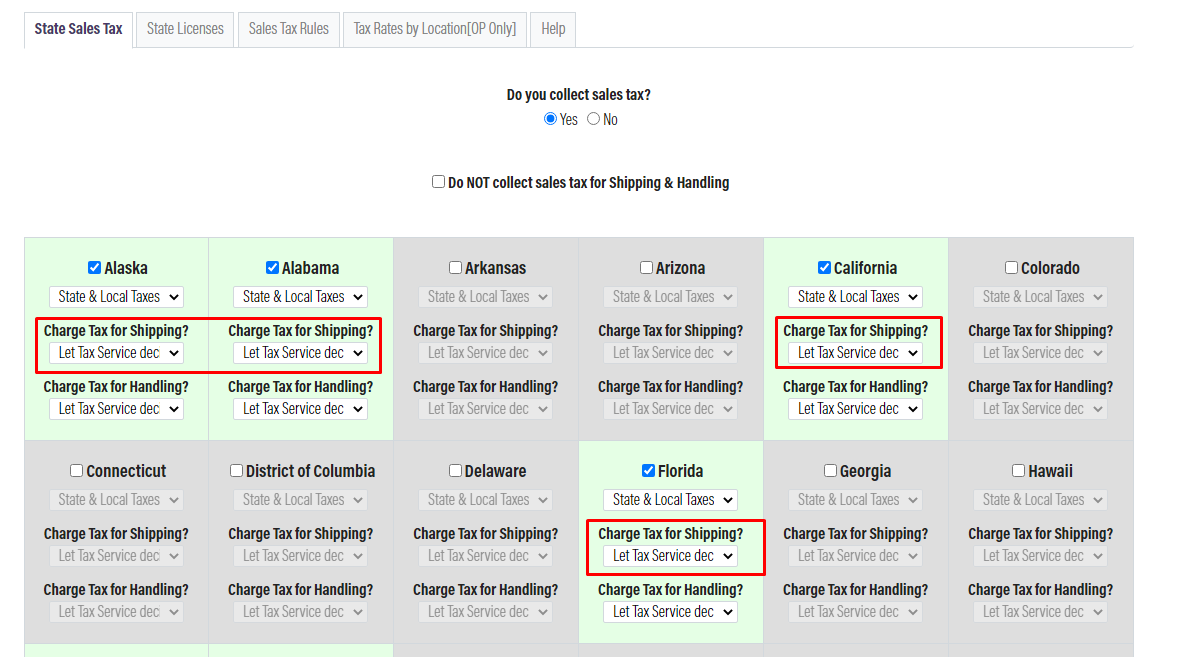
In Admin > Operations > Sales Tax & Licenses. If the state has 'Let Tax Services Decide" for shipping, then tax on shipping is not charged. If you want to charge tax on shipping, you must select "Always" in the Sales Tax and Licenses module.
Where is inventory pulled from for Ship Orders?
“Enter orders” Cart:
Determined by default ship location (in Inventory). This can be changed in the cart.
POS Orders:
The tasting room location you are using, unless you change this on the order
Wine Club:
By the default ship location.
Web Orders:
By the default ship location.
How do I ship with UPS to Canada?
Each province in Canada has its own laws and restrictions in regard to shipping alcohol from the United States. Please see the attached document from UPS for guidelines on each Canadian province that UPS currently ships to.
Like each state in the United States, a license for each Canadian Province you ship to will be required to be present in the OrderPort system. There is also the option for wineries to set up custom rate shipping zones for Canadian shipments and then ship them directly through UPS. You can later fill the tracking# in the Order Notes section of the order when the items have been shipped.