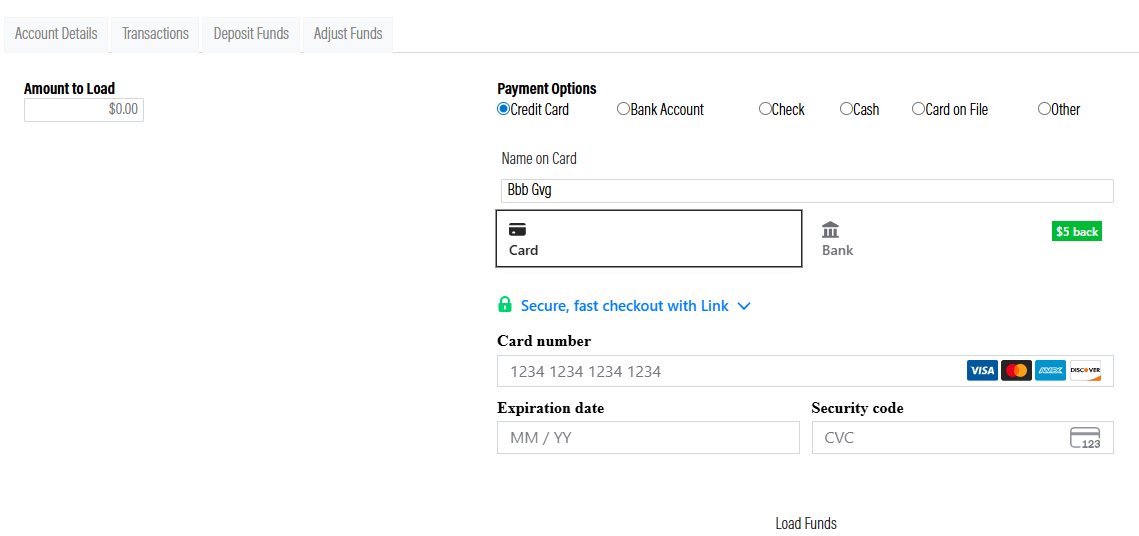
This document outlines the creation and processing of a Subscription Club within the OrderPort Wine Club module. A Subscription Club allows wineries to bill customers on a regular basis, creating balances for members. This option is ideal for individuals who wish to be members without having to purchase wine at specific times throughout the year. Members can use their balances whenever they choose. These balances can be applied to wine club releases or purchases made at the winery. This new payment method, referred to as "Accounts," can be used both online and in the Admin Cart as well as the webstore.
TABLE OF CONTENTS
- Creating a Subscription Club
- Subscription Club Settings
- Adding a Member
- Adjusting a Member Billing Month
- Managing Billing
- Subscription Reports
- Reauthorizing Deposits
- Member Account Module
Creating a Subscription Club
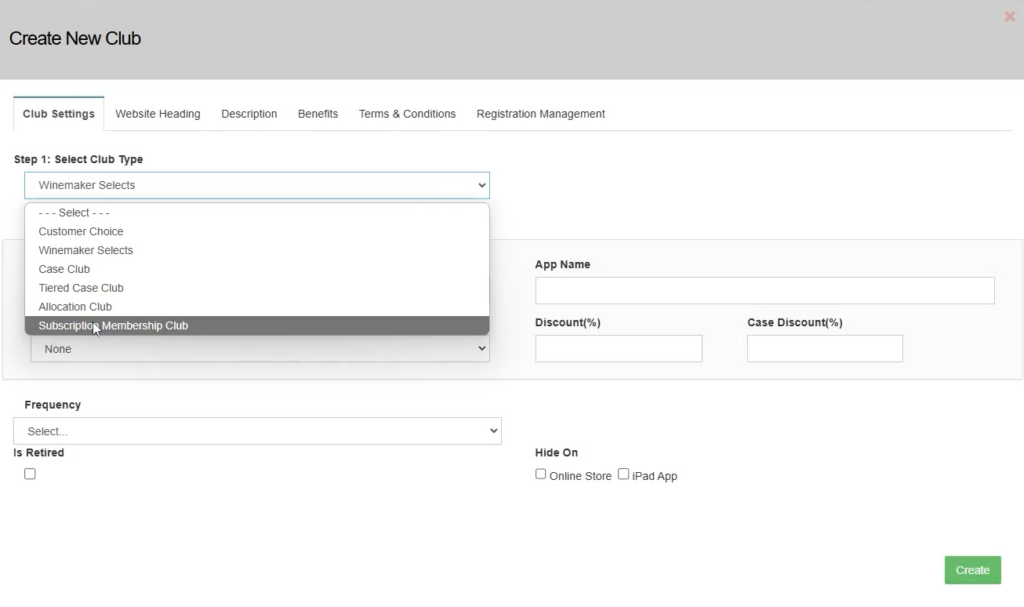
To create a subscription club, go to the Wine Clubs tab, click create club, then select the Subscription Membership Club option from the dropdown. Fill out all the information.
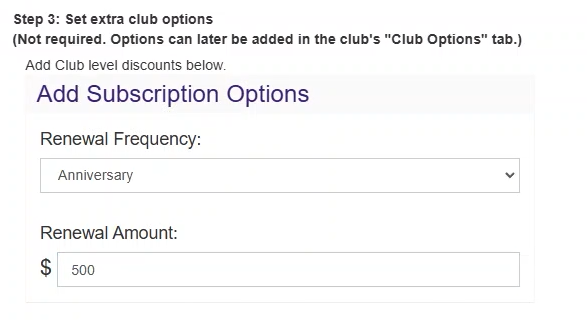
Under the Subscription options, select a renewal frequency. If you select an anniversary, the customer will be charged each year.
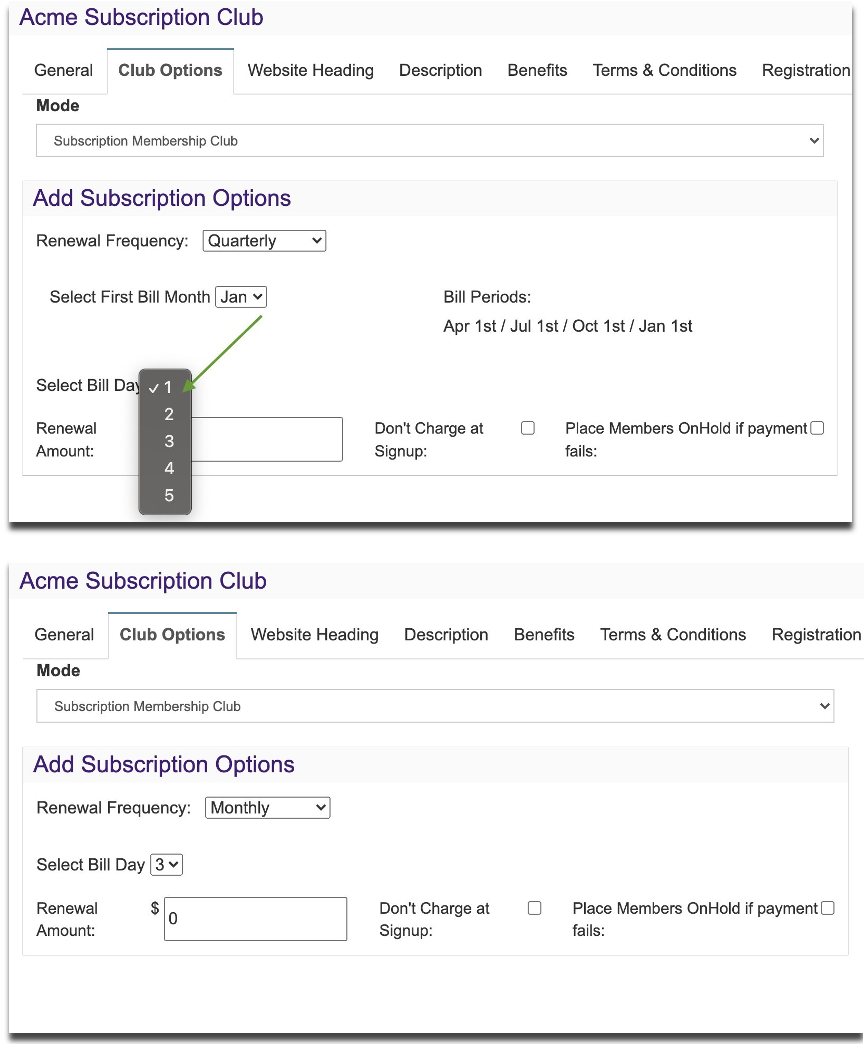
 Next, open the club and go to the club options tab. There are two additional configuration options.
 You can choose not to charge members upon sign-up, and you can also choose to place members on hold if payment fails.
Subscription Club Settings
First, choose the frequency of the billing cycle. Then choose the renewal amount. This is the amount of money customers will be billed during each cycle. You, as the winery have the choice to charge new members at sign up or not. If you want to charge at sign up, it will equal the renewal amount. If you do not charge at sign up, the member will first be charged on the first day of the next eligible month.
First, choose the frequency of the billing cycle. Then choose the renewal amount. This is the amount of money customers will be billed during each cycle. If you choose to bill quarterly, semiannually, or annually, you can specify which months members will be billed. Additionally, you can choose a specific day of the month on which the billing will occur. Billing will occur automatically on the morning of the day you choose. Make sure to click Save when you are done. You can change your billing cycle if you need to in the future.
You, as the winery have the choice to charge new members at sign up or not. If you want to charge at sign-up, it will equal the renewal amount. If you do not charge at sign-up, the member will first be charged on the first day of the next eligible month. There is also an option to place members on hold if their payments decline. This means they will not receive club benefits until they have completed payment.
Adding a Member
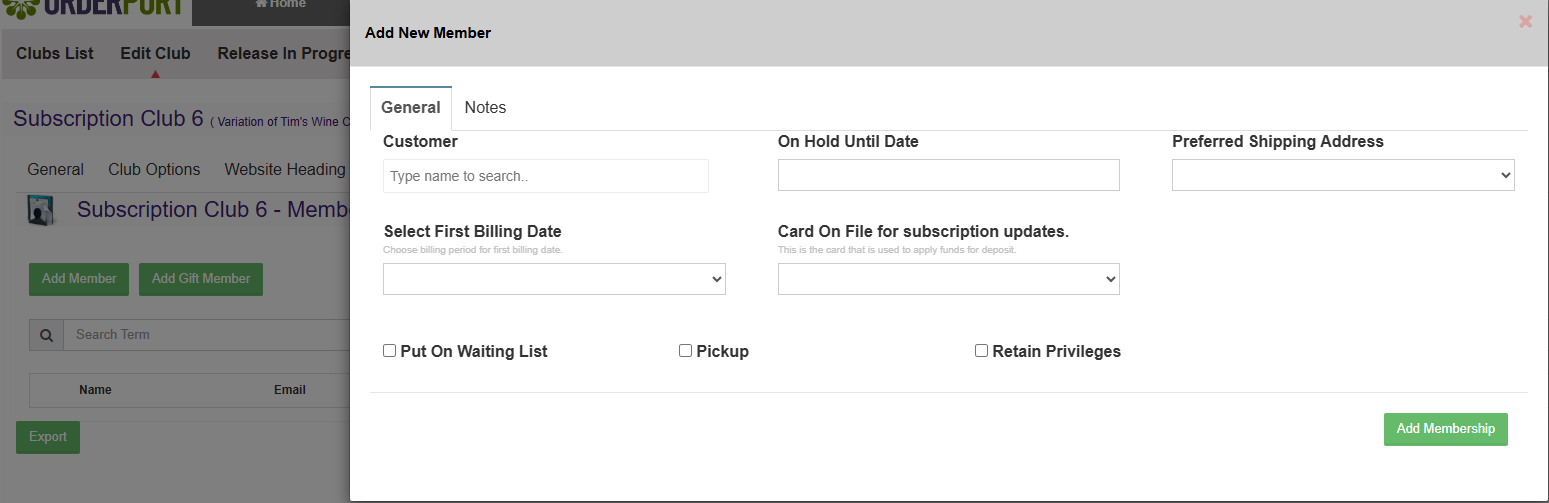
When adding a member to a subscription club, a card on file must be present. This ensures the customer is billed for their deposits. When running a club, though, the member’s balance will pay for the release and not the card on file.
Adjusting a Member Billing Month
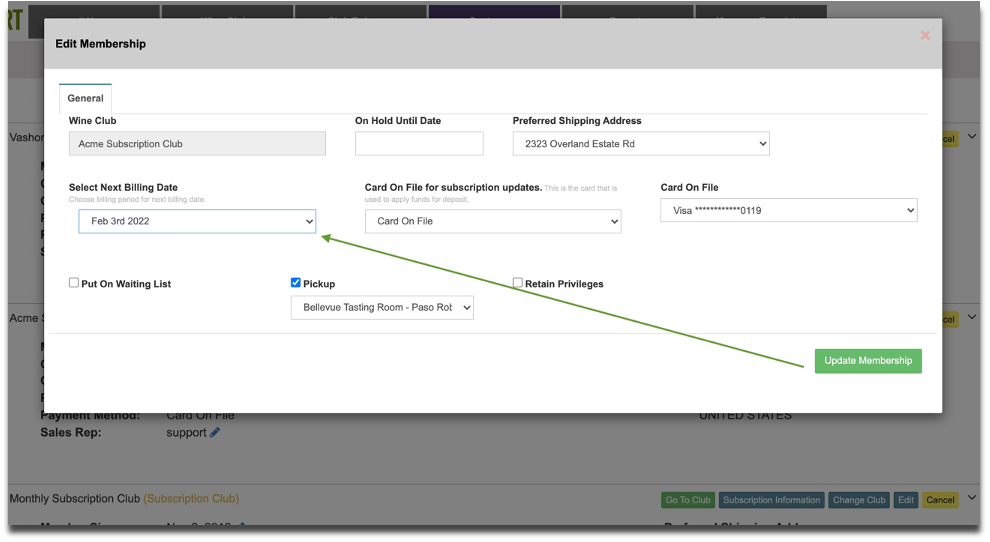
Subscription clubs support the ability to update a member’s next billing month. This means that they will stay on the same cycle as the other members, but will not be charged until the next month specified. In this example, the member is part of a subscription club with a monthly billing cycle. First, navigate to the member's account and click the Memberships tab. Click Edit on their membership to open the Edit window. Using the ”Select Next Billing Date” dropdown menu, choose the next month that you want the member to be billed. Then click Update Membership to save the changes.
Managing Billing
With subscription clubs theses are automatically billed on the date you selected in the club options tab. You also have the option to do a manual billing on a customer's account if necessary.
Automatic Billing
Member Accounts are billed on the first of the month, whether it’s monthly, quarterly, semiannually, or annually. Customers will receive a notification letting them know whether their card was successfully charged or not. The payments will be listed as deposits on your sales reporting. Invoices are available to customers, and refunds can be processed if necessary. There are two places where you, as the winery, can view charges made as part of a subscription club.
Subscription Information
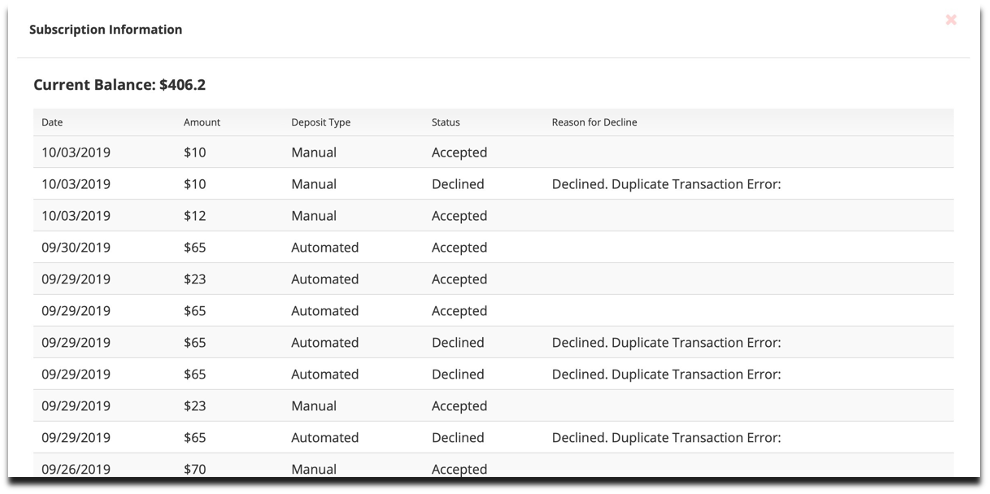
You can view member deposits in each member’s account in the Wine Club module. On the Member’s Memberships tab, there is a button called
Subscription Information.
When clicked, a new window will open. This will show both manual and automatic charges.
Manual billing
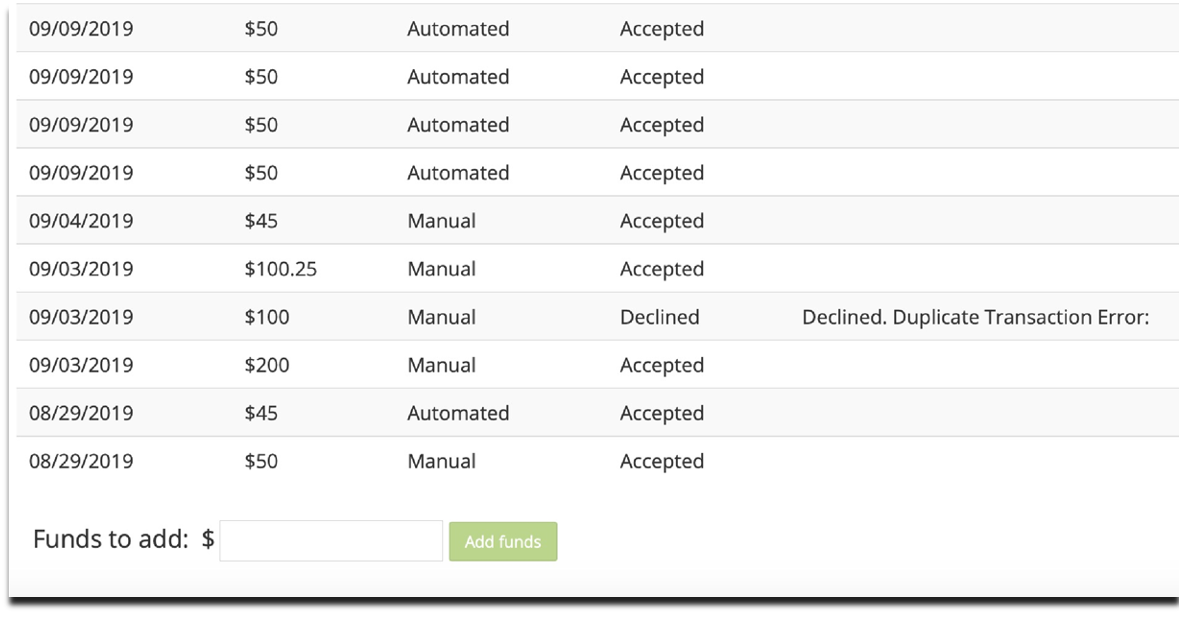
You, as the winery, can also place standalone deposits on member accounts. This can be completed through the Subscription Information section. Enter an amount into the “Funds to add” section. Then click on Add Funds.
Manually deposited funds are always in addition to automatic renewals and will not cancel the member’s next automated deposit.
Subscription Reports
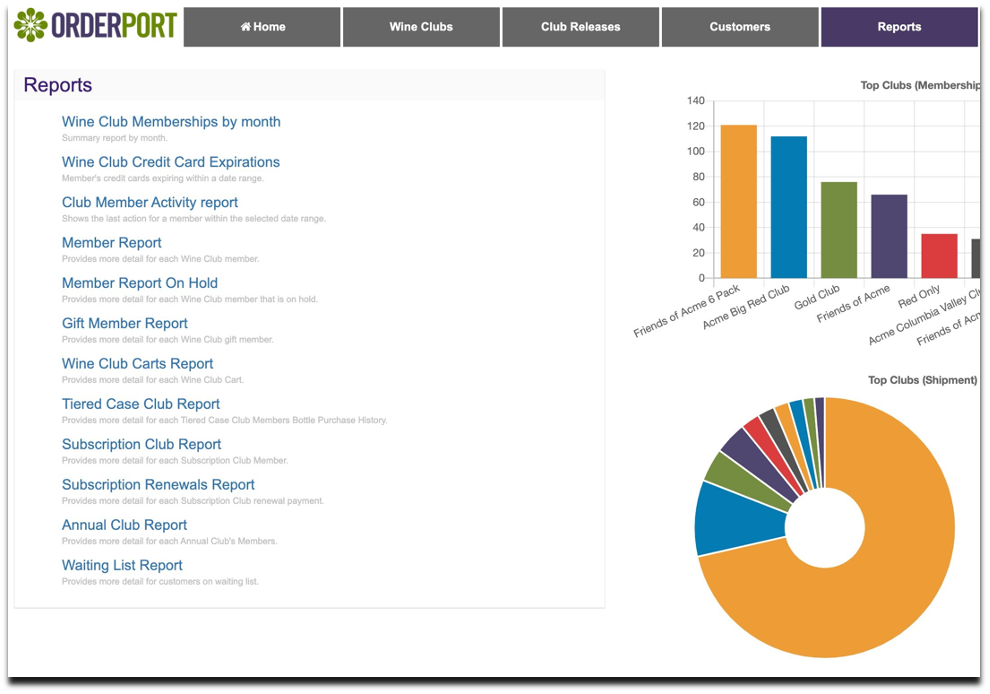
The Wine Club Module now has new reports specific to the Subscription club type. Both are found in the Reports Section of the Wine Club module.
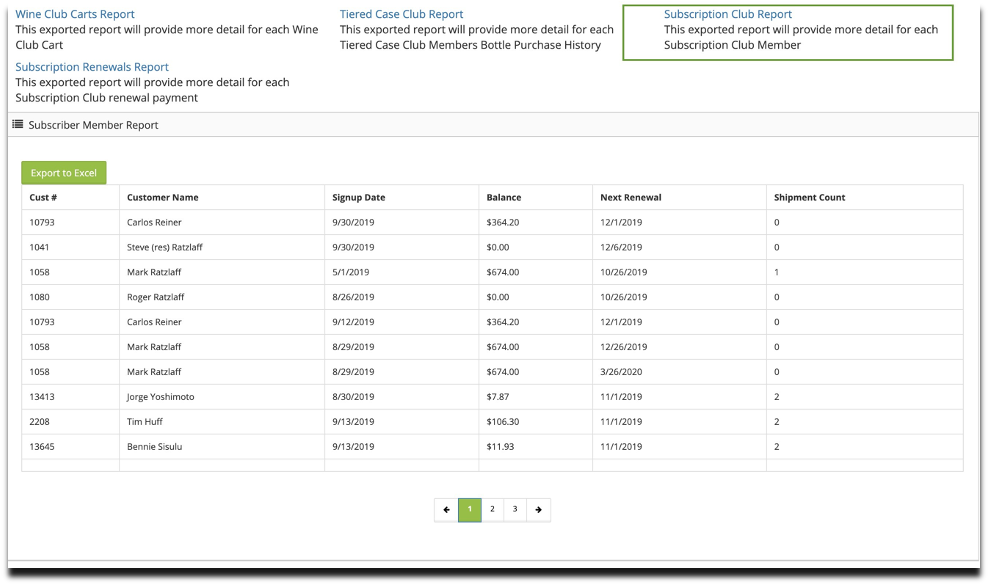
The Subscription Club Report will show you the current account balance information for members as well as the date of their next subscription renewal.
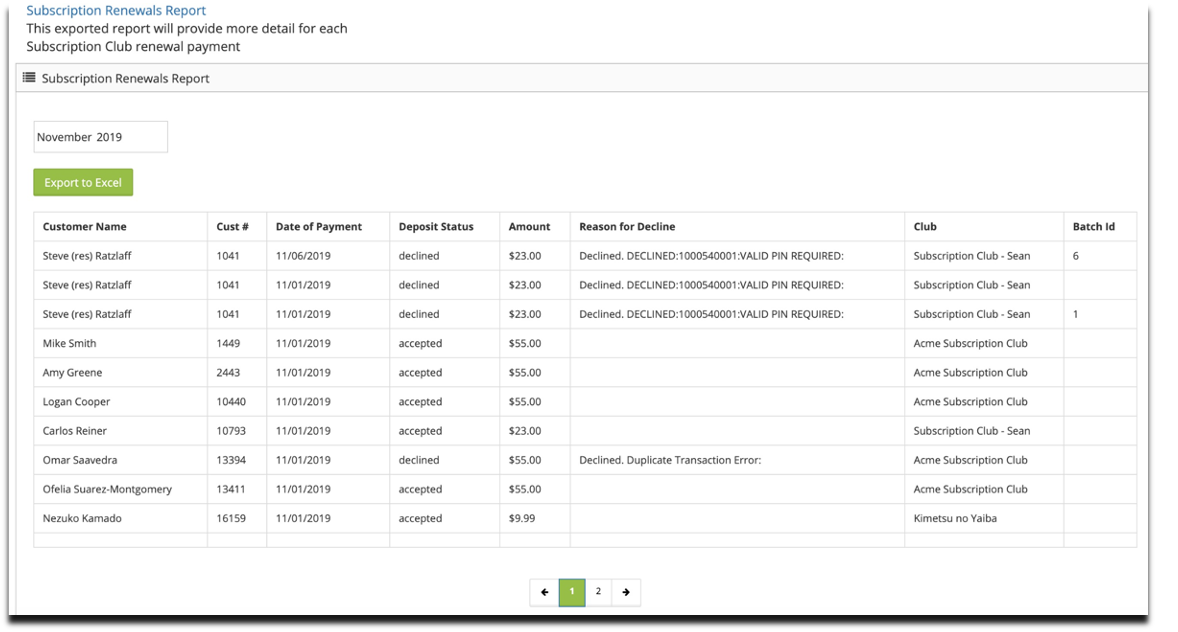
The Subscription Renewals Report will show you the monthly billing cycles, breaking down which payments were successful and which were not.
Subscription Club Report
This report will show each subscription club member's current account balance. This is how much money they have to use for purchases at the winery. The Next Renewal field shows the date on which their next automated payment will be charged to their card on file.
In addition to that information, the report also indicates the member’s sign-up date as well as the number of shipments they have received so far.
Subscription Renewals Report
The Subscriptions Renewal Report will show member payments for each billing cycle. It breaks down which payments were successful and which weren’t. Since declined payments can be reauthorized, it will show which batch each payment was a part of.
Reauthorizing Deposits
Automated payments that decline can be reauthorized by the winery.
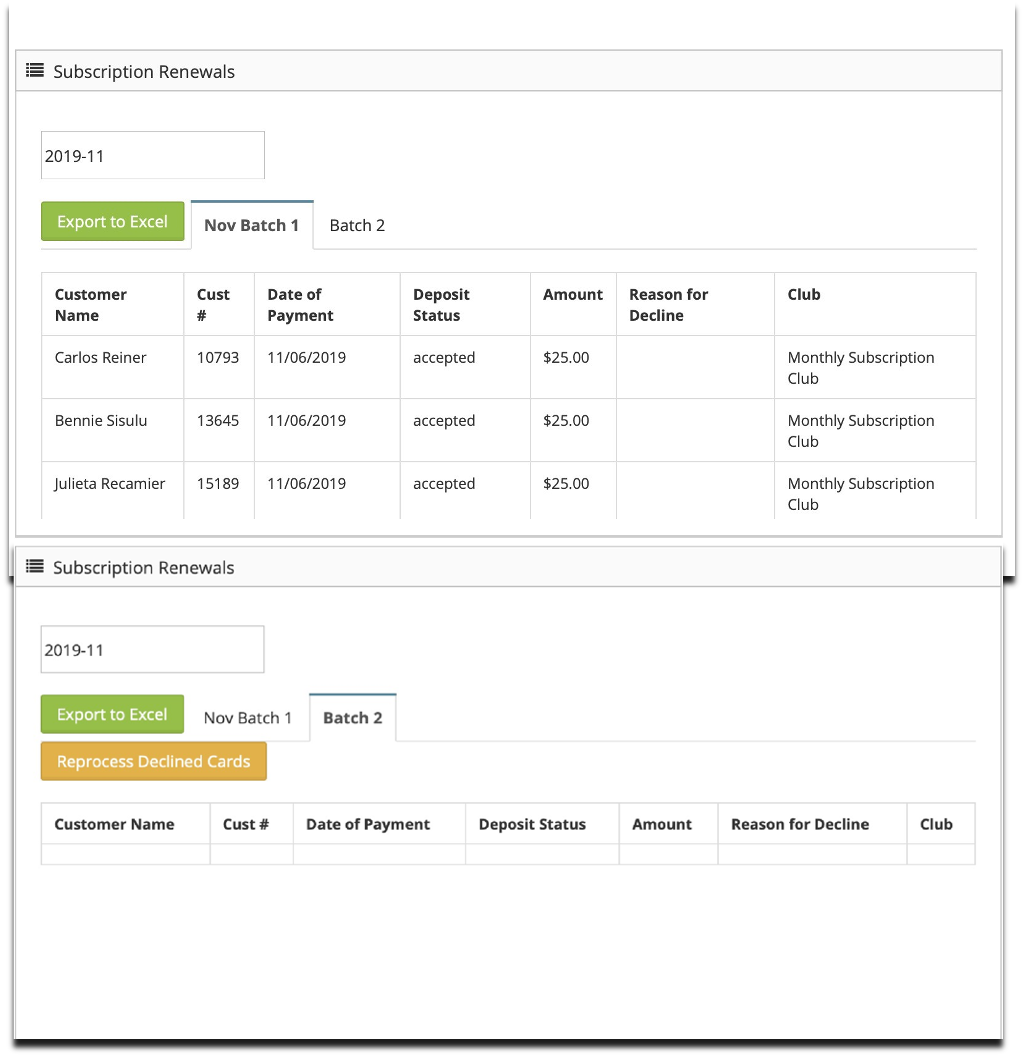
In the club options for your club, you can see each month’s subscription batches. For those members who declined, you can charge their cards a second time. If you need to reauthorize cards, a new batch can be created. Clicking the Reprocess Declined Cards button will make another attempt to charge the declined members. This will create a second batch for the month and show which customers remain uncharged.
Member Account Module
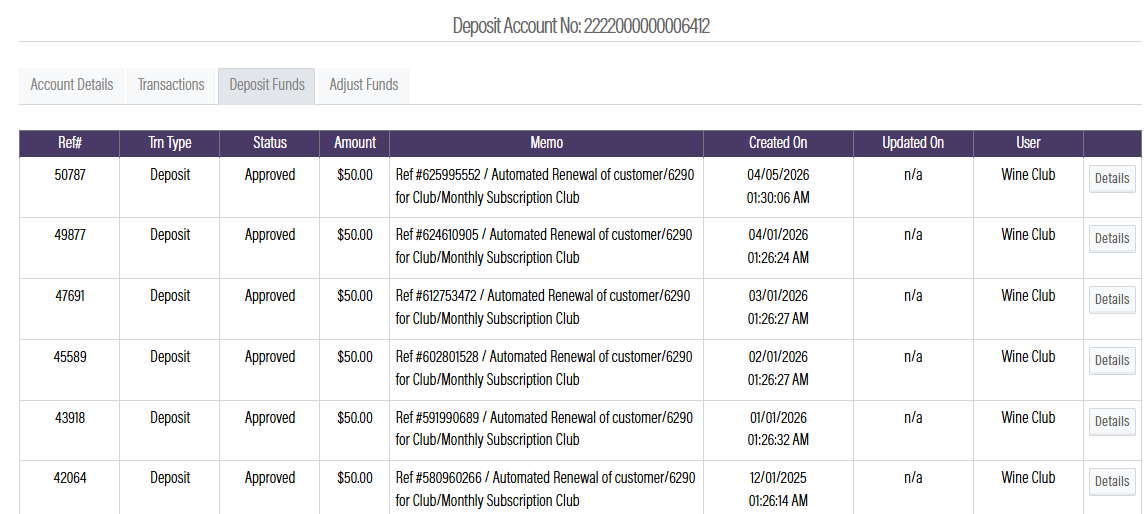
The Member Accounts module will allow you to keep track of customer accounts from outside of the Wine Club module. You will be able to see deposits made on the member’s account, as well as sales that customers purchased with their balance. The module also allows you, as the winery, to process standalone deposits on a member account.
Reading Member accounts
The Member Accounts module allows you to view deposits charged to a member’s card on file. Approved deposits will show in white, canceled in brown, and declined in red. It also allows you to view transactions made with their balances. Those will show as transaction type Sale.
When looking at deposits, you will be able to view and generate invoices that can be provided to your customers. Here, you can also process refunds by clicking the details button.
Processing Deposits
Manual deposits can be charged through the Member Accounts module. This is done on the Deposit Funds tab.
The member’s card on file can be used, as well as cash, check or a credit card that is not currently of file. Enter the amount that will be deposited, choose the payment method and click Load Funds.