In this guide, we will explore the users module. This is where you will set up accounts for your winery staff to access all of the OrderPort applications, modify permissions, and update time cards.
TABLE OF CONTENTS
Users
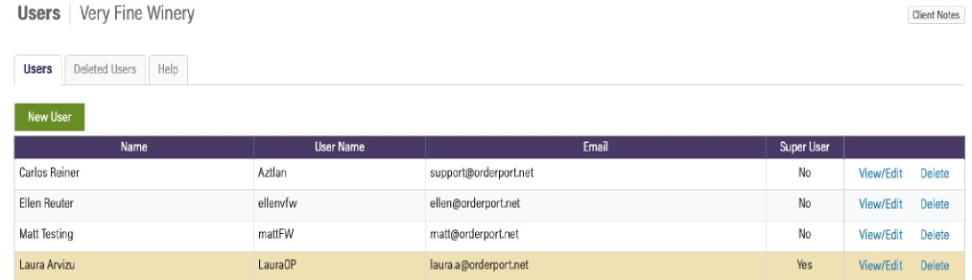
The Users section displays all active accounts in your system. It includes the employee's name, User Name, and email address. To access their user account, click the View/Edit button. If you wish to revoke an employee’s access, click the Delete button. Only OrderPort staff can modify the access of a Super User.
Deleted Users
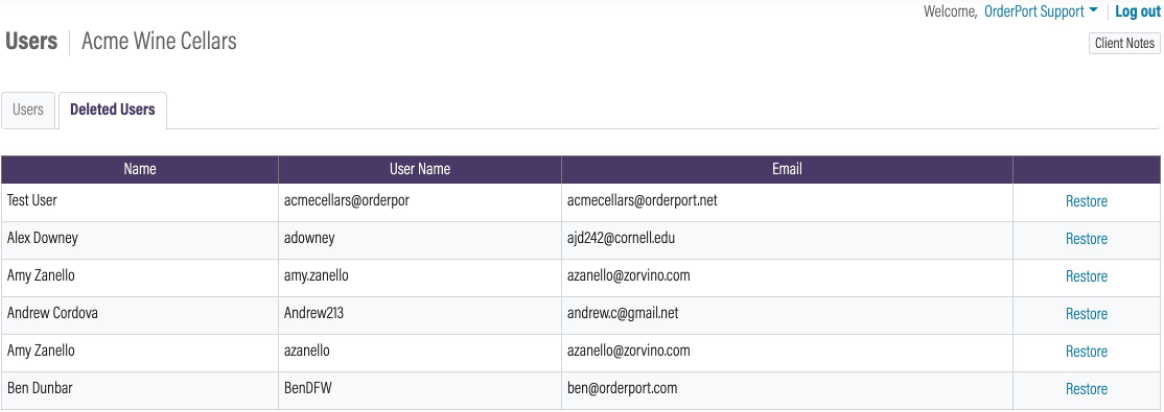
This section displays a list of user accounts that are currently inactive. If you wish to reactivate an account, simply click the Restore button.
During the period an account is deleted, it cannot be utilized for logging into the point of sale or administrative functions.
Creating a User
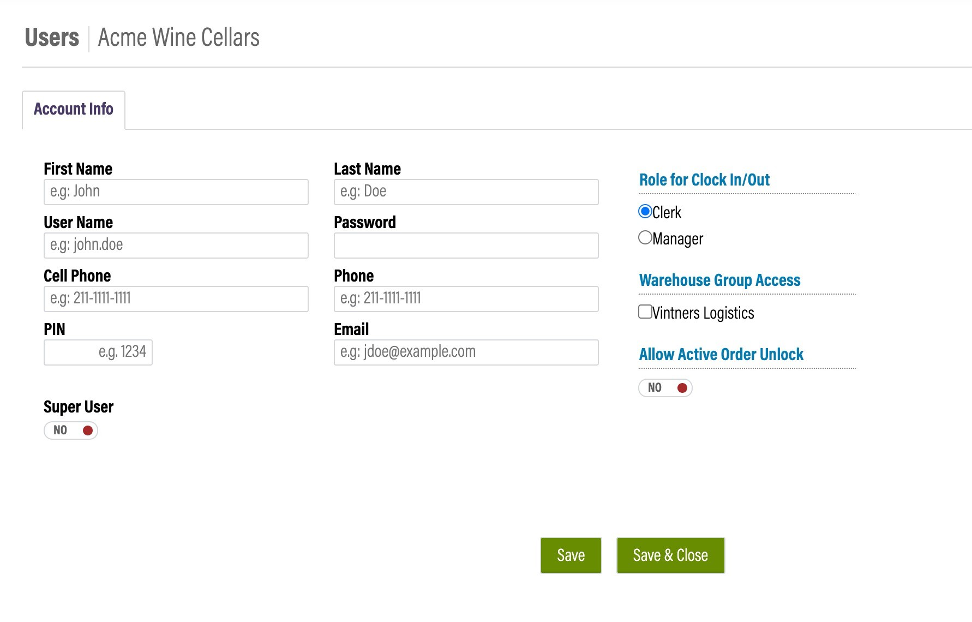
Press the Add User button to set up a new user account. Complete each information field, then assign them as either a clerk or Manager. Additionally, you can activate Active Order Unlock on their account if needed. Tap the Save button once finished.
The User Name and Password will be utilized for logging into your point of sale or admin page. Their PIN will allow them to finalize orders at the point of sale.
Providing Access
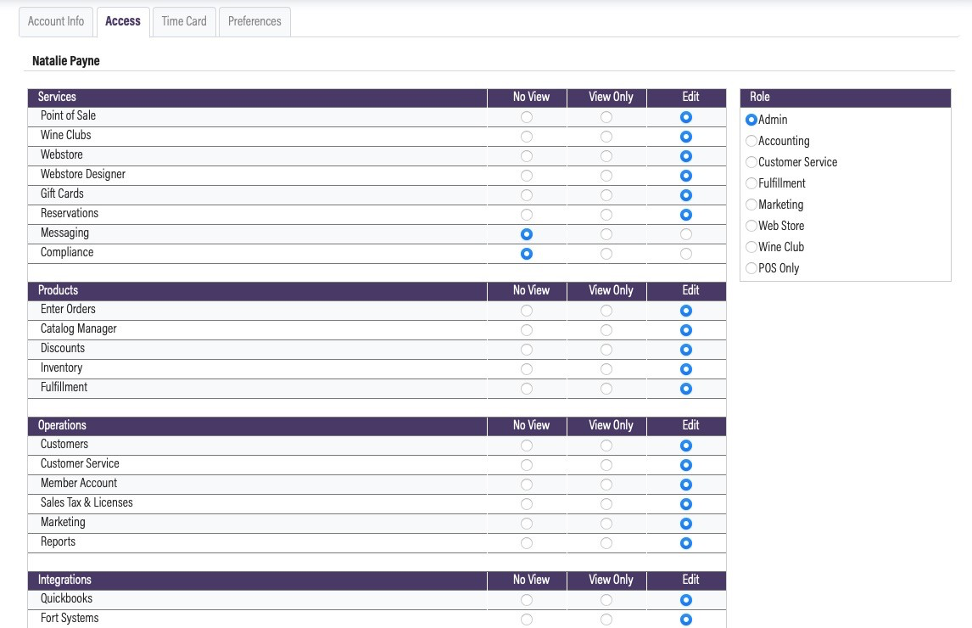
A manager can determine the modules and tools an employee is permitted to access. In the Access tab, select each module that the employee will require access to. You may also specify the role they will undertake.
No View indicates that they are not allowed to enter a module.
View Only signifies that they can see information within a module but are unable to make any edits or adjustments to settings.
Edit access enables them to modify settings, as well as update accounts and edit orders.
Click Save once you have finished.
Time Card
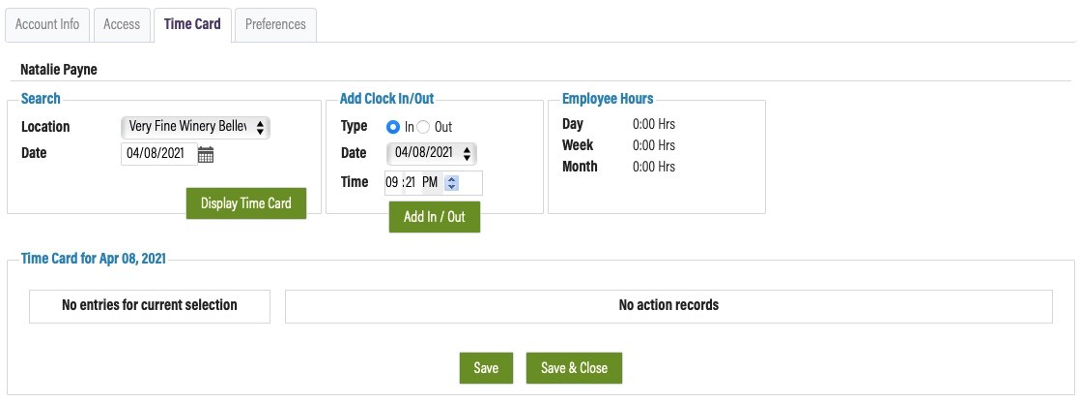
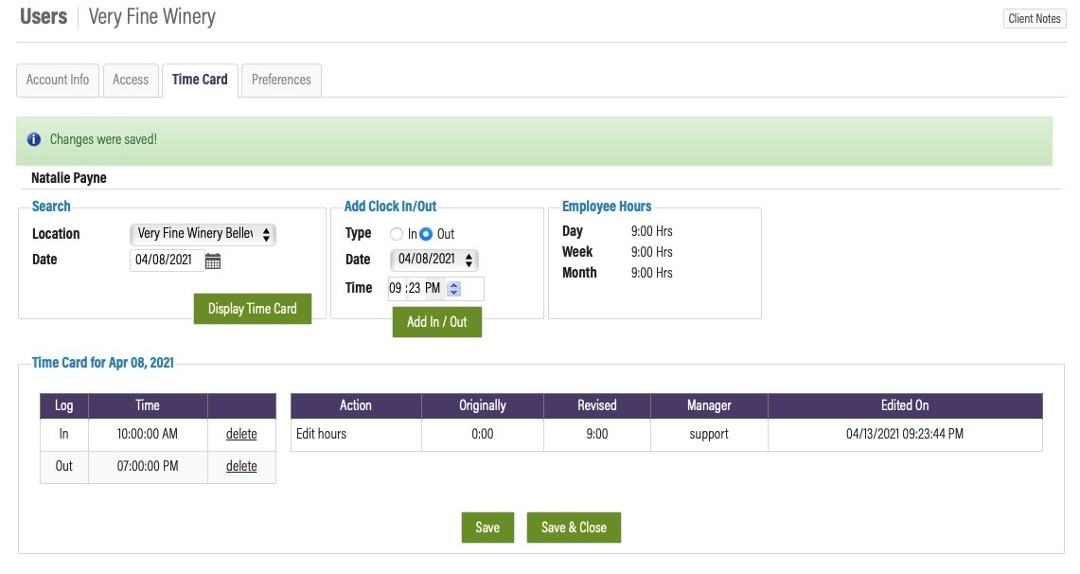
The Time Sheet section allows you to input employee hours and view previously worked hours. You can look up a specific date to ensure that all hours are recorded. Employees can also monitor their time using the point of sale application.
Prefernces
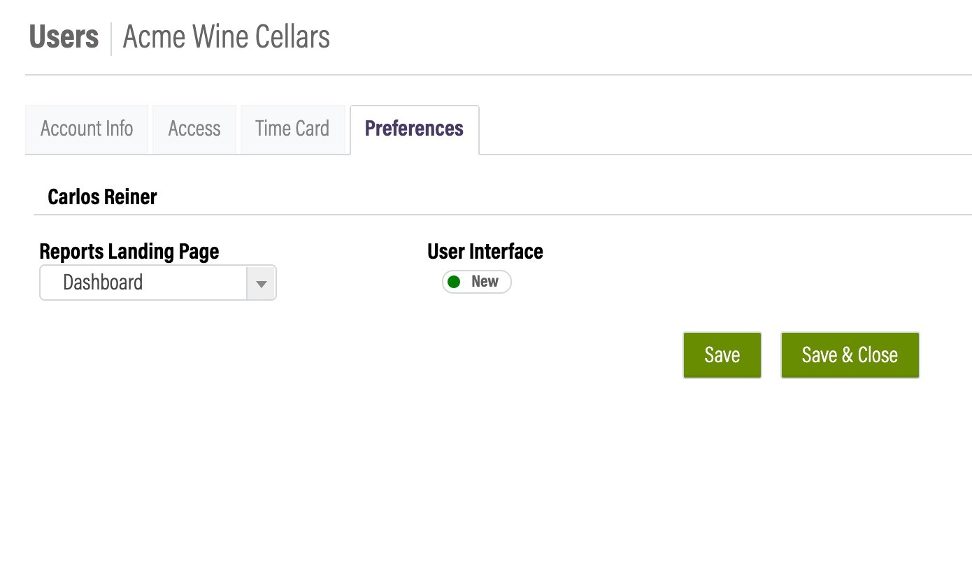
The Preferences tab enables a user to select their preferred OrderPort interface. Additionally, this tab allows the user to choose the landing page for the Reports module upon opening it. If you make any adjustments, click Save .
FAQ's
What steps do I take to create accounts for employees and associates in the tasting room? How can I define access for each individual employee?
You will establish accounts for all your employees and tasting room associates within the Users module. Additionally, you can create accounts for accountants or any other users you wish to permit access to the POS or administration site. Access for each employee can be specified during the addition of the new user account or by selecting view/edit later.
What is the purpose of Roles?
In the User module, each user's access page features a section for selecting a role. These are the suggestions from OrderPort regarding which modules users should access based on their job functions. You still have the option to manually modify access for a user even after assigning them a role.
Revoking Employee Access
When you remove a user from OrderPort, they will be excluded from the “User Time Card Report.” In the event of staff departures, it is advisable to change their password and remove their PIN to deny their access to OrderPort. This approach ensures you can still generate the report.