OrderPort provides clients with a Webstore for online sales, including a standard store, a Hybrid Store, and an API store. Updates such as link and text changes may vary by store type. For major stylistic changes, refer to the Webstore redesign guide and contact helpdesk.
We recommend being comfortable with HTML before making updates. If you need assistance, please email helpdesk@orderport.net.
Note: All wineries will have a website and a webstore from OrderPort, but website edits must be done through the hosting platform (e.g., Wix, WordPress).
TABLE OF CONTENTS
Webstore Designer
- Root Node
- Find Our Wines/Search Results/Sign in
- Terms of Use
- Help
- Account
- Newsletter
- Wine Club Join Thank You
- Wine Club
- Wines
- Merchandise/Product Details/Contact Us/Reservations
- Reservations Thank You
Webstore Designer
All the updates in this document will take place through the Webstore Designer module in OrderPort Admin. Navigate to OrderPort Administration > Services > Webstore Designer.
Root Node
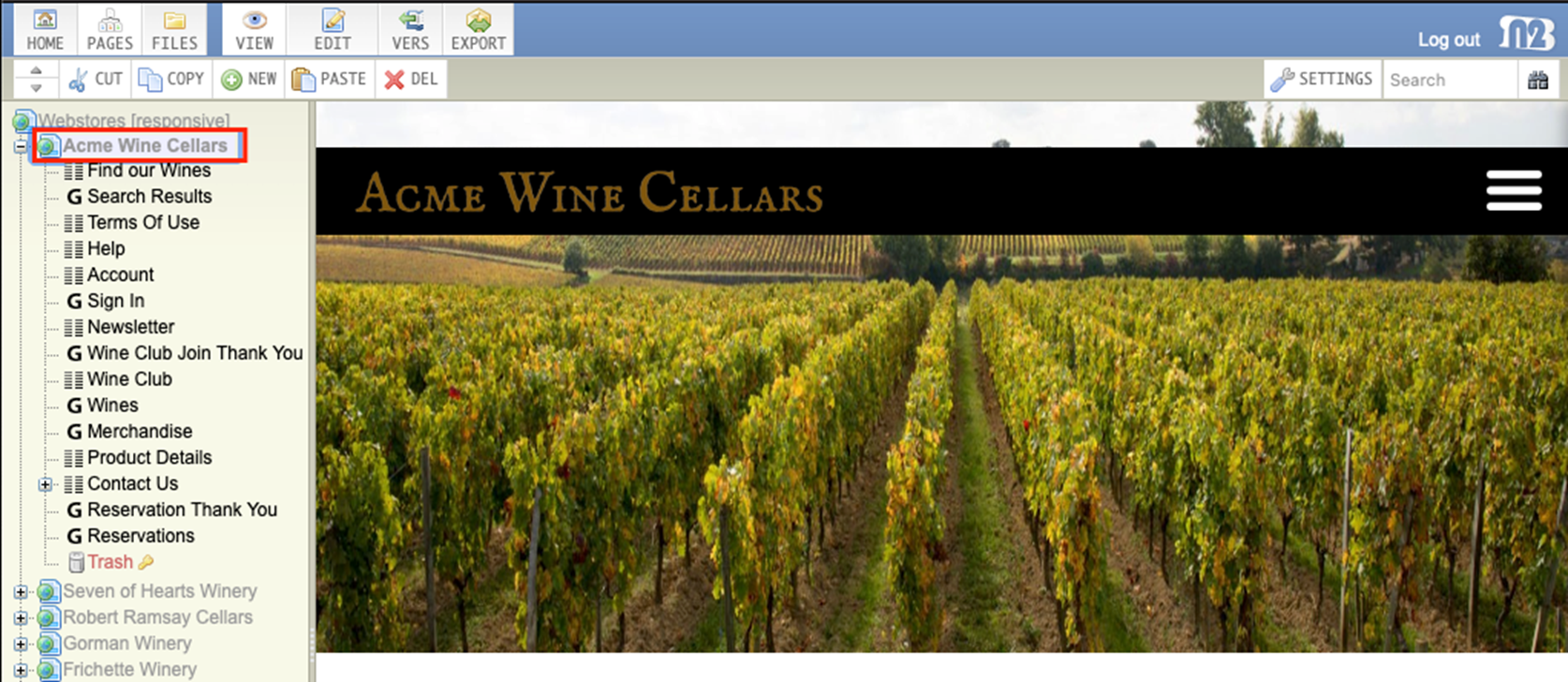
The Root Node will be the name of the winery. Below it, you will see a list of folders.
Changing the Header / Footer Text and Links
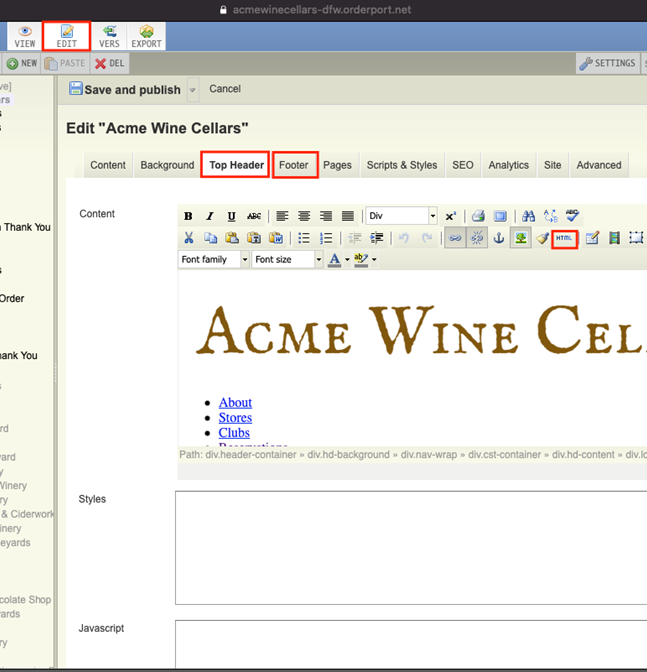
Upon opening the Webstore Designer module, immediately click the 'Edit' button at the top of the window.
If you need to make changes to the webstore header, select the "Top Header" tab. If you need to make changes to the webstore footer, select the "Footer" tab.
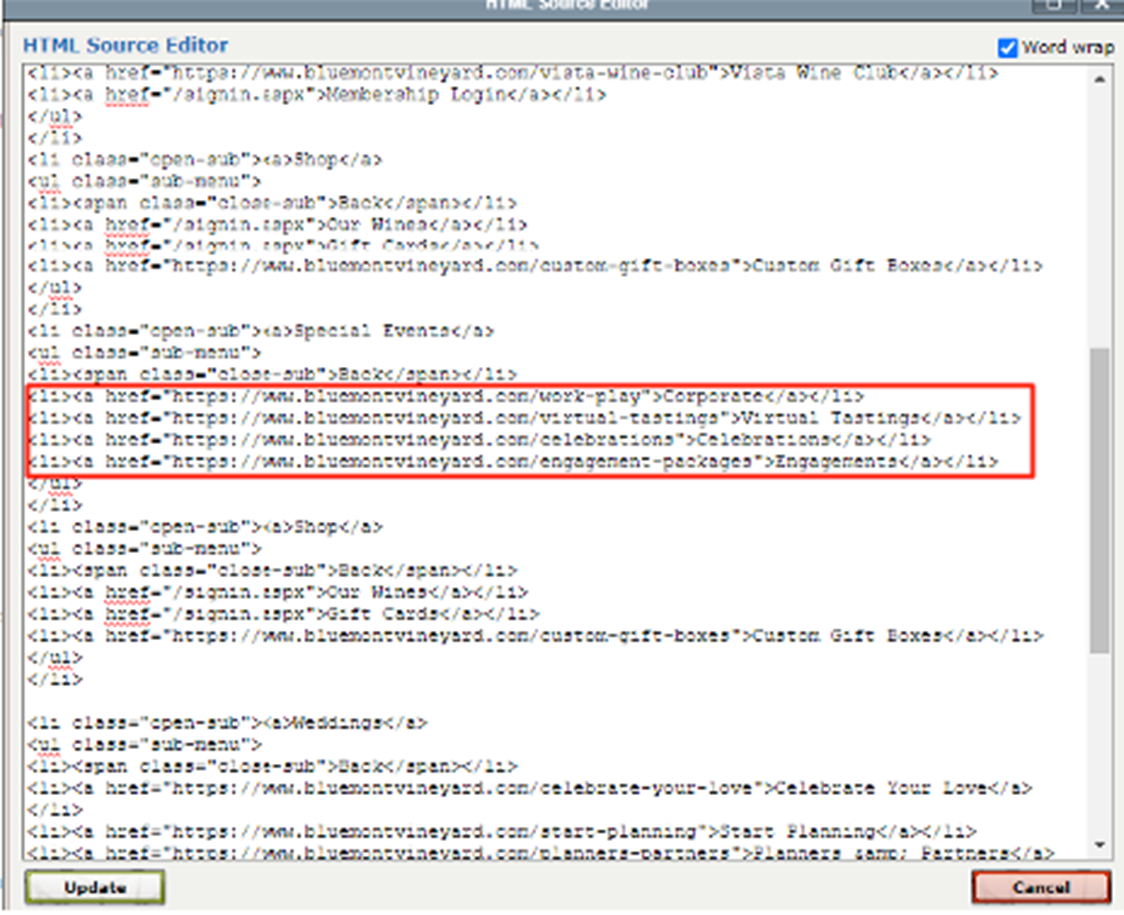
To change the links, you must select the 'HTML' button. This will bring you into the source code. Do not try to update links without using the HTML source code.
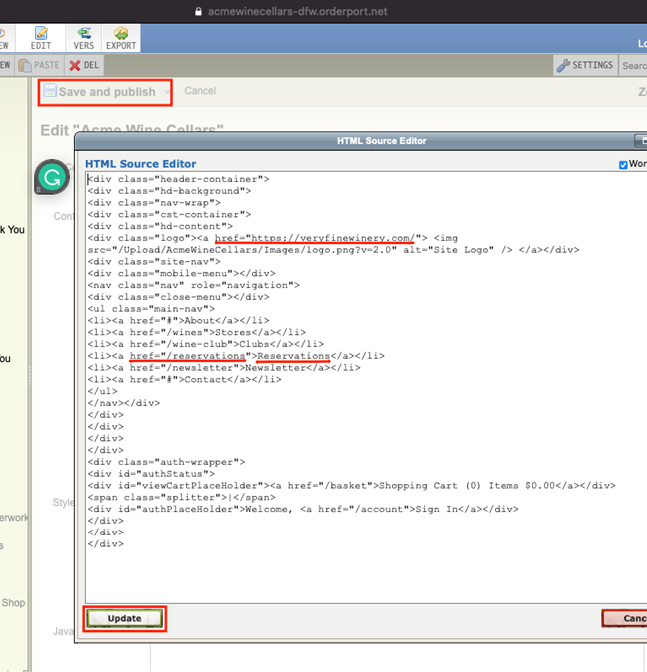
In the source code popup, find the link you wish to update (it will start with <li>). If you are adding a link to an external website page, then you must import the full link into the HTML. The link should be added between the "quotation marks". You can also change the title of the link by editing the text between the >carets<. Click 'Update' and then 'Save and Publish'.
See below for one example of link formatting in HTML. When updating a link, you should only need to change the bolded sections:
<li><a href="https://yourlink.com">Your Link Title</a></li>
If a link points to another OrderPort hosted webstore page, then the link may appear as a shortcut. Shortcuts only work for pages hosted on the OrderPort webstore. To update the shortcut to another OrderPort hosted page, change the shortcut to the word after the / of the webstore link.
- For example, href=“/auth” is the shortcut to https://acmewinecellars.orderport.net/auth
- Similarly, href="/wines" is the shortcut to https://acmewinecellars.orderport.net/wines
When updating links in the Webstore Designer, please reference the screenshots below. If you do not feel comfortable making HTML updates to your webstore, please call 206-464-1151 or email your request to HelpDesk@OrderPort.net.
Reverting to a previous version of the store
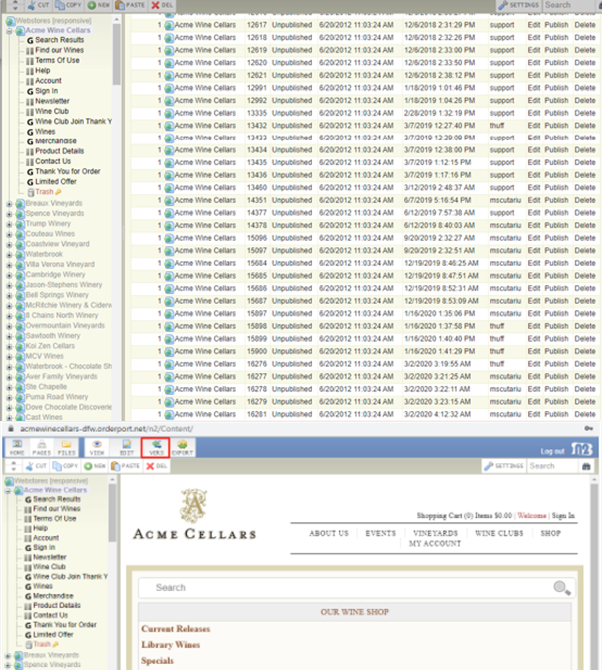
If you made a mistake when publishing, you can revert the webstore back to a previously published version. Open the Webstore Designer module. Click on the 'VERS' button on the top left. Click 'Publish' on the version with the date and time from before the updates were made.
Adding a Live Chat Feature
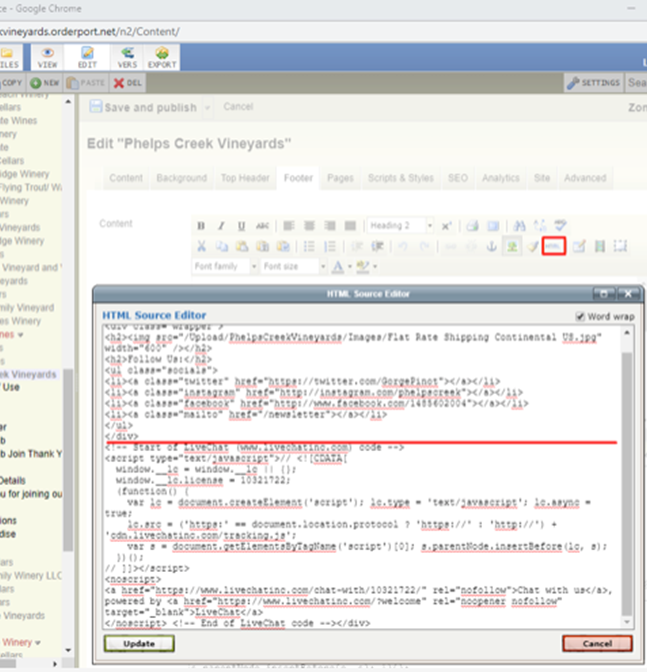
You will first need the HTML code/script for the live chat. In the Webstore designer, select Edit and the footer tab. Select the HTML button. Paste the script provided by your chat service below the </div> line. Click on Update, then click Save and Publish on the top left.
Adding a Submenu to a new header Category
If a winery currently has a submenu implemented in CSS, below are the steps to add it to another section on the header menu. If your webstore does not have an existing submenu, you must contact the OrderPort HelpDesk if you're interested in adding one. Please call 206-464-1151 or email HelpDesk@OrderPort.net.
Once that submenu text is in there, go to Webstore Designer and select edit – Top Header. Click on the HTML Button.
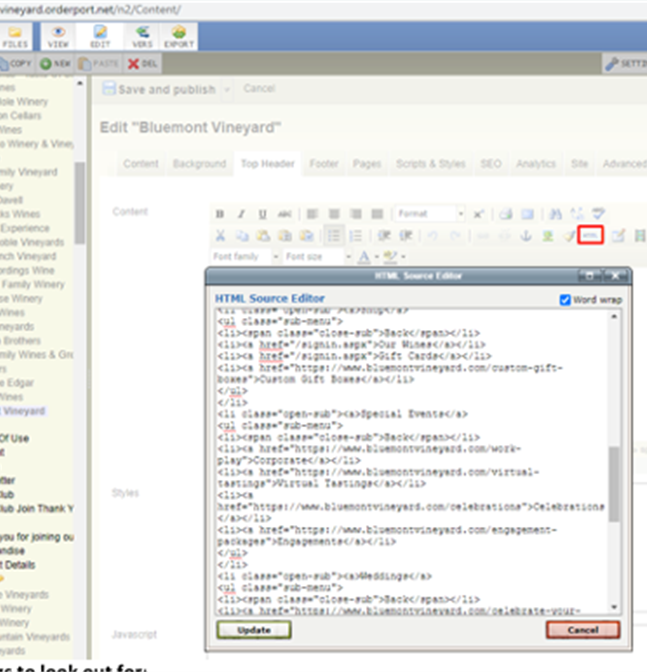 Everything starts with a beginning bracket and has to end bracket. For example: <li>Enter text here </li> It is a lot easier to just copy the entire line and paste it below the existing ending </li> tag. Make your edits to the text. <a href="URL address"></a> is the hyperlinking code on a certain text.
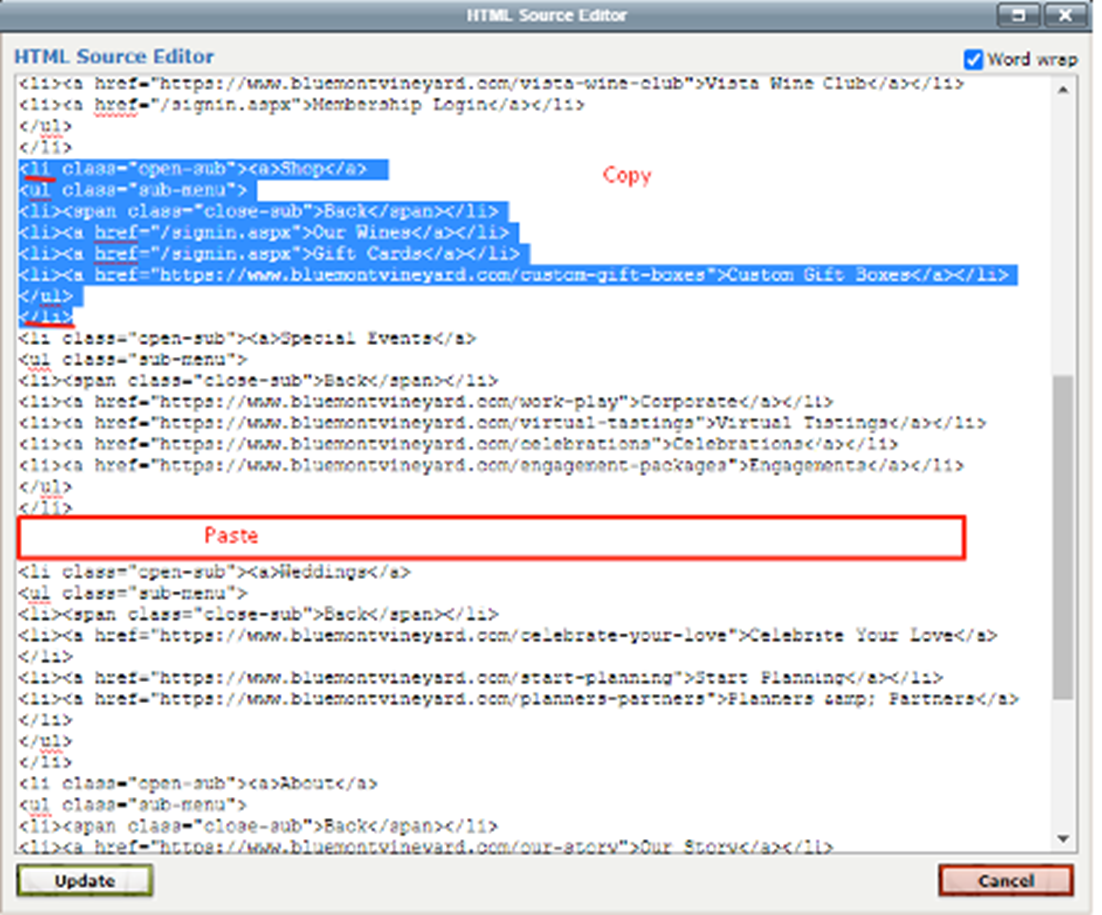
If you want to add a new line, copy <li></li> line that is under the <ul class="sub-menu"> line. Likewise, if you want to delete a line, you would highlight that entire row and erase it. When are finished, click on Update. Click on Save and Publish at the top left.
Adding Meta Keywords and Descriptions to the webstore pages.
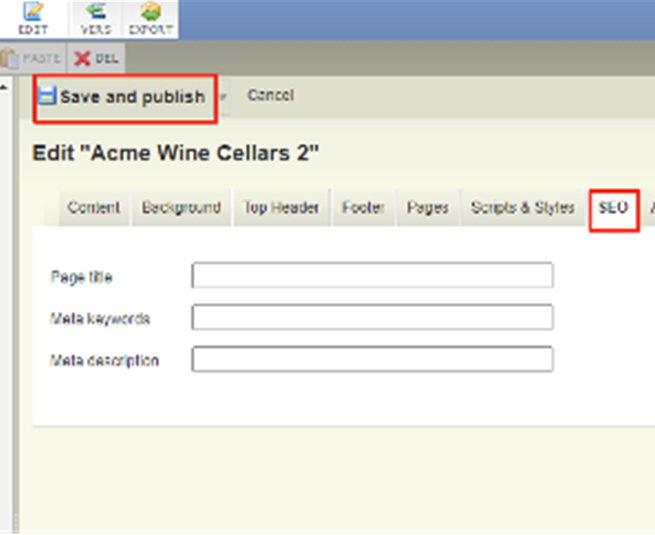
To add them to the webstore, open up the webstore designer and select edit. Go to the SEO tab and enter your keywords/description. Save and publish on the top left.
Find Our Wines/Search Results/Sign in
There is no customer-facing access for this Section. If you need to make an adjustment to these pages, please contact the helpdesk.
Terms of Use
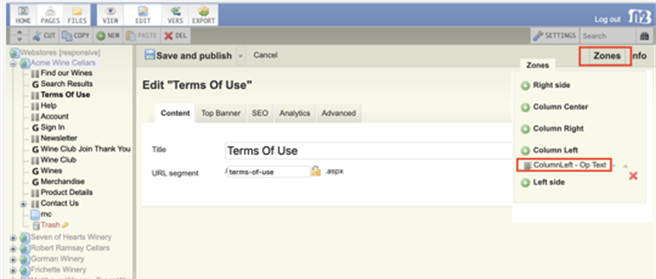
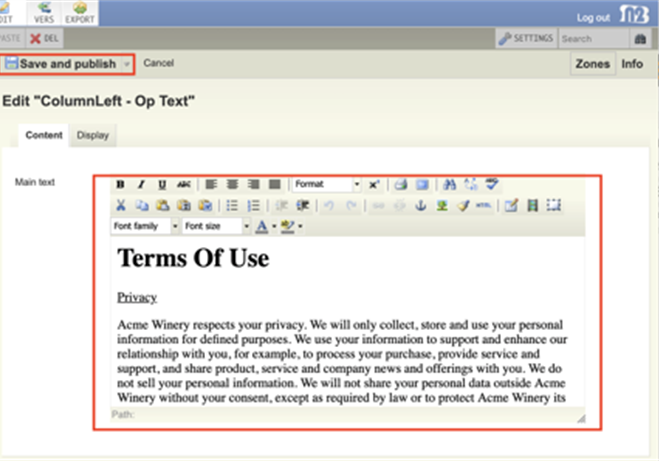
The Terms of Use page is where you can edit your website's terms of use. Open the Webstore Designer module. First, select the 'Terms of Use' folder tab and then click the 'Edit' button at the top of the window. On the right, click 'Zones' and then click 'ColumnLeft - Op Text'. This will allow you to edit the content of the page. Add your website's terms of use to the main text box. Click 'Save and Publish' on the top left to publish your changes.
Help
The Help page is where you can edit your text on the Help Page.
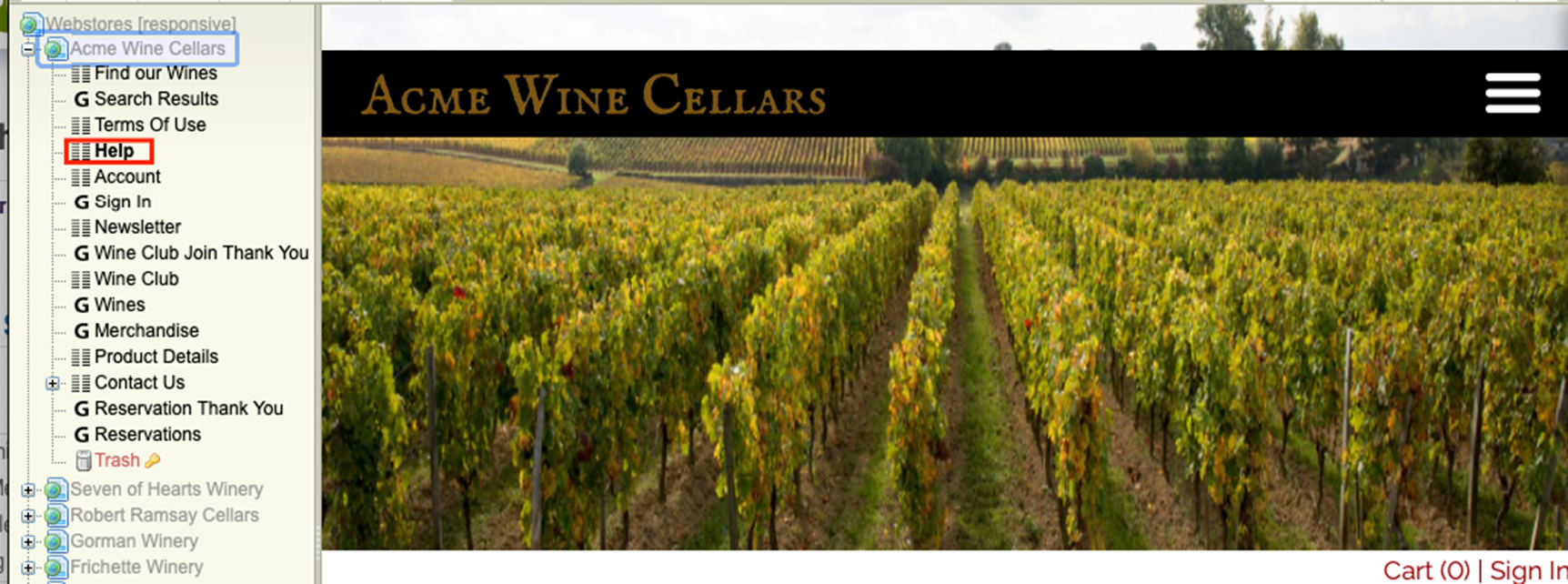
Changing the Help Text
From the webstore designer select the Help tab and then select edit. On the top right-click on Zones and then ColumnLeft - Op Text. Edit your text and afterward click on Save and Publish on the top left to publish your changes.
Account
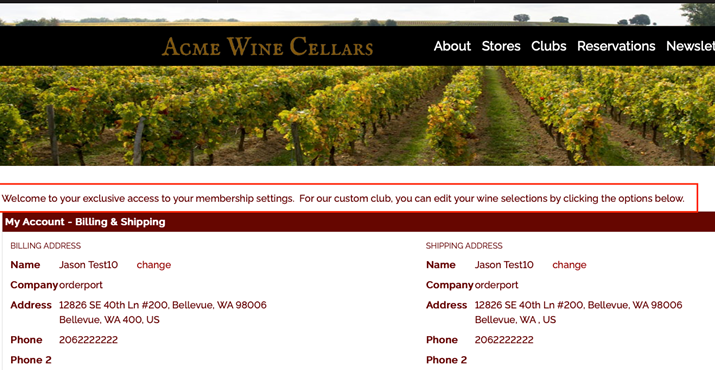
On the Account page, you can add one line of text that appears at the top of the page after customers sign into their accounts.
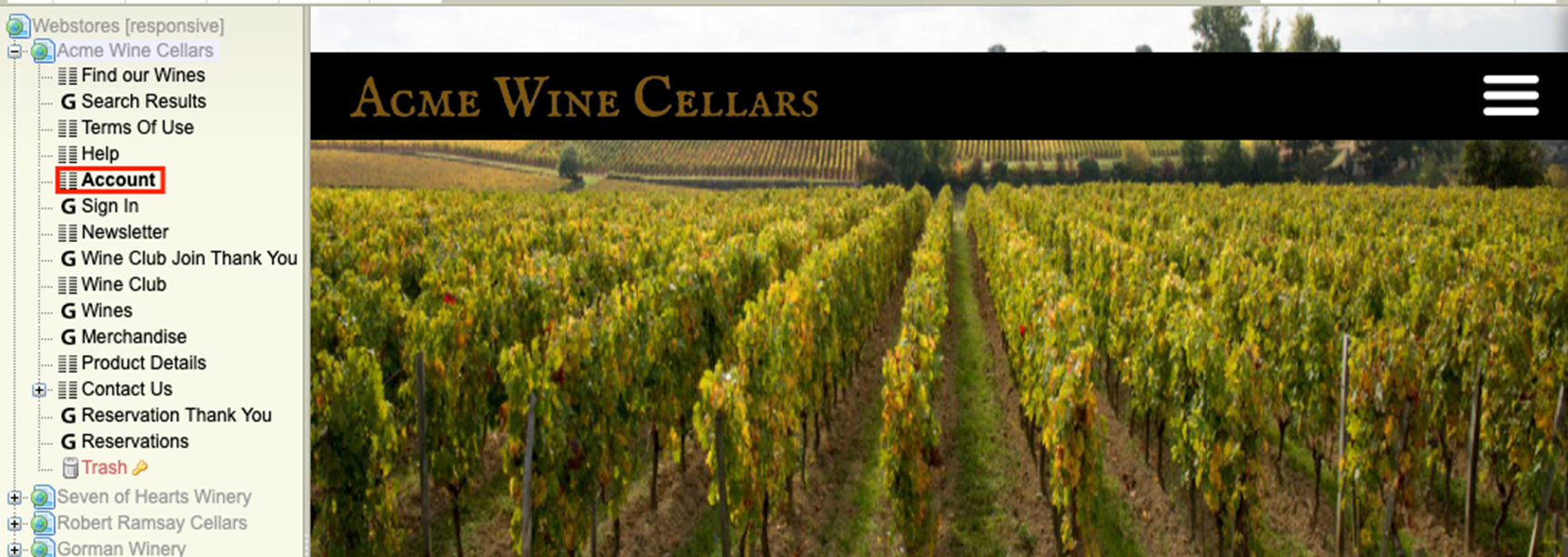
Adding Text to Account Page
Open Webstore Designer > Select the 'Account' tab on the left > Click the 'Edit' button at the top of the modal > On the top right, click 'Zones' > Click 'ColumnCenter - OP Text', but if that doesn't appear, then click the green '+' next to 'ColumnCenter' then select the 'OP Text' item > Add your preferred verbiage to the Main Text box > Click the 'Save and Publish' button on the top left to publish your changes.
Newsletter
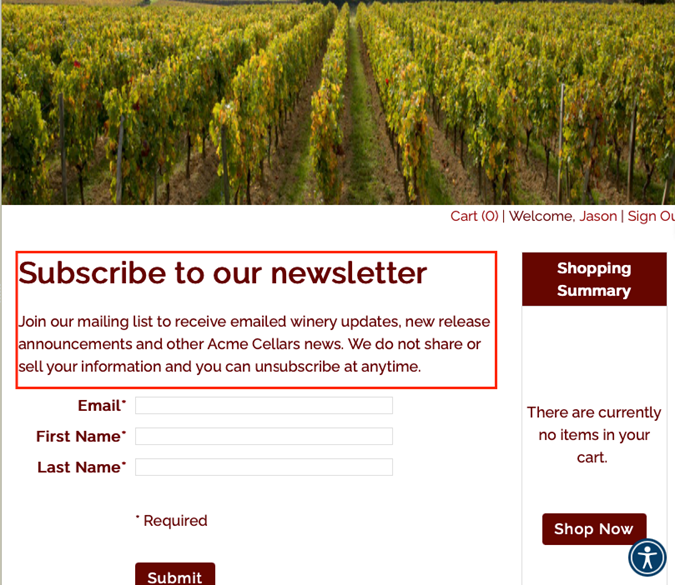
The Newsletter page is where you can edit what fields are captured when joining the Newsletter.
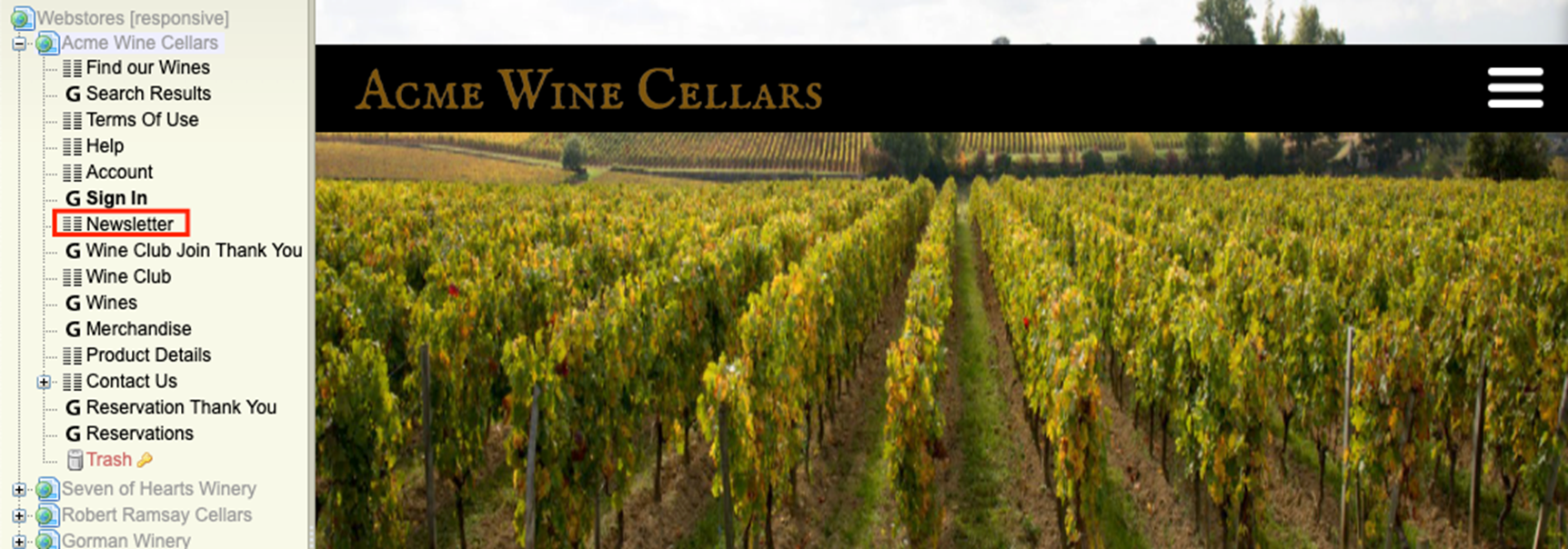
Editing the newsletter page
Open the Webstore Designer module. Select the 'Newsletter' folder tab, and then click the 'Edit' button. On the top right, click on 'Zones' and then 'ColumnLeft - OP Text'. This is where you can edit the text that appears above the form. Add your preferred verbiage to the main text box. Click 'Save and Publish' on the top left when you are ready to publish your changes.
Under 'Zones', you will also see a section titled 'ColumnLeft - OP NewsLetter'. If you open this section, you can use the 'Mode' menu to adjust which fields appear in the newsletter form. 'FullDetails' option includes email address, first & last name, phone number, address, and country. 'EFL' option includes only email address, first name, and last name.
Wine Club Join Thank You
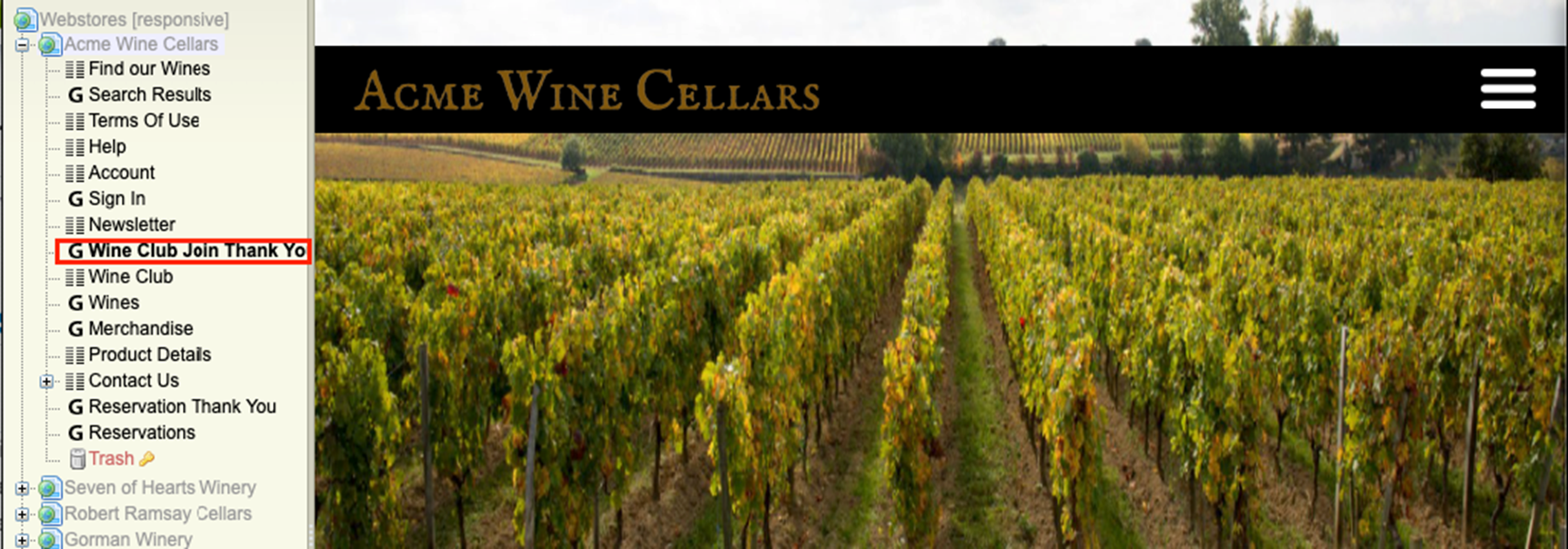
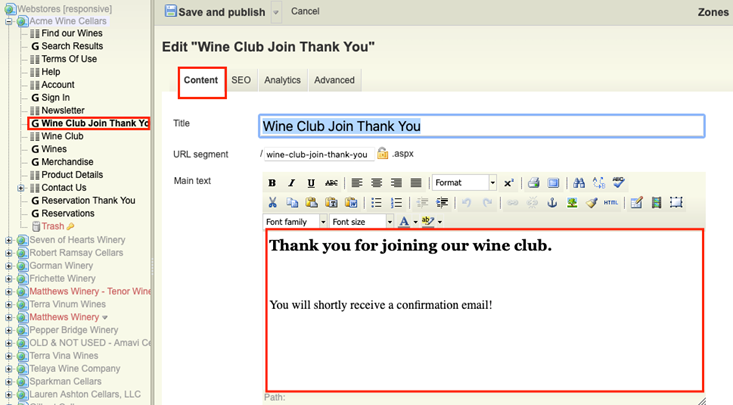
The Wine Club Join Thank You page is where you can edit what text displays after someone joins the wine club from the webstore.
Wine Club Join Text
From the webstore designer, select the Wine Club Join Thank You tab and then select edit. In the content tab, edit the language in the text box. Save and publish.
Wine Club
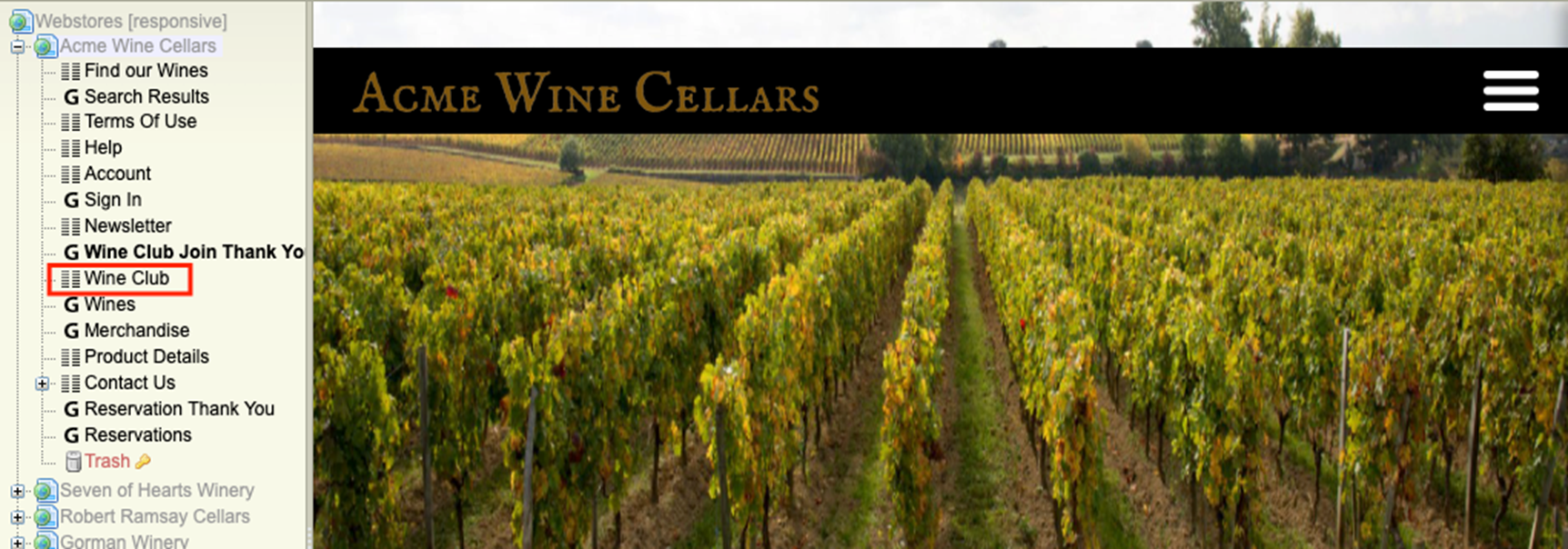
The Wine Club page is where you can edit what text displays on the Wine Club Selection Page.
Wine Club Webstore Text
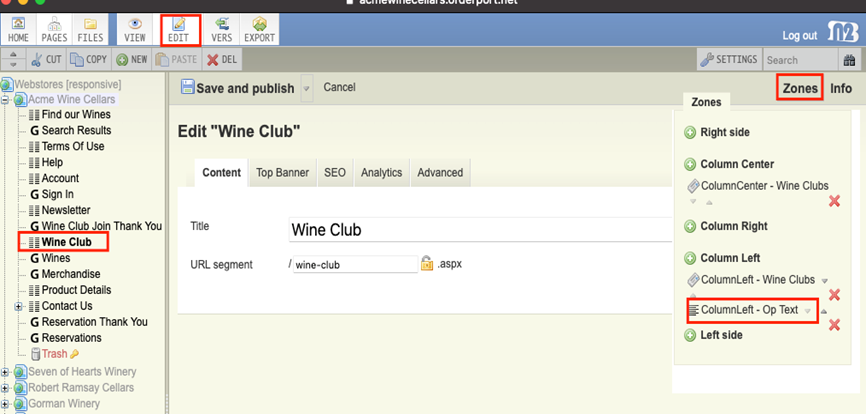
From the webstore designer module, select the wine club page and click “Edit” at the top of the page. On the top right-hand side, click “Zones” and then “ColumnLeft –Op Text”. Edit the desired information and then “Save and publish.” It will ask you to do this twice.
Wines
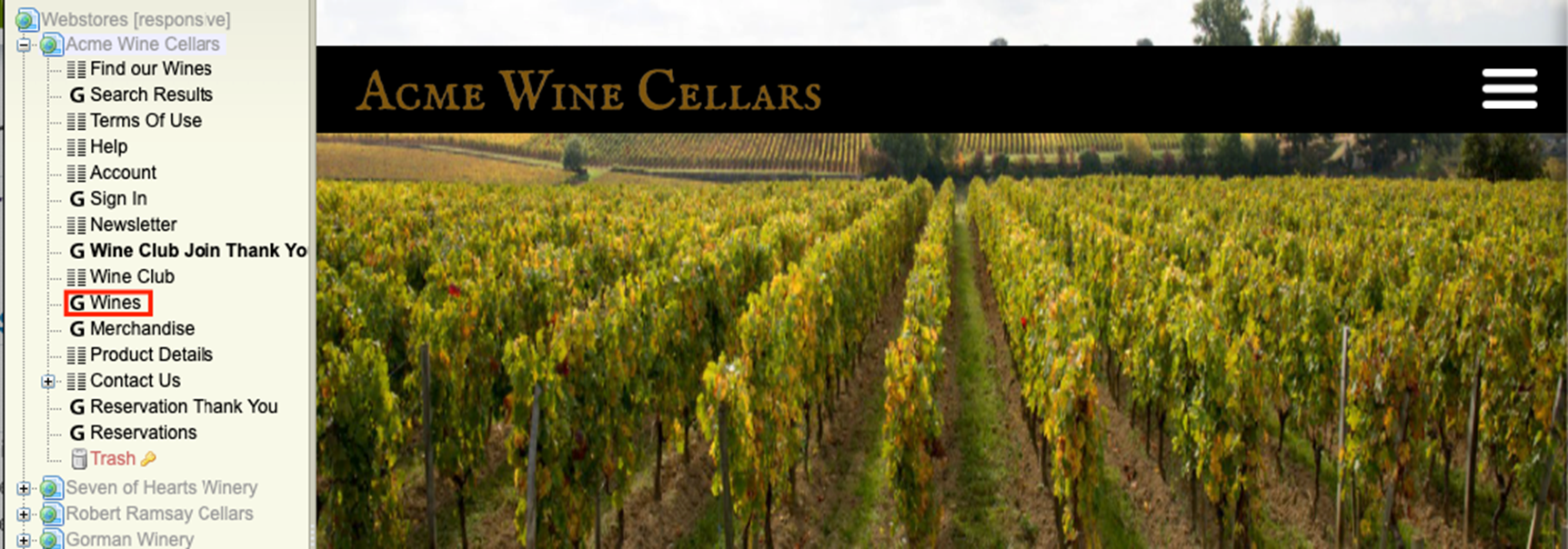
The Wines page is where you can edit what text displays on the Wines Group Pages and how many products will display.
Changing Page Size
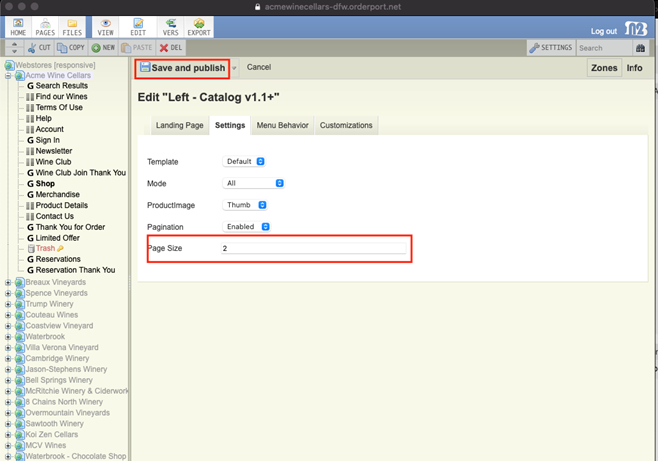
To update the display settings for the "Wines" category in the Webstore designer, follow these steps:
- Select "Wines" from the menu on the left side of the page.
- Click on "Edit" in the top menu.
- In the top right corner, find and click on the "Zones" tab.
- From the Zones drop-down menu, locate and select the category labeled "Left Side."
- Choose the subcategory "Left – catalog v1.1."
- Click on "Settings" and locate the "Page Size" field.
- Enter the desired number of items you want to appear on the page (the default is usually set to 10).
- After making your adjustments, click on "Save and Publish" at the top of the page to make your changes live. Your updates will now be active on the site.
Editing the Wine Page Text
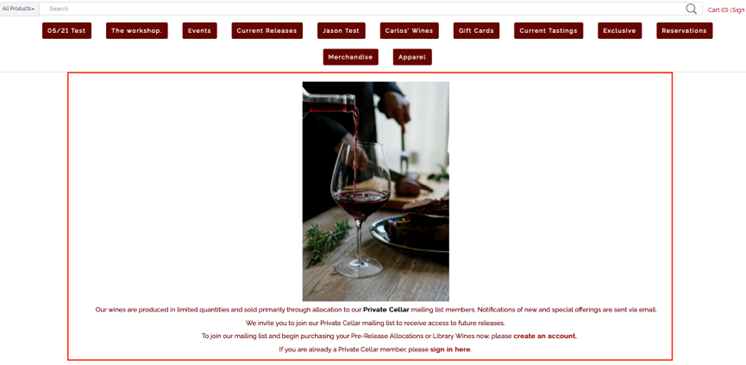
From the webstore designer, select the Wine tab and then select edit. On the top, right-click on Zones and then ColumnLeft - Op Text. Edit your text and afterward click on Save and Publish on the top left to publish your changes.
Merchandise/Product Details/Contact Us/Reservations
There is no customer-facing access for this Section. If you need to make an adjustment to these pages, please contact the helpdesk.
Reservations Thank You
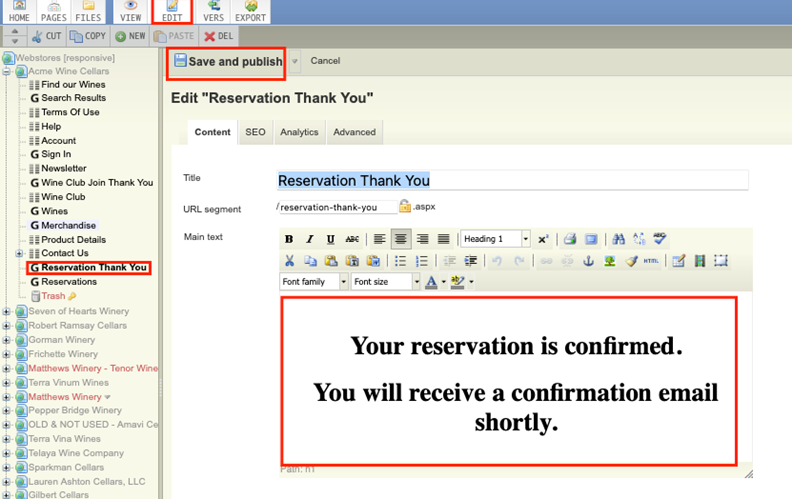
The Reservations Thank You page is where you can edit what text displays after a user makes a reservation from the webstore.
Reservations Thank You Text
From the webstore designer, select the Reservation Thank You tab and then select edit. In the content tab, edit the language in the text box. Save and publish.